How to Setup Dual Monitor with Windows
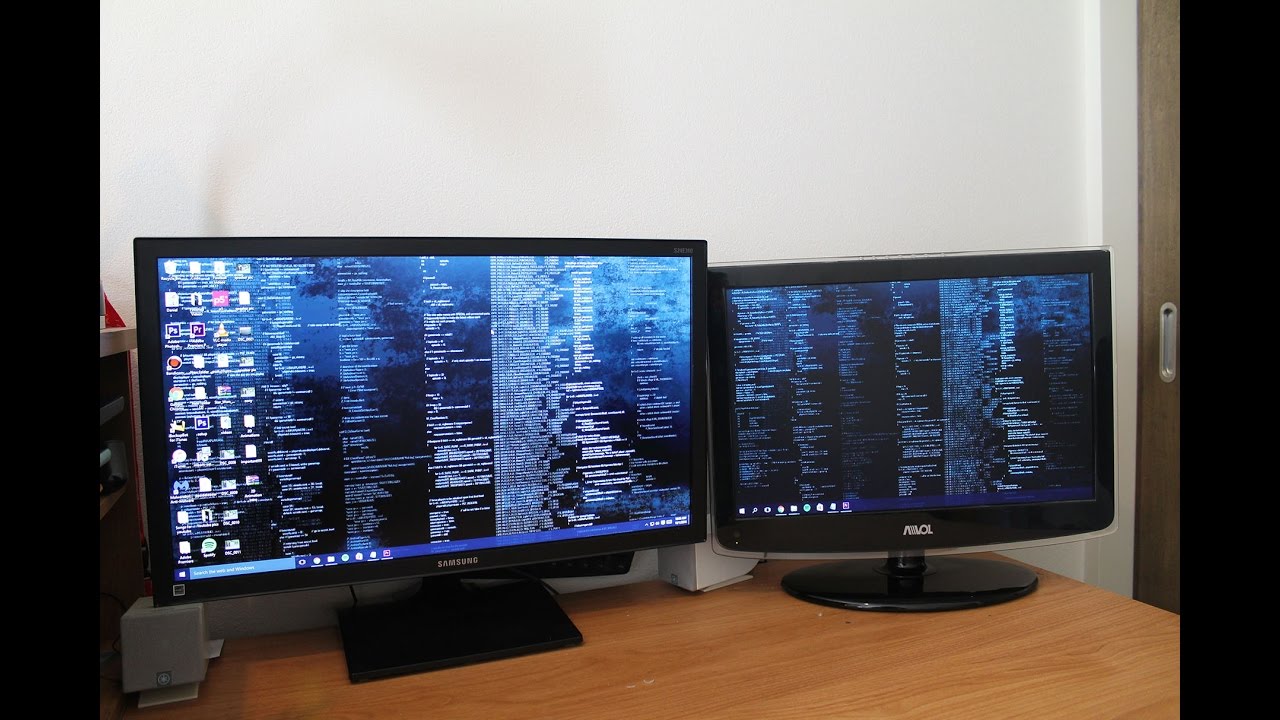
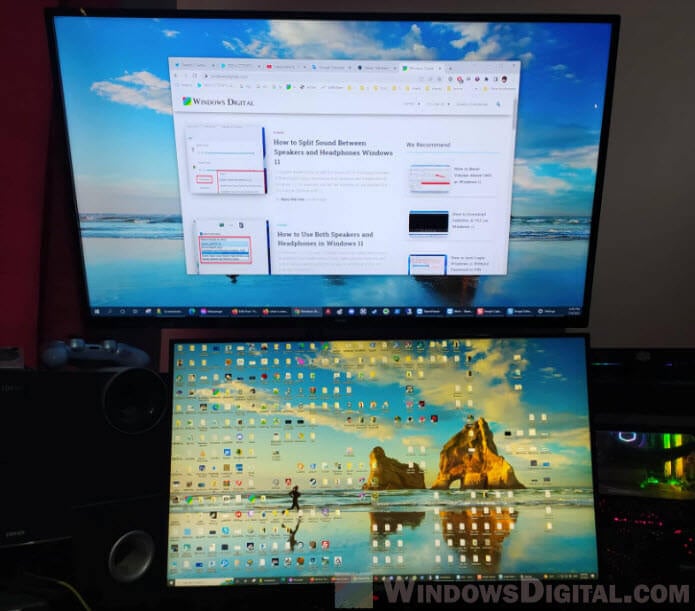
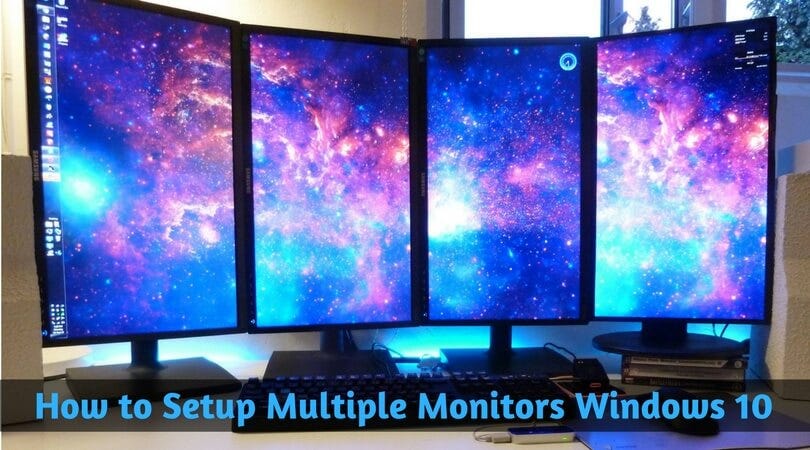
Are you looking to enhance your productivity and multitasking skills? A dual monitor setup with Windows can be a game-changer for professionals, gamers, and anyone who spends a lot of time in front of their computer. In this article, we'll guide you through the process of setting up dual monitors with Windows, common display settings, and troubleshooting tips to get the most out of your dual monitor setup.
Benefits of Dual Monitor Setup with Windows
- Increased productivity: With a dual monitor setup, you can have multiple windows open at the same time, making it easier to multitask and complete tasks quickly.
- Improved workflow: Having two screens can help you to keep reference materials and notes on one screen while working on a project on the other.
- Enhanced gaming experience: Dual monitors can provide an immersive gaming experience by allowing you to see more of the game and prevent clutter on a single screen.
- Better organization: A dual monitor setup can help you to separate work and personal life by keeping your emails, social media, and other distracting apps on one screen.
Setting Up Dual Monitors with Windows
To set up dual monitors with Windows, follow these steps:
- Connect the second monitor to your computer using a VGA, DVI, HDMI, or DisplayPort cable.
- Go to Settings (Windows key + I) > System > Display.
- Under the Display tab, select the Extend option to stretch your desktop across both monitors.
- Adjust the display settings to match your preferences, such as resolution, orientation, and position.
Common Display Settings
- Resolution: Change the resolution of your monitors to match your desired output.
- Orientation: Rotate your monitors to portrait or landscape orientation as needed.
- Position: Adjust the position of your monitors to suit your preferences.
- Scaling: Adjust the scaling of text, apps, and other elements on your monitors.
Troubleshooting Dual Monitor Issues

- Monitor not detected: Check your cable connections, check that the display is turned on, and restart your computer.
- Blank or black screens: Ensure that the monitor is properly connected and refresh your display settings.
- Flickering or intermittent connectivity: Try replacing your video cable, updating your graphics drivers, or adjusting your display settings.
Best Practices for Dual Monitor Setup with Windows
- Use a comfortable working distance between your monitors to prevent eye strain.
- Consider using a monitor riser or stand to elevate your second monitor.
- Keep your workspace organized by using a cable management system.
Conclusion
Setting up dual monitors with Windows can greatly enhance your productivity and multitasking skills. By following the steps outlined in this article, you can easily set up dual monitors, adjust display settings, and troubleshoot common issues. With a dual monitor setup, you'll be able to work more efficiently, play games with more immersion, and enjoy a better overall computing experience.
Additional Resources
For more information on setting up dual monitors with Windows, including additional tips and tricks, check out the following resources:
- Microsoft's Official Support Page: Learn how to setupkový/setup and troubleshoot dual monitors with Windows.
- Windows 10 Forums: Browse for solutions to common dual monitor issues and connect with other users who have experienced similar problems.
- Dual Monitor Tools: Explore a software package for Windows users with dual or multiple monitor setups.