How to Reinstall Windows 11 on Your Laptop: A Comprehensive Guide
Are you experiencing issues with your laptop's Windows 11 installation, or do you want to start fresh with a clean installation? Reinstalling Windows 11 can be a great way to fix problems and give your computer a new lease on life. In this article, we'll walk you through the step-by-step process of how to reinstall Windows 11 on your laptop.
Preparation is Key
Before you begin the installation process, make sure to save any important files or documents that you might need later. You can transfer them to an external hard drive or cloud storage service. Additionally, keep in mind that reinstalling Windows 11 will erase all of your installed programs and settings, so you may want to make a note of the apps you want to reinstall afterwards.
Creating a Bootable USB
The first step in reinstalling Windows 11 is to create a bootable USB drive. This will allow you to install the operating system on your laptop. To create a bootable USB, follow these steps:
Visit the Microsoft website and download the Media Creation Tool.
Run the Media Creation Tool and select the option to create a bootable USB drive.
Insert a USB drive with at least 8GB of free space into your computer.
Follow the prompts to complete the installation of the bootable USB drive.
Restarting Your Laptop
Once you've created the bootable USB, you'll need to restart your laptop. To do this, follow these steps:
Save any open files and close all running programs.
Click the Start button and select the Power button.
Select Restart from the dropdown menu.
Booting from the USB
After restarting your laptop, you'll need to boot from the USB drive. To do this, follow these steps:
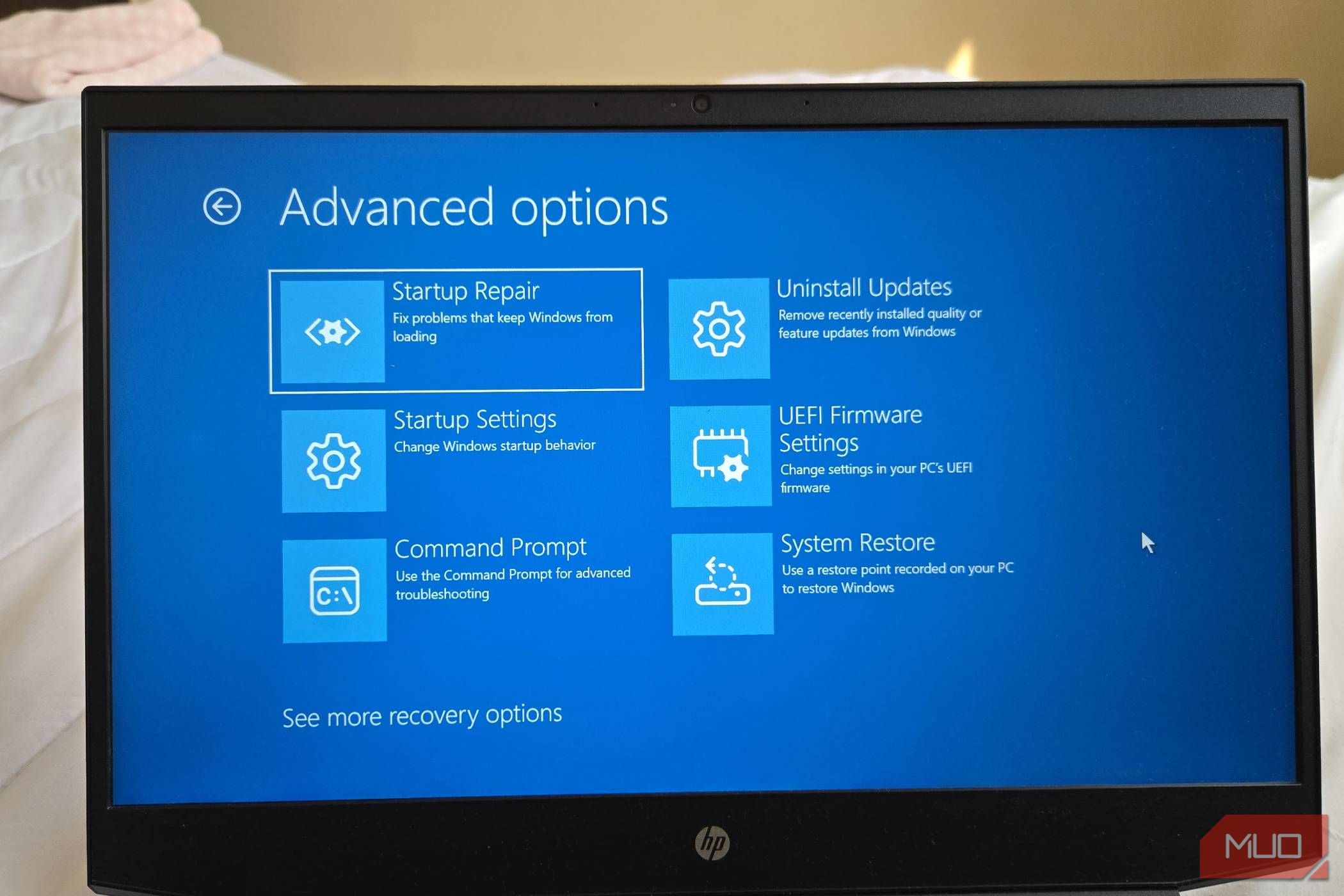
Before your laptop starts to boot, press the boot menu key (usually F2, F12, or Del, depending on your laptop model).
Select the USB drive as the boot device.
Installing Windows 11
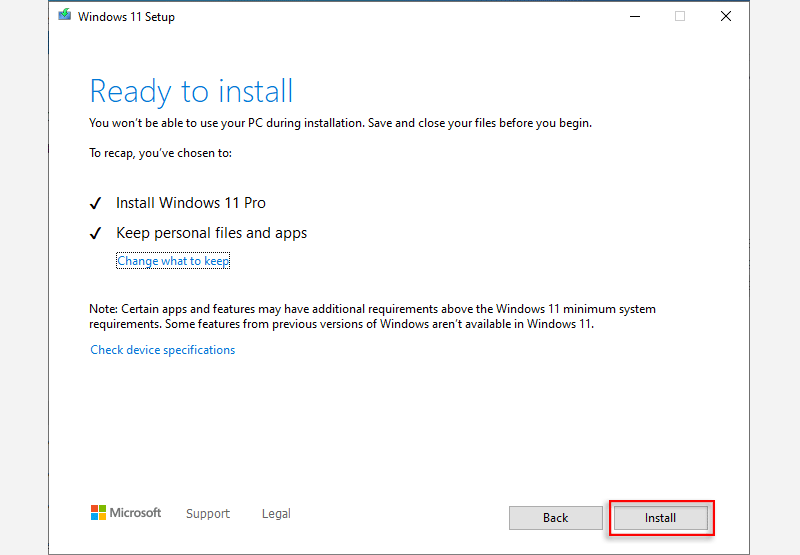
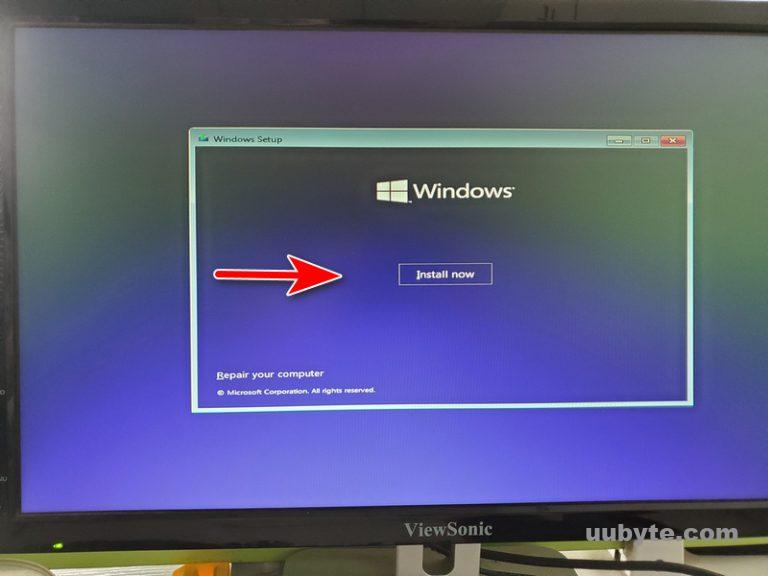
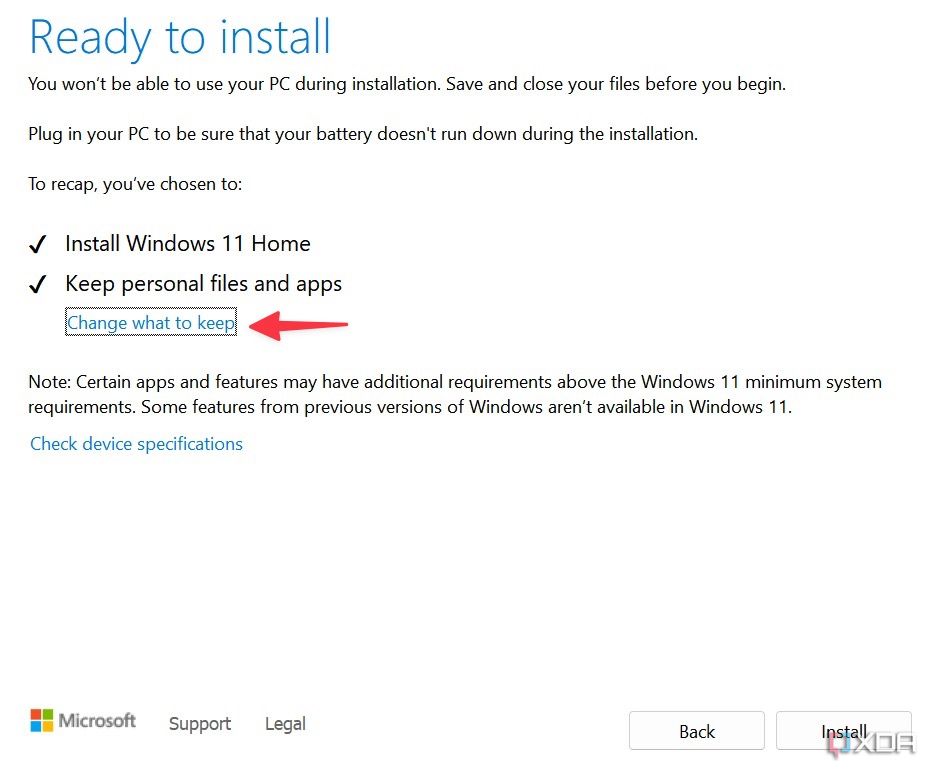
Once you've booted from the USB drive, you'll be taken to the Windows 11 installation screen. From here, you can follow the on-screen instructions to complete the installation of Windows 11. This will involve accepting the licensing terms, selecting your language and time zone, and creating a local account or signing in with a Microsoft account.
Tips and Tricks
If you're having trouble during the installation process, here are a few tips and tricks to keep in mind:
Make sure your laptop meets the system requirements for Windows 11.
Disconnect any unnecessary devices to prevent any conflicts during the installation process.
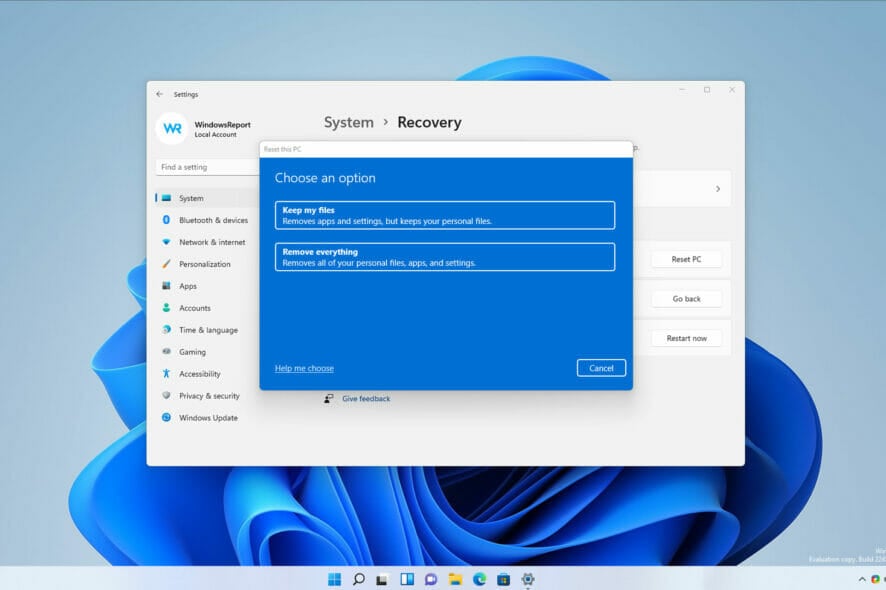
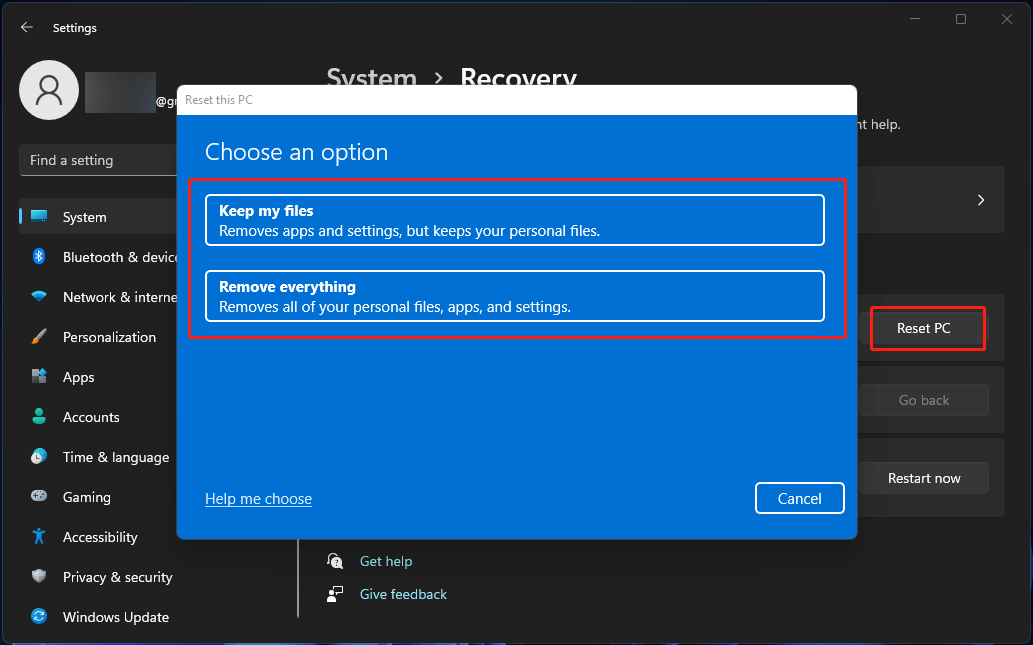
If you're encountering any issues during the installation process, you may want to try a factory reset or a clean install.
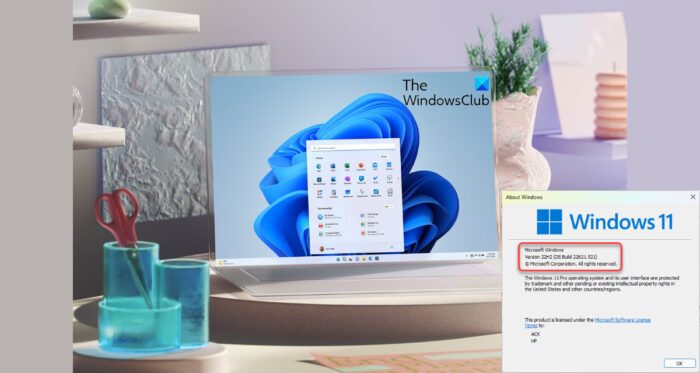
After the installation process is complete, make sure to update your operating system to the latest version.
Conclusion
Reinstalling Windows 11 can be a great way to fix problems and start fresh with your laptop. By following these steps, you can create a bootable USB drive, restart your laptop, and boot from the USB drive to complete the installation of Windows 11. Remember to save any important files or documents beforehand, and make sure to update your operating system to the latest version after the installation process is complete. If you're having trouble during the installation process, feel free to reach out to a professional for assistance.
Additional Resources
For more information on Windows 11 and how to reinstall it, check out the following resources:
Microsoft's official Windows 11 support page
Microsoft's official Windows 11 installation guide
A comprehensive list of Windows 11 system requirements

![[Windows 11/10] How to Reset (Reinstall) the Operating System](https://us.informatiweb.net/images/tutoriels/logos/us/windows-11-reset-your-pc.jpg "[Windows 11/10] How to Reset (Reinstall) the Operating System")

![[Windows 11/10] How to Create and Use a USB Flash Drive ... - ASUS](https://i.ytimg.com/vi/BZE340AlXAU/maxresdefault.jpg "[Windows 11/10] How to Create and Use a USB Flash Drive ... - ASUS")



![[Windows 11/10] How to Reset (Reinstall) the Operating System](https://www.thewindowsclub.com/wp-content/uploads/2022/09/Defer-or-Delay-Windows-11-Feature-Update-500x290.png "[Windows 11/10] How to Reset (Reinstall) the Operating System")