How to Update Firmware on Router: A Step-by-Step Guide
Updating your router's firmware is essential for maintaining its security and performance. New firmware versions often include patches that address vulnerabilities that could be exploited by attackers. In this article, we will guide you through the process of updating your router's firmware.
Why Update Firmware on Router?
Firmware updates are crucial for two key reasons: security and performance. Unless you've spent the last few years under a rock, you know wireless routers are full of security holes. Plus, new security issues pop up all the time. Updating your router's firmware helps to patch these security vulnerabilities and improve its performance.
Step-by-Step Tutorial: How to Update Firmware on Router
Check if there is any new firmware available via your router's setting page (Web GUI) or mobile app. If there is a new firmware version available, follow the instructions below to update it.
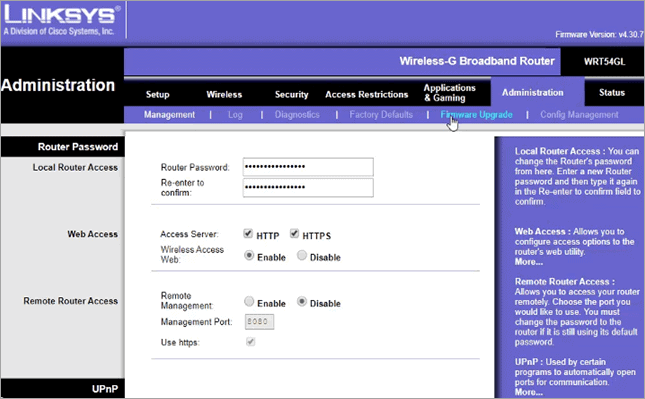
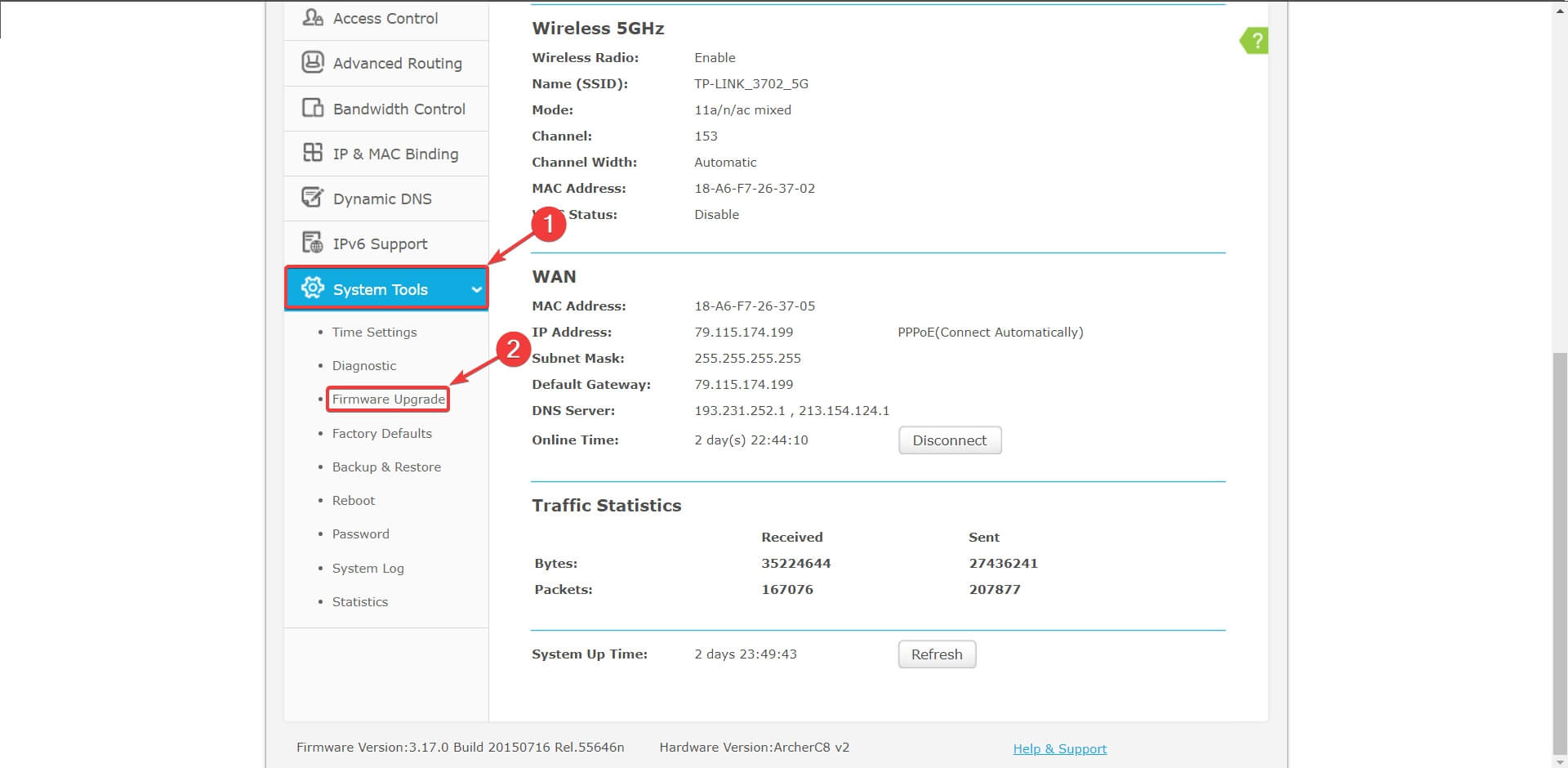
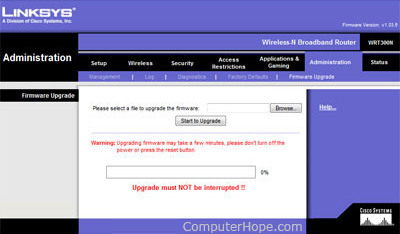
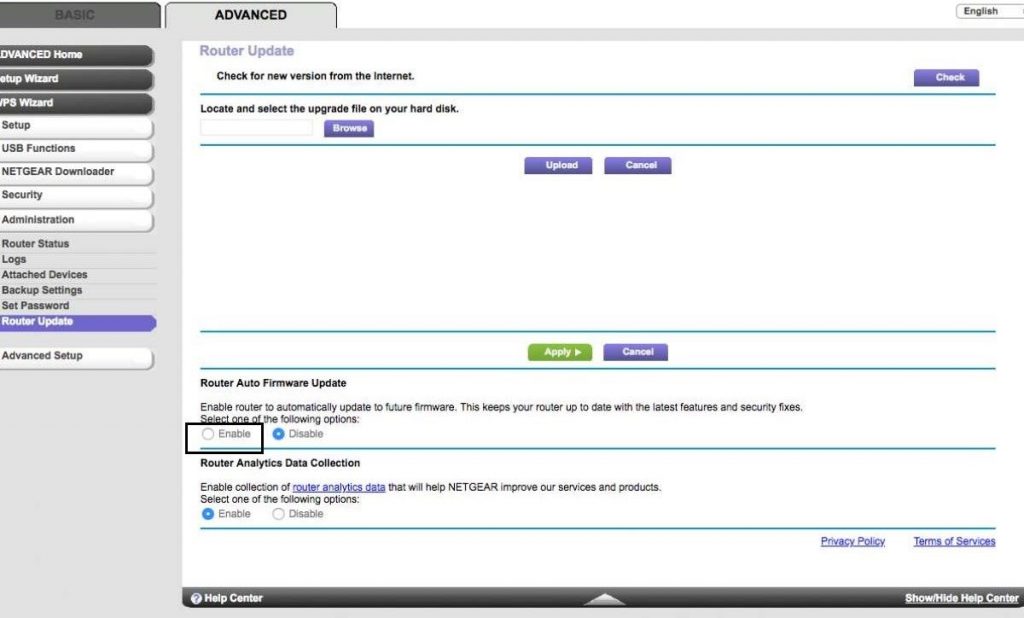
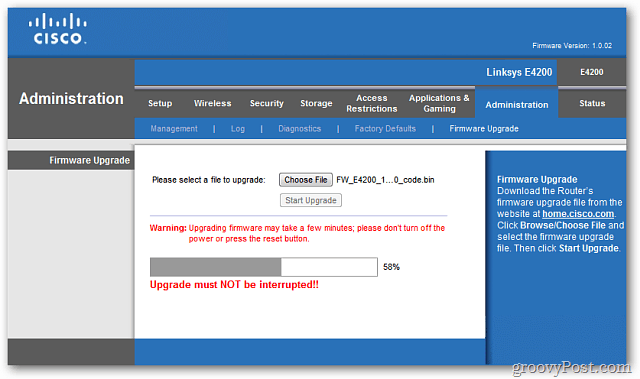
Log into your router and navigate to the "Update" page. This is usually located under the "Advanced" or "Administration" tab.
Click on the "Check for Updates" button. Your router will automatically detect any available firmware updates.
Once the update is detected, click on the "Download" or "Install" button to download and install the firmware update.
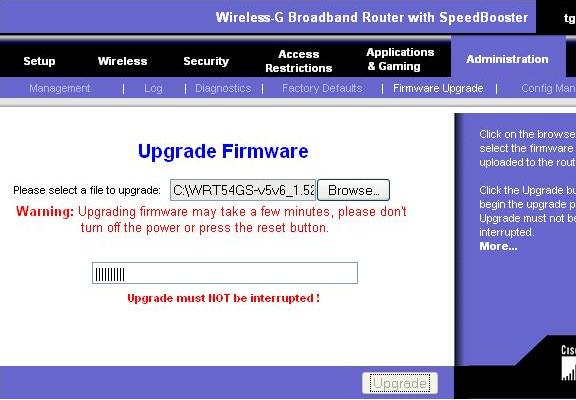
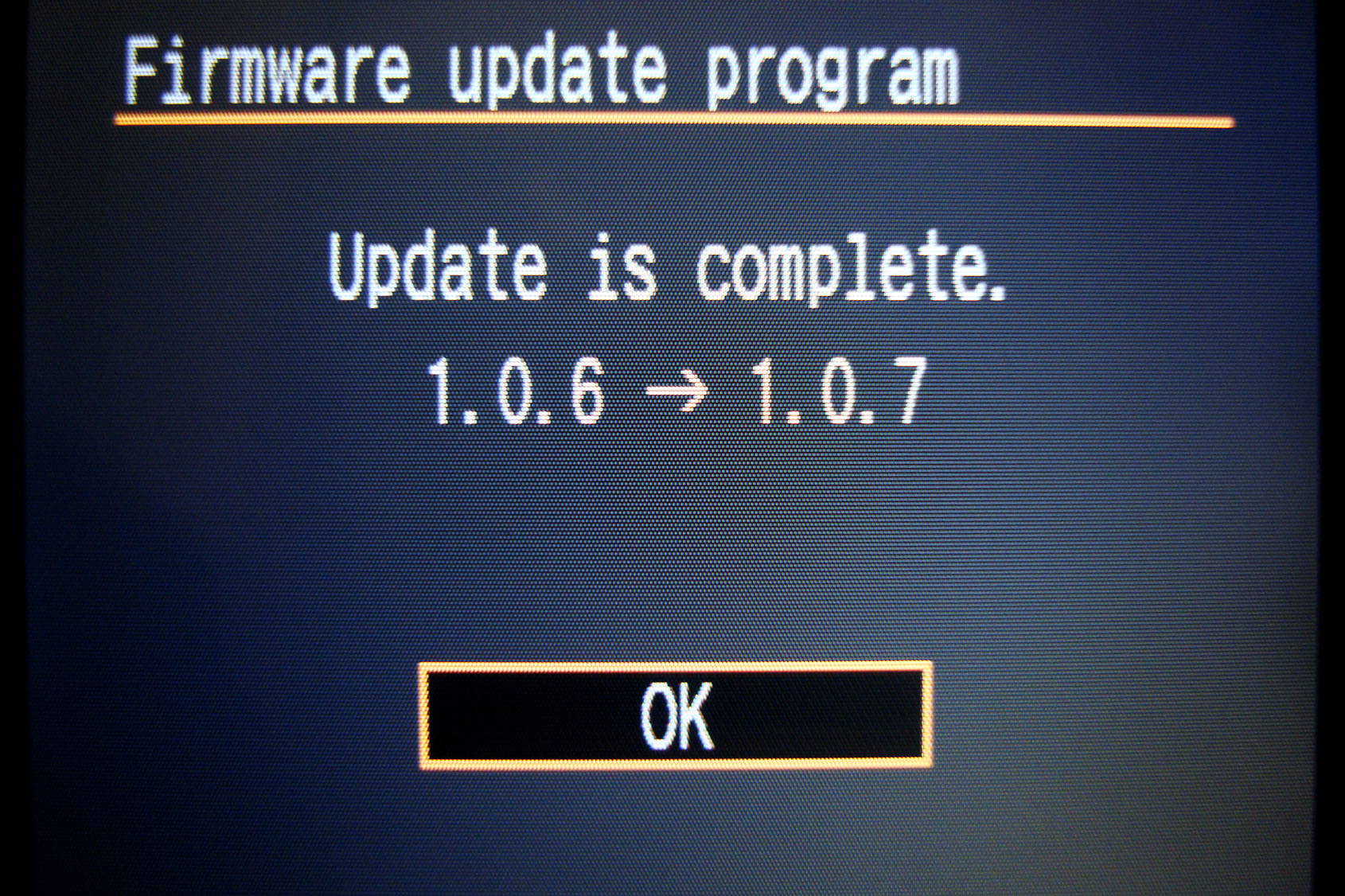
Wait for the update to complete. This may take a few minutes, depending on the size of the update and your router's processing power.
How to Update Firmware on Router Using Mobile App

Most popular ISPs and router manufacturers offer a mobile app that manages your router. All you need to do is open the app and tap the "New firmware update" banner to download and install the update automatically.
How to Update Firmware on Router Using Web Interface
Alternatively, you can update your router's firmware using its web interface. To do this, follow these steps:
- Open a web browser and type the IP address of your router (usually 192.168.0.1 or 192.168.1.1).
- Log into your router using the admin username and password.
- Navigate to the "Update" page.
- Click on the "Check for Updates" button.
- Once the update is detected, click on the "Download" or "Install" button to download and install the firmware update.
Conclusion
Updating your router's firmware is an essential step in maintaining its security and performance. By following the steps outlined in this article, you can update your router's firmware using either the mobile app or web interface. Remember to check for updates regularly to ensure that your router stays secure and performs optimally.


![How to Update Router Firmware [With Steps And Screenshots]](https://i.ytimg.com/vi/54DD33UTFAA/maxresdefault.jpg "How to Update Router Firmware [With Steps And Screenshots]")





![[Wireless] How to make my router more secure? - ASUS](https://draytekusa.com/sites/default/files/inline-images/tftp2.png "[Wireless] How to make my router more secure? - ASUS")