How to Change Wi-Fi Network Name: A Comprehensive Guide
Your Wi-Fi network is the backbone of your home internet connection, and changing its name can have a significant impact on your online experience. In this article, we'll walk you through the process of changing your Wi-Fi network name, as well as provide some essential tips and tricks to improve your network's security and performance.
Why Change Your Wi-Fi Network Name?
Your default Wi-Fi network name is usually something generic like "Linksys" or "ComcastHOME." While this might be convenient for the manufacturer, it's not very helpful for you. Changing your network name can make it easier for you and your guests to connect to the network, improve security by distinguishing your network from others, and even help you identify potential issues with your network.
How to Change Your Wi-Fi Network Name
Changing your Wi-Fi network name is a relatively simple process that can be completed in just a few steps. The exact process may vary depending on your router and internet service provider (ISP), but here's a general guide:
- Access your router's settings by typing its IP address (usually 192.168.1.1) in a web browser.
- Login to the router using the admin username and password (usually found on the underside of the router or in the documentation).
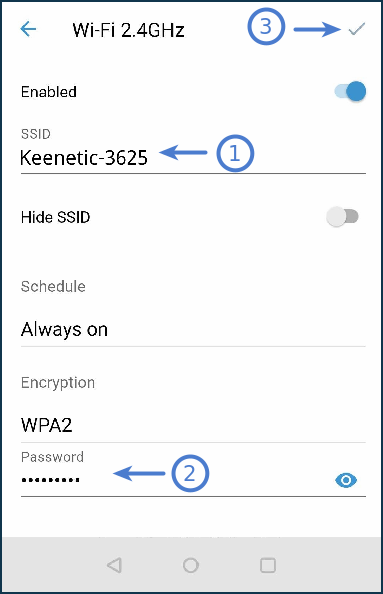
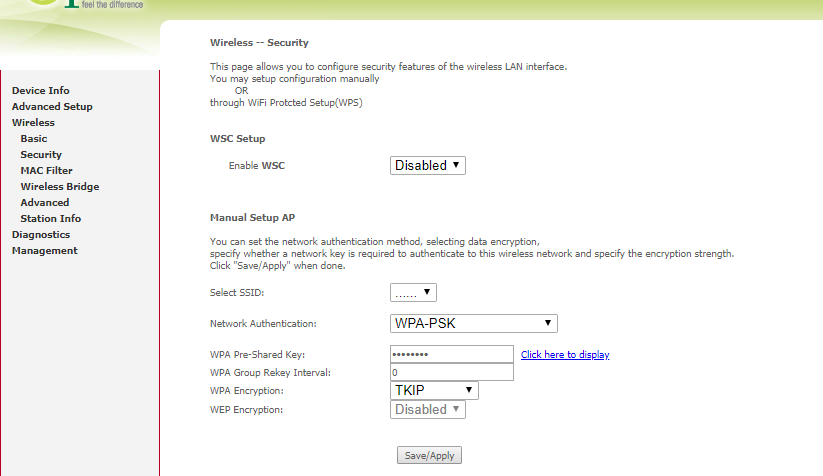
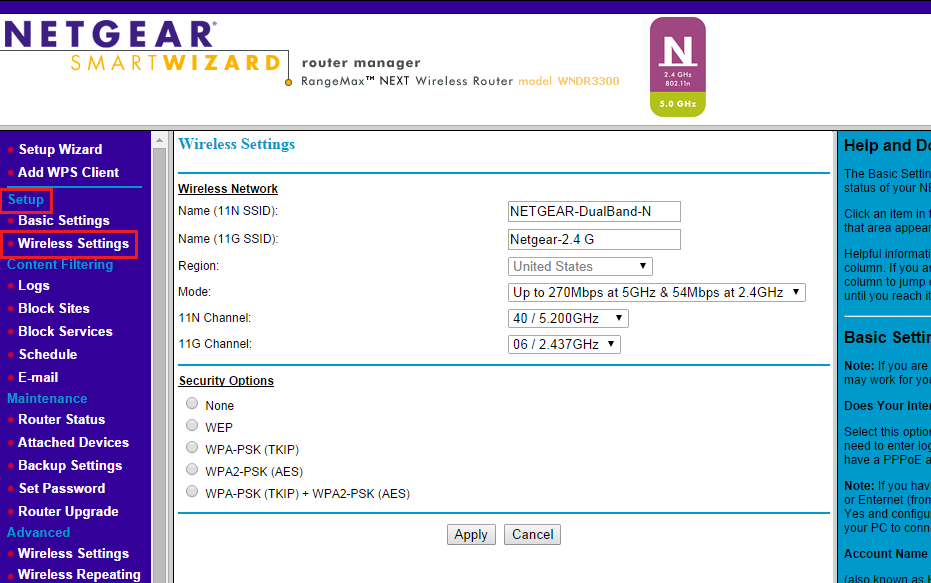
- Navigate to the Wi-Fi settings page and look for the option to change the network name (SSID).
- Enter your new network name and save the changes.
Tips and Tricks for Changing Your Wi-Fi Network Name

When changing your Wi-Fi network name, keep the following tips in mind:
- Choose a unique and descriptive name that will help you and your guests easily identify your network.
- Avoid using default or generic names that may be used by multiple networks in your area.
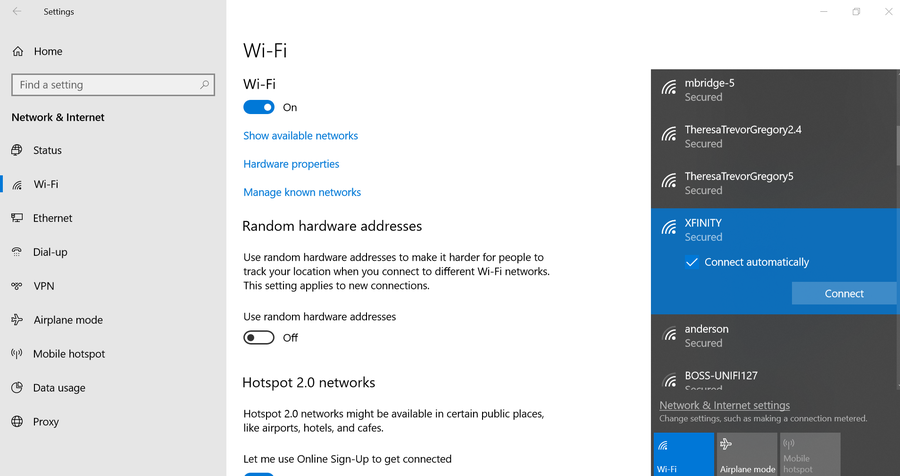
- Make sure to update your network name on all connected devices, including smartphones, laptops, and smart home devices.
- Consider changing your network name and password regularly to improve security and prevent unauthorized access.
Common Issues and Solutions
Changing your Wi-Fi network name can sometimes lead to issues with connected devices or internet connectivity. Here are some common issues and solutions:
- Device not recognizing the new network name: Check that the device is connected to the correct network and that the network name is spelled correctly.
- Internet connectivity issues: Restart your router and modem, and check for any firmware updates.
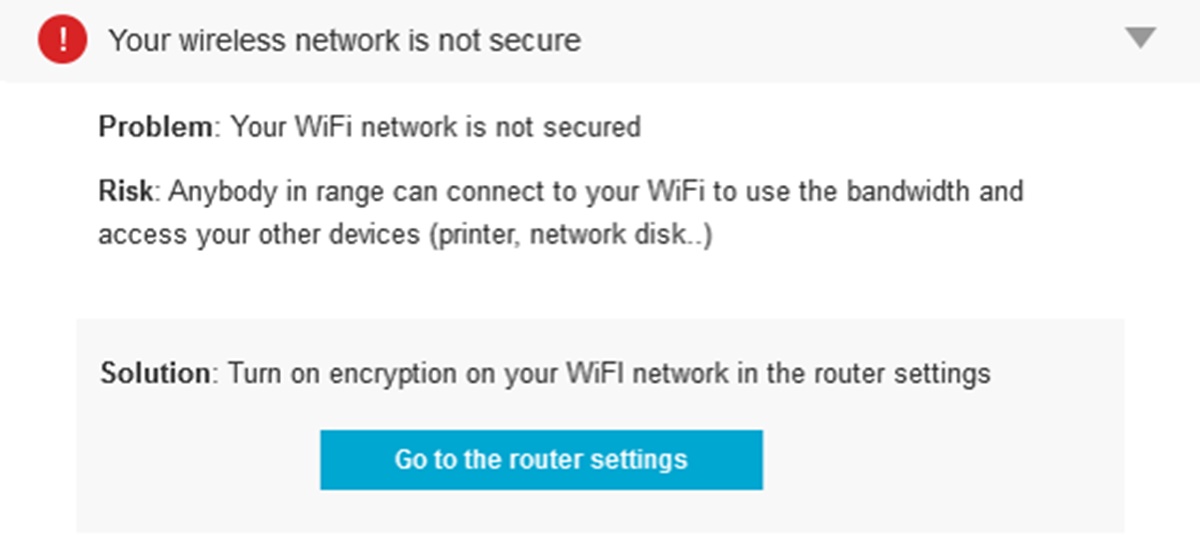
- Network security concerns: Update your network password and enable WPA3 encryption for added security.
Conclusion
Changing your Wi-Fi network name is a simple process that can have a significant impact on your online experience. By following the steps outlined in this article and keeping the tips and tricks in mind, you can improve your network's security and performance, and make it easier for you and your guests to connect to the network. Remember to regularly update your network name and password to keep your network secure and up-to-date.






/images/2022/07/14/how-to-tell-if-router-hacked_change-wifi-network-name.png "How to Access and Change Your Wi-Fi Router's Settings")