Configuring WAN Settings on Router: A Comprehensive Guide
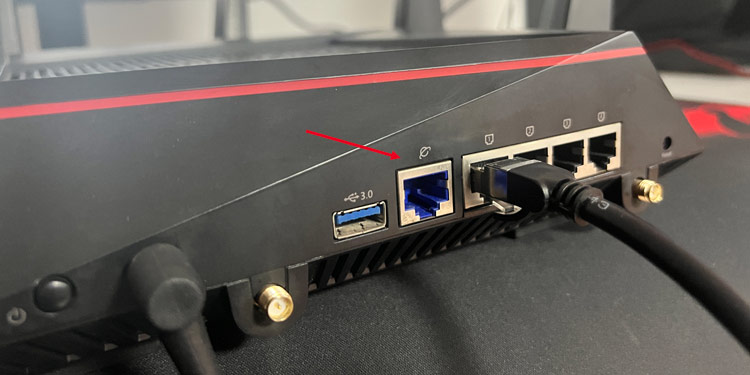
The Wide Area Network (WAN) settings on your router play a crucial role in ensuring smooth, reliable internet connectivity. Correctly setting up your WAN connection not only improves internet performance but also enhances security. In this article, we will guide you through the process of configuring WAN settings on your router, ensuring you get the most out of your internet connection.
Understanding WAN Settings
-your WAN connection is the backbone of your internet connection. It allows your local network to connect to the internet, making it essential to configure it correctly to avoid speed, stability, and security issues.
Configuring WAN Settings on Router: Step-by-Step
Configuring WAN settings on your router may vary depending on the router model and ISP requirements. However, the general steps remain the same. Here's a step-by-step guide to help you configure WAN settings on your router:
- Log in to your router's web interface using the default admin username and password.
- Navigate to the Advanced Settings > Administration > System > Specified IP Address to allow specific IP to login to the ASUS router setting page (Web GUI). This will increase the security level for your network.
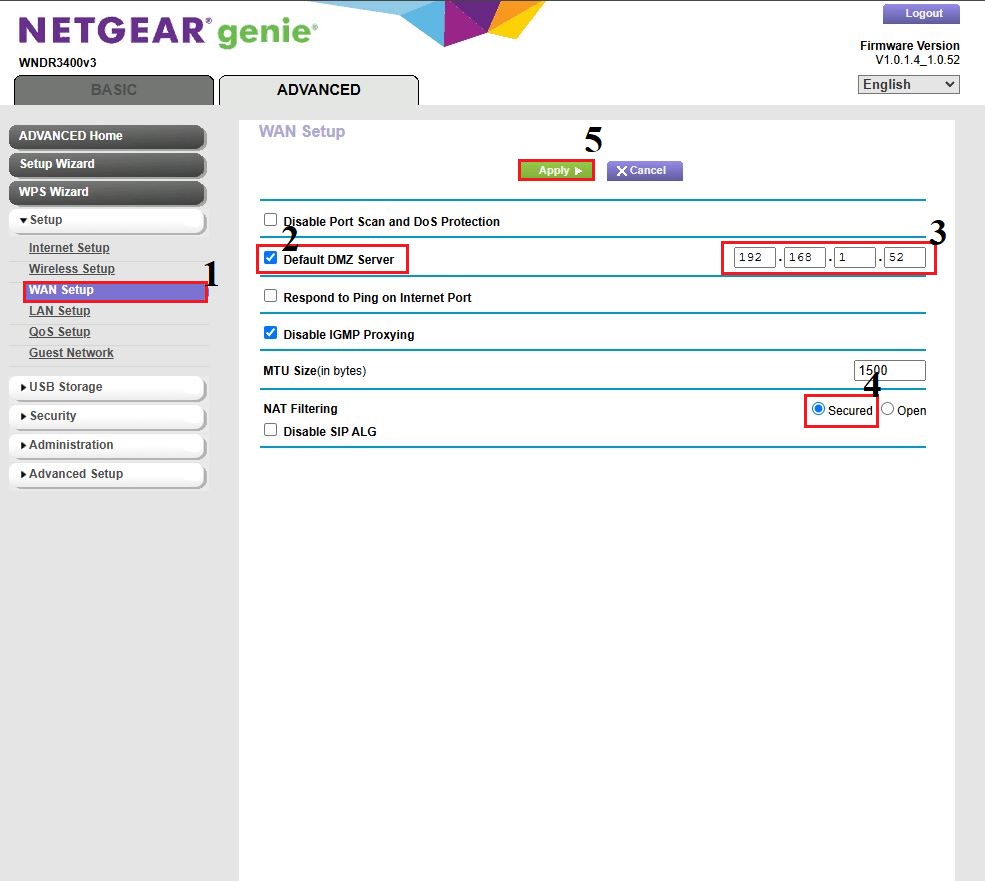
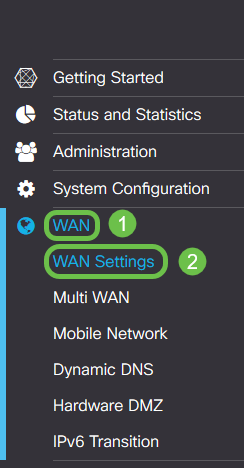
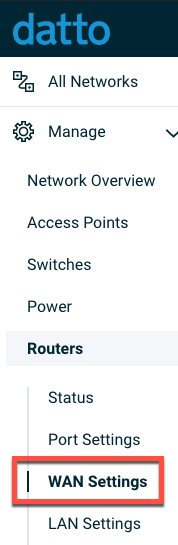
- Go to the Network settings section and click on WAN settings.
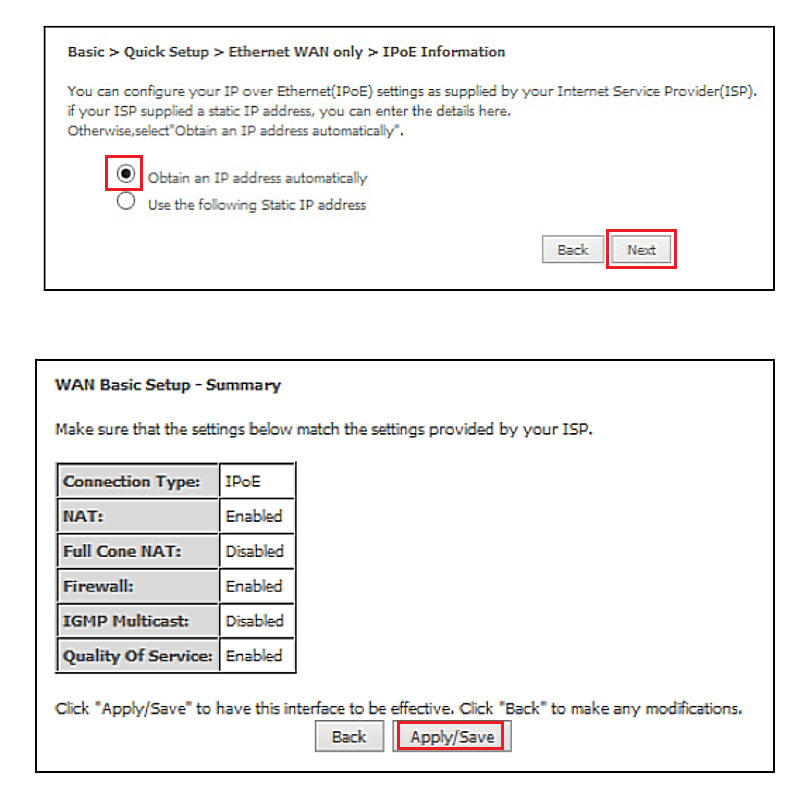
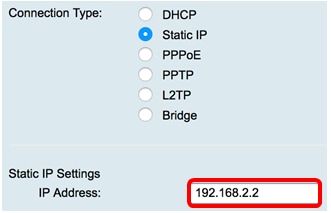
- Select the connection type according to your ISP, such as DHCP, Static IP, or PPPoE.
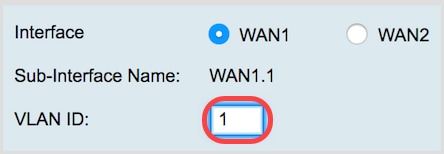
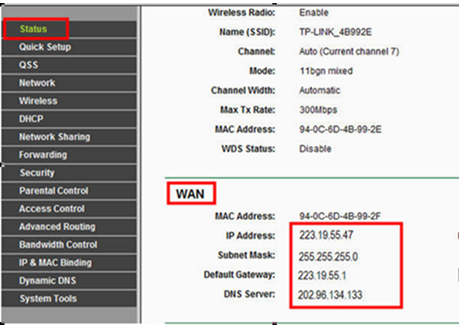
- Configure related settings, such as IP address, subnet mask, gateway, and DNS servers.
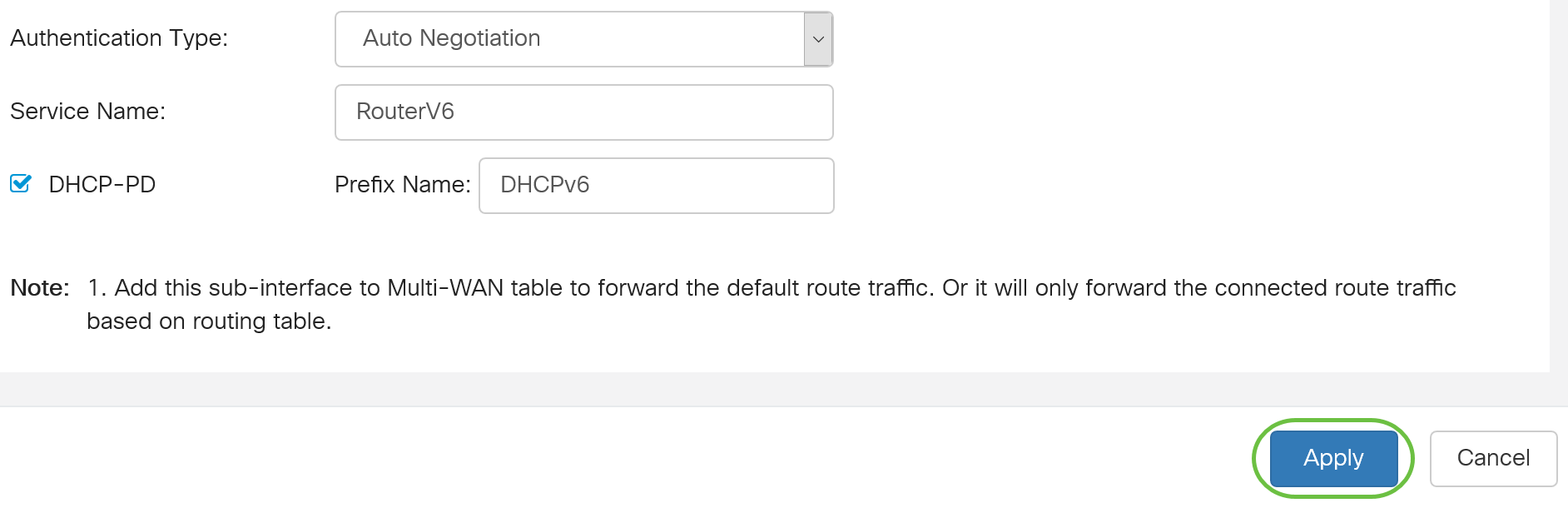
- Click Save to apply the changes.
WAN Connection Types
WAN connections come in several types, each with its own settings and requirements. Here are the common WAN connection types:
- DHCP (Dynamic Host Configuration Protocol): This is the most common WAN connection type, where your router requesting an IP address automatically from your ISP.
- Static IP: This type of WAN connection requires you to configure a fixed IP address, subnet mask, and gateway.
- PPPoE (Point-to-Point Protocol over Ethernet): This type of WAN connection is commonly used for DSL service and requires you to configure a username, password, and service name.
Troubleshooting WAN Connection Issues
Configuring WAN settings on your router is just the first step. Troubleshooting WAN connection issues is also essential to ensure smooth internet connectivity. Here are some common WAN connection issues and their solutions:
- Slow internet speed: Check your WAN settings for any configuration errors or outdated firmware.
- Unstable internet connection: Ensure that your WAN settings are correctly configured, and your router is receiving the correct PPPoE settings from your ISP.
- Failed to connect to the internet: Check your WAN settings for any errors or misconfigurations.
Best Practices for Configuring WAN Settings on Router
Configuring WAN settings on your router requires careful consideration of several factors. Here are some best practices to follow:
- Use the correct WAN connection type according to your ISP requirements.
- Configure related settings accurately, such as IP address, subnet mask, gateway, and DNS servers.
- Update your router's firmware regularly to ensure you have the latest features and security patches.
- Monitor your WAN connection for any errors or misconfigurations.
Conclusion
Configuring WAN settings on your router is a critical step in ensuring smooth, reliable internet connectivity. By following the step-by-step guide provided in this article, you can confidently configure your WAN settings on your router. Remember to follow best practices, troubleshoot WAN connection issues, and update your router's firmware regularly to get the most out of your internet connection.




![[Wireless] How to make my router more secure? - ASUS](https://www.cisco.com/c/dam/en/us/support/docs/smb/routers/cisco-rv-series-small-business-routers/images/pptp-wan-on-rv34x-8-13-18-step3.png "[Wireless] How to make my router more secure? - ASUS")