How to Set Up a Twitch Channel with Streaming Software
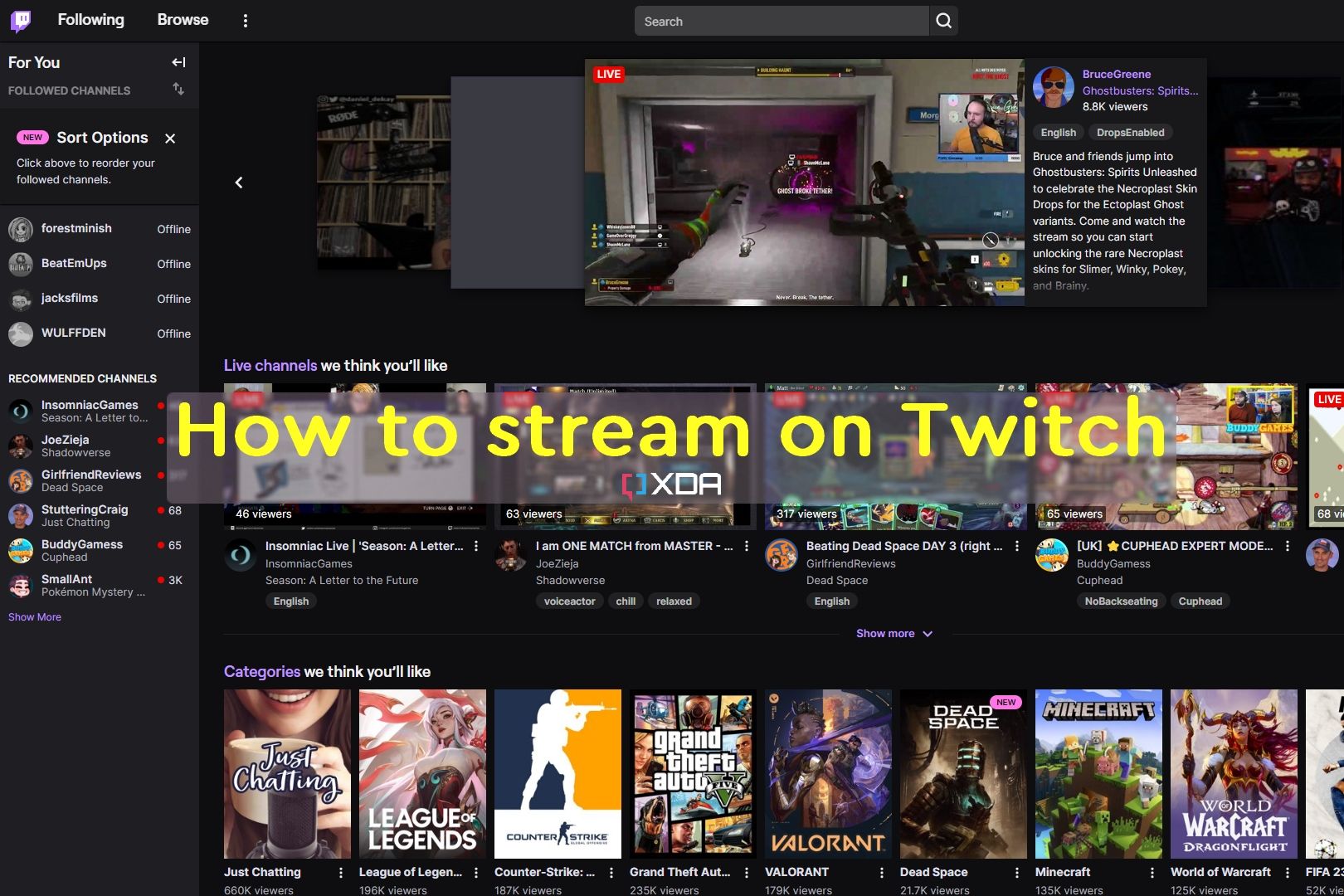
Are you ready to dive into the world of live streaming on Twitch? With over 140 million active users per month, this platform is a fantastic opportunity to connect with a worldwide audience and share your passion for gaming or entertainment. However, setting up a Twitch channel can be intimidating, especially with the numerous options for streaming software available. In this article, we'll guide you through the process of setting up a Twitch channel using streaming software, with a focus on OBS (Open Broadcasting Software) and other popular tools.Step 1: Choose Your Streaming Software
The first step in setting up a Twitch channel is to select the streaming software that best fits your needs. Some popular options include:- Twitch Studio: A free, user-friendly streaming app designed specifically for Twitch users.
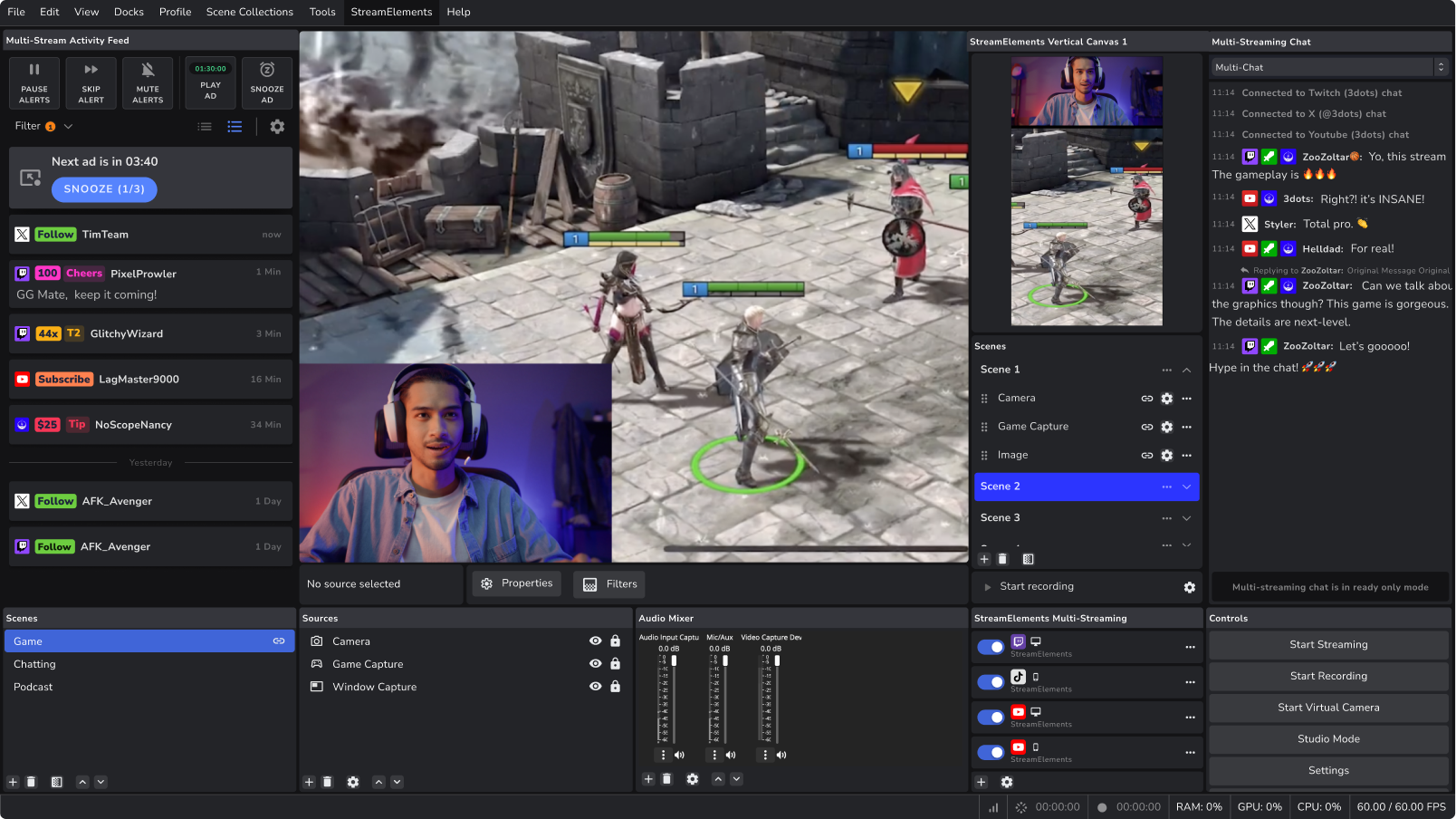
- OBS Studio: A widely-used, customizable software for live streaming and recording.
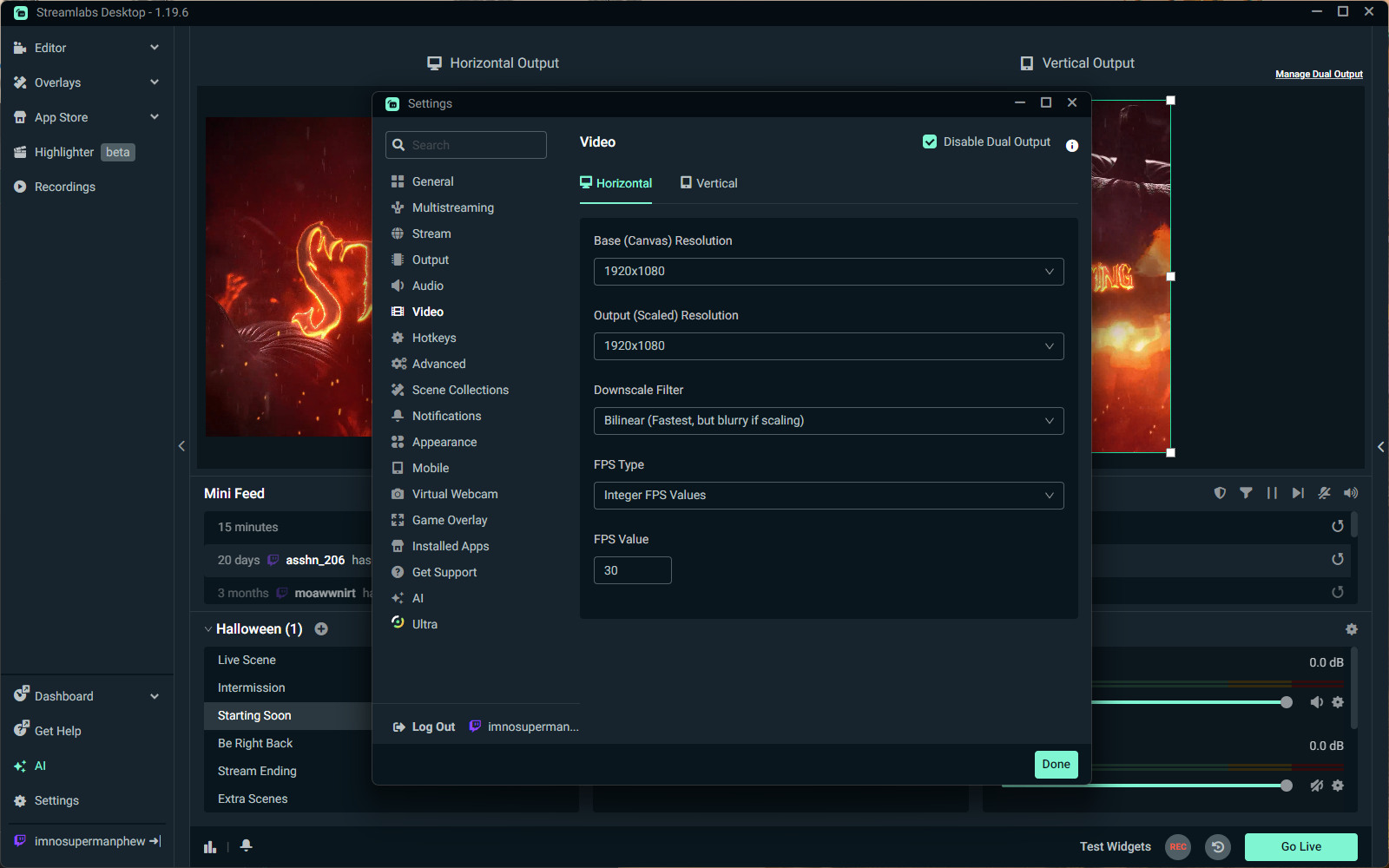
- Streamlabs OBS (SLOBS): A customizable version of OBS, pre-configured for streaming on Twitch and other platforms.
Step 2: Set Up Your Channel and Account
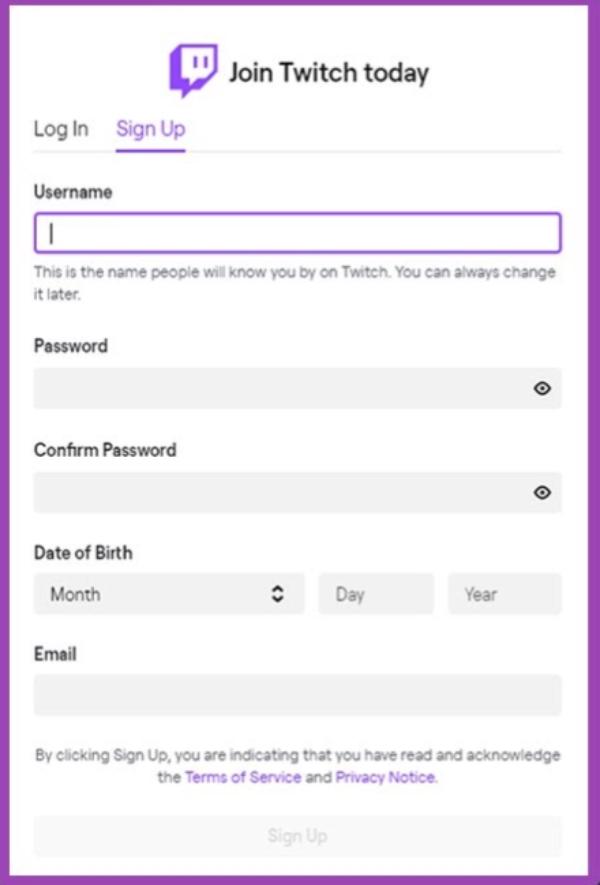
Before you start streaming, you need to set up your Twitch account and channel. This includes:- Creating a Twitch account and verifying your email address.
- Setting up your channel profile, including your username, profile picture, and bio.
Step 3: Download and Install Your Streaming Software
Once you've chosen your streaming software, download and install it on your computer. Follow the installation instructions provided by the software developer.Step 4: Configure Your Hardware and Audio/Video Settings
:max_bytes(150000):strip_icc()/A5-StreamonTwitch-annotated-af6a6beb257d44b78d5bb155b13c9e5d.jpg)
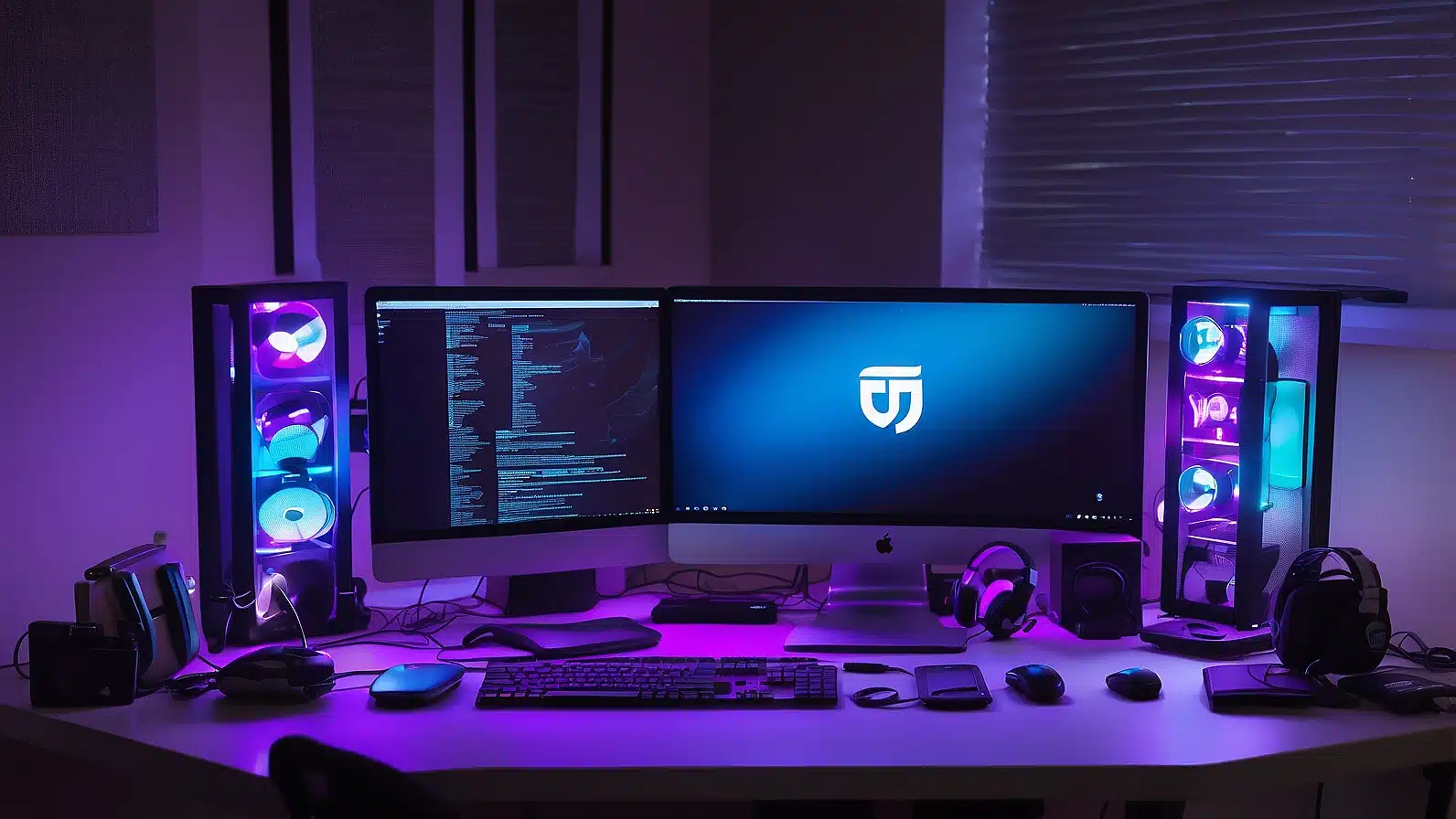
- Setting up your capture device (e.g., webcam, capture card, or Elgato HD60).
- Configuring your audio settings, including microphone selection and audio levels.