How to Set Up WiFi Network Security: A Step-by-Step Guide
Protecting your home network from cyber threats and unauthorized access is a top priority in today's digital age. With the increasing number of connected devices and the rise of smart home systems, it's essential to learn how to set up a secure WiFi network. In this comprehensive guide, we'll walk you through the steps to secure your WiFi network, prevent hacking, and keep your personal data safe.
Why Router Security Matters
Routers have become a vital part of our home networks, but they can also be a weak link in our security chain. With the latest WiFi 7 routers featuring WPA3 encryption, automatic firmware updates, and built-in security measures, it's time to upgrade to a more secure and better-performing NETGEAR router. Here are some reasons to upgrade:
- WPA3 encryption provides robust security and protection against hacking attempts.
- Automatic firmware updates ensure your router stays up-to-date and secure.
- Built-in security measures help safeguard your home network from cyber threats.
The Problem with Unsecured WiFi Networks
If you don't secure your home WiFi network, cyber threat actors can perform a number of operations that can compromise your personal data and put your devices at risk. These operations include:
- Stealing sensitive information, such as login credentials and credit card numbers.
- Installing malware and ransomware to extort money or disrupt your online activities.
- Using your devices to launch attacks on other networks and devices.
Setting Up WiFi Network Security: A Step-by-Step Guide
To secure your WiFi network, follow these essential steps:
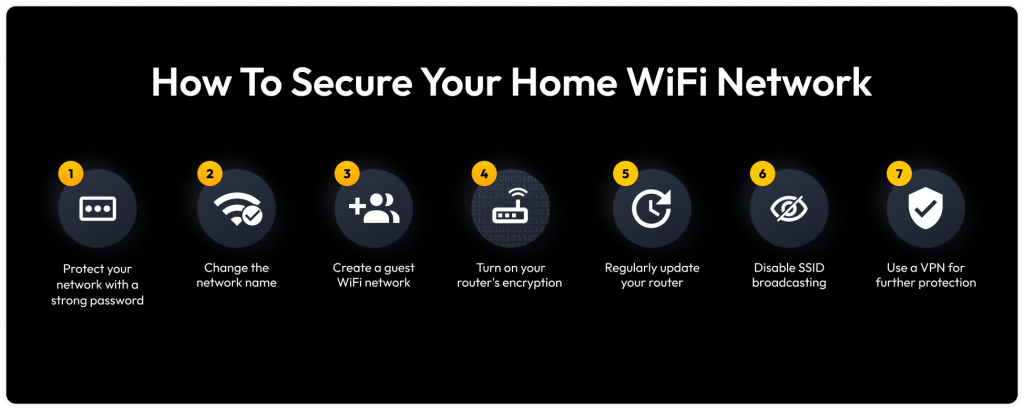
Step 1: Change Default Router Credentials
Change the default admin password and username to prevent unauthorized access to your router. You can find the default credentials in your router's documentation or by contacting the manufacturer.
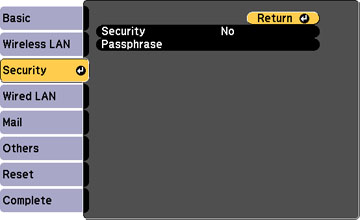
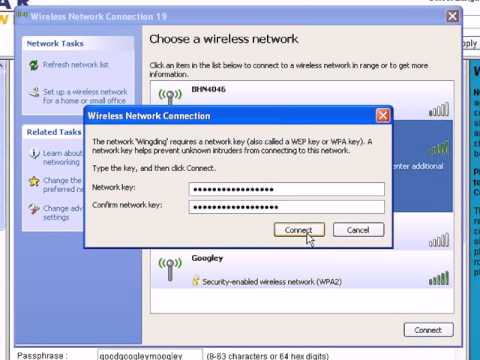
Step 2: Create a Strong WiFi Password
Use a strong and unique WiFi password that's at least 12 characters long. Avoid using easily guessable information, such as your name, birthdate, or common words.
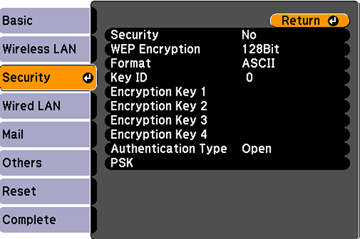
Step 3: Enable WPA3 Encryption
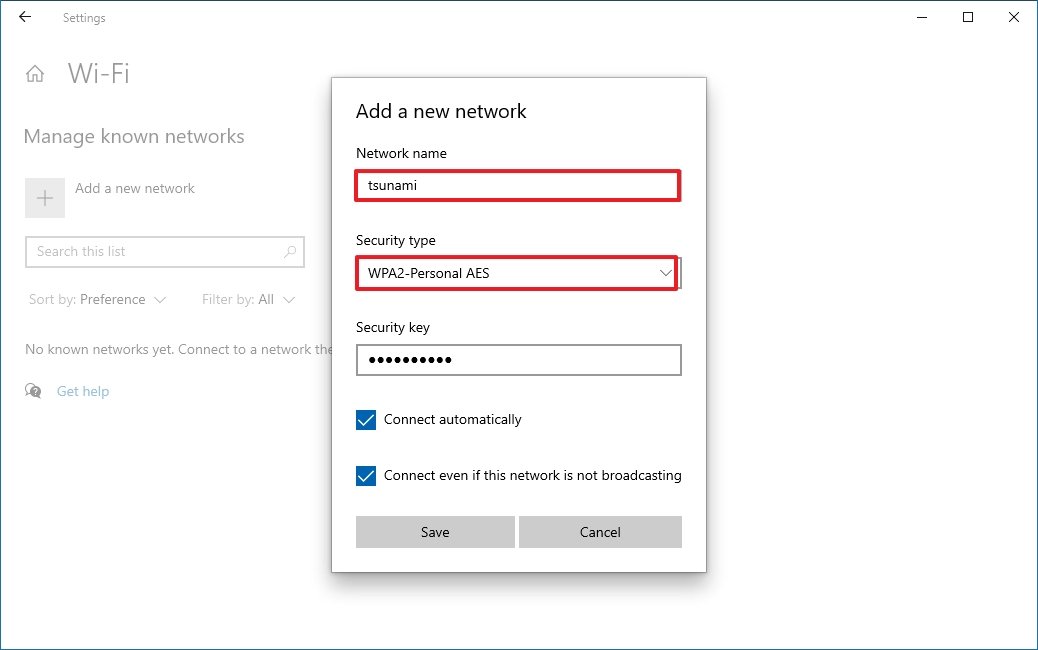
Enable WPA3 encryption on your router to provide robust security and protection against hacking attempts. WPA3 is the latest encryption standard and offers better protection than WPA2.
Step 4: Update Firmware Regularly
Regularly update your router's firmware to ensure you have the latest security patches and features. You can usually update firmware through your router's web interface or the manufacturer's website.
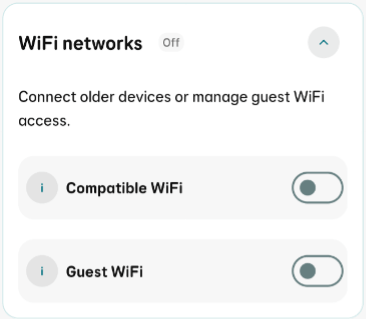
Step 5: Set Up a Guest Network
Create a guest network to isolate visitors from your main network. This will prevent them from accessing your sensitive data and devices.
Step 6: Disable Unused Features
Disable features like WPS (Wi-Fi Protected Setup) that you don't use. WPS can be a vulnerability if not used correctly.
Step 7: Monitor Your Network
Regularly monitor your network for any suspicious activity or devices that you don't recognize.
Additional Tips for Secure WiFi Network Setup
Here are some additional tips to help you set up a secure WiFi network:
- Use a VPN (Virtual Private Network) to encrypt your internet traffic and protect your data.
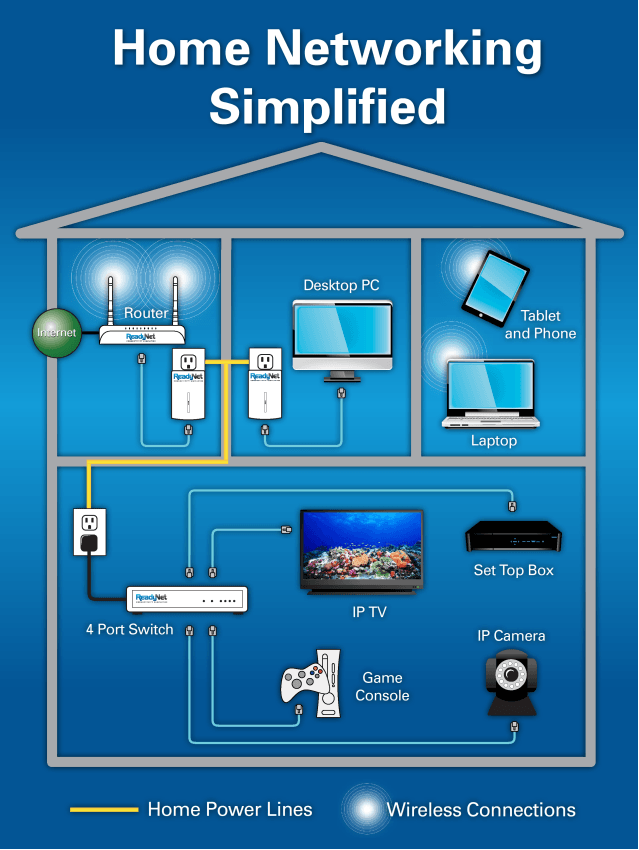
- Use a network bridge to connect devices to your network when WiFi connectivity is not possible.
- Use a router with built-in security measures, such as firewall protection and intrusion detection.
Conclusion
Securing your WiFi network is crucial to protect your personal data, prevent hacking, and keep unauthorized users off your network. By following the steps outlined in this guide, you can set up a secure WiFi network and enjoy a safer and more private online experience. Remember to regularly update your firmware, monitor your network, and use additional security measures to ensure your network remains secure.


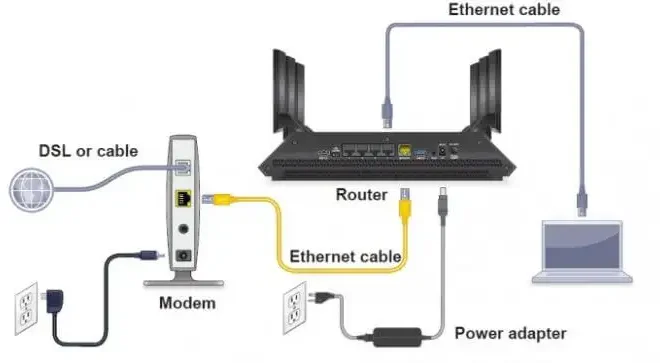
-Connection-Step-1-Version-6.jpg/v4-460px-Set-up-a-Wireless-Network-(WiFi)-Connection-Step-1-Version-6.jpg "Is Your Wi-Fi Making You Vulnerable? How to Lock Down Your Network")