Amazon Echo Dot Setup with Router Security: A Comprehensive Guide
The Amazon Echo Dot is a popular smart speaker that offers users a seamless way to control their smart home devices with just the sound of their voice. However, setting up the Echo Dot can be a daunting task, especially when it comes to router security. In this article, we will guide you through the process of setting up the Amazon Echo Dot with your router security in mind.
Basic Requirements
Before you start, make sure you have the following parts, accessories, and information ready:
- Internet Service Provider (ISP) credentials
- Router login details
- Phone or tablet with the Alexa app installed
- Amazon Echo Dot device
- Power cord for the router and the Echo Dot
Step 1: Connect the Router to the Internet
The first step in setting up the Echo Dot is to ensure that your router is connected to the internet. You can do this by following these steps:
- Connect your router to a power source using a power cord.
- Sign in to your router's admin page using your ISP credentials.
- Configure your router's settings to connect to your ISP's network.
- Save your changes and restart the router.
Step 2: Access the Alexa App
Once your router is set up, you can install and access the Alexa app on your phone or tablet. If you don't have the app, you can download it from the App Store (for iOS devices) or Google Play Store (for Android devices).
- Launch the Alexa app on your phone or tablet.
- Sign in to your Alexa account using your Amazon login credentials.
Step 3: Connect the Echo Dot to the Router
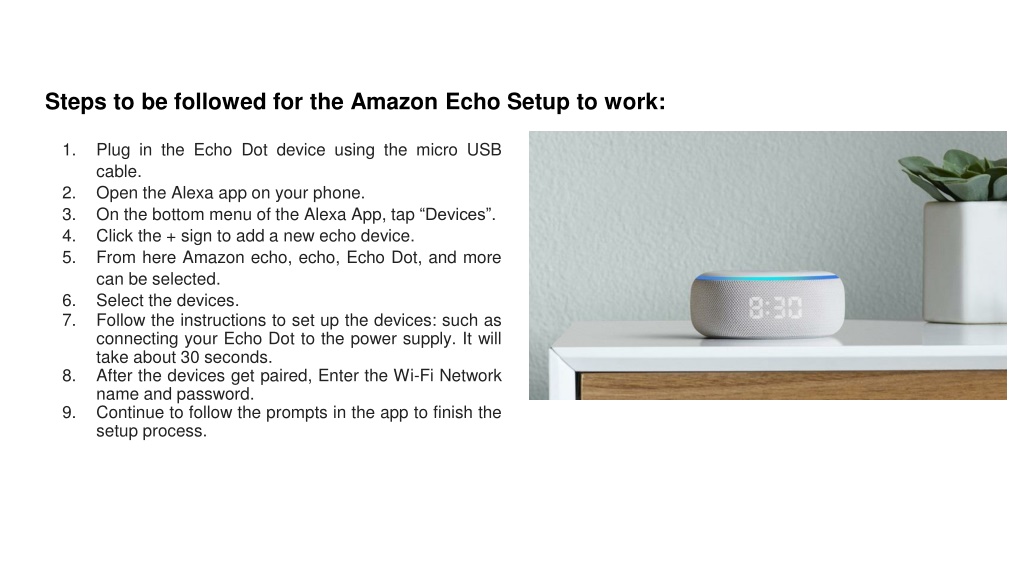
Now that the Alexa app is installed and set up, you can connect the Echo Dot to your router. Here's how:
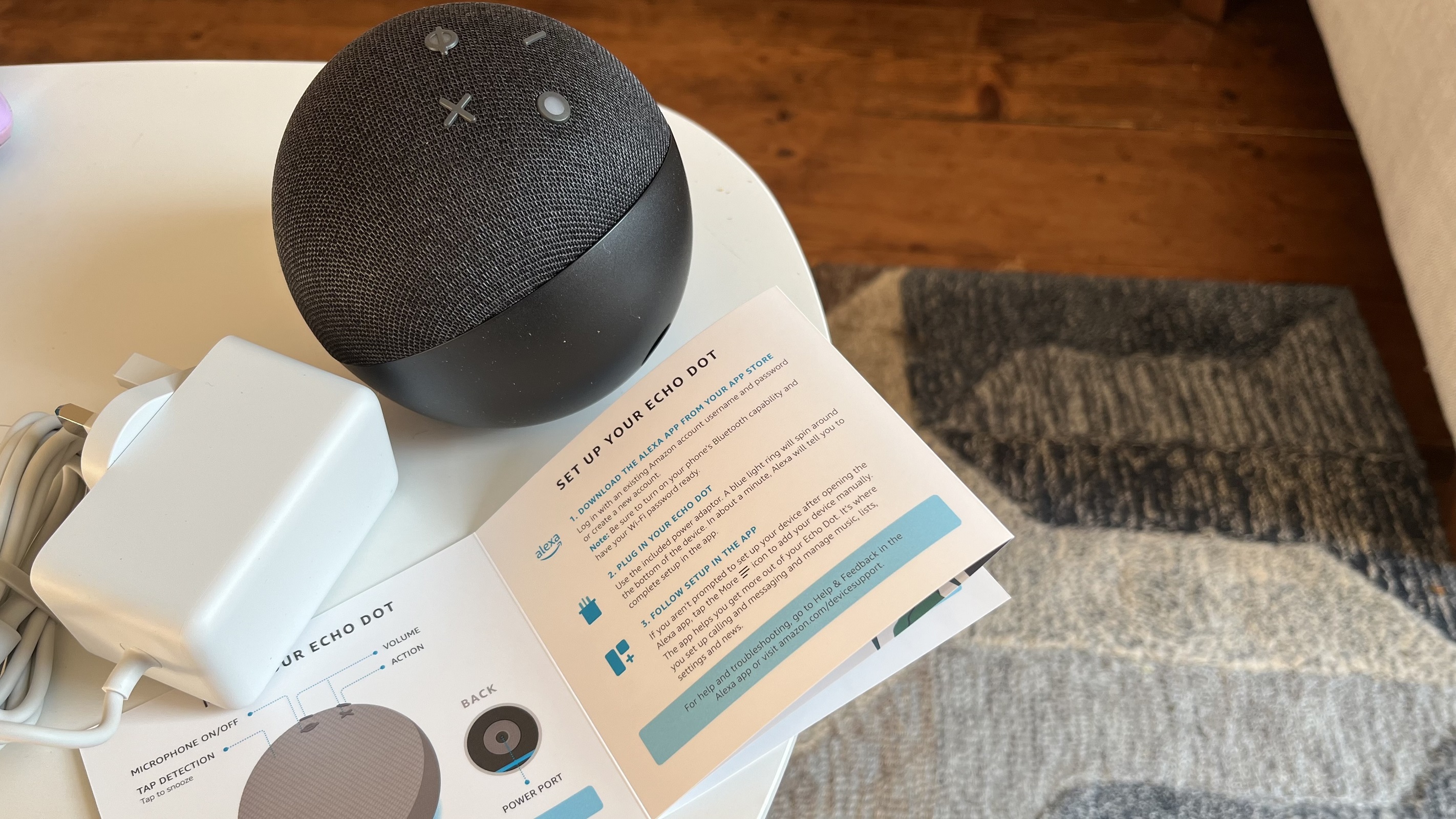
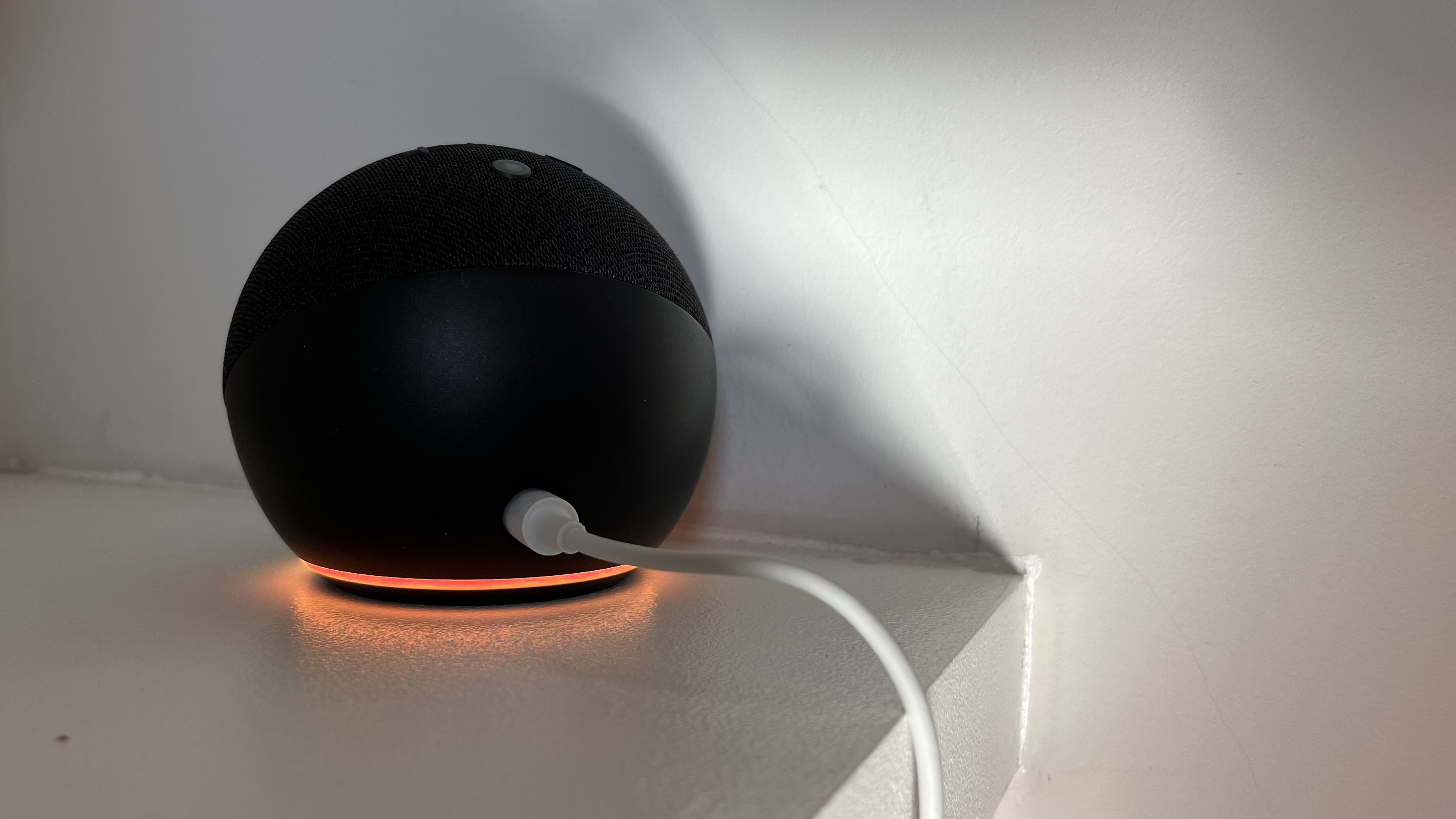
- Power on the Echo Dot by plugging in the power cord.
- Open the Alexa app on your phone or tablet and navigate to the Devices section.
- Click on the "+" icon to add a new device, and select "Echo" as the device type.
- Follow the in-app instructions to connect the Echo Dot to your router.
- Wait for the device to connect to your router's network.
Step 4: Configure the Echo Dot's Network Settings
Once the Echo Dot is connected to your router, you can configure its network settings to ensure that it's secure. Here's how:
- Open the Alexa app and navigate to the Settings section.
- Click on the "Wi-Fi" option and select the network you want to connect the Echo Dot to.
- Make sure that WPA2 encryption is enabled on your router to ensure that your network is secure.
- Change the default Echo Dot password to something stronger and more unique.
Step 5: Test the Echo Dot's Connectivity
Finally, you should test the Echo Dot's connectivity to ensure that it's working correctly. Here's how:
- Try playing music or talking to the Echo Dot using voice commands.
- Verify that the Echo Dot responds correctly.
- Check that the Echo Dot is visible in the Alexa app on your phone or tablet.
Security Tips
When it comes to setting up your router and Echo Dot, here are some security tips to keep in mind:
- Always use a strong and unique password for your router and the Echo Dot.
- Make sure that WPA2 encryption is enabled on your router.
- Regularly change the default router login details and the Echo Dot's password.
- Use a guest network on your router to isolate devices.
- Keep your router's firmware up to date to ensure that any security vulnerabilities are patched.
Conclusion
Setting up the Amazon Echo Dot with your router security in mind is crucial to ensure that your smart home devices function seamlessly and securely. By following the steps outlined in this article, you can connect the Echo Dot to your router and configure its network settings to keep your data and devices safe.
:max_bytes(150000):strip_icc()/003_connect-echo-and-alexa-to-wi-fi-4158308-5c7d89eb46e0fb0001edc8cf.jpg "How to Integrate Echo Dot with Home Security Systems?")



:max_bytes(150000):strip_icc()/002_setup-mode-echo-dot-5183932-f64149726d28456fa00caa1502870548.jpg "Update the Wi-Fi Settings for Your Echo Device - amazon.com")