How to Set Up a Minecraft Server
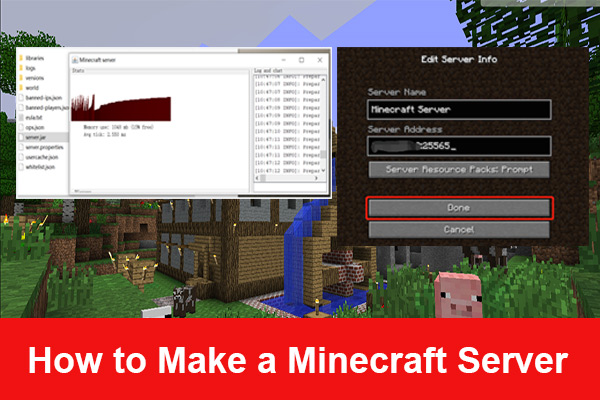
Are you ready to create your own Minecraft server and invite friends to play with you? Setting up a Minecraft server is a straightforward process that requires some basic computer knowledge and networking skills. In this article, we will guide you through the steps of setting up a Minecraft server, from installing the server software to configuring the server settings.
What You Need to Set Up a Minecraft Server
Before we begin, make sure you have the following:
- A computer with a stable internet connection
- The Minecraft server software (Java Edition or Bedrock Edition)
- The Minecraft game installed on your computer
- A player account on your Minecraft server (optional)
Step 1: Prepare the Server Software
First, download the Minecraft server software from the official Minecraft website. The server software is available for both Windows and macOS operating systems. Follow the prompts to download the software, and then unpack the downloaded file to a designated folder on your computer.
Step 2: Install the Server Software
To install the server software, follow these steps:
- Open a command prompt or terminal window
- Navigate to the folder containing the server software
- Enter the command `java -jar 'yourjarfilename'.jar` to start the server
Step 3: Configure the Server Settings
After the server software is installed and running, you can configure the server settings. Open the `server.properties` file in a text editor and make the necessary changes:
- Set the `motd` value to a descriptive message for players joining the server
- Set the `gamemode` value to the desired game mode (e.g., creative, survival, or adventure)
- Set the `spawn-animals` and `spawn-monsters` values to control the spawning of animals and monsters
For more details on the server settings, visit the Server Properties page on the Minecraft Wiki.
Step 4: Launch the Server

Repeat steps 2 and 3 to launch the server again, making sure you are in the Minecraft Server file directory and enter `java -jar 'your jar name'.jar` into the command prompt.
Adding Plugins to Your Server
Plugins are additional features and functionality that you can add to your Minecraft server. Some popular plugins include:
- EssentialsX: A plugin that adds essential features to your server, such as a customizable group system and an auto- UHC plugin
- WorldEdit: A plugin that allows you to edit the world in various ways, such as adding new terrain or flipping sides
Adding plugins is a bit more complicated than setting up the initial server configuration, but they can greatly enhance your Minecraft server experience. Make sure to read the plugin documentation and follow the installation instructions carefully to avoid any errors.
Managing Your Server
Managing your Minecraft server is essential to ensure a smooth and enjoyable experience for your players. Here are some tips to help you manage your server:
Conclusion
Setting up a Minecraft server is a simple process that can be completed in a few hours. With the right software, configuration, and plugins, you can create a customized Minecraft server that suits your needs and preferences. Remember to regularly update your server software and manage your server performance to ensure a smooth and enjoyable experience for your players.
Final Thoughts
With a well-configured Minecraft server, you can create an entirely custom gameplay experience tailored to your specific needs and preferences. Whether you want a dedicated server for a group of friends or an elaborate server with multiple plugins and features, Minecraft servers offer a world of endless possibilities.
Start setting up your Minecraft server today and experience the endless possibilities that Minecraft has to offer!