How to Set Up Apple TV: A Step-by-Step Guide
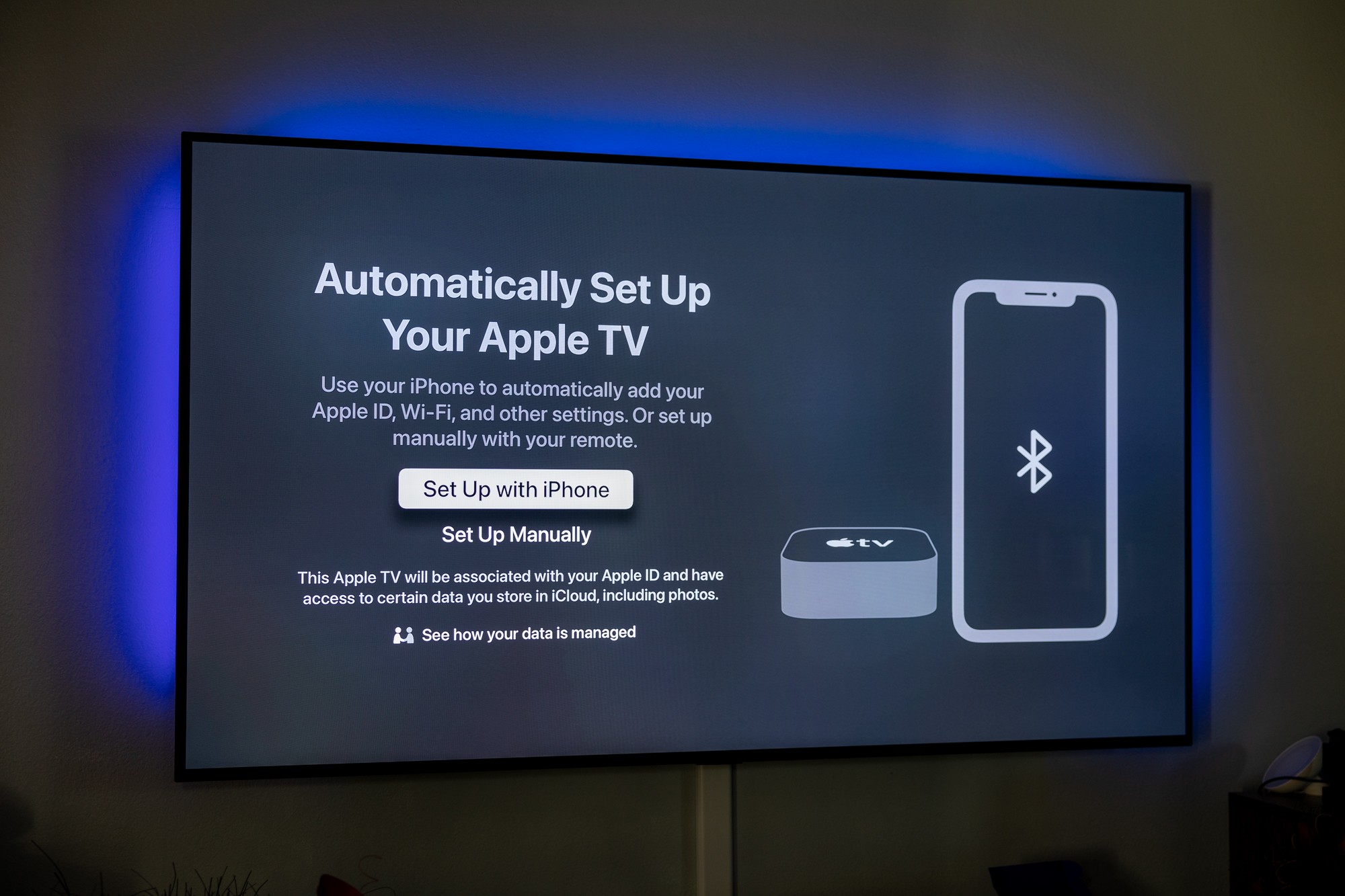
Are you excited to get started with your new Apple TV? Setting up your Apple TV is a straightforward process that can be completed in a few simple steps. In this article, we will walk you through the process of setting up your Apple TV, from unboxing to configuring your device for the ultimate viewing experience.
Unboxing and Physical Setup
First things first, you need to unbox your Apple TV and physically set it up. To do this, follow these steps:
- Plug your Apple TV into a power source and turn on your TV.
- Connect your Apple TV to your TV using an HDMI cable.
- Make sure your TV is set to the correct HDMI input.
Connecting to Wi-Fi
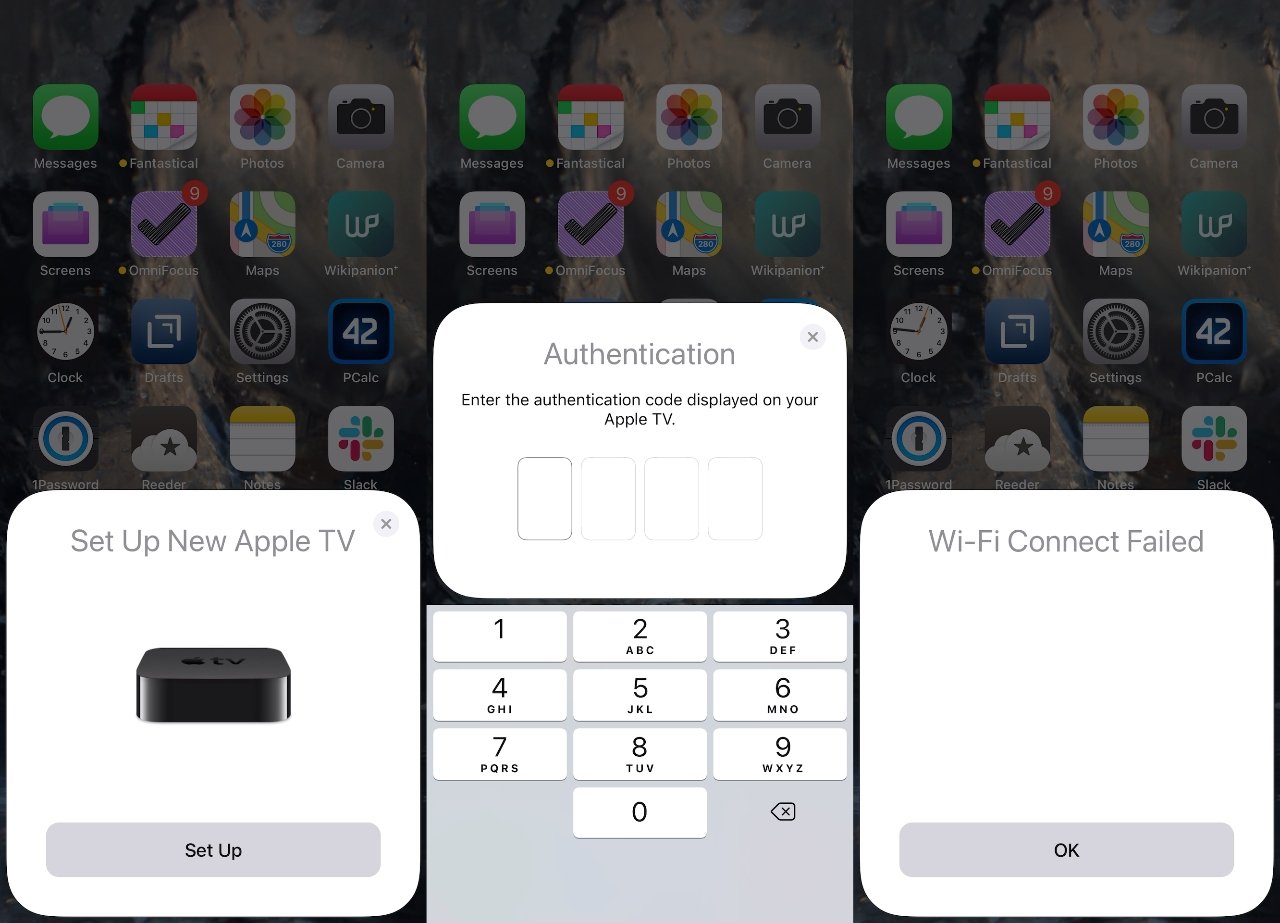
Once you have your Apple TV physically set up, it's time to connect it to your Wi-Fi network. To do this, follow these steps:
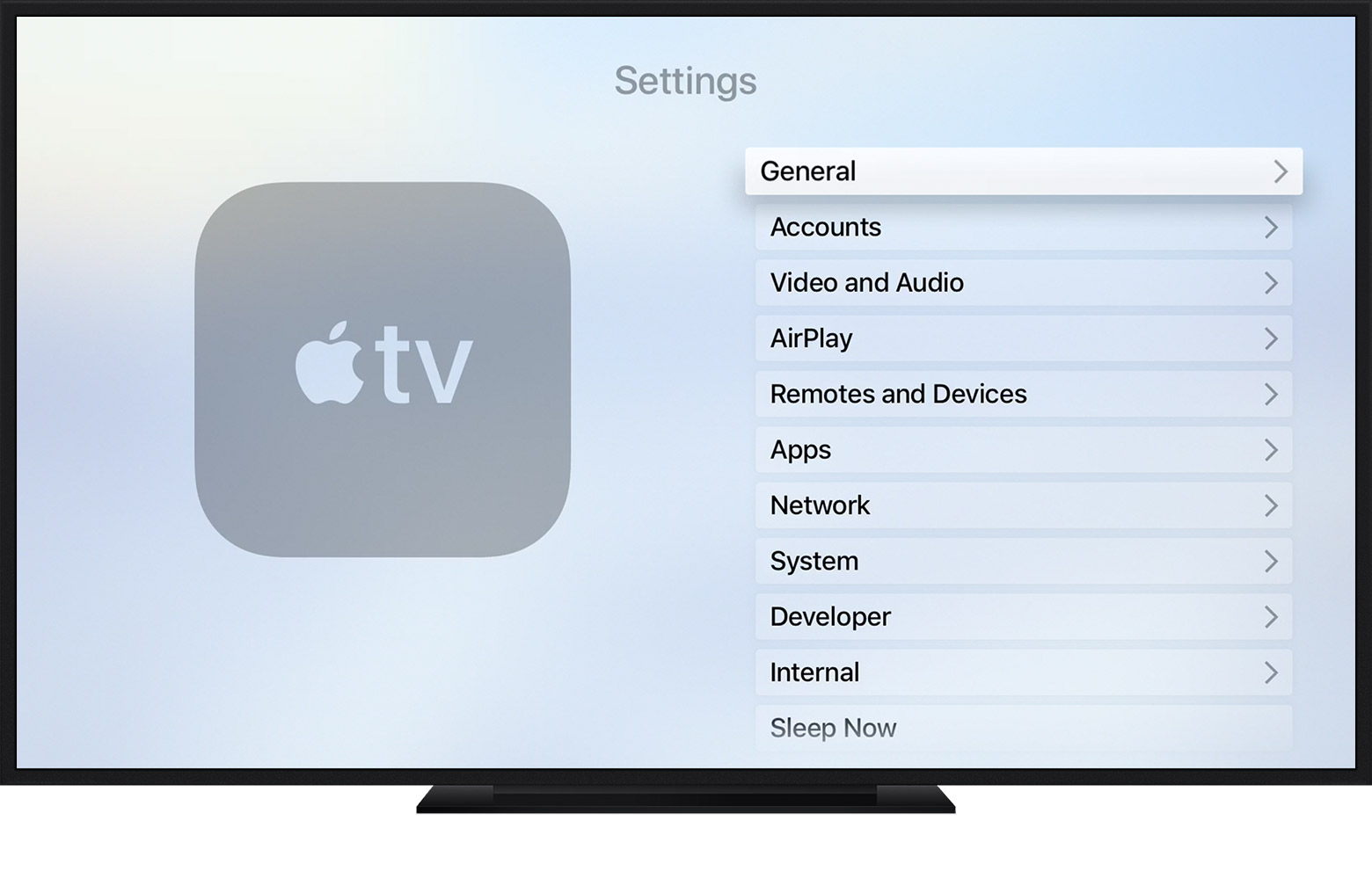
- Go to the Settings app on your Apple TV.
- Select "Network" and then "Wi-Fi."
- Choose your Wi-Fi network from the list of available networks.
- Enter your Wi-Fi password and select "Join."

Setting Up Your Apple ID
Next, you need to set up your Apple ID on your Apple TV. To do this, follow these steps:
- Go to the Settings app on your Apple TV.
- Select "Accounts" and then "Sign In."
- Enter your Apple ID and password.
- Follow the prompts to complete the setup process.
Configuring Your Apple TV
Now that you have your Apple TV set up and connected to your Wi-Fi network, it's time to configure your device. To do this, follow these steps:
- Go to the Settings app on your Apple TV.
- Select "General" and then "Language and Region."
- Choose your language and region.
- Select "Country or Region" and choose your country or region.