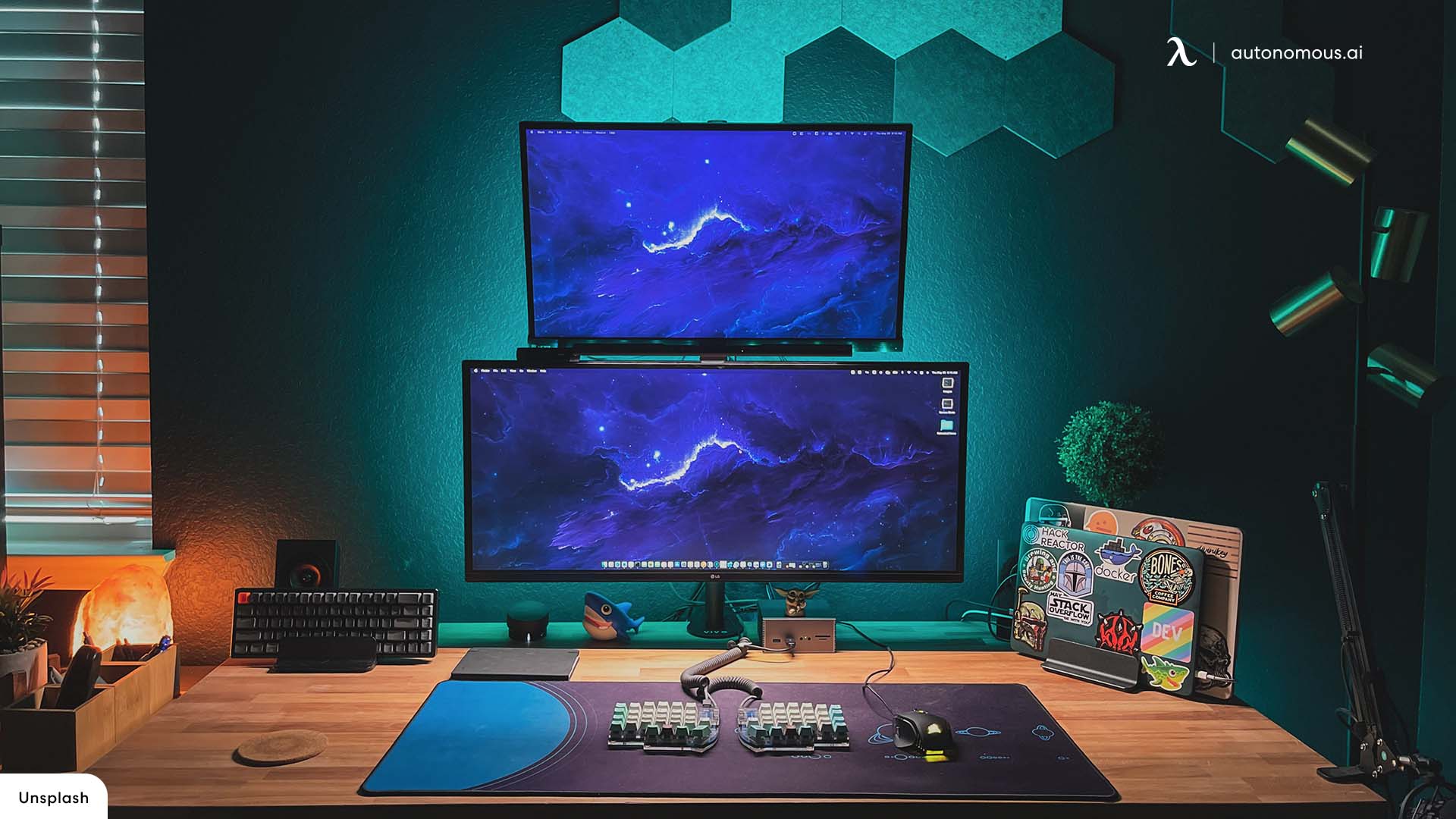
How to Set Up Dual Monitors: A Comprehensive Guide
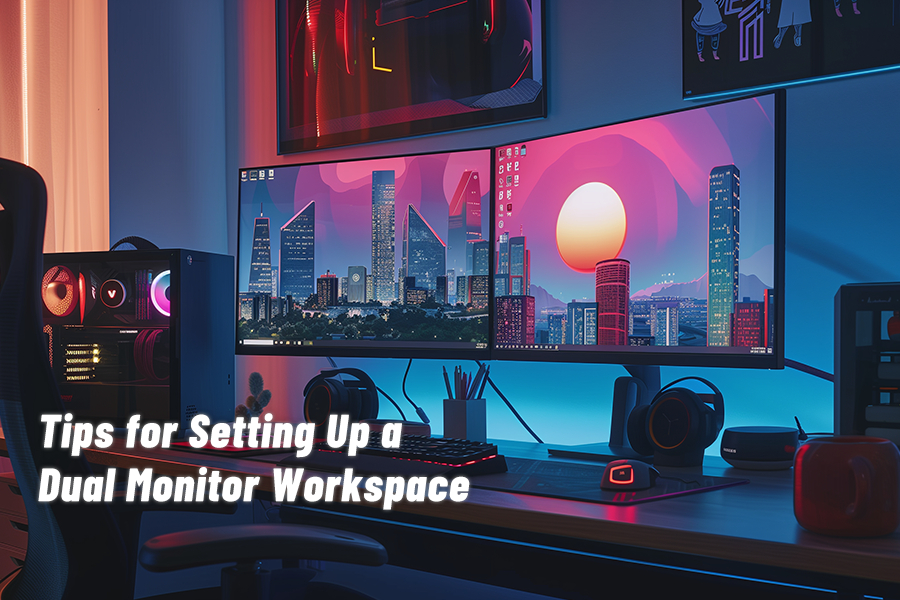
Dual monitors can significantly enhance your productivity, gaming, and multitasking experience. With two screens, you can efficiently manage multiple tasks, have a larger on-screen space, and boost your overall computing experience. In this article, we will walk you through the step-by-step process of setting up dual monitors, troubleshoot common display issues, and provide tips for optimizing your dual-monitor setup.
Hardware Requirements
To set up dual monitors, you will need:
- A computer with multiple video outputs (e.g., HDMI, DisplayPort, or USB-C)
- A second monitor with compatible video inputs
- A cable to connect the monitors (e.g., HDMI, DisplayPort, or USB-C)
- A computer with Windows 11 or Windows 10 operating system
Step 1: Connecting the Monitors
Connect the second monitor to your computer using a compatible cable. If you're using a laptop, you may need a docking station or a USB-C adapter to connect the monitor. Make sure the monitor is turned on and set to the correct input source.
Choosing the Right Cable
Select a cable that matches the video output of your computer and the video input of your monitor. Common cable types include:
- HDMI (High-Definition Multimedia Interface)
- DisplayPort (a digital video interface)
- USB-C (a versatile cable that can transfer data, power, and video signals)
Step 2: Adjusting Display Settings
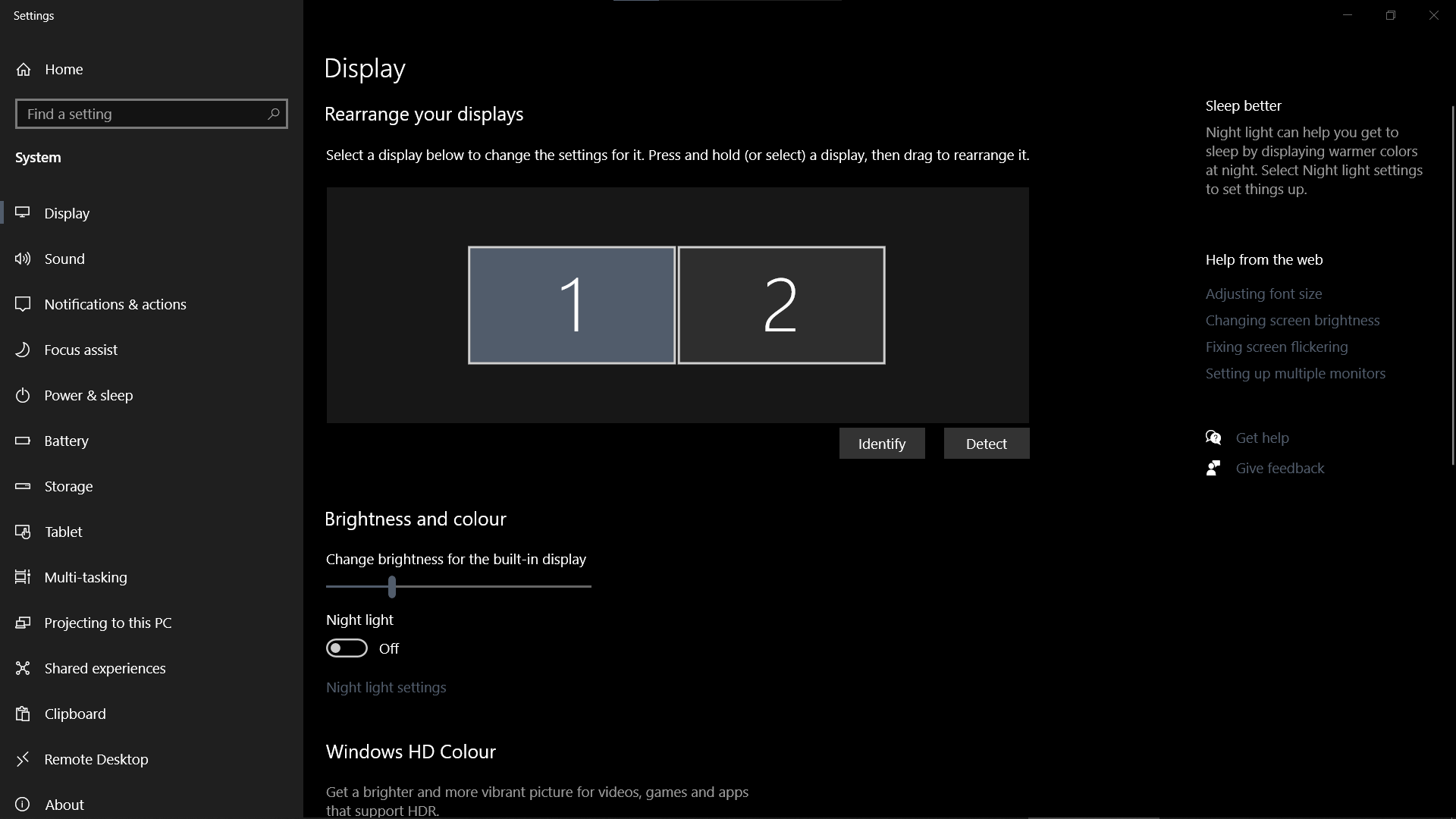
Once the monitors are connected, adjust the display settings on your computer to extend the desktop to the second monitor. To do this:
Windows 11/10 Display Settings
1. Click on the Start button and select Settings. 2. Click on the "System" option. 3. Click on "Display" and select the second monitor from the list. 4. Click on "Extend" to extend the desktop to the second monitor. 5. Adjust the resolution and orientation of the second monitor as needed.
Windows Display Settings Troubleshooting
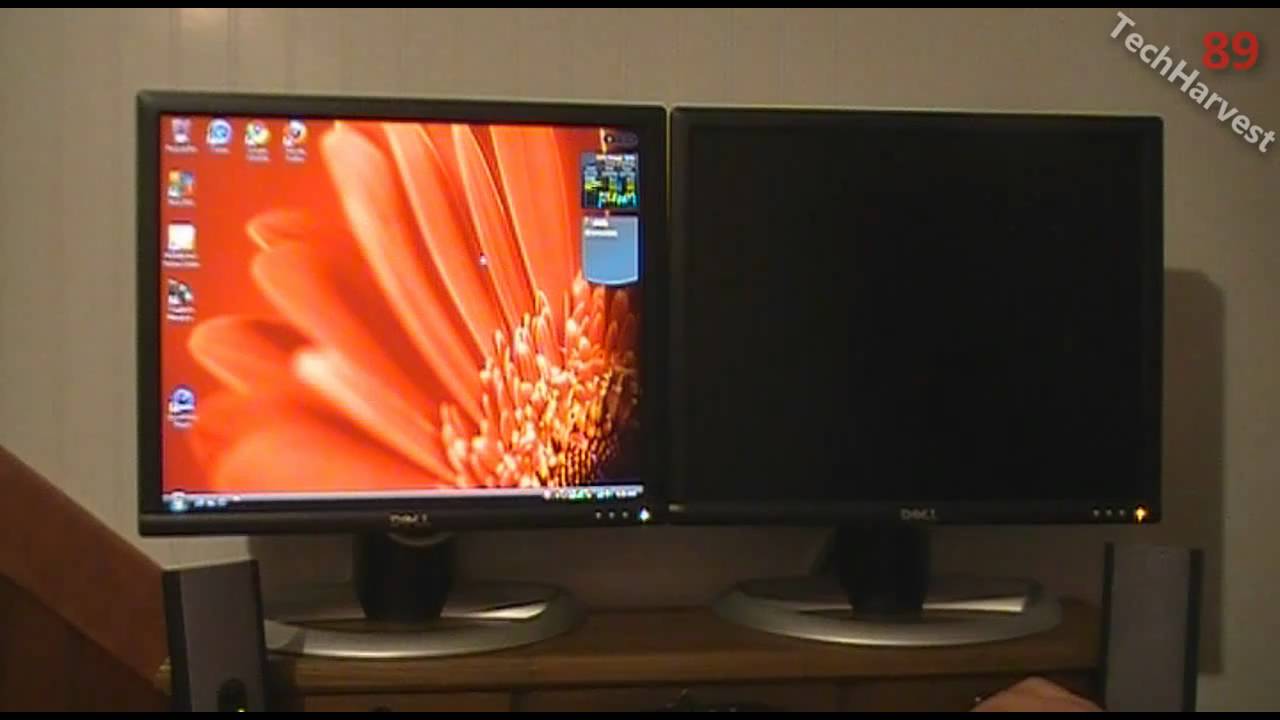
If Windows cannot detect the second monitor, try the following:

- Restart your computer and monitor
- Check the cable connection
- Update your graphics driver
- Disable and re-enable the second monitor in the Display settings
Step 3: Optimizing Your Dual-Monitor Setup
With the dual-monitor setup established, you can now optimize your workspace by adjusting the monitor positions, cable management, and display settings. Consider the following tips:
Positioning Your Monitors
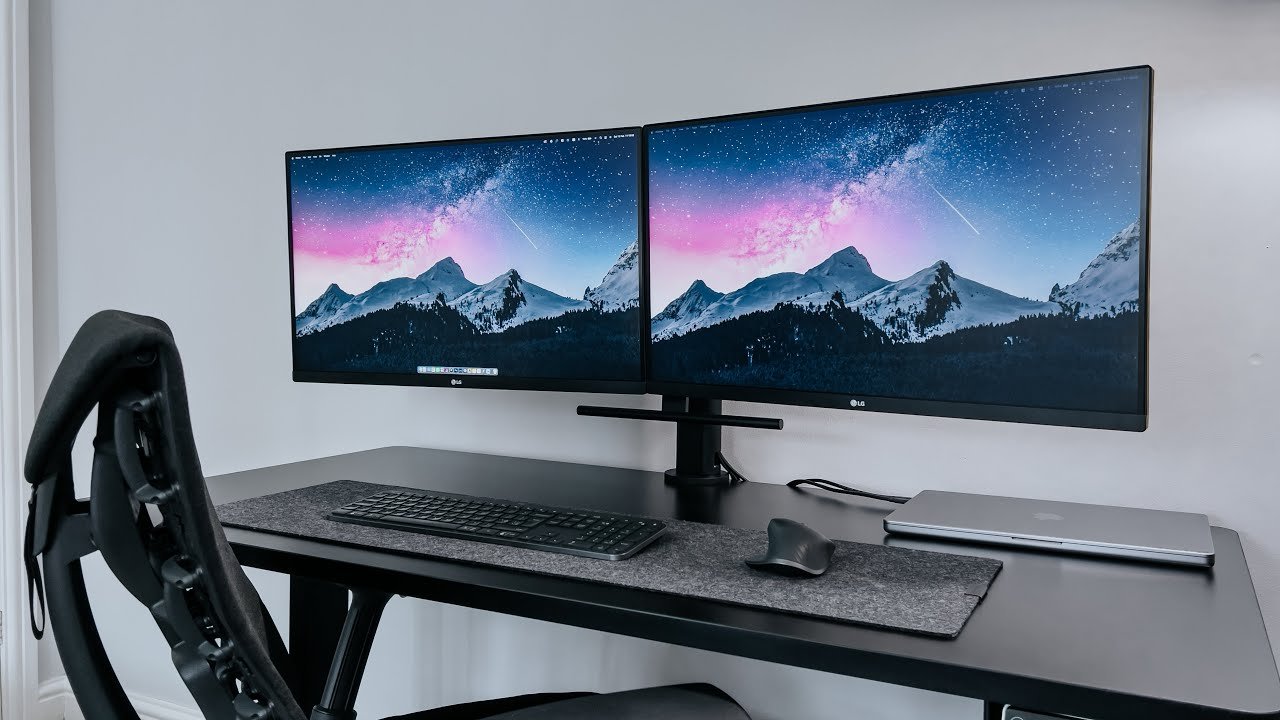
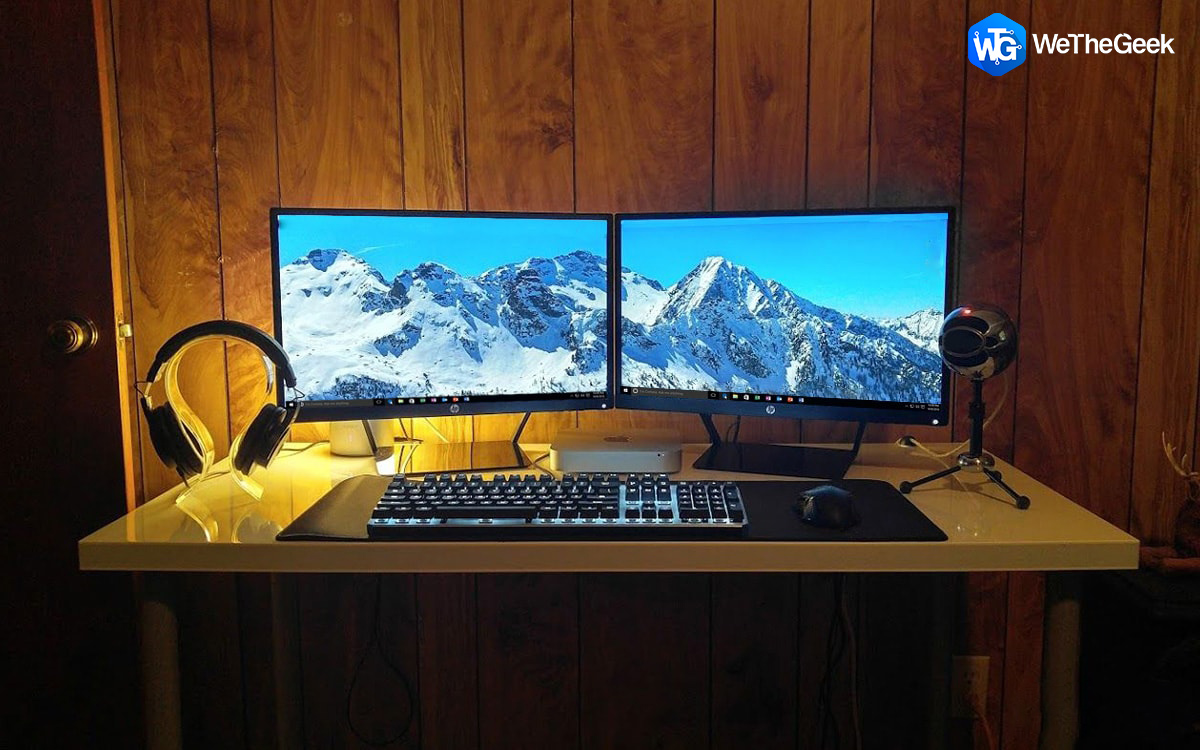
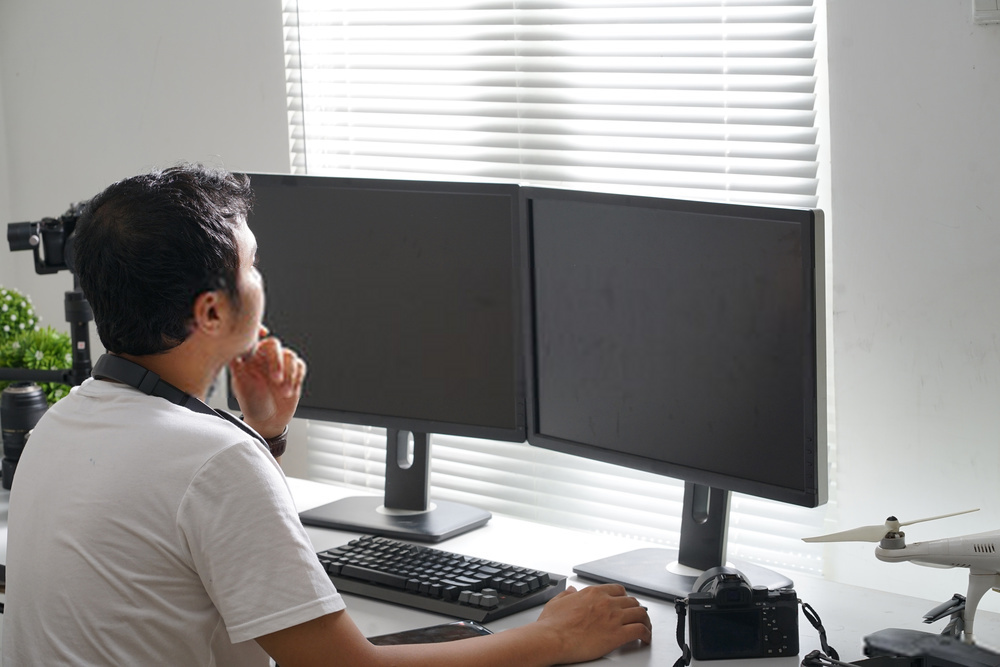
Place the monitors at a comfortable distance and angle to reduce eye strain and improve visibility. You can use a monitor riser or a wall mount to adjust the monitor height and orientation.
Cable Management
Keep the cables organized and manage them using cable ties or cable organizers. This will help reduce clutter and improve airflow around your workspace.
Display Settings
Adjust the display settings on both monitors to ensure a seamless viewing experience. You can adjust the resolution, brightness, and color settings to suit your needs.
Conclusion
Setting up dual monitors is a straightforward process that can significantly enhance your productivity, gaming, and multitasking experience. By following these steps and tips, you can optimize your dual-monitor setup and improve your overall computing experience. Remember to troubleshoot common display issues and adjust the display settings to ensure a seamless viewing experience.
Additional Tips and Resources
For more information on setting up dual monitors, see the following resources:
- Microsoft Support: "Use multiple monitors with Windows"
- Lenovo Support: "Setting up multiple monitors"
- Wikipedia: "Multiple monitors"
By following these tips and resources, you can create a seamless dual-monitor setup that enhances your productivity and computing experience.