How to Set Up a Printer on Windows 10 Pro: A Step-by-Step Guide
Setting up a printer on Windows 10 Pro can be a straightforward process if you follow the correct steps. In this guide, we will take you through the process of setting up a printer on Windows 10 Pro, covering the connection methods, software installation, and troubleshooting tips.
Method 1: Wi-Fi Printer Setup
Wi-Fi printers are a convenient option for printing from your Windows 10 Pro laptop or desktop. To set up a Wi-Fi printer, follow these steps:
- Open the Settings app on your device.
- Click on the "Devices" tab.
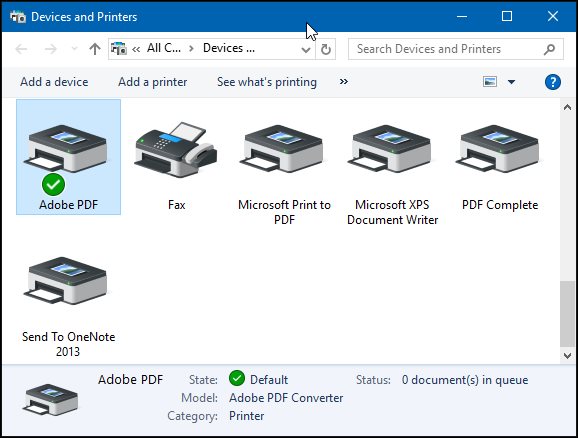
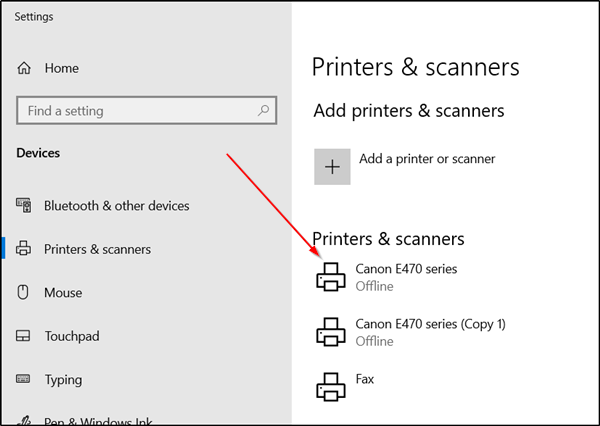
- Click on "Printers & scanners" and then click on "Add a printer or scanner."
- Click on "Add device" and follow the prompts to connect to your Wi-Fi printer.
- The printer will automatically install the necessary drivers and be listed as an available printer.
Method 2: USB Printer Setup
If you have a USB printer, you can connect it directly to your Windows 10 Pro device. Here's how:
- Connect the printer to the device using a USB cable.
- Open the Settings app on your device.
- Click on the "Devices" tab.
- Click on "Printers & scanners" and then click on "Add a printer or scanner."
- The printer should automatically install the necessary drivers and be listed as an available printer.
Method 3: Network Printer Setup
For network printers, you'll need to follow these steps:
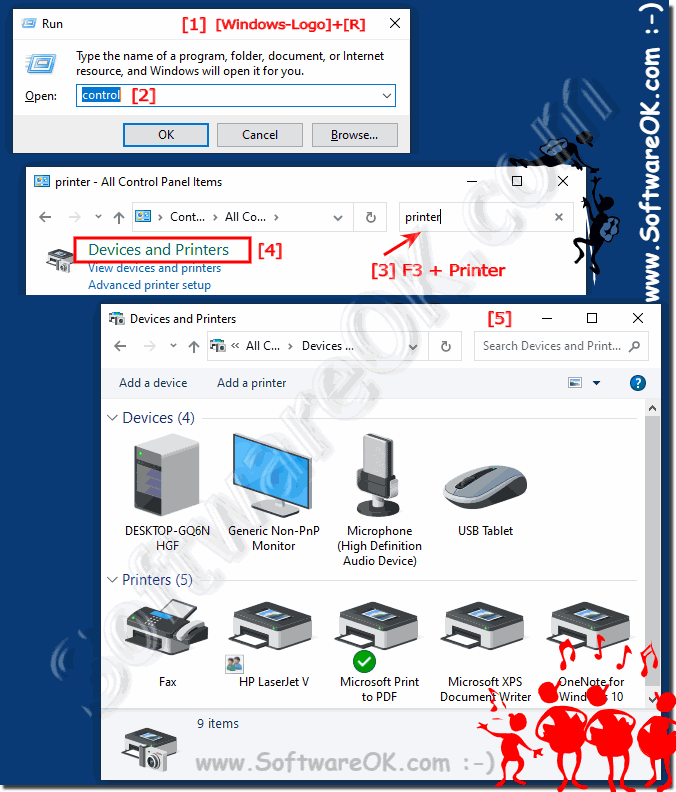
- Open the Settings app on your device.
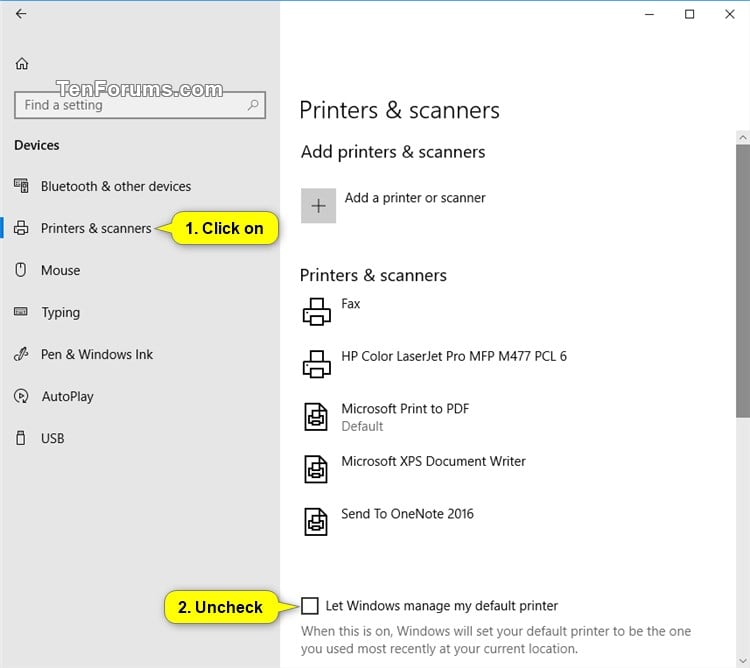
- Click on the "Devices" tab.
- Click on "Printers & scanners" and then click on "Add a printer or scanner."
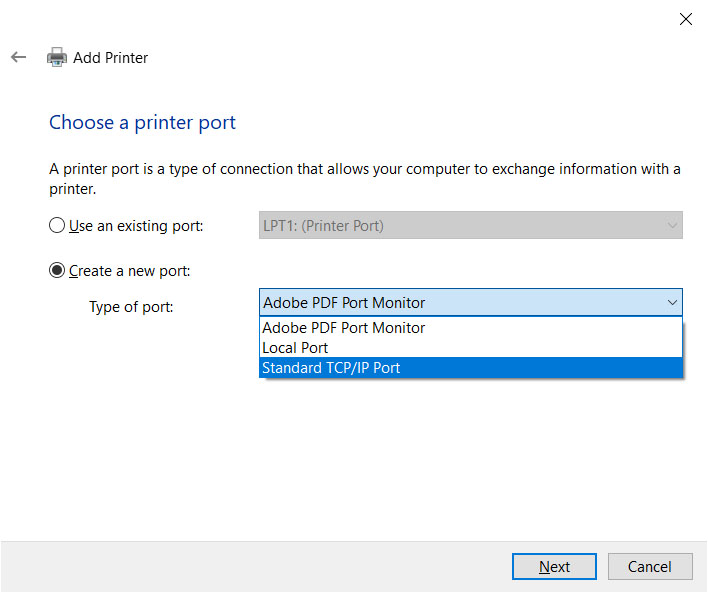
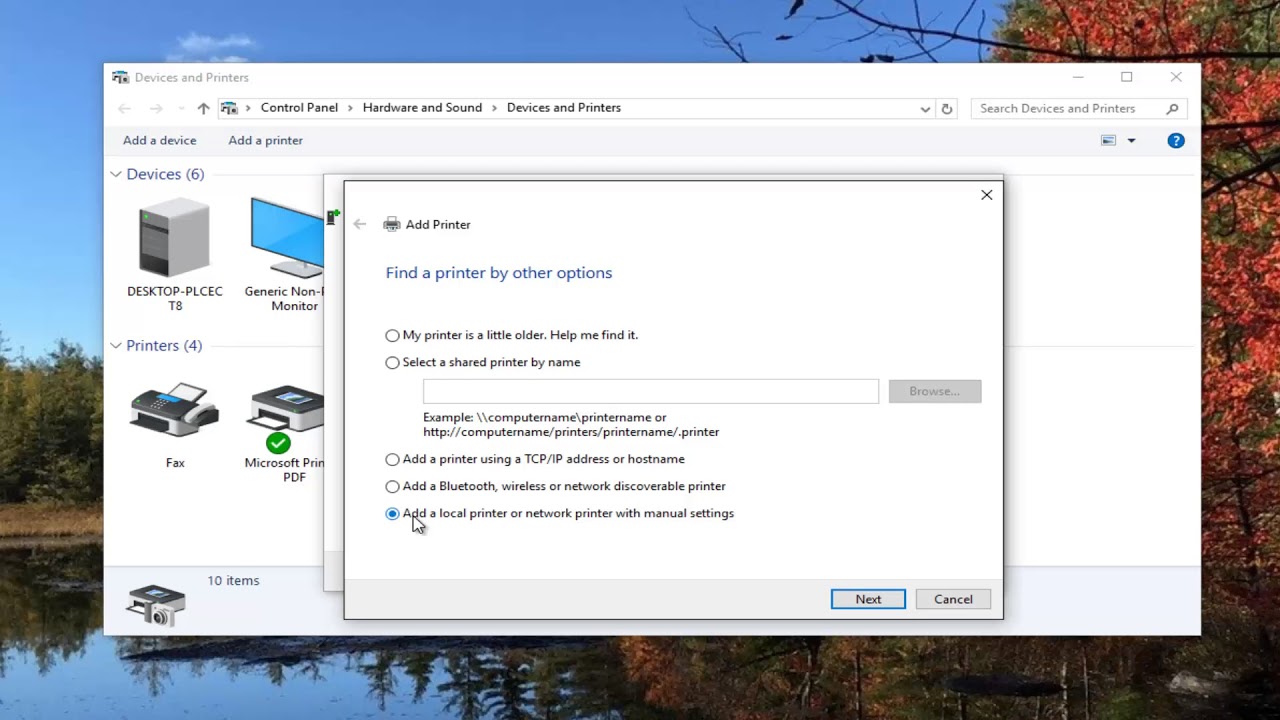
- Click on "Add device" and select "Network printer" as the connection method.
- Enter the printer's IP address and follow the prompts to connect to the printer.
- The printer will automatically install the necessary drivers and be listed as an available printer.
Software Installation
After setting up your printer, you may need to install additional software to access specific features or improve performance. You can download the necessary software from the manufacturer's website or, if not available, from the Microsoft website.
Troubleshooting Tips
If you encounter any issues during the setup process, here are some troubleshooting tips:
- Make sure the printer is properly connected to your device.
- Update your device's drivers to the latest version.
- Try restarting the printer and your device.
- Check for any firmware updates on the manufacturer's website.
Conclusion
Setting up a printer on Windows 10 Pro can be a relatively simple process if you follow the steps outlined in this guide. Remember to check for any firmware updates or software bugs that may affect the printer's performance.
By following these steps, you'll be able to set up your printer and start printing in no time!
![How to add Printer or Scanner in Windows 10 [Tutorial]](https://kaas.hpcloud.hp.com/thumbnails/poster-fc5fd652-4dae-4c4b-b990-f923ea9c101e.jpeg "How to add Printer or Scanner in Windows 10 [Tutorial]")
:max_bytes(150000):strip_icc()/B3-SetaDefaultPrinterinWindows10-annotated-1bccbb3c19874efe96cd7a0a06f2d97b.jpg "We're here to help you set up your HP printer - HP® Support")