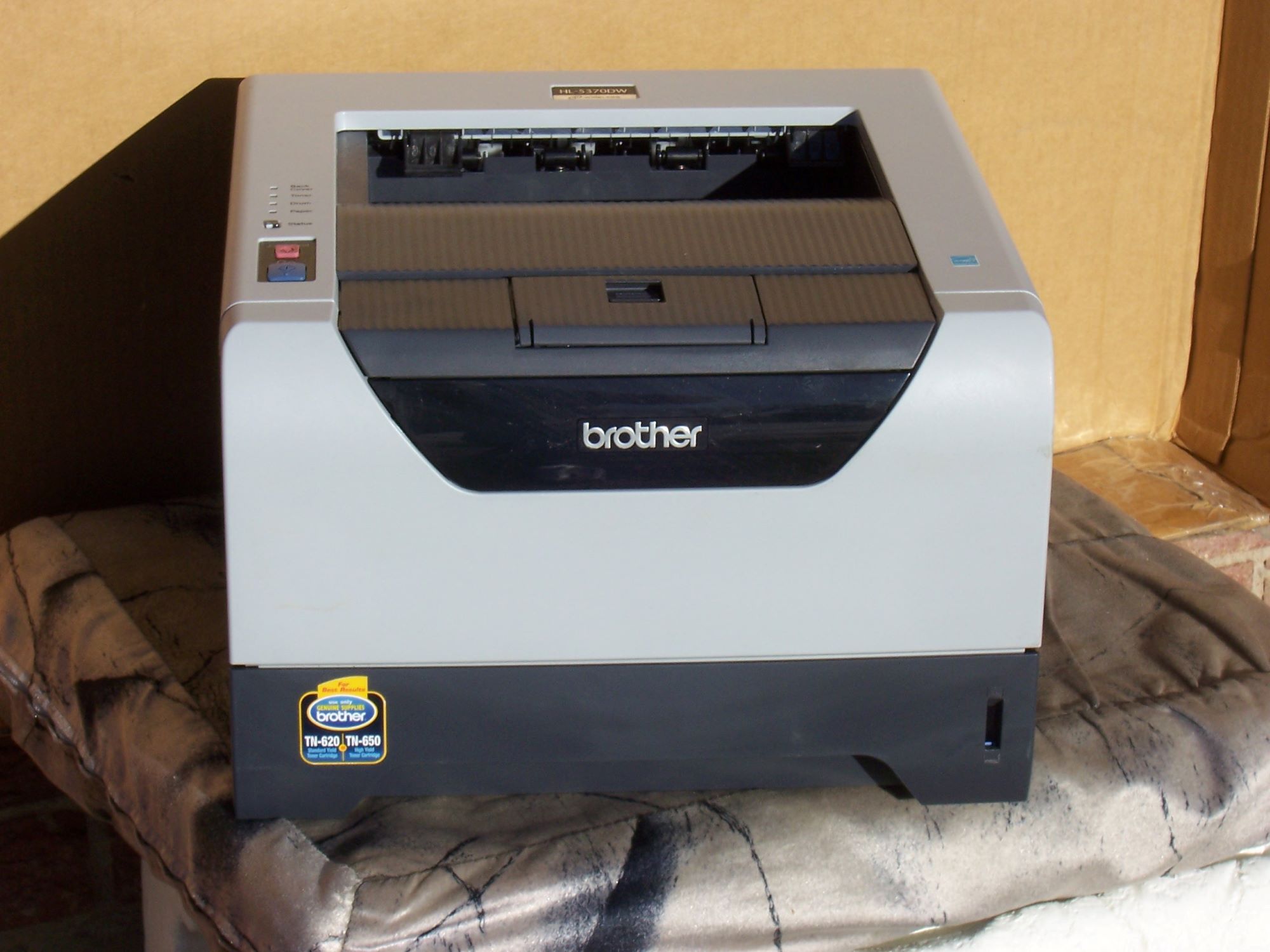
How to Set Up a Wireless Printer at Home
Connecting a wireless printer to a local Wi-Fi network is a straightforward process that can be completed in a few simple steps. With a wireless printer, you can print documents and photos from anywhere in your home or office, without the hassle of cables. In this article, we will walk you through the process of setting up a wireless printer at home, step by step.
Why Do I Need to Set Up a Wireless Printer?
Setting up a wireless printer is essential for printing wirelessly from your personal computer, smartphone, or tablet. A wireless printer connects to your local Wi-Fi network, allowing you to print documents and photos from anywhere in your home or office. This eliminates the need for cables and makes printing much more convenient.
Materials Needed
- Wireless printer
- Router (Wi-Fi modem)
- Computer or mobile device (smartphone or tablet)
- Power cord for the printer
Step 1: Unbox and Install the Printer
Unbox your wireless printer and remove any packaging materials. Install the power cord and plug it into a power outlet. Make sure the printer is turned on.
Step 2: Connect the Printer to the Router
Find the wireless settings on your router and locate the network name (SSID) and password. Note these down for later use. Next, find the wireless settings on your printer and select the option to connect to a wireless network. Enter the network name (SSID) and password when prompted.
Step 3: Connect the Printer to Your Computer or Mobile Device
Connect your computer or mobile device to the same Wi-Fi network as the printer. On a Windows computer, go to Settings > Devices > Printers & scanners and add a new printer. On a Mac, go to System Preferences > Printers & Scanners and add a new printer. On a mobile device, go to Settings > Wi-Fi and select the printer's network name (SSID).
Step 4: Install the Printer Drivers
Install the printer drivers on your computer or mobile device. This will allow your device to communicate with the printer. You can download the drivers from the printer manufacturer's website or install them from a CD/DVD that came with the printer.

Step 5: Test the Printer
Test the printer by printing a document or photo from your computer or mobile device. If everything is set up correctly, the printer should print the document or photo wirelessly.
Troubleshooting Tips
- Make sure the printer is turned on and connected to the router.
- Check that the computer or mobile device is connected to the same Wi-Fi network as the printer.
- Ensure that the printer drivers are installed correctly.
- Try restarting the printer, router, and computer or mobile device if the issue persists.
Conclusion
Setting up a wireless printer at home is a straightforward process that can be completed in a few simple steps. By following the steps outlined in this article, you should be able to connect your wireless printer to your local Wi-Fi network and print documents and photos wirelessly from anywhere in your home or office.
Recommendations
- Use a strong and stable Wi-Fi network to ensure reliable printing.
- Use a wireless printer with built-in Wi-Fi capabilities.
- Keep the printer drivers up to date to ensure optimal performance.
Wireless Printer Models
There are many wireless printer models available on the market, including HP, Epson, Canon, and Brother. Each model has its own unique features and capabilities. When choosing a wireless printer, consider the following factors:
- Print speed and quality
- Wireless connectivity options (e.g., Wi-Fi, Bluetooth)
- Scan and copy capabilities
- Mobile device compatibility
- Price and value for money
Printer Troubleshooting
If you encounter any issues with your wireless printer, refer to the manufacturer's troubleshooting guide or contact their customer support team for assistance. Some common issues include: