How to Set Up and Pair your Apple Watch with Your iPhone: A Step-by-Step Guide
Are you the proud owner of a new Apple Watch, and you're not sure how to set it up and pair it with your iPhone? Look no further! In this comprehensive guide, we'll walk you through the simple steps to get your Apple Watch up and running with your iPhone.Prerequisites
Before you start, ensure that your iPhone is ready for pairing. Here are the minimum requirements: * Your iPhone should be running on iOS 14 or later. * Make sure you have the latest version of WatchOS installed on your Apple Watch. * Ensure that both your iPhone and Apple Watch are connected to Wi-Fi.Method 1: Pairing Your Apple Watch with Your iPhone
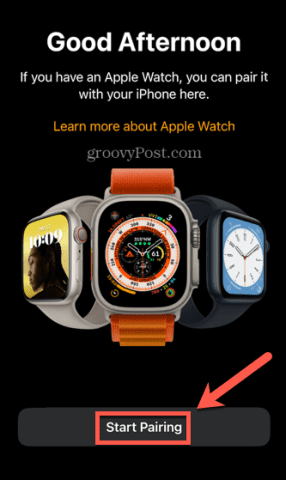
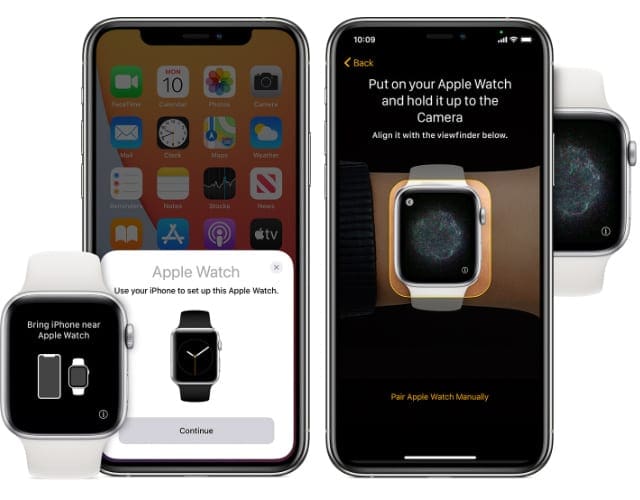
Follow these steps to pair your Apple Watch with your iPhone:- Open the Apple Watch app on your iPhone and select "Start Pairing".
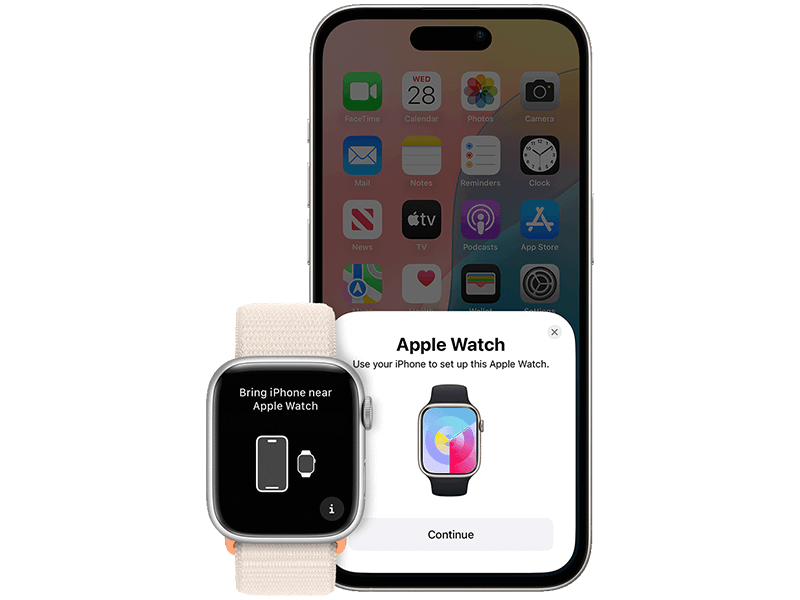
- Put your Apple Watch in pairing mode by pressing and holding the side button until the animation appears.
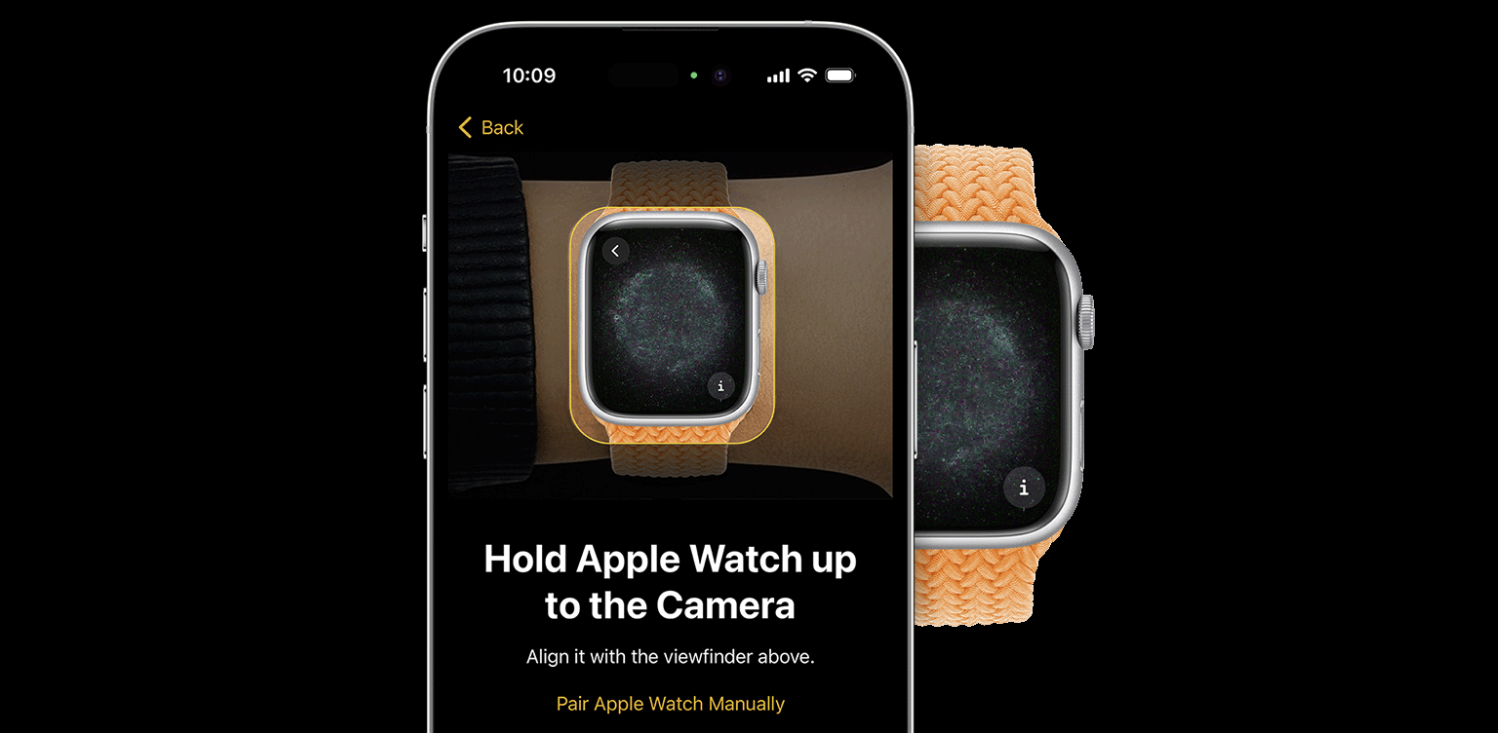
- On your iPhone, select your Apple Watch from the list of available devices.
- Follow the on-screen instructions to enter the six-digit code that appears on your Apple Watch.
- If you see a message that says "Unable to Pair," try restarting both devices and trying again.
Method 2: Pairing Your Apple Watch without an iPhone
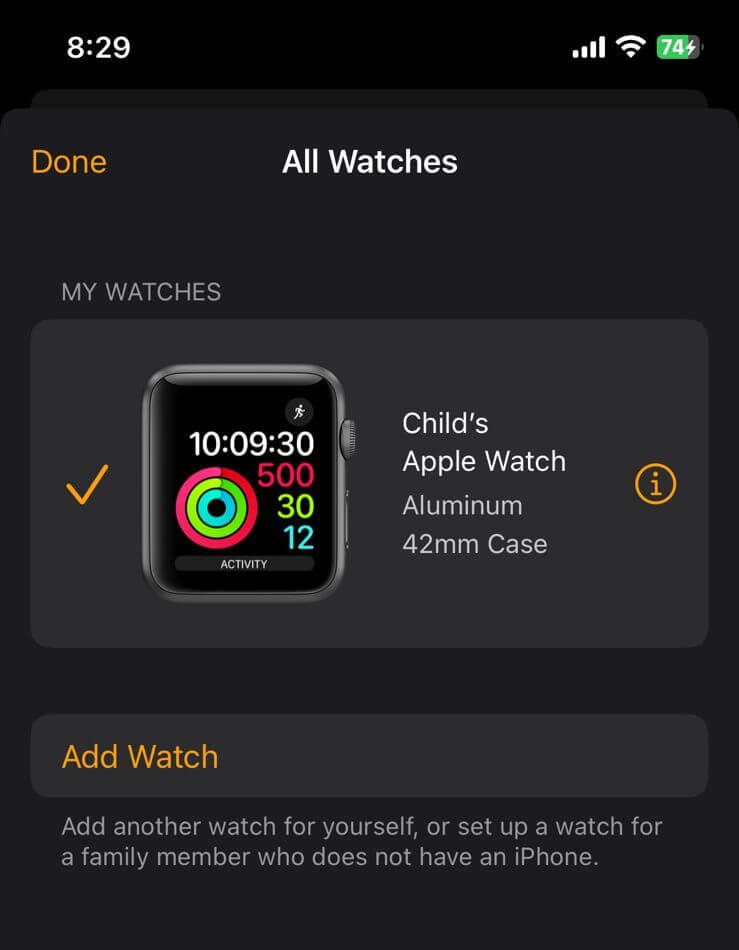
If you don't have an iPhone but still want to use your Apple Watch, you can pair it with Family Setup, which allows you to connect your Apple Watch with a family member's iPhone. Here's how:- Open the Apple Watch app on your family member's iPhone and select "Start Pairing".
- On your Apple Watch, tap "Add Family" and select your family member's name.
- Enter the six-digit code that appears on your Apple Watch.
- Follow the on-screen instructions to set up your Apple Watch using your family member's iPhone.
Step 3: Configuring Your Apple Watch
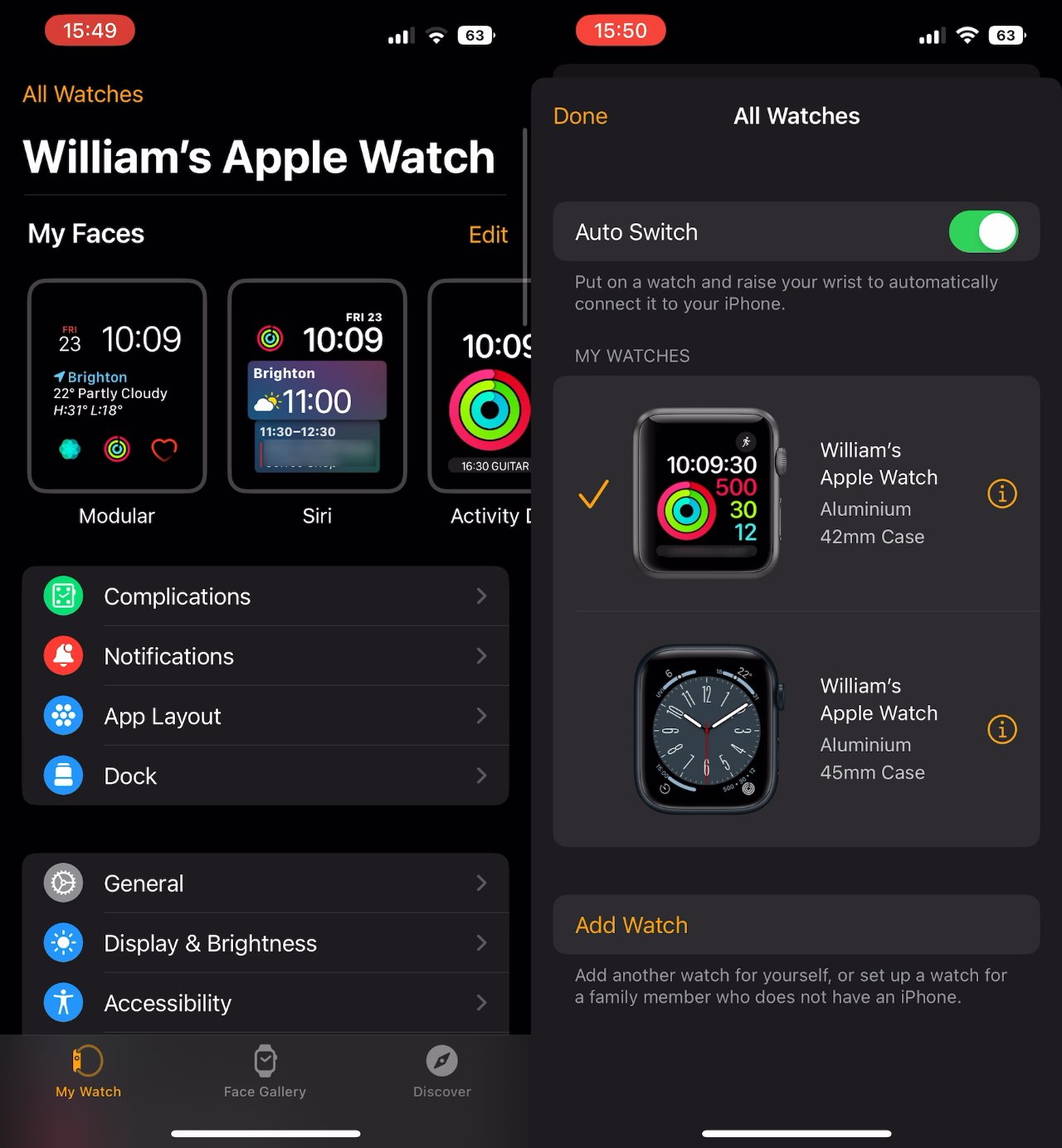
After pairing your Apple Watch with your iPhone, you can configure it to your liking. Here's what you need to do:- Open the Apple Watch app on your iPhone and select "My Watch" tab.
- Tap "Cellular" and then "Set Up Cellular" to connect your Apple Watch to your iPhone's cellular plan.
- Go to your Apple Watch and select "Settings" > "General" > "Date & Time" to set the time zone and date.