Easy Twitch Stream Setup Guide for Beginners
Are you ready to start your Twitch streaming journey? With the right equipment, software, and setup, you can create a high-quality stream that engages your audience and sets you apart from the competition. In this comprehensive guide, we'll walk you through the essential steps to setup your Twitch stream, covering everything from hardware and software to going live.
Step 1: Choose Your Equipment
When it comes to streaming on Twitch, having the right equipment is crucial. Here are some essentials to consider:
- Webcam: A high-quality webcam is essential for capturing clear video and audio. Popular options include the Logitech C920 and Razer Kiyo.
- Microphone: A good microphone is crucial for capturing clear audio. Popular options include the Blue Yeti and HyperX QuadCast Gaming Microphone.
- Capture Card: If you're using a console or game, you'll need a capture card to connect it to your computer. Popular options include the Elgato HD60 and AVerMedia Extremecap U3.
- Lighting: Proper lighting is essential for creating a visually appealing stream. Natural light or invest in a lighting kit for your streaming space.
Step 2: Select Your Streaming Software
There are several streaming software options available, each with its own strengths and weaknesses. Here are some popular options:
- OBS Studio: A free, open-source software that's popular among streamers. It offers a wide range of features and customization options.
- Streamlabs OBS: A customizable version of OBS Studio that offers a range of themes and plugins.
- XSplit: A user-friendly software that's easy to use and offers a range of features and customization options.
Step 3: Setup Your Stream
Now that you have your equipment and software, it's time to setup your stream. Here are some essential steps to follow:
- Connect your equipment to your computer: Connect your webcam, microphone, and capture card to your computer using USB cables or an HDMI cable.
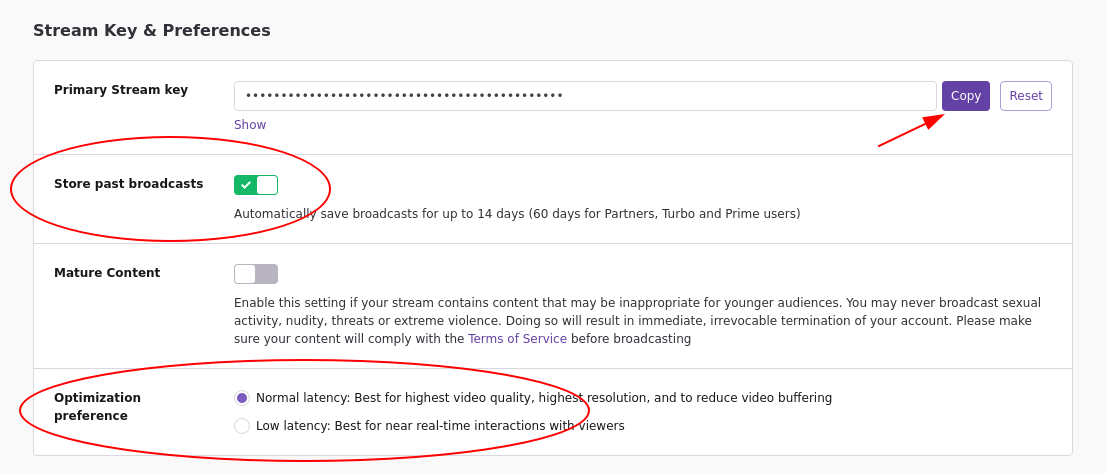
- Configure your streaming software: Launch your streaming software and configure your settings, including your stream quality, bitrate, and resolution.
- Test your stream: Test your stream to ensure that everything is working properly and that you're receiving a stable connection.
- Go live: Once you've tested your stream, it's time to go live! Click the "Start Streaming" button to begin broadcasting to your audience.
Step 4: Customize Your Stream
Now that you're live, it's time to customize your stream to make it more engaging and entertaining. Here are some ideas:
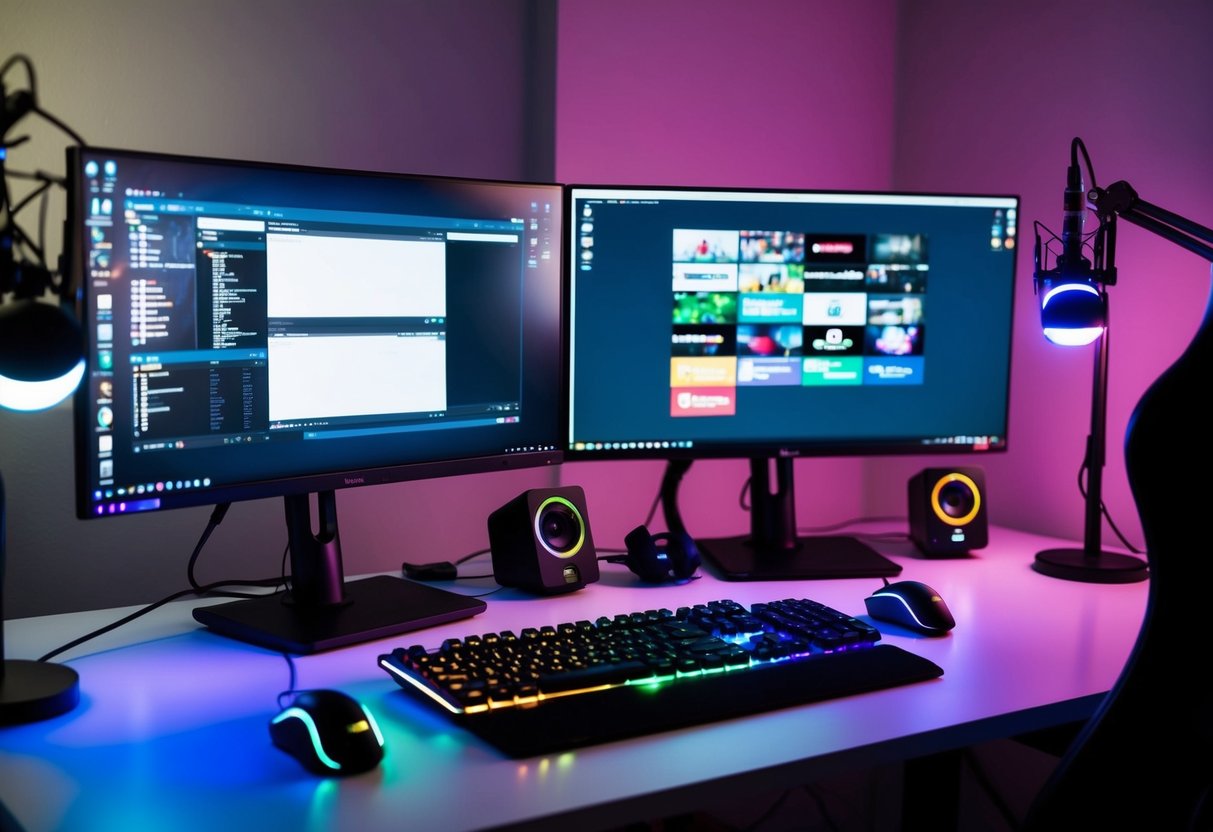
- Add overlays: Use software like Streamlabs OBS to add overlays to your stream, including your name, logo, and social media links.
- Use visual effects: Use software like OBS Studio to add visual effects to your stream, including animations and transitions.
- Engage with your audience: Interact with your audience through live chat, polls, and Q&A sessions.
Conclusion
Starting a Twitch stream can seem daunting, but with the right equipment and software, it's easier than ever to get started. By following these steps, you can create a high-quality stream that engages your audience and sets you apart from the competition. Remember to customize your stream to make it more entertaining and engaging, and don't be afraid to experiment and try new things. Good luck, and happy streaming!
Frequently Asked Questions
Here are some frequently asked questions about streaming on Twitch:
Q: What equipment do I need to start streaming on Twitch?
A: You'll need a webcam, microphone, capture card, and lighting to start streaming on Twitch.
Q: What streaming software should I use?
A: Popular options include OBS Studio, Streamlabs OBS, and XSplit.
Q: How do I setup my stream?
A: Follow the steps outlined above, including connecting your equipment, configuring your software, testing your stream, and going live.




![[Everything Explained] Streaming Setup for Twitch in 2026 - OBSBOT](https://i.ytimg.com/vi/zBX2zfX2EUk/maxresdefault.jpg "[Everything Explained] Streaming Setup for Twitch in 2026 - OBSBOT")