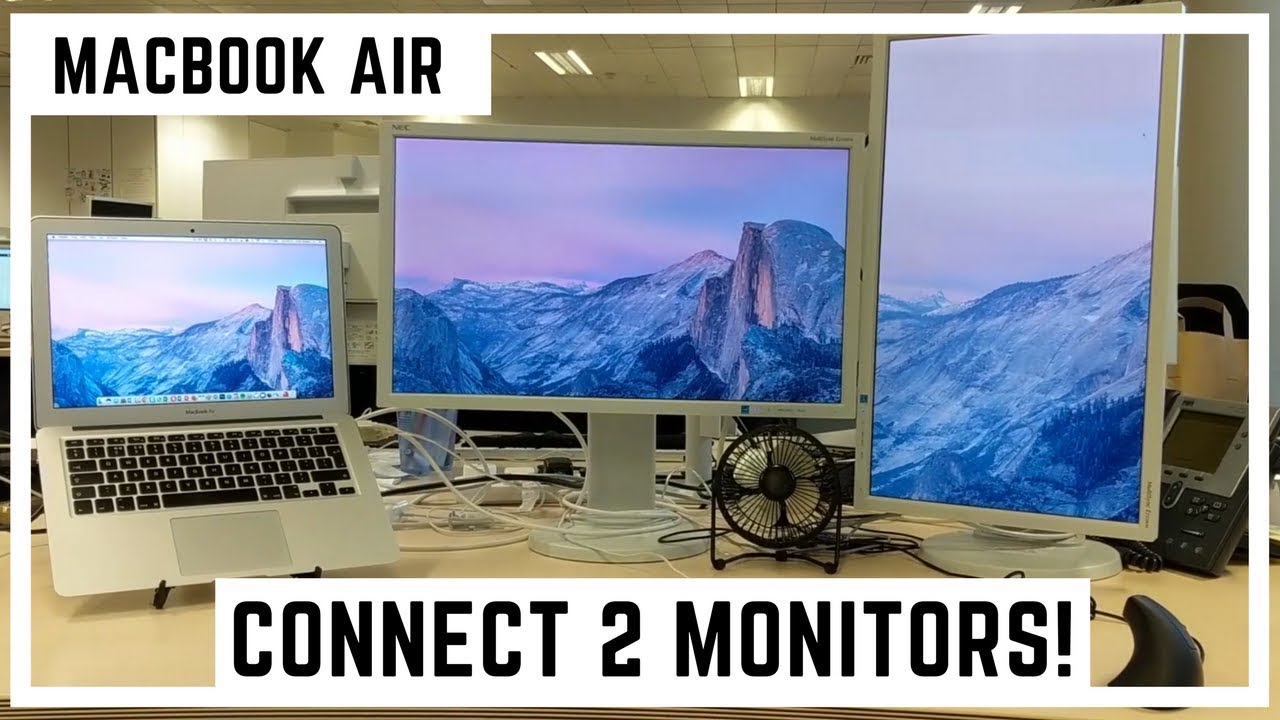
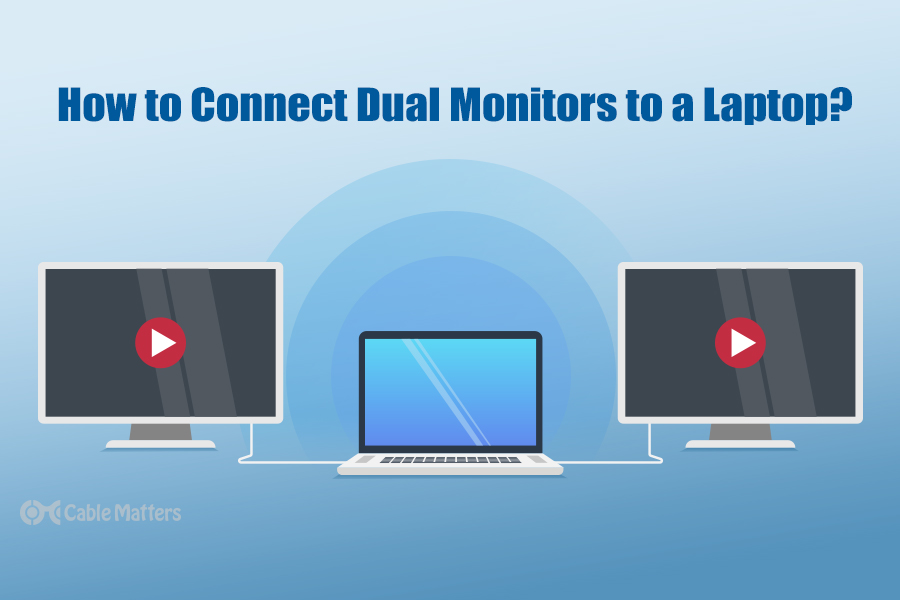
How to Connect Multiple Monitors: Enhance Productivity and Efficiency
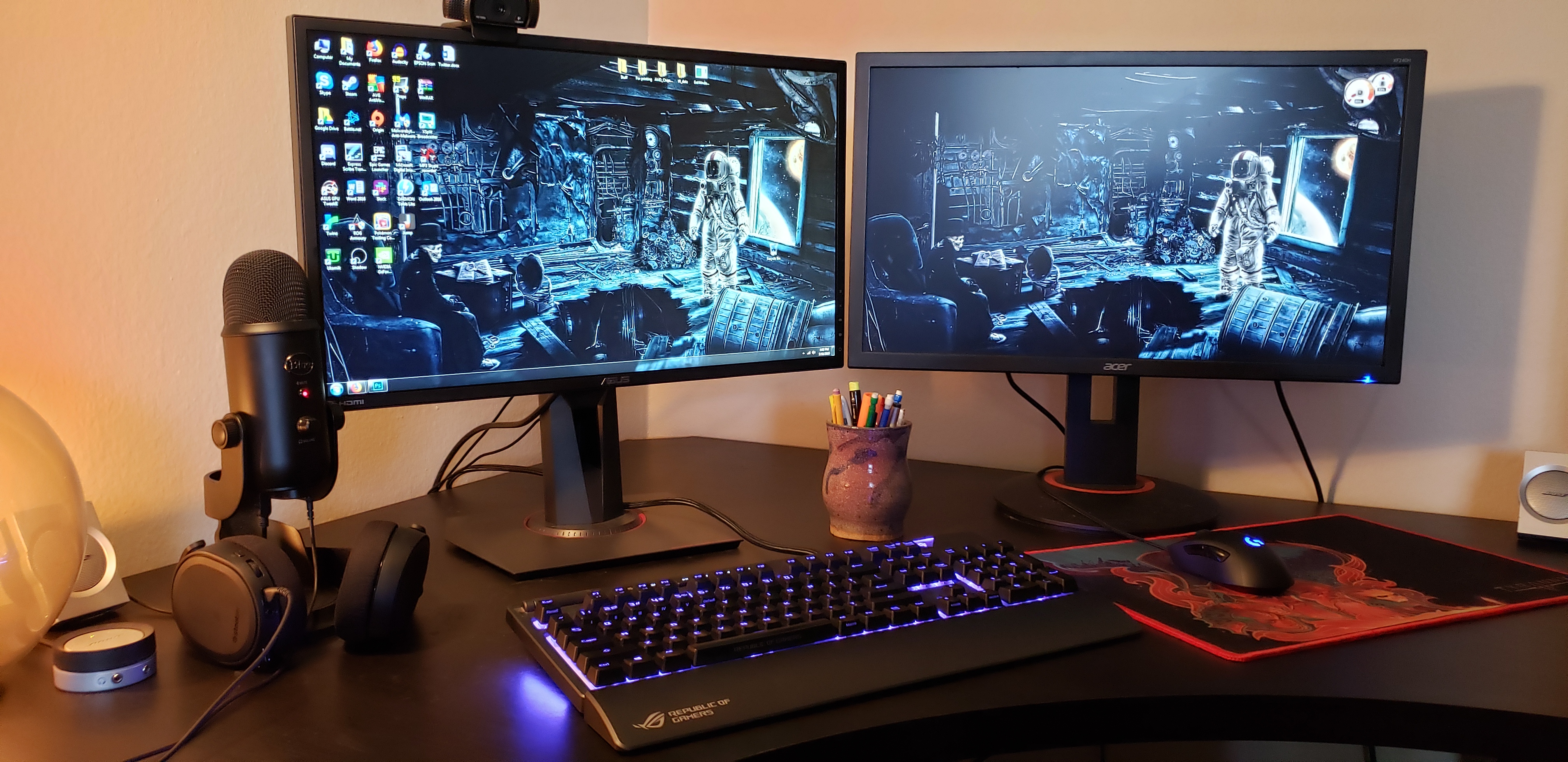
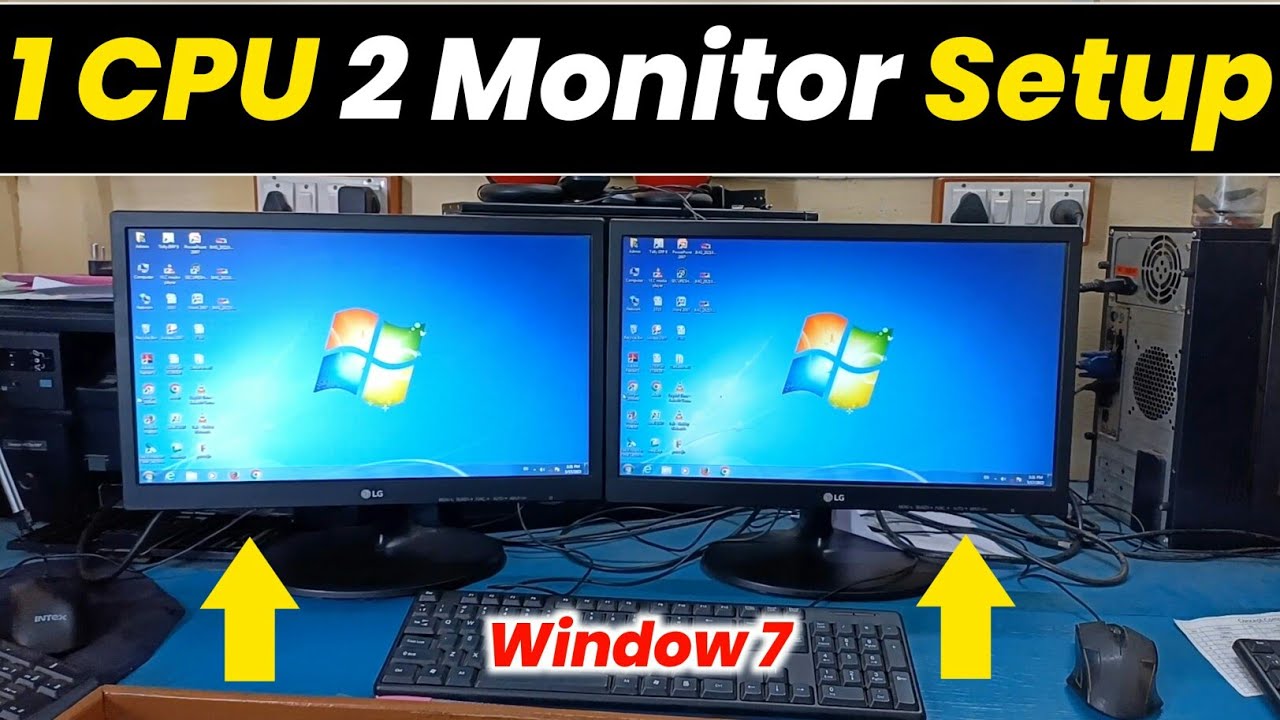
Are you looking for ways to boost your productivity while working or gaming? One effective solution is to connect multiple monitors to your laptop or desktop computer. This setup can help you multitask more efficiently, reduce eye strain, and enhance your overall computing experience.
Benefits of Connecting Multiple Monitors
- Increased productivity: With multiple monitors, you can display multiple applications, emails, and files simultaneously, making it easier to manage tasks and meet deadlines.
- Enhanced gaming experience: Playing games on multiple monitors can provide a more immersive and engaging experience, with increased screen real estate and improved visuals.
- Improved multitasking: Connecting multiple monitors allows you to perform multiple tasks simultaneously, making it easier to manage multiple projects, emails, and communications.
- Reduced eye strain: By spreading out your work across multiple monitors, you can reduce eye strain and improve your overall visual comfort.
Equipment Needed to Connect Multiple Monitors
To connect multiple monitors, you'll need a few basic pieces of equipment, including:
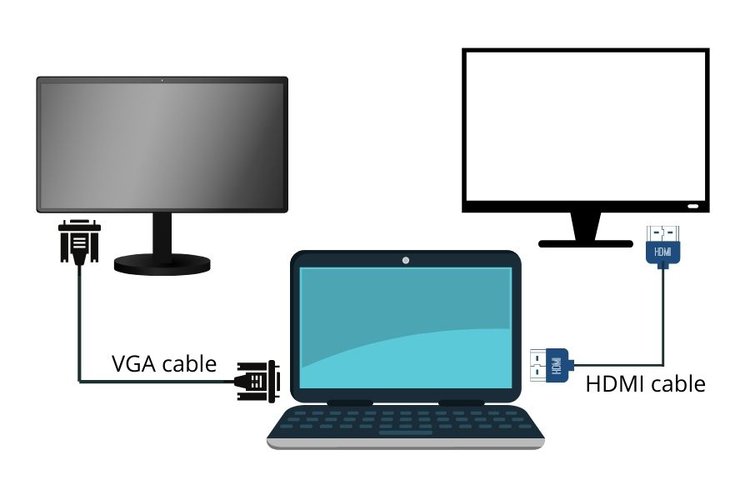
- Multiple monitors: Choose monitors that have the same resolution and display interface (e.g., HDMI, DisplayPort, or USB-C).
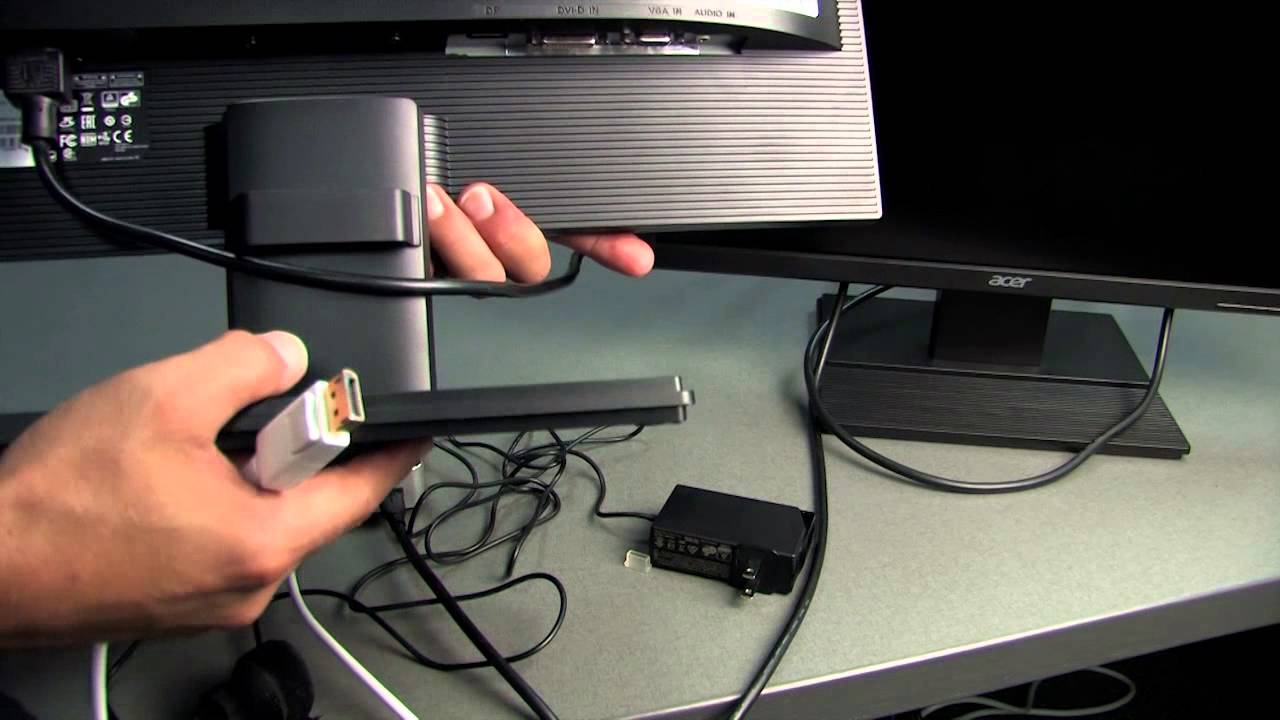
- Video cable: Use a video cable that matches the display interface on your monitors and computer (e.g., HDMI, DisplayPort, or USB-C).
- Computer with multiple video ports: Most modern computers have multiple video ports, including HDMI, DisplayPort, and USB-C.
- Power source: Make sure you have a reliable power source for your monitors and computer.
Step-by-Step Guide to Connect Multiple Monitors
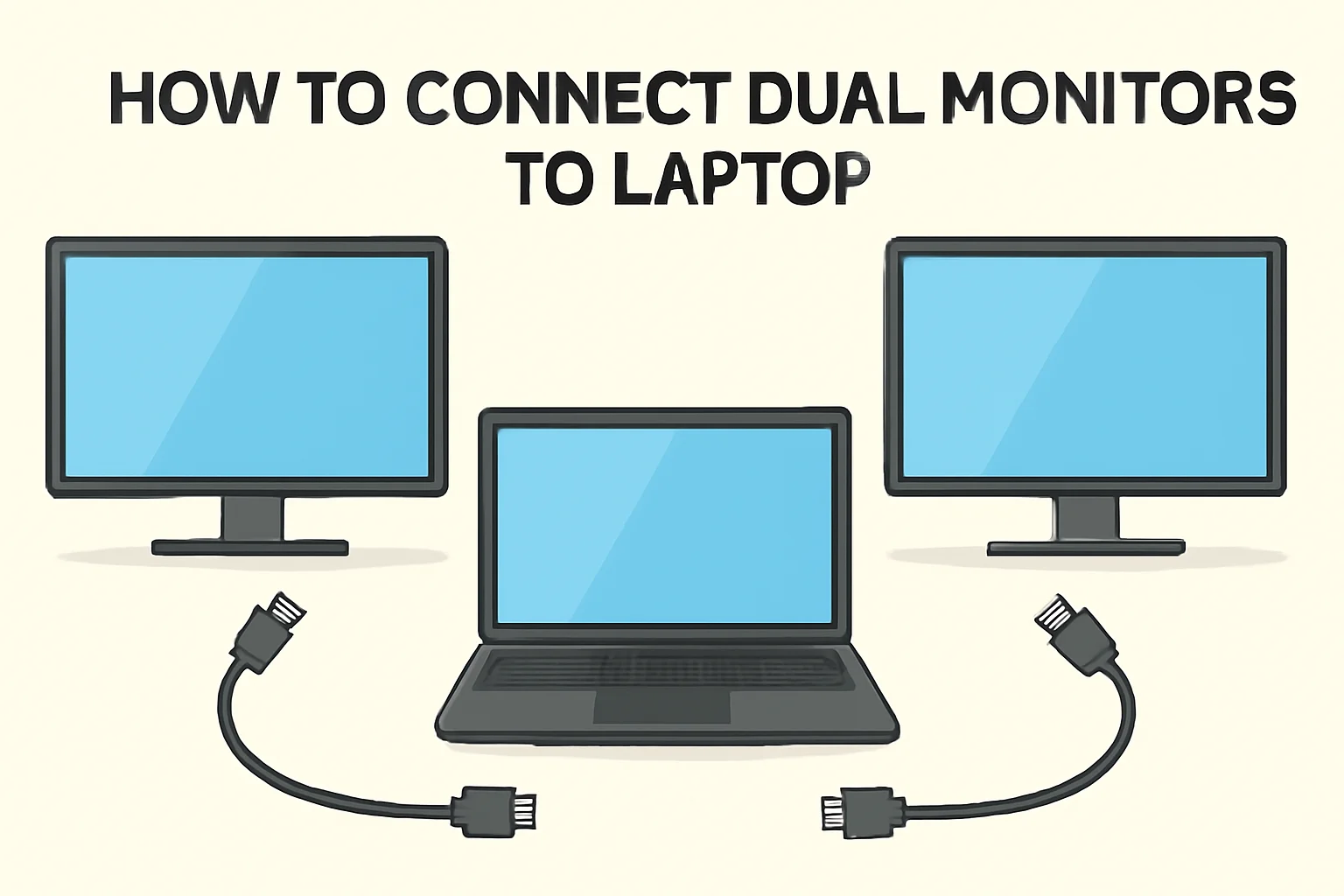
Connecting multiple monitors is a relatively simple process that requires a few basic steps:
- Step 1: Identify the available video ports on your computer and monitors.
- Step 2: Choose the right video cable to connect your monitors to your computer.
- Step 3: Connect the video cable to the appropriate video port on your computer.
- Step 4: Connect the other end of the video cable to the corresponding video port on your monitor.
- Step 5: Turn on your monitors and computer.
- Step 6: Configure your computer to recognize the multiple monitors.
- Step 7: Adjust the display settings to optimize the performance of your multiple monitors.

Tips for Connecting Multiple Monitors
Here are a few tips to help you get the most out of your multiple monitor setup:
- Make sure your monitors are the same resolution and display interface.
- Use a high-quality video cable to ensure a stable and reliable connection.
- Configure your computer to use the built-in display settings to optimize the performance of your monitors.
- Consider using a docking station or USB-C hub to expand your video ports and connect additional devices.
Common Issues and Solutions
Even with a multiple monitor setup, you may encounter some common issues, including:
- Multiple monitors not being recognized.
- Incorrect screen resolution or display scaling.
- Multiples monitors showing a blank or black screen.
- Flickering or intermittent connectivity.
Don't worry; these issues can usually be resolved by checking the video cable, adjusting the display settings, or updating your graphics drivers.
Conclusion
Connecting multiple monitors can be a game-changer for productivity, efficiency, and enjoyment. With these steps and tips, you can easily set up a multiple monitor setup and optimize its performance to meet your needs. Whether you're a gamer, professional, or student, multiple monitors can help you take your computing experience to the next level.