Remove Malware from Windows 11 without Reinstalling
This guide provides a step-by-step solution to remove malware from Windows 11 without reinstalling the operating system. Follow these easy instructions to clean up your infected computer and keep it secure.
Why Malware Removal is Important
Malware, including viruses, adware, and other malicious code, can slow down your system, lead to unexpected crashes, or steal personal information. In this article, we'll explore three proven methods to detect and remove malware on your Windows 11 device, ensuring your system remains secure and responsive.
Method 1: Run a Quick Malware Scan Using Microsoft Defender
- Activating Windows Security: Ensure that Windows Security is enabled on your system. You can do this by going to Settings > Update & Security > Windows Security and following the prompts.
- Running a Quick Scan: Launch Microsoft Defender by clicking on the shield icon in the system tray. Then, click on Open Windows Security and navigate to Protection updates. Click on Run a scan and choose Quick scan to detect potential threats.
- Quarantining Threats: Once the scan is complete, review the results and quarantine any threats that have been detected. This will prevent the malware from spreading and causing further harm.
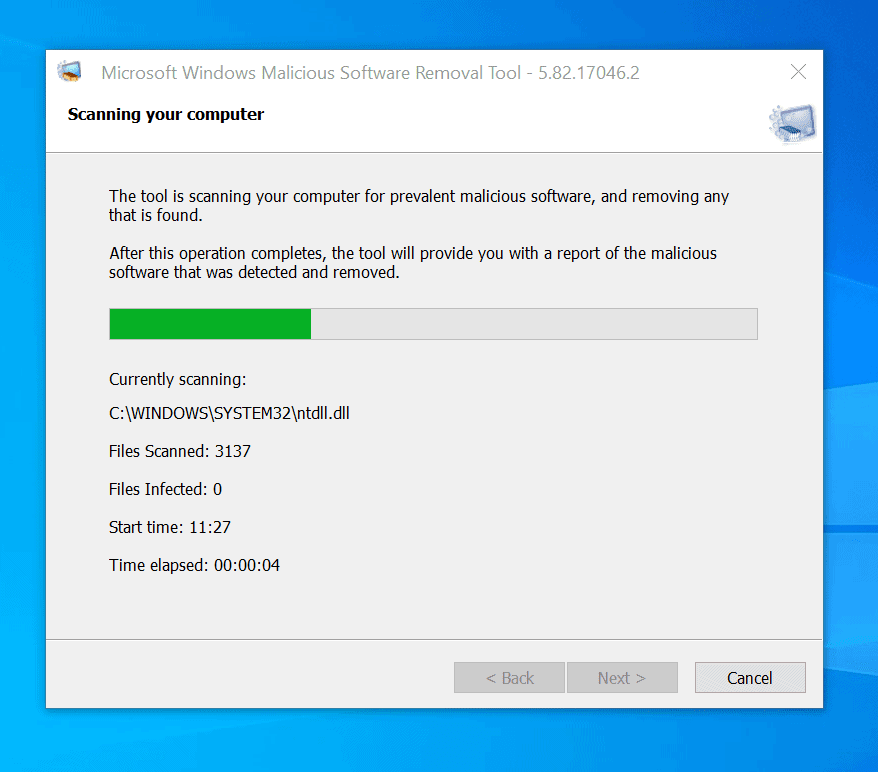
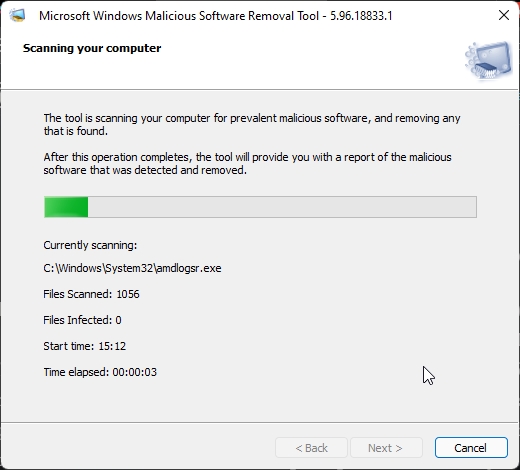
Method 2: Use Free Open-Source Virus Malware Removal Tools and Apps for Windows 11
There are several free and open-source tools available that can help you identify, eliminate, and repair malicious software threats on your Windows 11 device. Some popular options include:
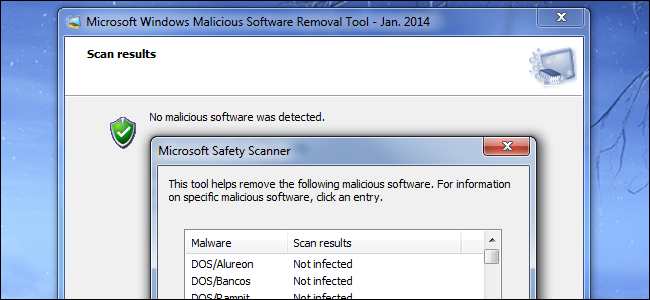
- ClamWin: A free, open-source antivirus tool that can detect and remove malware, including viruses, trojans, and ransomware.
- Kaspersky Virus Removal Tool: A free tool that can detect and remove malware, including viruses, trojans, and ransomware.
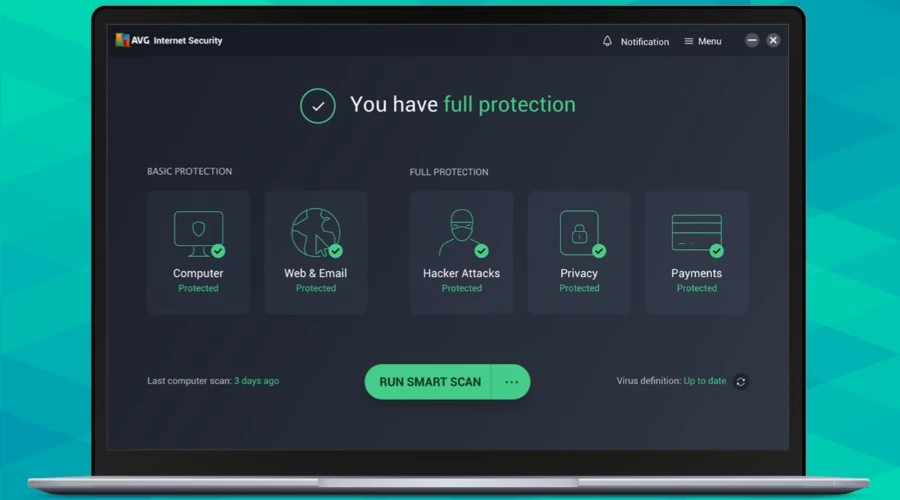
- AVG AntiVirus Free: A free antivirus tool that provides real-time protection against malware, viruses, and other online threats.
Method 3: Use Built-in Windows Tools to Detect and Remove Malware
Windows 11 comes with several built-in tools that can help you detect and remove malware without reinstalling the operating system. Some of these tools include:
- Event Viewer: A built-in utility that provides logs of system events, including malware activity. You can use Event Viewer to troubleshoot malware problems and identify potential security threats.
- Task Manager: A task management utility that allows you to view and manage running processes, including malware-infected processes. You can use Task Manager to identify and terminate malicious processes.
- System File Checker: A built-in tool that checks for corrupted system files and repairs them if necessary. You can use System File Checker to detect and fix malware-infected system files.
Conclusion
Removing malware from Windows 11 without reinstalling the operating system is possible using the methods outlined in this article. By running a quick malware scan using Microsoft Defender, using free open-source virus malware removal tools and apps, and utilizing built-in Windows tools, you can detect and remove malware without compromising your system's security or reinstalling the operating system. Stay safe and keep your computer secure!
![How to Remove Malware from Windows 11 [Virus Removal Guide]](https://images.wondershare.com/recoverit/article/how-to-remove-viruses-from-windows-11-2.jpg "How to Remove Malware from Windows 11 [Virus Removal Guide]")