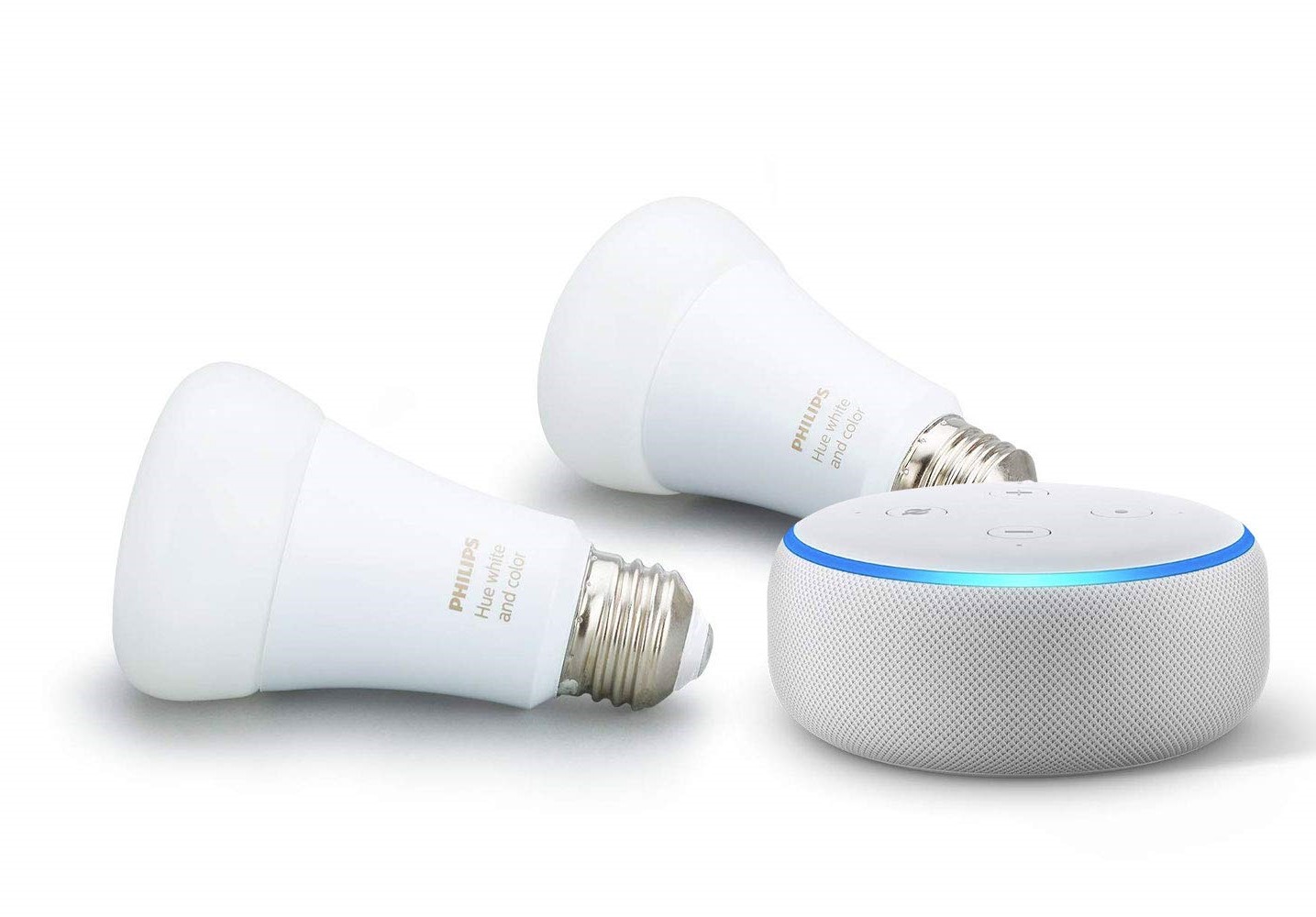
Setting up Alexa with Philips Hue Lights: A Step-by-Step Guide
Are you looking to elevate your smart home experience with the seamless integration of Amazon Alexa and Philips Hue lights? In this article, we will guide you through the process of setting up the Philips Hue system with Alexa, allowing you to control your lights with ease using voice commands.
What You Need to Get Started
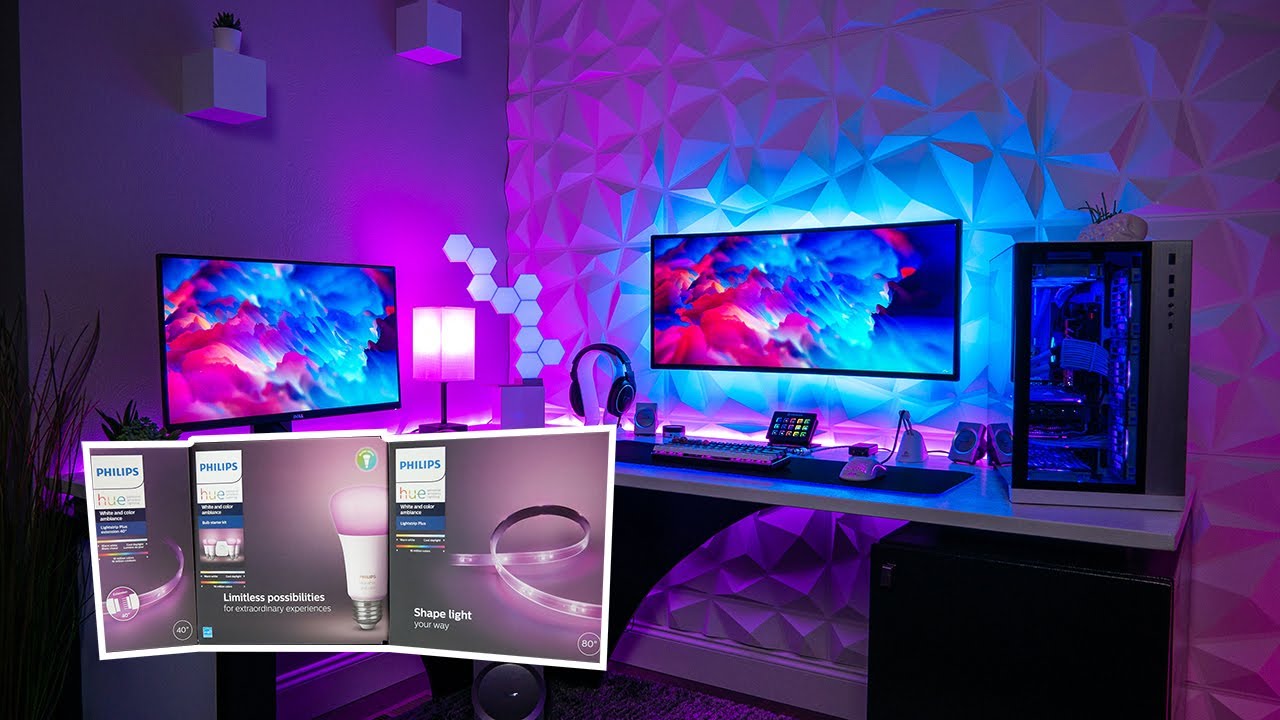
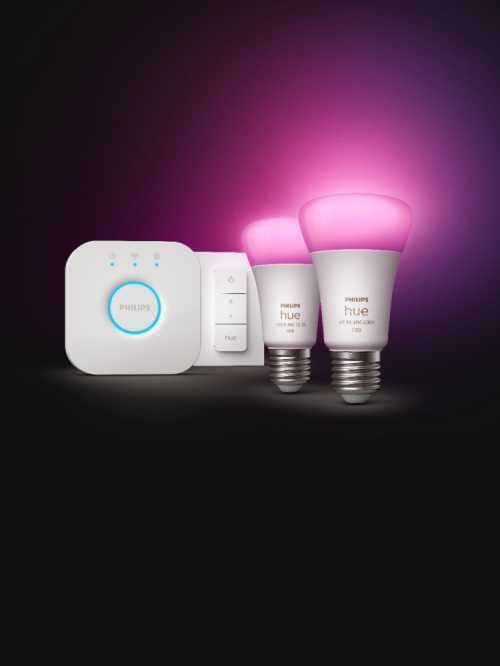
- A Philips Hue lighting system
- An Amazon Echo device (Echo, Echo Dot, Echo Show, etc.)
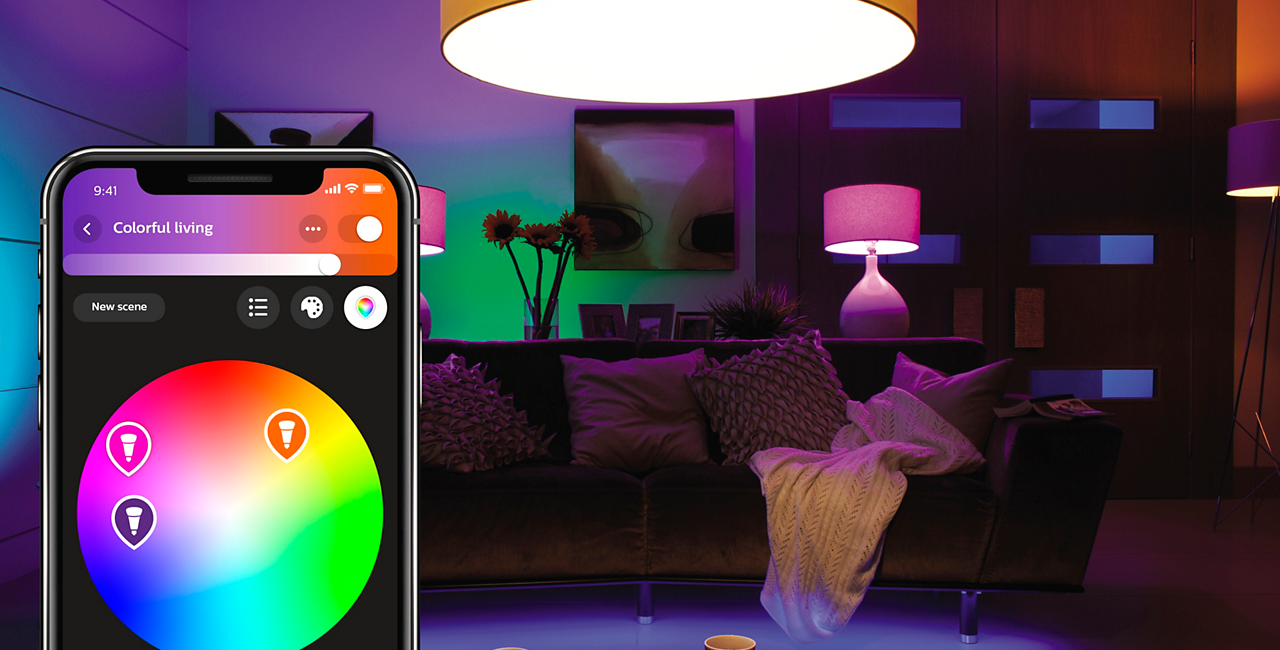
- The Philips Hue app
- A stable internet connection
Step 1: Setting Up the Philips Hue System
The first step is to set up the Philips Hue system. Follow these steps:
- Download and install the Philips Hue app on your smartphone or tablet.
- Create an account or log in to an existing account.
- Connect your Philips Hue bridge to your router using an Ethernet cable.
- Install the Philips Hue bulbs in your desired location.
Step 2: Connecting Philips Hue to Alexa
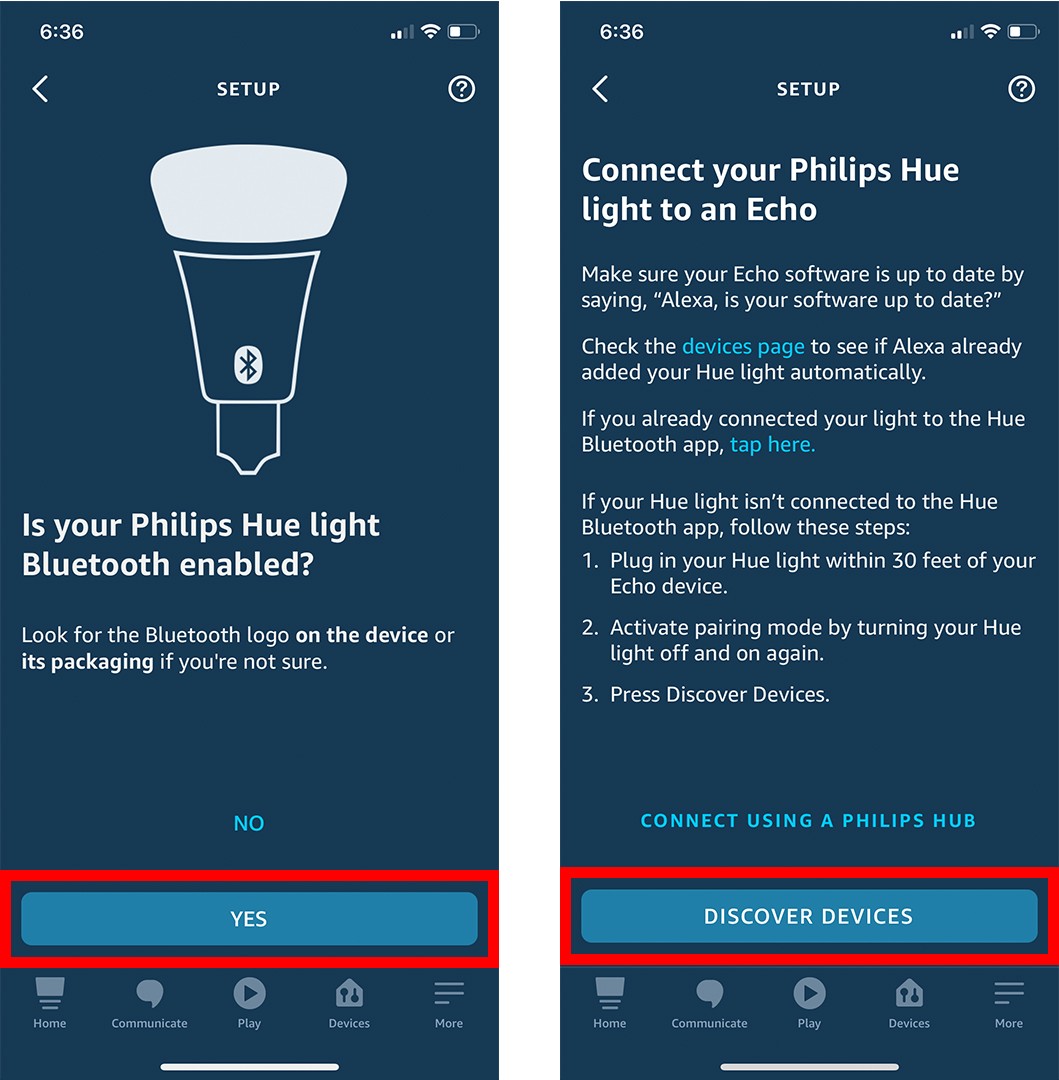
Now that the Philips Hue system is set up, it's time to connect it to Alexa. Follow these steps:
- Open the Amazon Alexa app on your smartphone or tablet.
- Go to the devices tab and select "Add a new device."
- Choose Philips Hue and follow the in-app instructions to connect your Philips Hue account to Alexa.
- Allow Alexa to discover and connect to your Philips Hue lights.
Step 3: Setting Up Voice Control
Now that your Philips Hue lights are connected to Alexa, it's time to set up voice control. Follow these steps:
- Open the Philips Hue app and go to the settings menu.
- Enable voice control in the settings menu.
- Link your Philips Hue account to the Alexa account.
- Allow Alexa to access your Philips Hue lights.
Common Alexa Voice Commands for Philips Hue
Here are some common voice commands you can use to control your Philips Hue lights with Alexa:
- "Turn on the living room lights."
- "Dim the lights in the bedroom."
- "Change the color of the kitchen lights to blue."
- "Set the lights in the dining room to warm white."
Going Beyond Basic Control
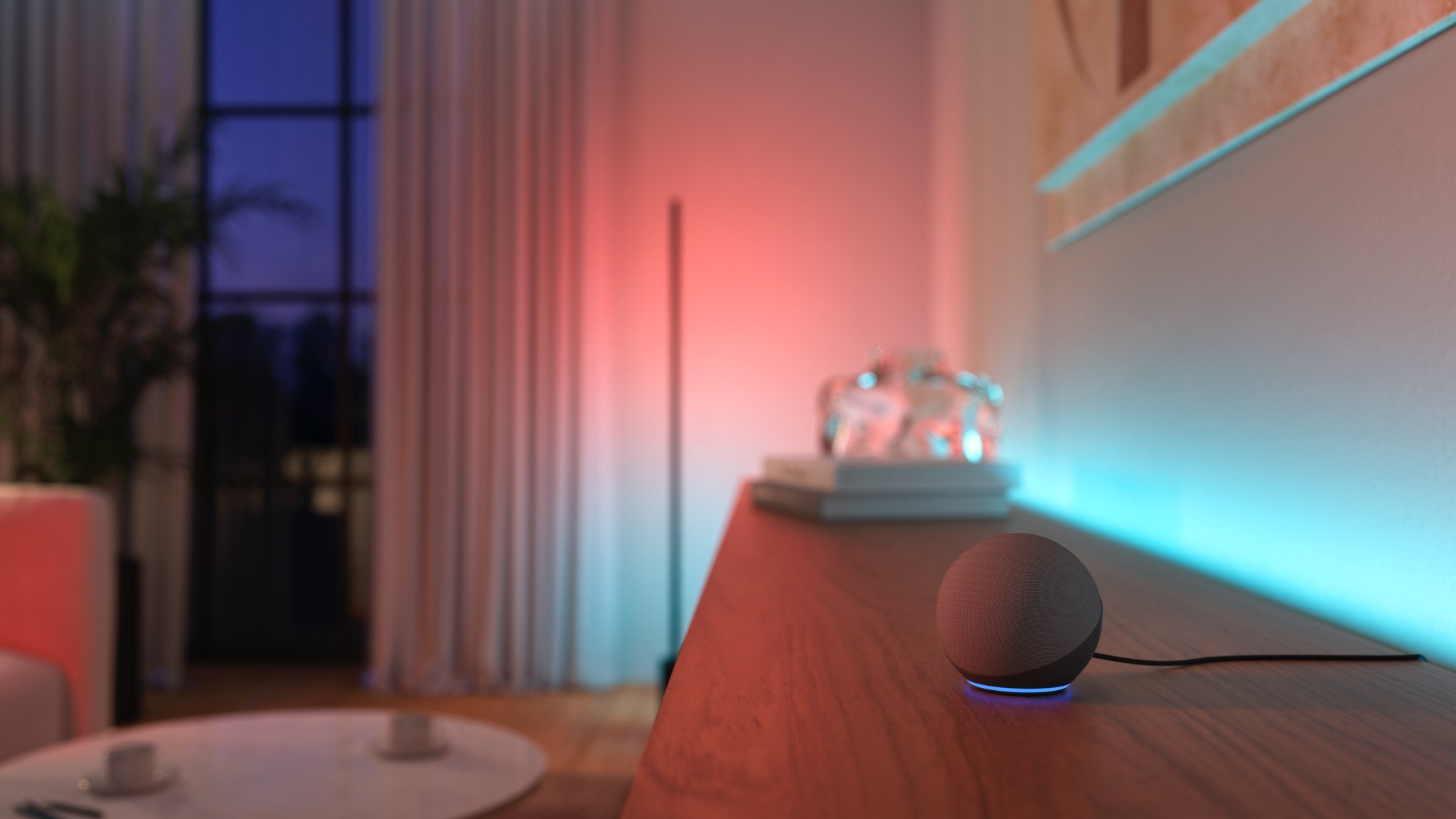
With the Philips Hue and Alexa integration, you can do more than just turn lights on and off. You can also control multiple lights, create scenes, and set up voice-controlled routines. Here's how:
1. Create scenes by grouping multiple lights together and assigning a specific color or brightness level.
2. Set up routines by creating a sequence of actions that can be triggered with a single voice command.
Conclusion
Setting up Alexa with Philips Hue lights is a breeze with these step-by-step instructions. By following the process outlined above, you can enjoy seamless voice control over your Philips Hue lights and take your smart home experience to the next level. Whether you want to turn your lights on and off, change colors, or create custom scenes, the integration of Alexa and Philips Hue has got you covered.
With a little patience and the right steps, you'll be enjoying hands-free control over your Philips Hue lights in no time. So, what are you waiting for? Get started today and experience the power of smart lighting with Philips Hue and Alexa!