Troubleshooting Sound Settings on Windows 11: A Step-by-Step Guide
If you are experiencing sound issues on your Windows 11 device, don't worry, it's a common problem. In this article, we will guide you through the troubleshooting process to resolve common audio-related issues and get your sound working smoothly.Run the Windows Audio Troubleshooter
The first step in troubleshooting sound settings on Windows 11 is to run the automated audio troubleshooter in the Get Help app. This tool will automatically run diagnostics and attempt to fix most audio problems. To access the Get Help app, follow these steps:- Click on the Start button and search for "Get Help."
- Open the Get Help app.
- Click on "Troubleshoot" at the top of the window.
- Scroll down and click on "Additional troubleshooters."
- Under "Audio," click on "Run the troubleshooter."
General Troubleshooting Steps
If you are not using a Windows 11 device, or if running the automated audio troubleshooter does not resolve your sound issues, try the following general troubleshooting steps:Update Audio Drivers
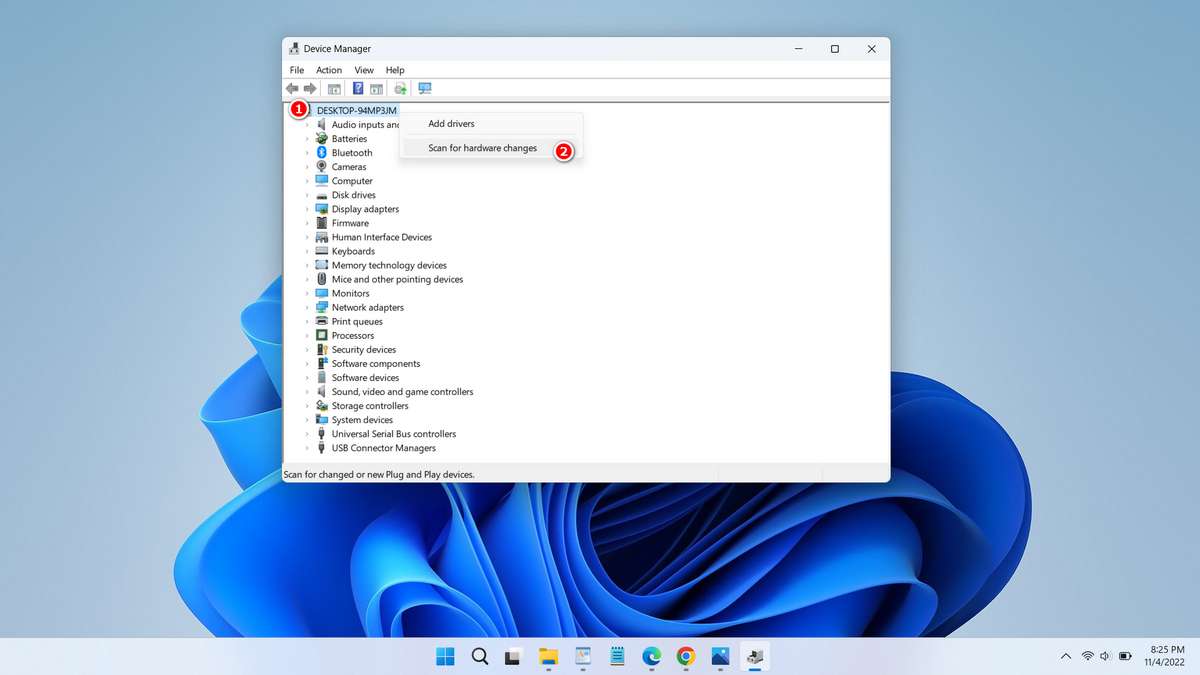
Outdated audio drivers can cause sound issues. To update your audio drivers, follow these steps:- Press the Windows key + X and click on Device Manager.
- Expand the "Sound, video and game controllers" section.
- Right-click on your audio device (e.g., Realtek Audio) and select "Update driver."
- Follow the prompts to search for and install updates.
Reset Audio Settings
Resetting your audio settings can resolve sound issues caused by incorrect settings. To reset your audio settings, follow these steps:- Press the Windows key + I to open Settings.
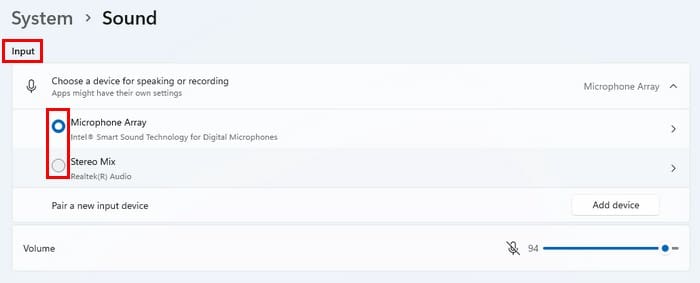
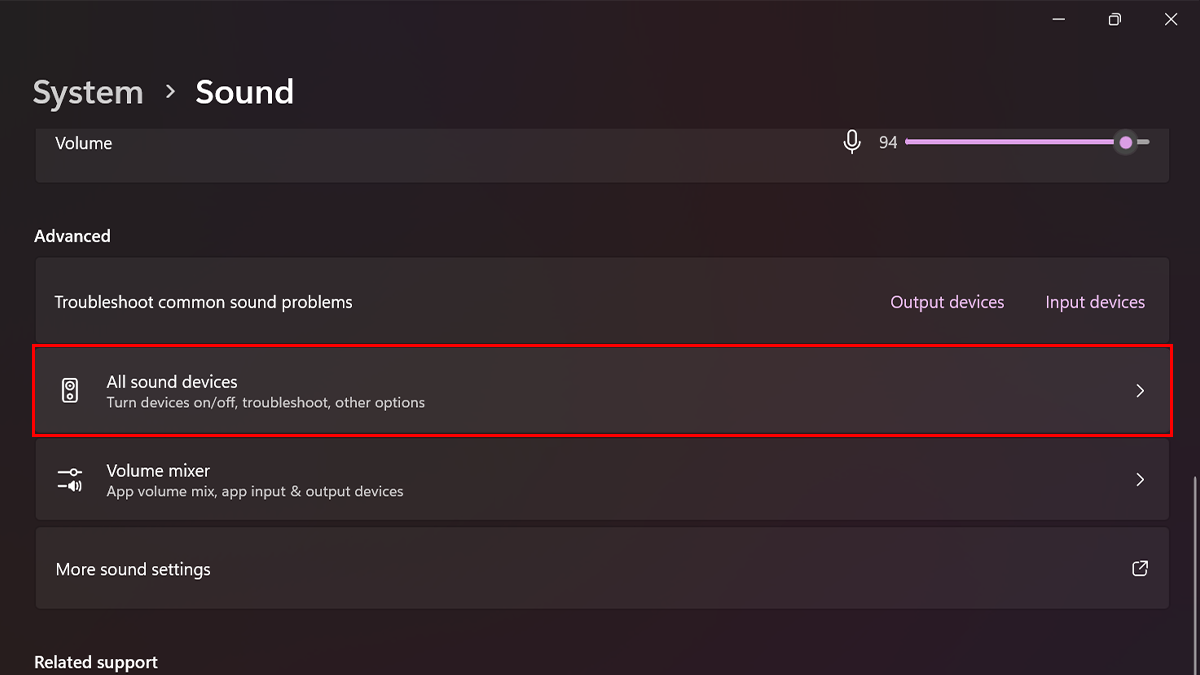
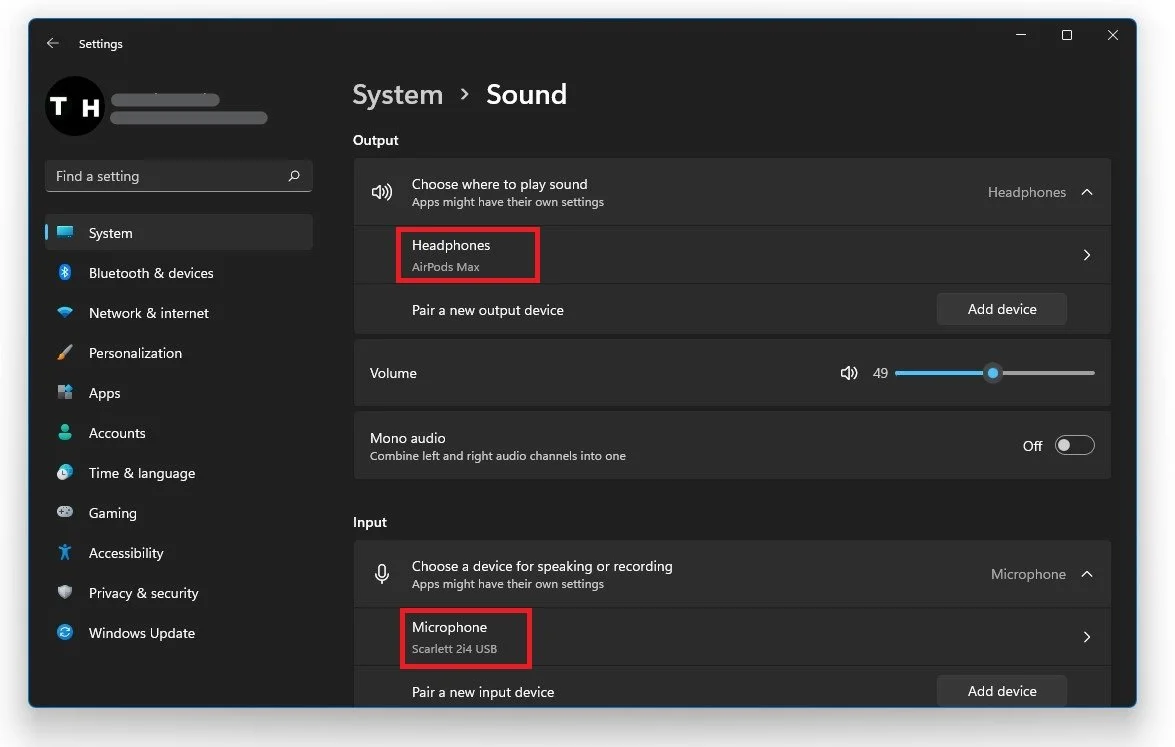
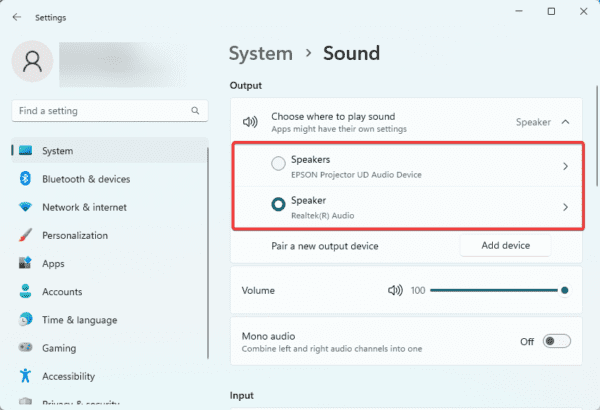
- Click on "System" and then "Sound."
- Click on "Reset" under "Reset sound devices."
Restore Sound
- Press the Windows key + I to open Settings.
- Click on "System" and then "Reset.
- Follow the prompts to reset system settings.
Advanced Troubleshooting Steps
If none of the above troubleshooting steps resolve your sound issues, try the following advanced troubleshooting steps:Disable Audio Enhancements
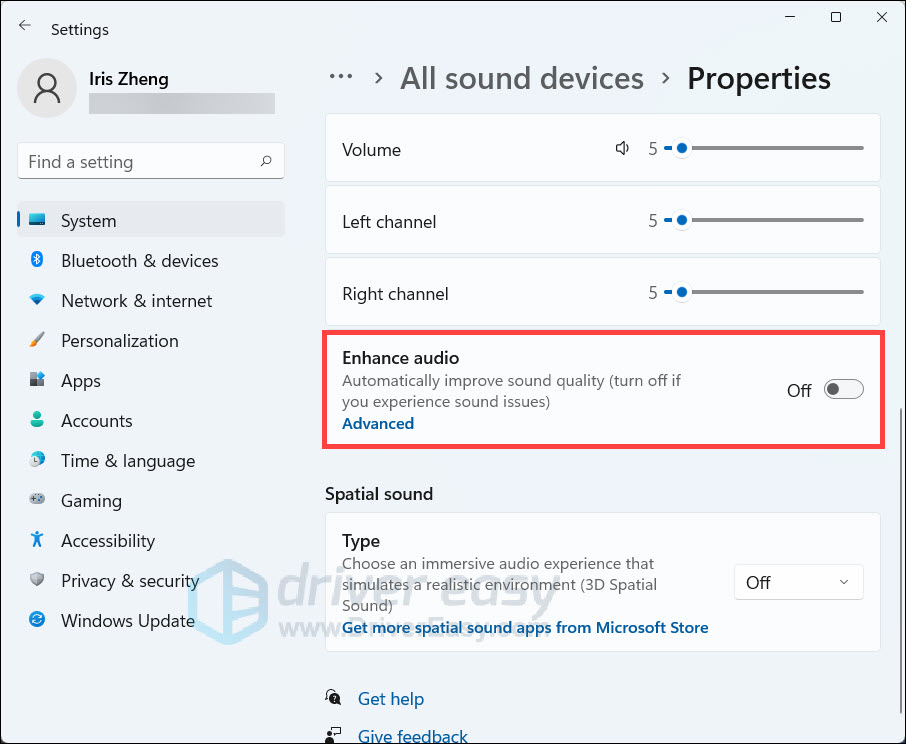
Audio enhancements can cause sound issues. To disable audio enhancements, follow these steps:- Press the Windows key + I to open Settings.
- Click on "System" and then "Sound."
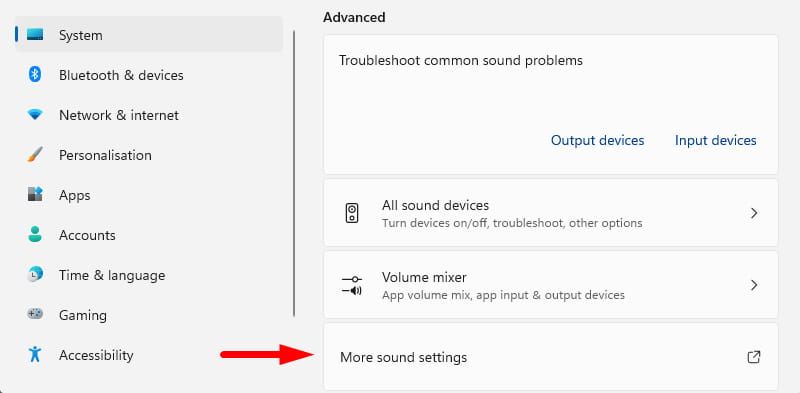
- Click on "Advanced" and then "Sound enhancements."
- Click on "Disable" next to "Analog devices."
Reset Windows 11
If all else fails, try resetting Windows 11 to its default settings. To reset Windows 11, follow these steps:- Press the Windows key + I to open Settings.
- Click on "System" and then "Reset this PC."
- Follow the prompts to reset Windows 11.
By following these troubleshooting steps, you should be able to resolve common sound issues on Windows 11. If you are still experiencing sound problems, try reaching out to Microsoft support for further assistance.
:max_bytes(150000):strip_icc()/004_change-system-sounds-in-windows-11-5193804-eb455954273a4bddb8ea55cb38c07340.jpg "Fix sound or audio problems in Windows - Microsoft Support")

![No Sound on Windows 11? Fix No Audio [SOLVED] - GeekChamp](https://cdn.ithinkdiff.com/wp-content/uploads/2023/06/How-to-enable-Audio-Enhancements-in-Windows-11-featured.png "No Sound on Windows 11? Fix No Audio [SOLVED] - GeekChamp")