How to Set Up a Vanilla Minecraft Server: A Step-by-Step Guide
Setting up a Minecraft server is an exciting venture, especially if you're looking to play with friends or create a community server. In this article, we'll walk you through the process of setting up a vanilla Minecraft server, which means you'll be playing with the original game without any mods or plugins.
Prerequisites
- You'll need a computer with a decent processor, at least 2 GB of RAM, and a stable internet connection.
- You'll need to download the Minecraft server software (minecraft_server.jar) from the official Minecraft website.
- You'll need to create a dedicated folder on your computer to store the server files.
Step 1: Download the Minecraft Server Software
Download the minecraft_server.jar file from the official Minecraft website. This is the official vanilla server software that Mojang Studios distributes for free.
Step 2: Create a Dedicated Folder for the Server Files
Create a dedicated folder on your computer where you'll store all the server files. This will help keep your server organized and prevent any conflicts with other Minecraft installations.
Step 3: Launch the Server for the First Time
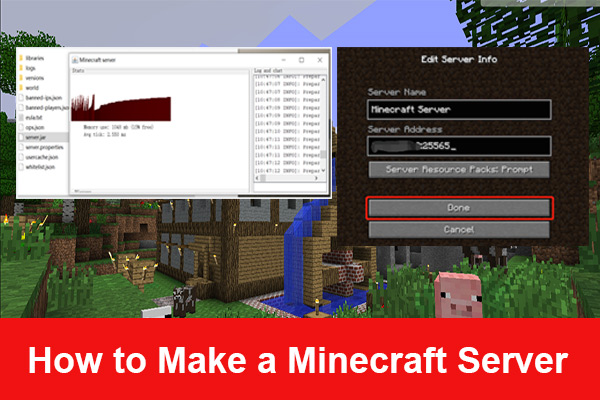
Launch the server by opening the Command Prompt or Terminal and navigating to the folder where you stored the server files. Type "java -Xmx1024M -Xms1024M -jar minecraft_server.jar" and press Enter. This will launch the server for the first time, and you'll see the server console output in the terminal.
Step 4: Configure the Server Settings
Once the server is launched, you'll need to configure the server settings. You can do this by editing the server.properties file located in the server folder. You can customize settings such as the server name, gamemode, difficulty, and more.
Step 5: Set Up Port Forwarding
Port forwarding is required to allow players to connect to your server from outside your local network. You'll need to set up port forwarding on your router, which will vary based on the type of router you're using. You can find instructions online or consult your router's manual for specific instructions.

Step 6: Start the Server and Invite Friends to Play
Once you've configured the server settings and set up port forwarding, start the server by launching the server jar file again. You can now invite your friends to play on your vanilla Minecraft server by sharing the server IP address and port number.
Tips and Best Practices
- Make sure to back up your server files regularly to prevent data loss in case of a crash or corruption.
- Use a user-friendly GUI like MCServerSoft & Crafty Controller to simplify server management.
- Consider setting up a whitelist to control who can join your server.
- Regularly update your server software to ensure you have the latest security patches and features.
Conclusion
Setting up a vanilla Minecraft server is a straightforward process that requires some technical know-how. By following these steps, you can create a fun and engaging server for you and your friends to play on. Remember to customize your server settings to suit your needs and consider setting up port forwarding to allow players to connect from outside your local network.
Frequently Asked Questions
Q: What is a vanilla Minecraft server?
A: A vanilla Minecraft server is a server that runs the original Minecraft game without any mods or plugins.
Q: Do I need to be technical to set up a Minecraft server?
A: Yes, you'll need some basic technical knowledge to set up a Minecraft server, including configuring server settings and setting up port forwarding.
Q: Can I set up a Minecraft server on a Raspberry Pi?
A: Yes, you can set up a Minecraft server on a Raspberry Pi, but it's recommended to use a user-friendly GUI like MCServerSoft & Crafty Controller to simplify server management.