**The Ultimate "OBS for Beginners Guide" - A Step-by-Step Tutorial for Live Streaming and Recording
Introduction
OBS Studio, or Open Broadcaster Software, is a free and powerful tool for live streaming and recording video content. With its wide range of features and customization options, it's no wonder why OBS has become a go-to choice for creators and streamers alike. However, getting started with OBS can be intimidating for beginners. In this article, we'll take you through a step-by-step guide on how to use OBS Studio for beginners, covering the basics of setting up your stream, adding sources, and broadcasting live.
What is OBS Studio?
OBS Studio is an open-source software that allows users to capture, broadcast, and stream high-quality video and audio content. It's designed for both beginners and professionals, with a user-friendly interface and a wide range of features that make it easy to customize your streaming experience.
**Download and Install OBS Studio
Before you can start using OBS, you'll need to download and install the software on your computer. Head over to the OBS website and download the executable file for your operating system (Windows, macOS, or Linux). Follow the installation prompts to install the software on your computer.
**Setting Up OBS Studio
Once you've installed OBS, it's time to set up the software. Here's a step-by-step guide to get you started:
- Open OBS Studio and select your preferred language and region.
- Create a new scene by clicking on the "+" button in the bottom left corner of the window.
- Add a new source by clicking on the "+" button in the bottom left corner of the scene.
- Select the type of source you want to add (e.g., browser, game capture, video capture, etc.).
- Configure the source settings by adjusting the properties as needed.
**Configuring Your Stream Settings

Now that you've set up your sources, it's time to configure your stream settings. Here's how:
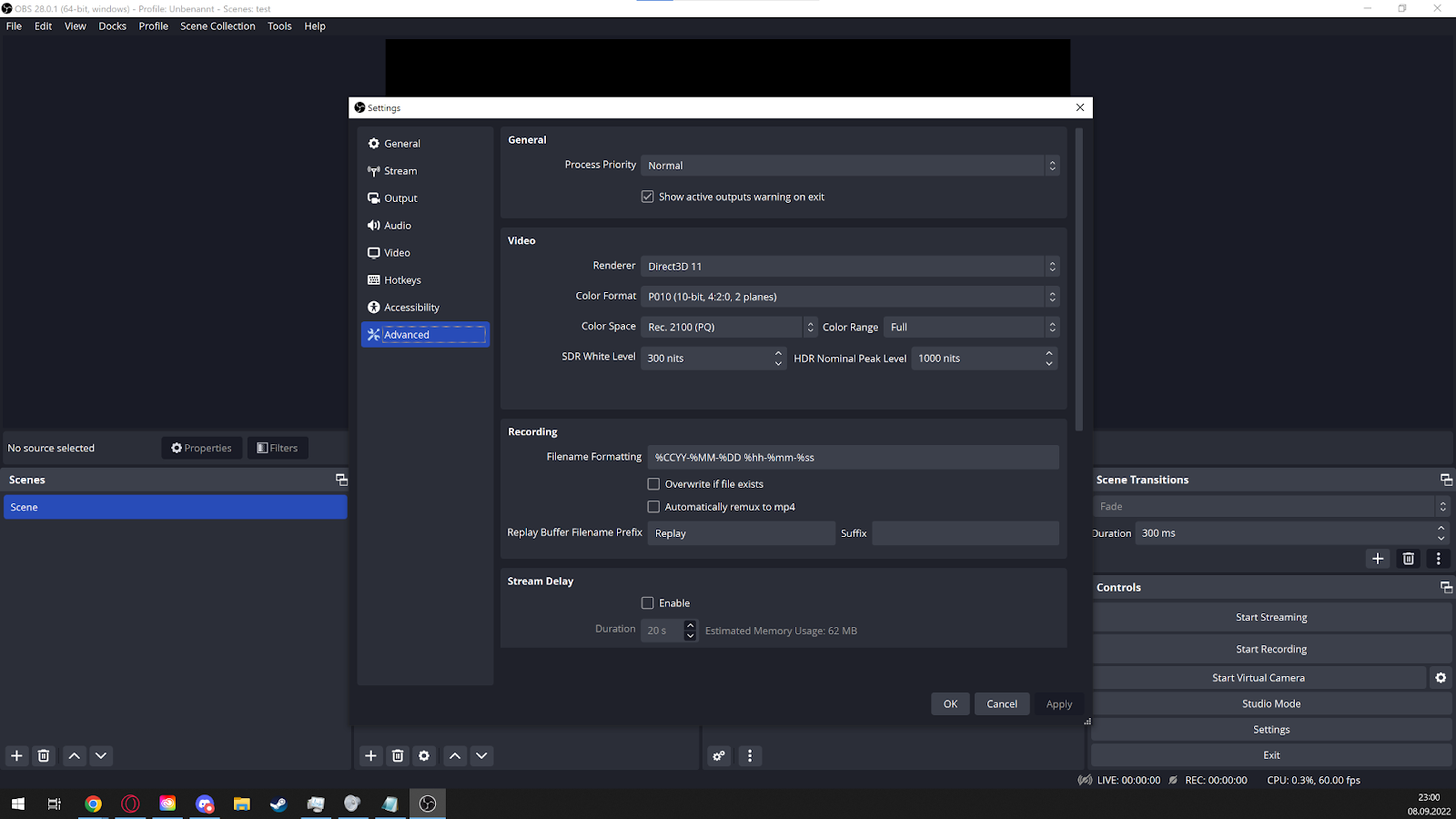
- Click on the "Settings" button in the bottom right corner of the OBS window.
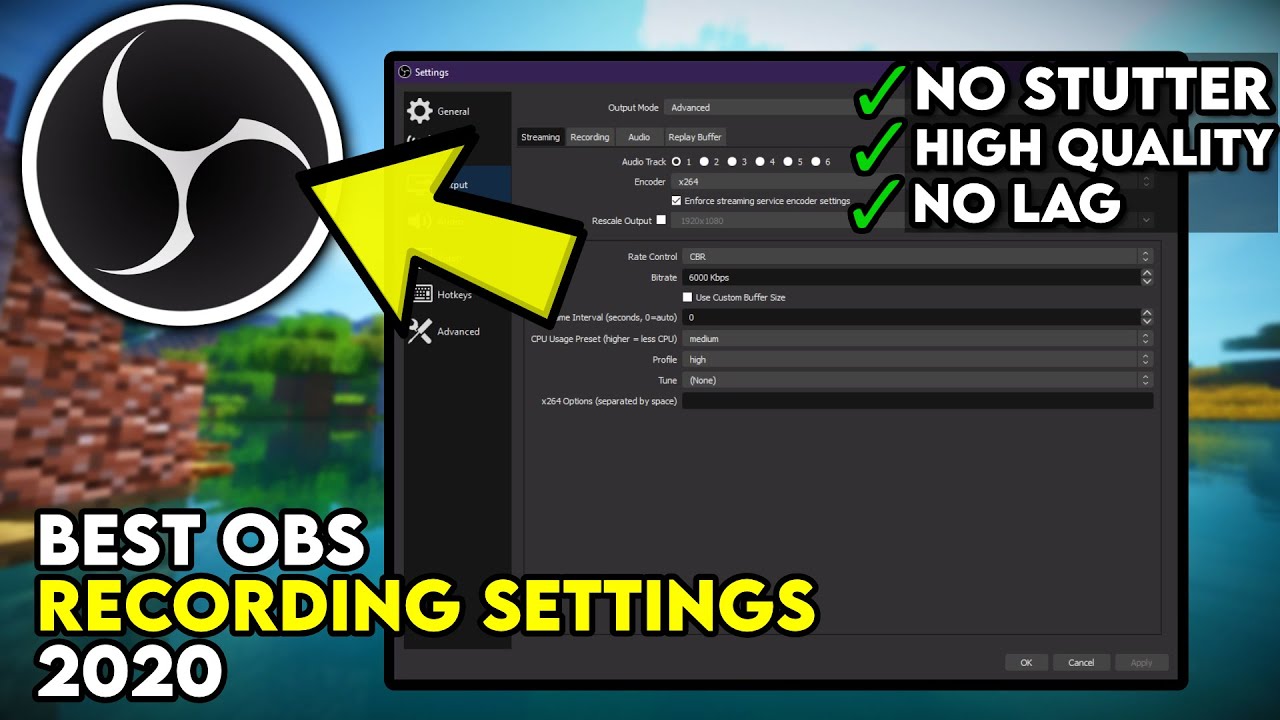
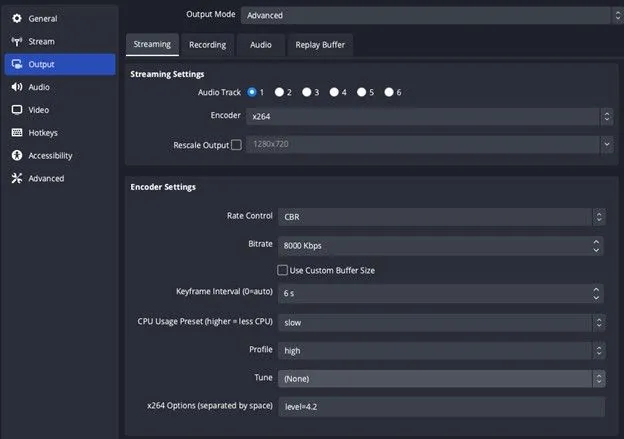
- Select the "Output" tab and select your preferred audio and video settings.
- Choose your stream settings, including the resolution, frame rate, and bitrate. li Verify your stream settings and click "OK" to save your changes.
**Advanced OBS Settings
Once you've configured your basic settings, it's time to explore some advanced features. Here's a brief overview:
- **Transitions:** Add animations and effects to your streams with OBS's transition feature.
- **Overlays:** Add text, images, and other visual elements to your stream with OBS's overlay feature.
- **Alerts:** Set up customizable alerts for new followers, subscribers, and other events with OBS's alerts feature.
**Tips for Beginners
Here are some final tips to help you get the most out of OBS:
- **Practice makes perfect:** Don't be discouraged if it takes some time to get the hang of using OBS - practice makes perfect!
- **Experiment with settings:** Don't be afraid to try new things and experiment with different settings to find what works best for you.
- **Join a community:** Connect with other OBS users and creators to learn new tips and tricks and get help with any questions you may have.
**Conclusion
That's it! With this beginner's guide, you should now be equipped with the knowledge and skills to set up and use OBS Studio for live streaming and recording. Remember to practice, experiment, and join a community to get the most out of this powerful software. Happy streaming!







![[ STEP BY STEP] OBS STUDIO - Complete Setup 2026 - YouTube](https://recorder.easeus.com/images/en/screen-recorder/resource/download-netflix-with-obs.png "[ STEP BY STEP] OBS STUDIO - Complete Setup 2026 - YouTube")
