Apple Watch Setup on iOS Beta: A Comprehensive Guide
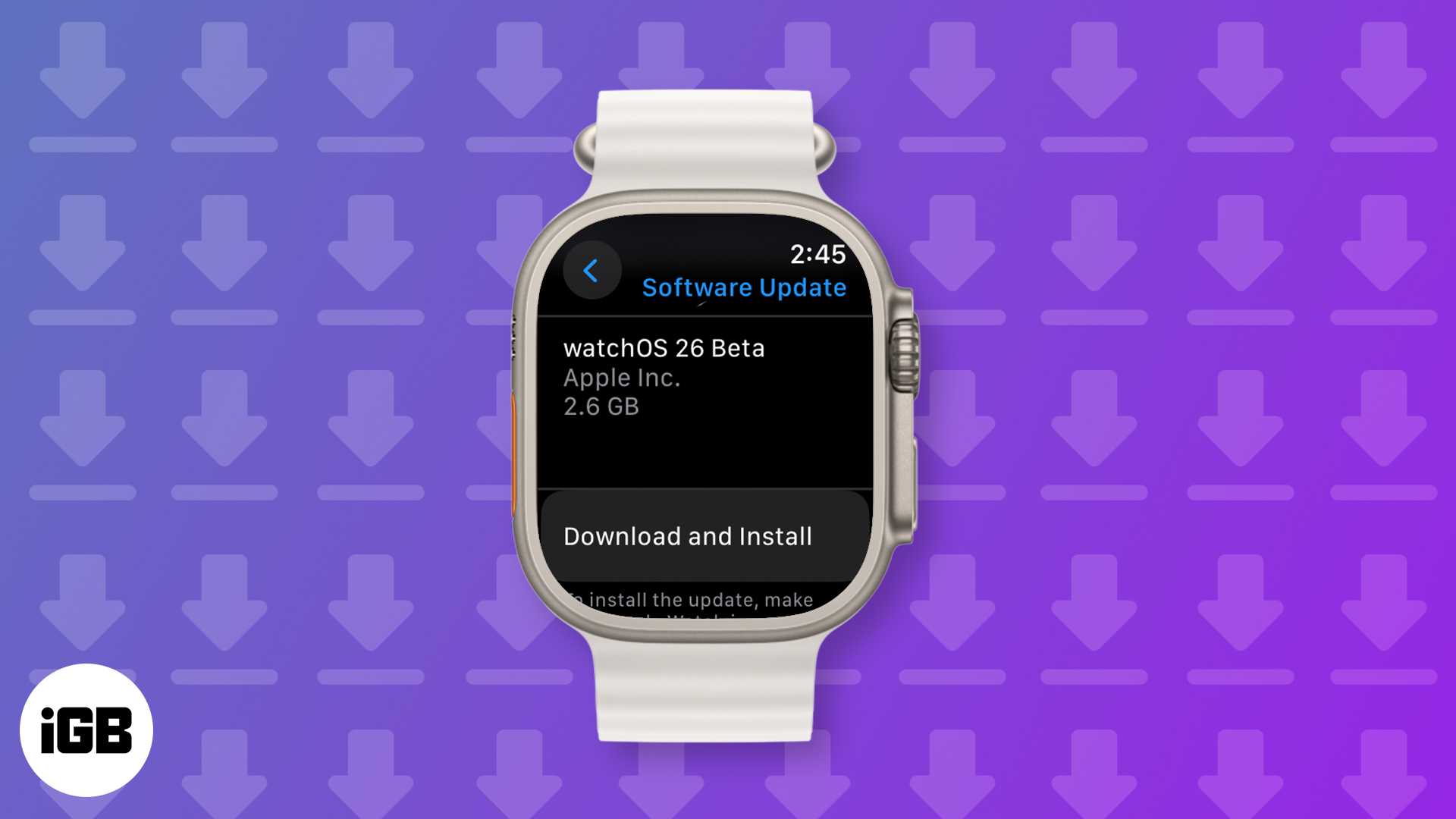
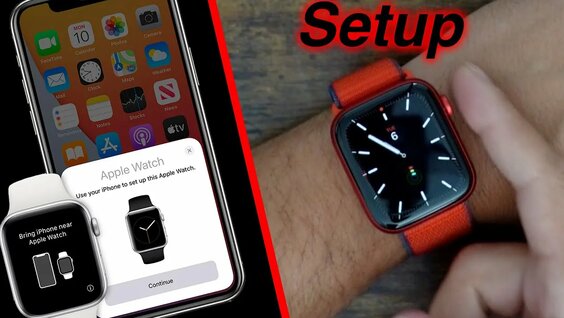
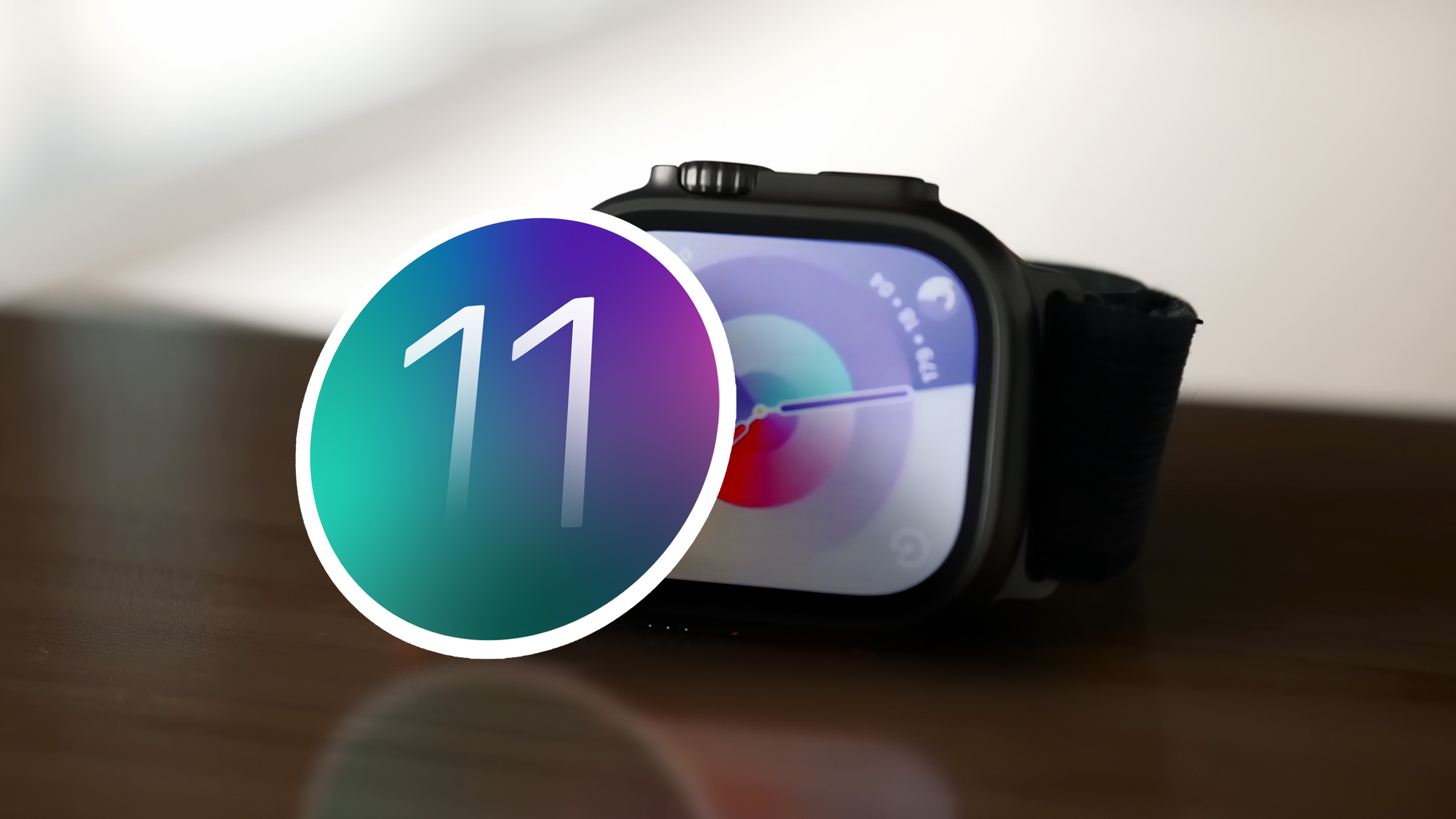
Are you eager to get your hands on the latest features and enhancements in watchOS 26, but don't know how to set up your Apple Watch on iOS beta? You're not alone! In this article, we'll walk you through the step-by-step process of installing watchOS 26 beta on your compatible Apple Watch and iPhone.
Prerequisites for Apple Watch Setup on iOS Beta
Before we dive into the setup process, make sure you meet the following prerequisites:
- Your Apple Watch is compatible with watchOS 26 beta.
- Your iPhone is running the latest iOS beta version.
- You have a developer account or are enrolled in the Apple Beta Software Program.
Signing Up for the Apple Beta Software Program
If you're not already enrolled in the Apple Beta Software Program, sign up on the Apple Beta website. This will give you access to the latest beta versions of iOS and watchOS.
Installing the iOS Beta on Your iPhone
Once you've signed up for the Apple Beta Software Program, install the latest iOS beta version on your iPhone. To do this:
- Open the Settings app on your iPhone.
- Tap on "General" and then select "Software Update."
- Tap on "Download and Install" to install the latest iOS beta version.
Enabling Beta Updates on Your iPhone
After installing the iOS beta, enable beta updates on your iPhone:

- Open the Settings app on your iPhone.
- Tap on "General" and then select "Software Update."
- Tap on "Beta Updates" and select "iOS 26 Developer Beta" (or the latest beta version available).
Setting Up Your Apple Watch for WatchOS 26 Beta
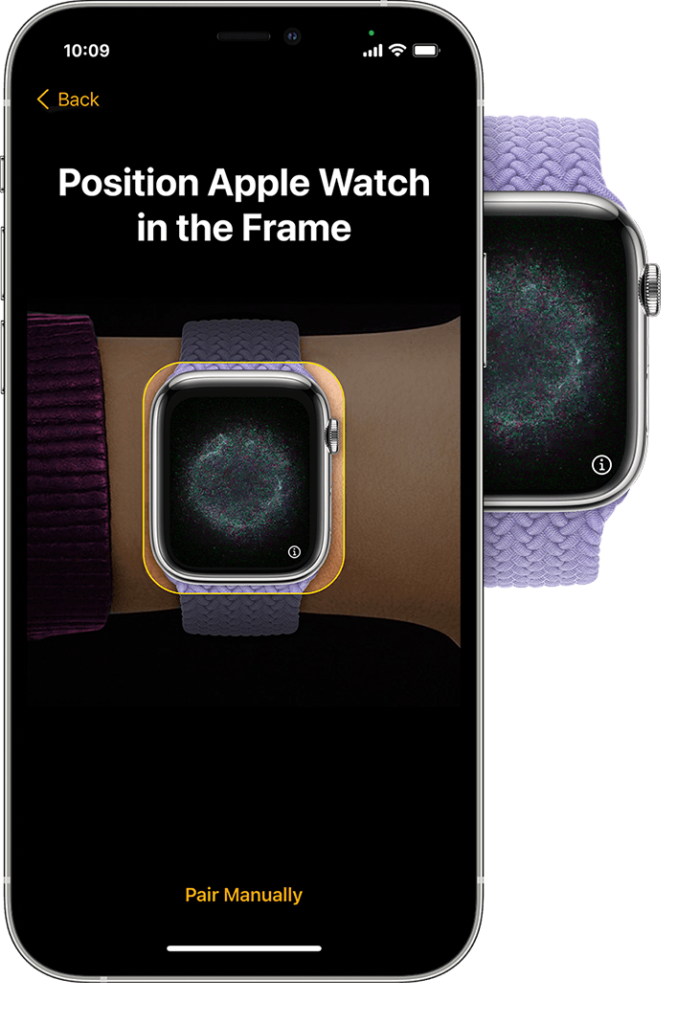
Now that your iPhone is running the iOS beta, you can set up your Apple Watch for watchOS 26 beta:
- Open the Watch app on your iPhone.
- Tap on "General" and then select "Software Update."
- Tap on "Install Now" to install the latest watchOS 26 beta version.
Common Issues and Troubleshooting
During the setup process, you may encounter some common issues. Here are some troubleshooting steps to help you resolve them:
- Make sure your Apple Watch is charged and connected to Wi-Fi.
- Try restarting your Apple Watch and iPhone.
- Check that your iPhone is running the latest iOS beta version.
- If you're still experiencing issues, try resetting your Apple Watch to its factory settings.
Final Thoughts
Setting up your Apple Watch on iOS beta can seem daunting, but with these steps, you'll be up and running in no time. Remember to always back up your data and keep your iPhone and Apple Watch updated to ensure you receive the latest features and enhancements.
Conclusion
In this article, we've covered the step-by-step process of setting up your Apple Watch on iOS beta. From signing up for the Apple Beta Software Program to installing watchOS 26 beta on your compatible Apple Watch, we've got you covered. By following these guidelines, you'll be able to experience the latest features and enhancements in watchOS 26 beta and enjoy a seamless Apple Watch experience.