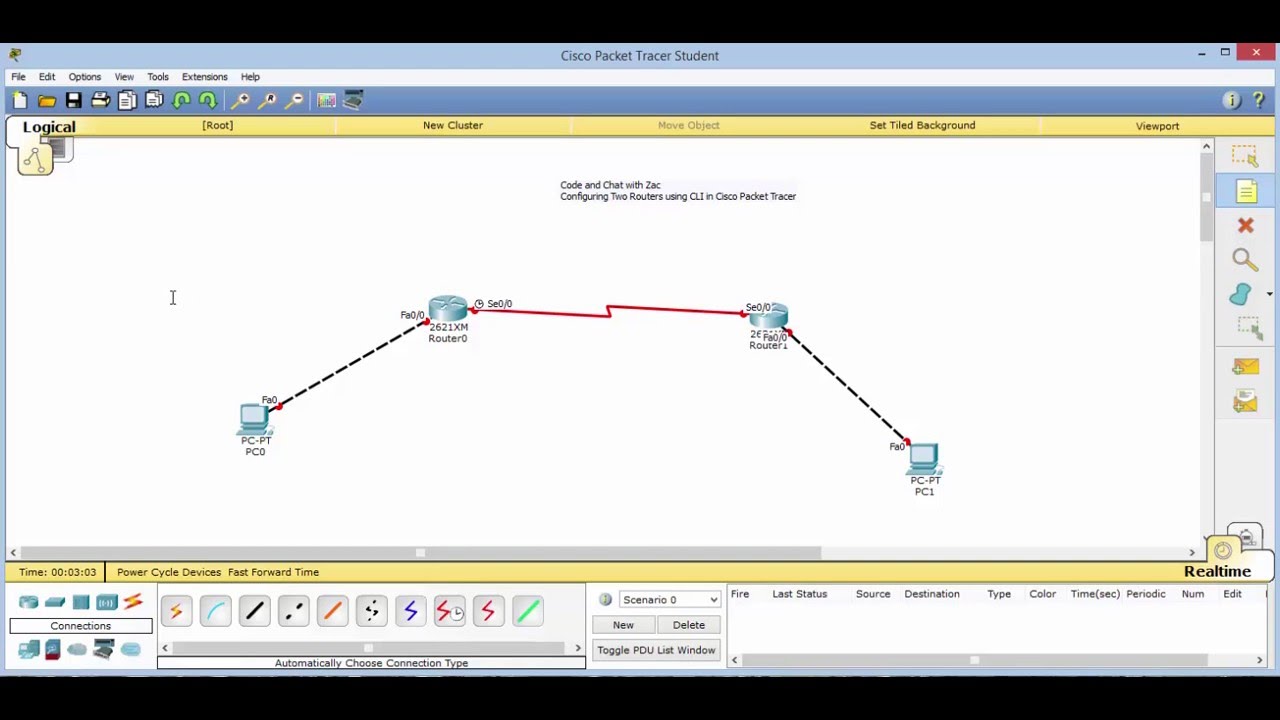
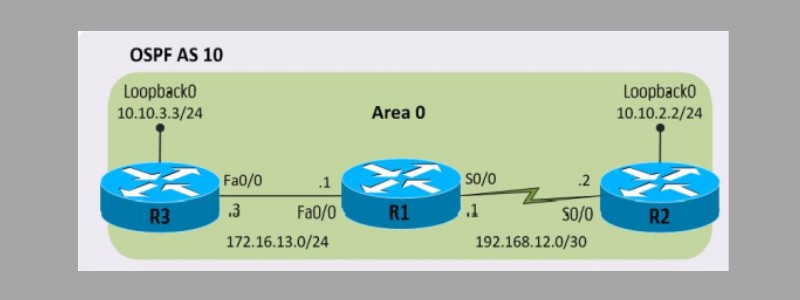
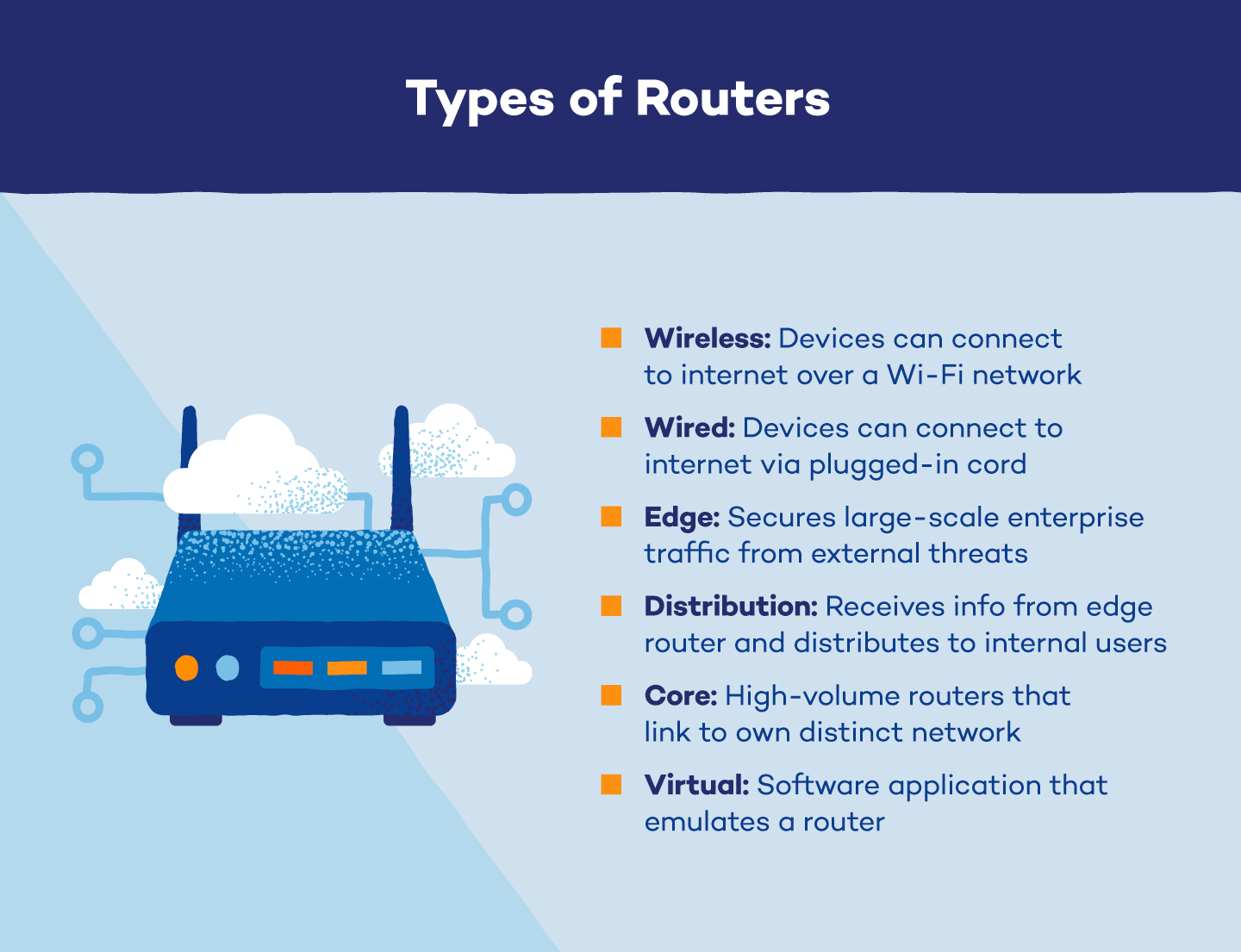
Configuring Your Home Router: A Comprehensive Guide
No matter how tech-savvy you may be, setting up and configuring your home router can be a daunting task. However, with the right guidance, you can ensure that your network runs smoothly and efficiently. In this article, we'll walk you through the process of configuring your home router, covering all the essential settings and tips to get you started.
Why is Configuring Your Home Router Important?
Configuring your home router is crucial to ensure a reliable and secure network. A well-configured router provides better internet speed, network security, and management of connected devices. Additionally, it's essential to update your router's firmware regularly to prevent security vulnerabilities and improve performance.
Before You Start
Before you begin configuring your home router, make sure you have the following information:
- Router model and make
- Network name (SSID)
- Admin username and password
- Modem's MAC address (if bridged)
Step 1: Unpack and Connect Your Router
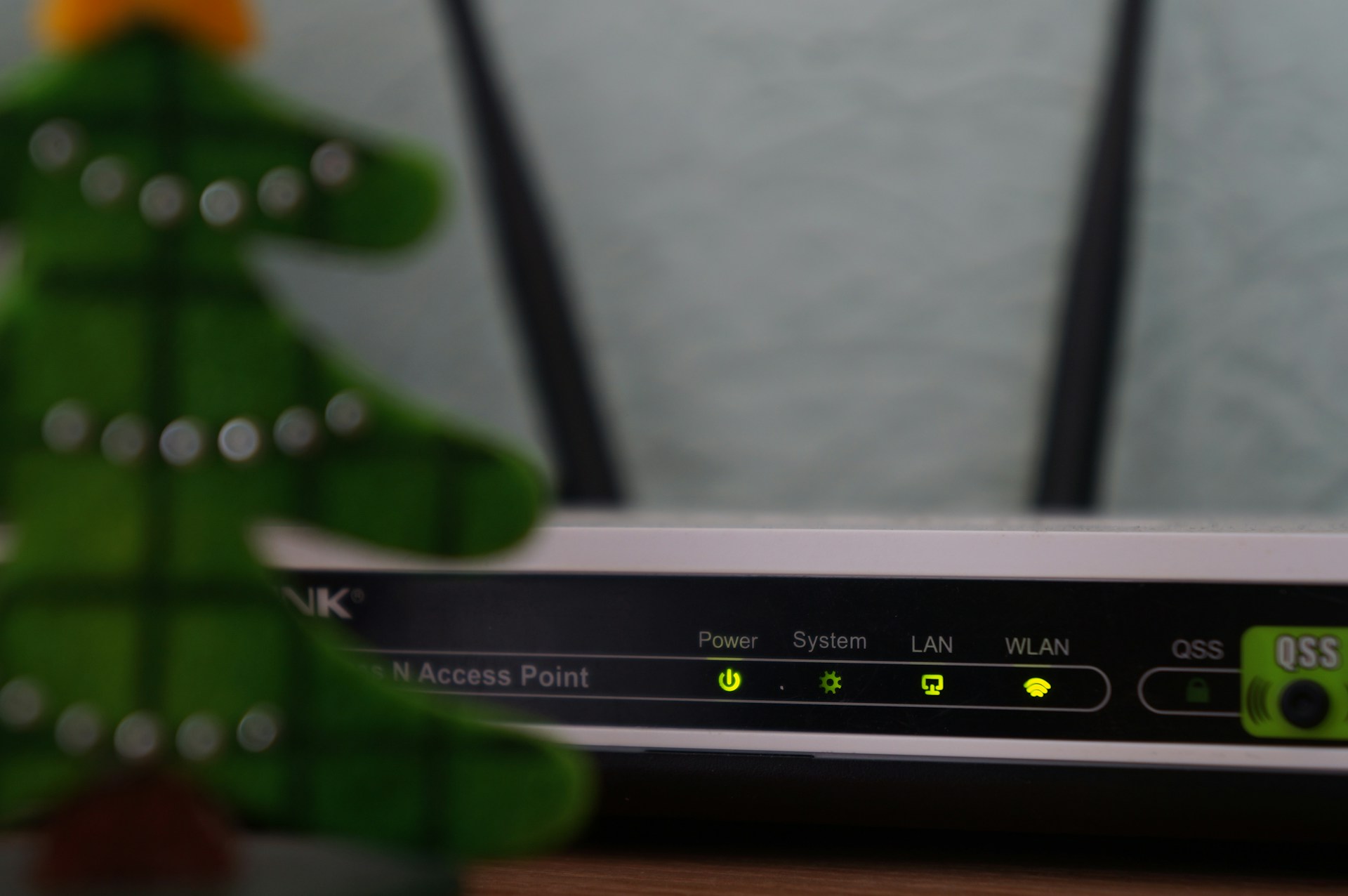
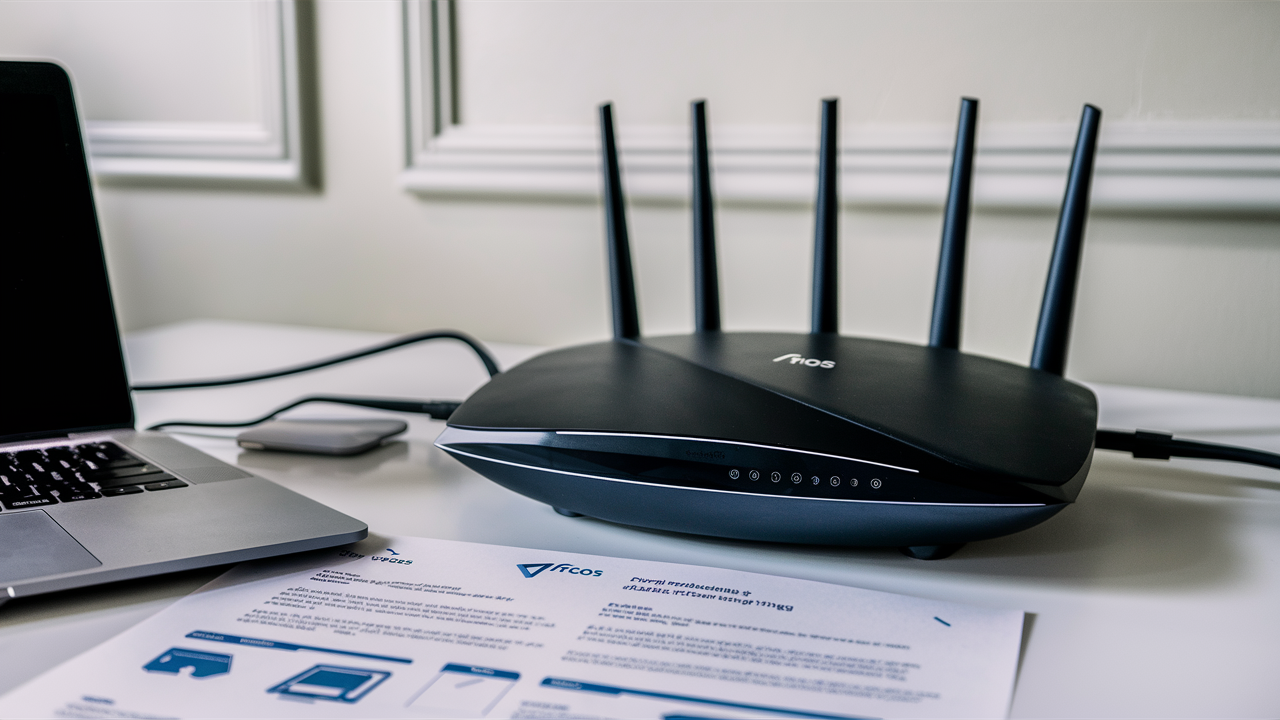
Unpack your router and connect it to your modem using an Ethernet cable. Make sure the power cord is securely plugged in and the power button is turned on. Wait for the router to boot up and connect to the internet.
Step 2: Access the Router's Admin Panel
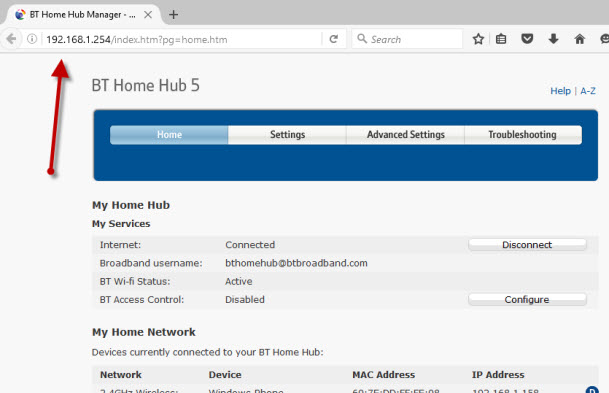
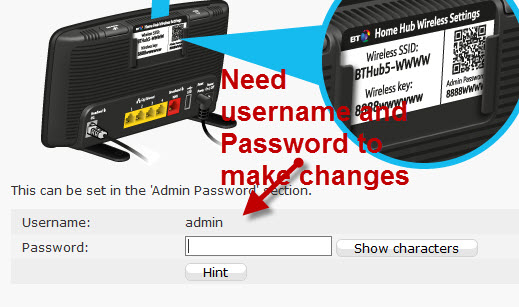
Open a web browser and type in the router's default IP address. The most common default IP addresses are 192.168.0.1 or 10.0.0.1. Log in using the admin username and password provided in the manual or printed on the underside of the router. If you've changed the admin password, make sure to log in using your new credentials.
Step 3: Configure Your Wi-Fi Settings
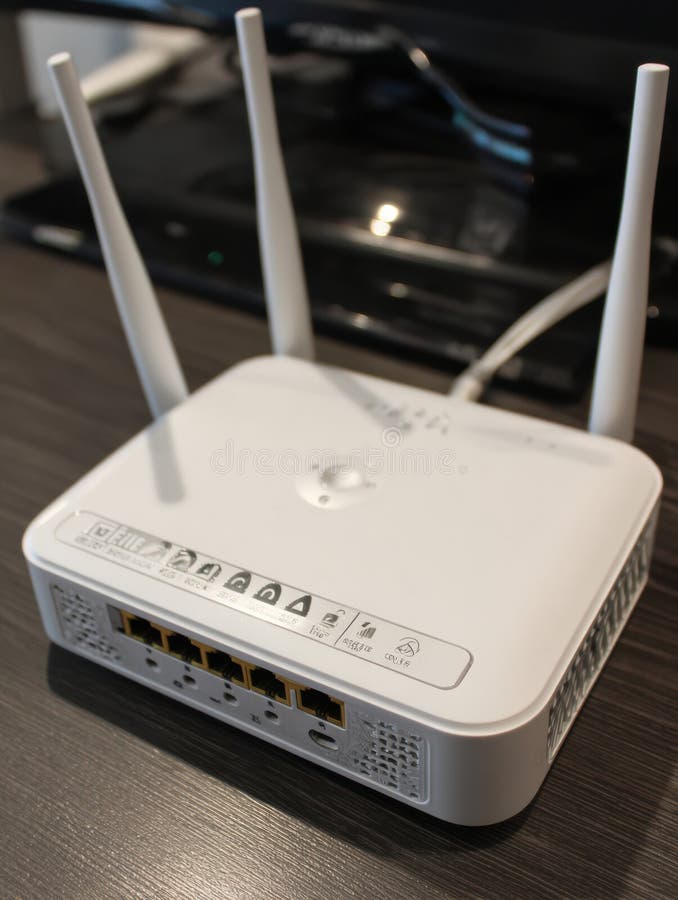
Once logged in, navigate to the wireless settings page. Configure your network name (SSID), password, and switch on or off the Wi-Fi. You can also change the channel width, frequency band, and encryption type depending on your needs. Ensure you click the Save button to apply the changes.
Step 4: Set Up Port Forwarding
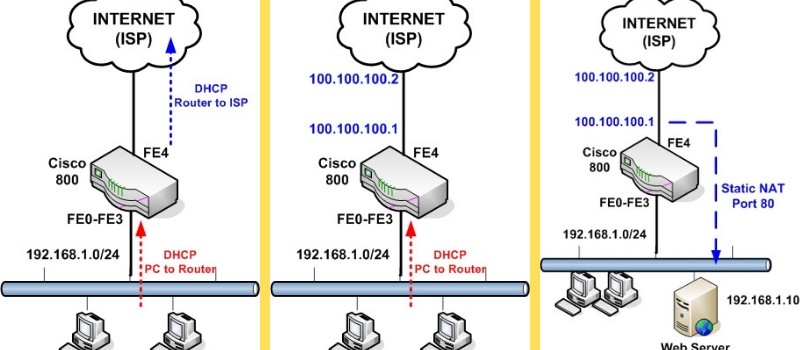
Port forwarding allows you to forward incoming connections to specific devices on your network. This is useful for applications that use specific ports for incoming connections. You'll need to navigate to the port forwarding settings page and add the desired rules for your network.
Step 5: Update Firmware and Security Settings
Regularly updating your router's firmware can improve performance and resolve security issues. You can check for updates on the manufacturer's website or through the router's interface. Additionally, enable WPA2 encryption, set up a guest network, and ensure you have a strong network password to protect your network.
Step 6: Install Additional Security Measures
Considering the increasing risk of cyber threats, it's essential to install additional security measures. Install a antivirus program on your devices, use DNS filtering, and decrypt suspicious files. Regularly back up your data and practice good network hygiene to prevent potential security breaches.
Final Checklist
- Configure your router's settings (SSID, password, channel width)
- Set up port forwarding for specific devices or applications
- Update firmware regularly
- Enable WPA2 encryption
- Set up a guest network for added security
- Use a strong network password
- Install anti-virus programs and DNS filtering
By following these steps, you'll be able to configure your home router with ease and enjoy a reliable and secure network. Remember to regularly update your router's firmware, install additional security measures, and practice good network hygiene to keep your network running smoothly and prevent potential security threats.




![[Wireless Router] How do I enter my ASUS router's setting page using ...](https://preview.redd.it/how-do-i-properly-configure-my-modem-routers-in-my-home-v0-owod17bxogaa1.png?width=606&format=png&auto=webp&s=cdcf5c5293b32c292ded3656aab91a5e9910bc09 "[Wireless Router] How do I enter my ASUS router's setting page using ...")