How to Install Windows 11 from Another Device
Are you looking to upgrade to Windows 11 but don't have a working copy of the operating system on your current device? Installing Windows 11 from another device is a straightforward process that requires the right tools and a bit of patience. In this article, we'll walk you through the steps to install Windows 11 from another device, including the recommended option of using the Windows Update page in Settings.
What You Need Before You Start
- A working Windows PC to create the installation media (or access to another computer)
- A USB flash drive (Microsoft's official guidance lists 8 GB or larger, but 16 GB is a safer pick for modern ISOs and tools)
- Note: the drive will be erased
- A valid Windows 11 license key if you plan to activate immediately (you can skip entering it during setup and activate later)
Step 1: Create a Bootable Installation Media
First, you'll need to create a bootable installation media for Windows 11. This can be done using a USB flash drive or a CD/DVD burner. You'll need to download the Windows 11 installation media from Microsoft's official website and follow the instructions provided to create the installation media.
Step 2: Prepare Your USB Flash Drive
Make sure your USB flash drive is empty and has at least 8 GB of free space. You can use a tool like Rufus or WoeUSB to create a bootable installation media for Windows 11. These tools will take care of the installation process for you, and you won't need to worry about formatting the drive or setting it up manually.
Step 3: Enable Boot from USB
Next, you'll need to enable boot from USB on your current device. This will allow you to boot from the installation media you created earlier. To do this, go to your device's BIOS settings (usually by pressing F2, F12, or Del) and look for the Boot order settings. Set your USB flash drive as the first boot device, and save your changes.
Step 4: Install Windows 11

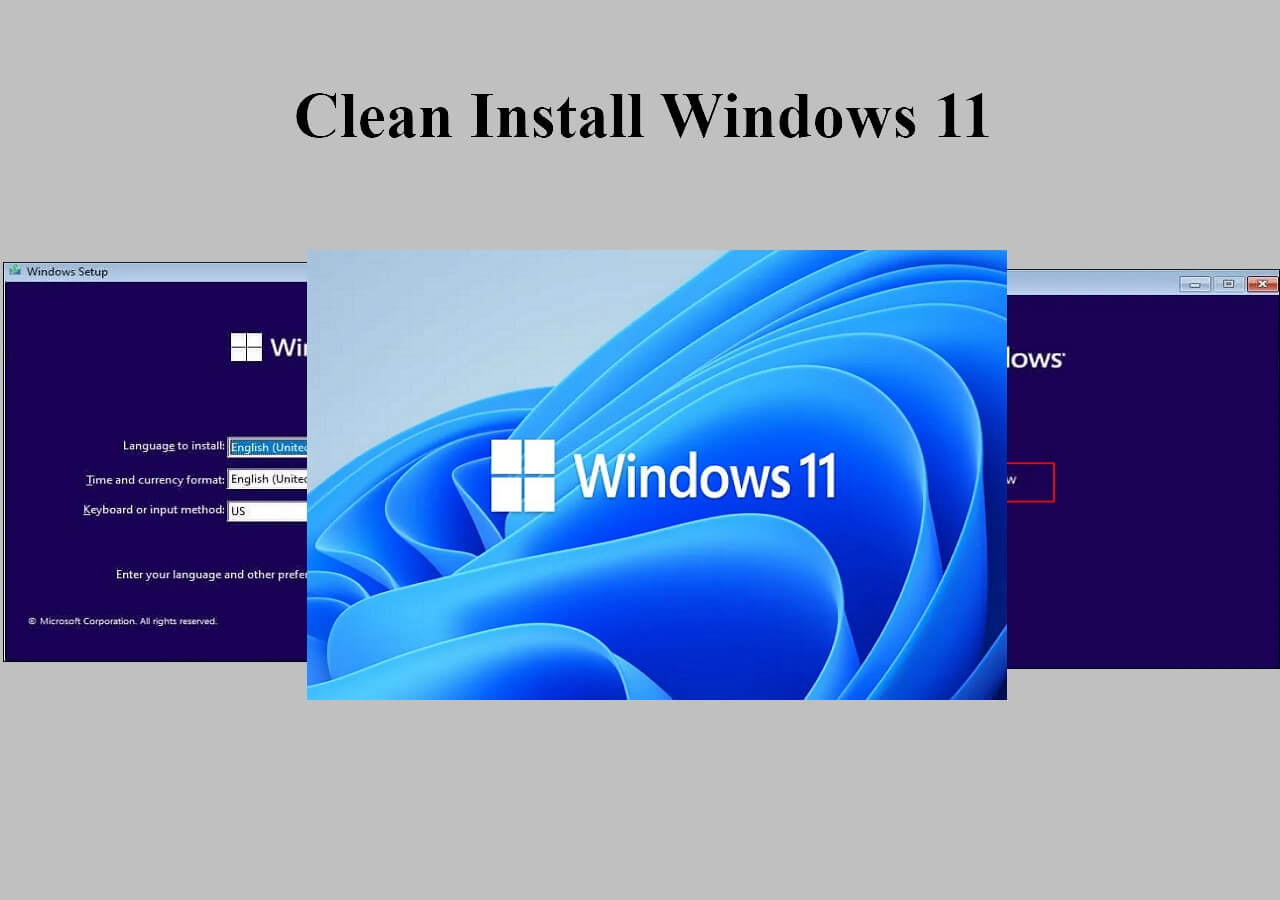
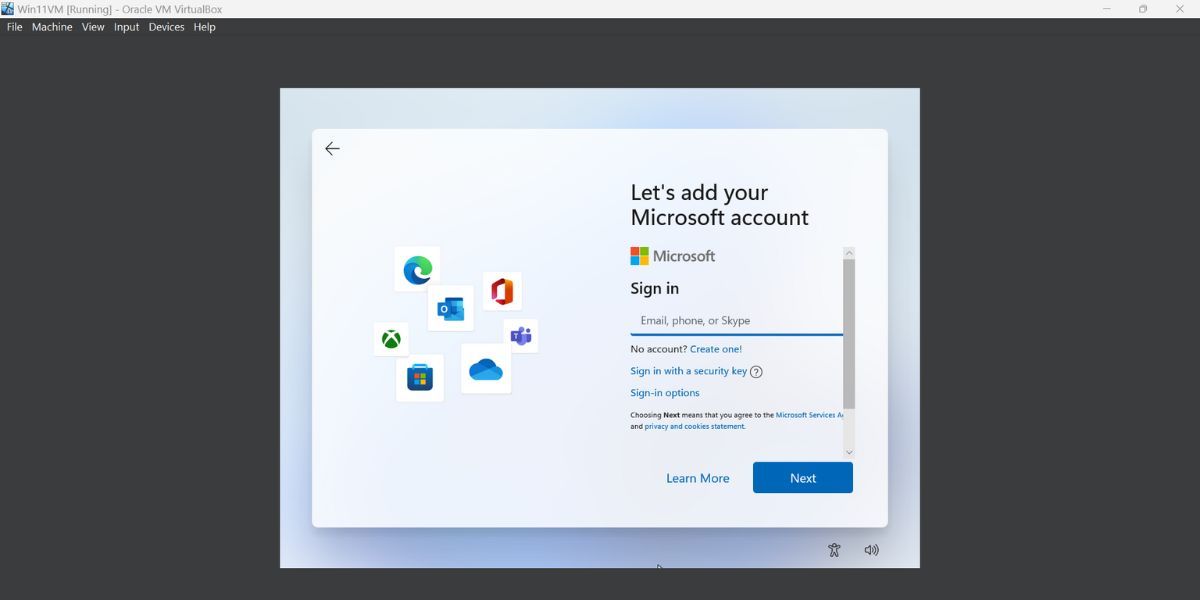
Now it's time to start the installation process. Insert the USB flash drive into your device and boot from it. You'll be prompted to select your language, time zone, and keyboard layout. Follow the on-screen instructions to complete the installation process. You may be asked to enter a product key or activate Windows 11 later.
Step 5: Configure Your System Settings
Once the installation is complete, you'll need to configure your system settings, such as setting up your Wi-Fi connection, setting a password, and more. This will ensure that your device is running smoothly and securely.
Conclusion
Installing Windows 11 from another device is a relatively straightforward process that requires the right tools and a bit of patience. By following the steps outlined in this article, you should be able to successfully install Windows 11 on your device. Remember to take your time and follow the on-screen instructions to avoid any complications.
Additional Resources
For more information on installing Windows 11, be sure to check out the official Microsoft documentation on the topic. Additionally, you can find a wealth of information on online forums and communities dedicated to Windows 11 installation and troubleshooting.
Common Issues and Solutions
- Problem: I'm encountering issues with my USB flash drive not being recognized. Solution: Try using a different USB port or using a different USB flash drive.
- Problem: I'm experiencing issues with my device not booting from the installation media. Solution: Try updating your BIOS or UEFI firmware.
- Problem: I'm encountering issues with my device not recognizing the installation media. Solution: Try using a different type of installation media, such as a CD/DVD burner.

![Create Bootable Windows USB & Install Windows 11 [Guide]](https://www.ghacks.net/wp-content/uploads/2023/01/4-Tested-Ways-to-Install-Windows-11-on-Unsupported-CPU-scaled.jpg "Create Bootable Windows USB & Install Windows 11 [Guide]")