Router Port Forwarding Setup: A Comprehensive Guide
What is Port Forwarding?
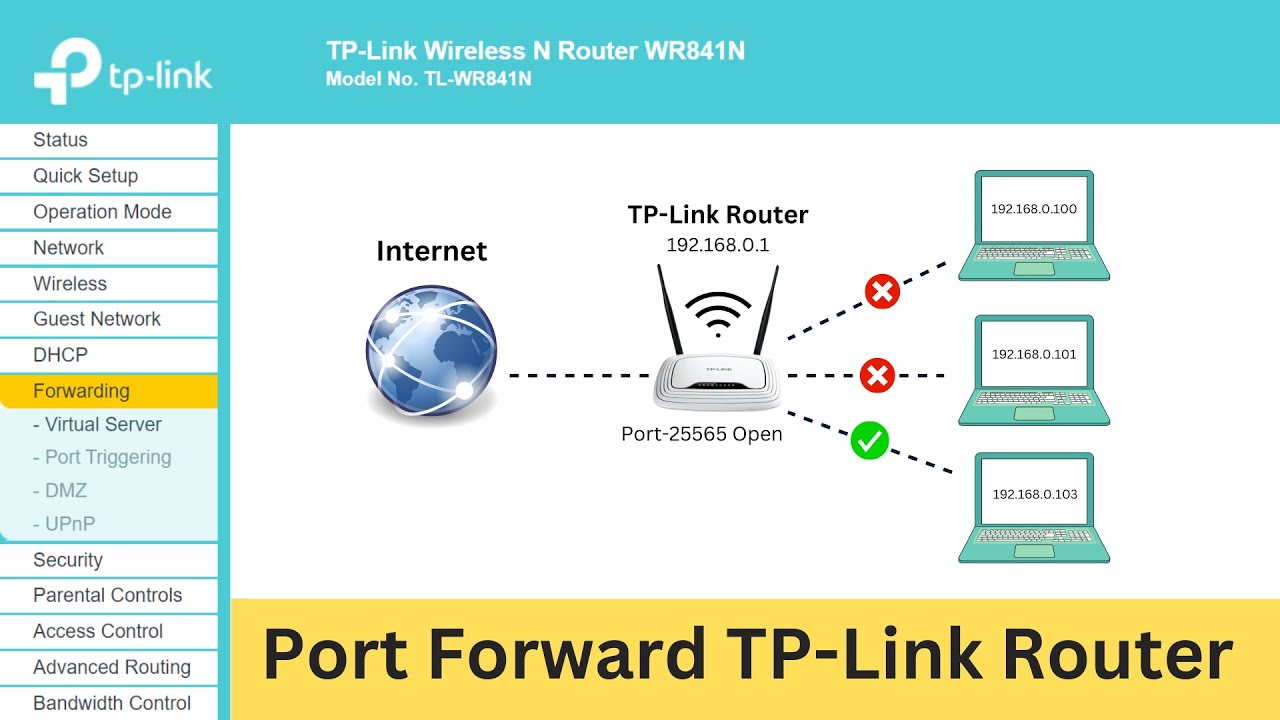
Port forwarding, also known as port mapping, allows external traffic from the internet to connect to a device, like a computer, on a private network. It's a crucial networking function that enables you to access services on a private network from the external world. When you want to host a website, run a game server, or access your home security system remotely, understanding how to set up port forwarding is essential.
Why is Port Forwarding Important?
Port forwarding lets you open up a direct external channel to devices on your home network, which is extremely useful for server hosting, but potentially risky. If you're using a network to host a game or a server, you'll need to configure your router to allow incoming connections to reach the server.
Types of Port Forwarding
- Static Port Forwarding: This type of port forwarding involves assigning a fixed port number to a particular device or service on your network. This method is useful for dedicated servers or services that require consistent access.
- DYNAMIC Port Forwarding: As the name suggests, dynamic port forwarding involves assigning available ports to devices or services on your network. This method is useful for applications that require multiple connections or dynamic network access.
Steps to Set Up Port Forwarding on Your Router
Setting up port forwarding on your router is a relatively simple process. Here are the steps:
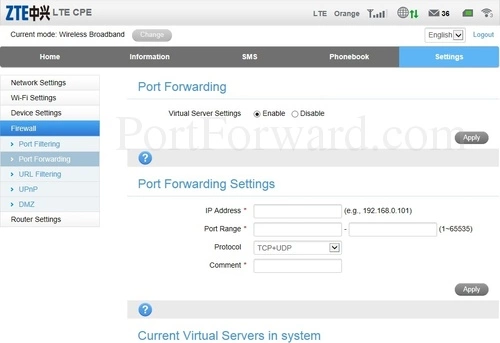
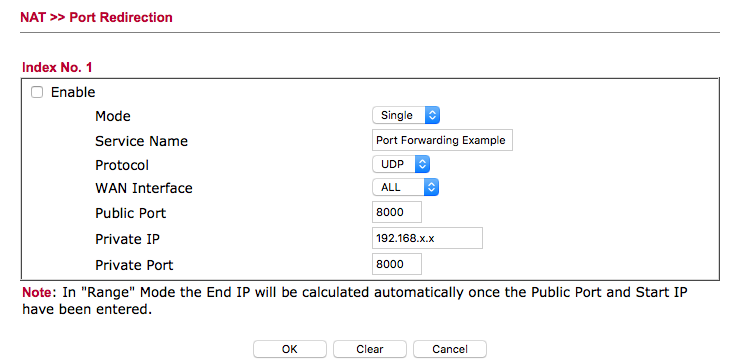
- Find your router's IP address. This can usually be found on the device or in your network settings. Sign in to your router admin page from a web browser.
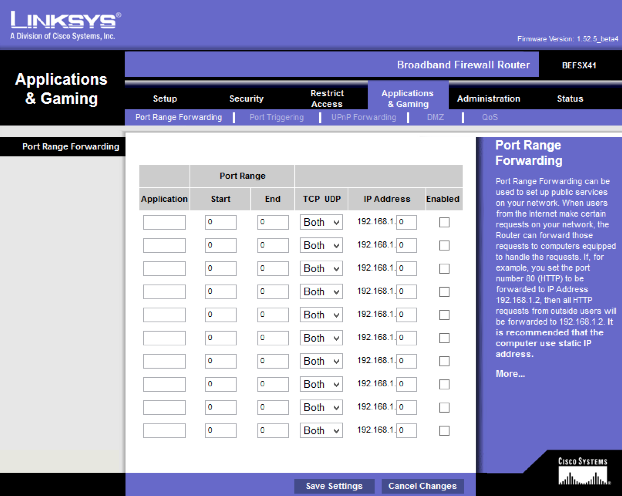
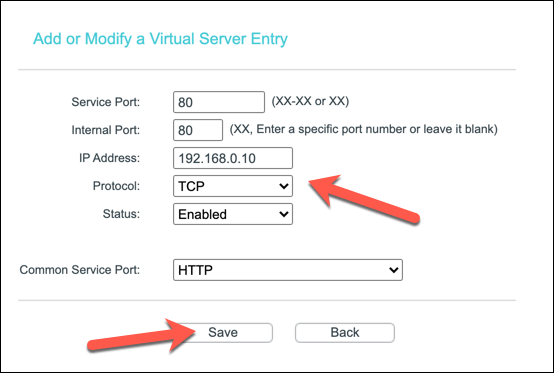
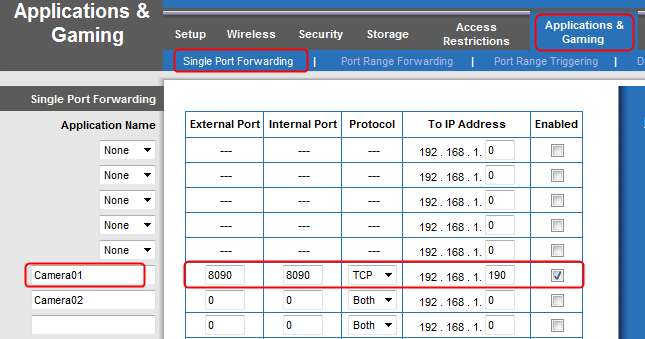
- Look for the Port Forwarding, Virtual Server, NAT, or Firewall settings. The exact menu names vary by router brand. li>Create a new rule once the game's official TCP or UDP ports are known. Save the settings and restart your router if needed.
Port Forwarding Setup for Specific Routers

Most wireless routers have a simple setup for port forwarding, but in some cases, the process can be different. Here are some examples:
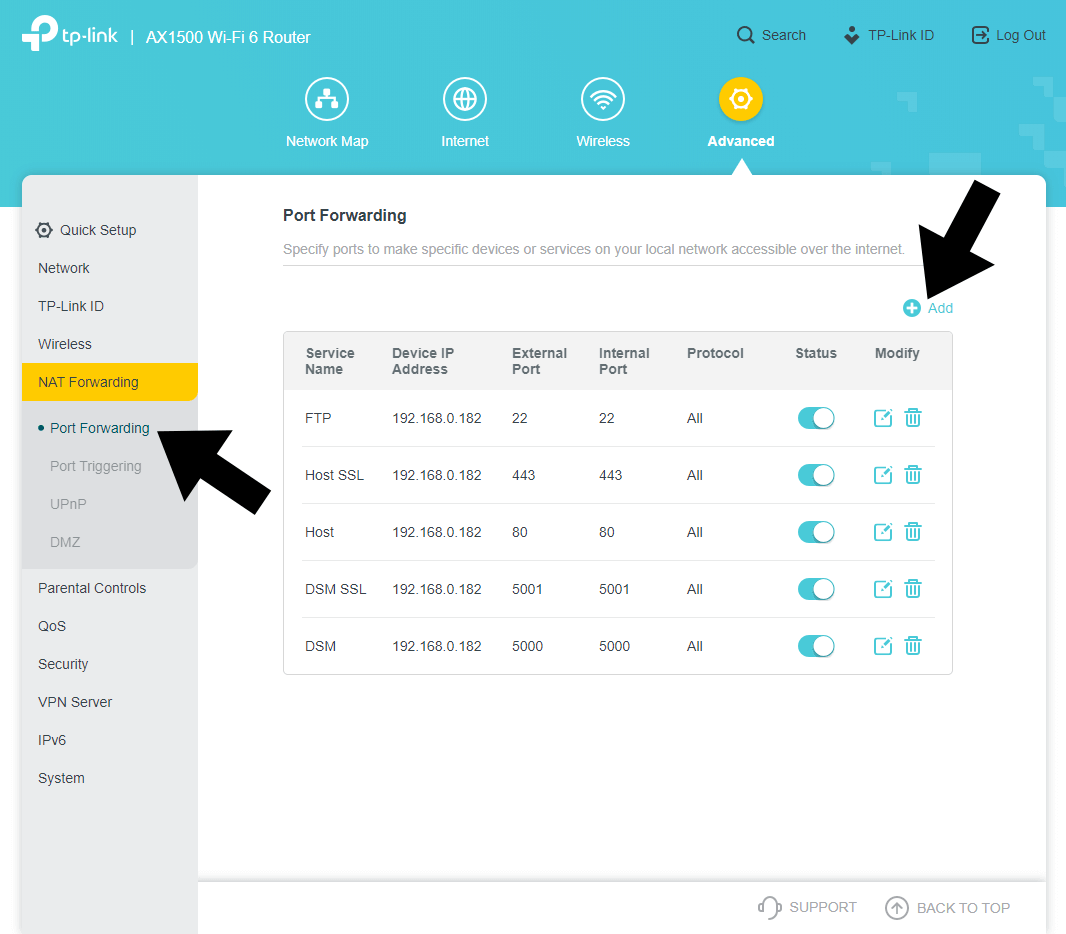
- TP-Link Router Port Forwarding: This involves accessing the Port Forwarding page on your TP-Link router and creating a new rule for each required port or port range.
Troubleshooting Port Forwarding Issues
When you're experiencing issues with port forwarding, there are several steps you can take to troubleshoot the problem:
- Check your UPnP settings and ensure it's enabled.
- Ensure the port forwarding entries are deleted from any older Moonlight applications.
- Try streaming from a different network.
Best Practices for Port Forwarding Security
While port forwarding can be useful, it also poses a security risk if not implemented correctly. Here are some best practices to ensure your port forwarding setup is secure:
- Use strong passwords and avoid default ports.
- Only open the necessary ports for the required services. li>Use a Virtual Private Network (VPN) to encrypt your internet traffic.
Conclusion
Router port forwarding setup is a crucial aspect of home networking. By following these steps and best practices, you can ensure a secure and efficient port forwarding setup that suits your needs. Whether you're hosting a game server, running a home security system, or simply accessing your network remotely, port forwarding is an essential function that requires attention to detail and security considerations.




:max_bytes(150000):strip_icc()/008-how-to-port-forward-4163829-aa314eefd6f94453953cdf10d8855b68.jpg "ASUS Router Port Forwarding: Step-by-Step Setup Guide | Vision ...")