Setting Up a VPN on Android Devices: A Comprehensive Guide
With the increasing threat of online surveillance and data breaches, it's becoming essential to protect your online identity and data. A Virtual Private Network (VPN) is a secure way to mask your IP address and encrypt your internet traffic, ensuring your online activities remain private and secure. In this article, we'll walk you through the process of setting up a VPN on your Android device, explaining the benefits, choosing the right VPN service, and providing step-by-step instructions for manual and app-based VPN setup.
Benefits of Using a VPN on Android Devices
A VPN offers several benefits, including:
- Anonymous browsing and IP address masking
- Encryption of internet traffic for secure data transfer
- Protection against hackers and cyber threats
- Bypassing geo-restrictions and accessing blocked content
- Improved online security and protection of personal data
Choosing the Right VPN Service for Android
With numerous VPN services available, selecting the right one can be a daunting task. Consider the following factors when choosing a VPN service:
- Strong encryption protocols (e.g., OpenVPN, IKEv2)
- Number of servers and server locations
- Speed and reliability
- Compatibility with Android devices
- Customer support and user-friendly interface
- Price and subscription plans
Manually Setting Up a VPN on Android
Not all Android devices come with built-in VPN support. If your device doesn't have a VPN app or doesn't support VPN setup through the Settings menu, you can manually set up a VPN using the following steps:
To manually set up a VPN on your Android device:
- Go to the Settings menu on your device
- Look for the VPN or Virtual Private DNS section
- Tap on the VPN or Private DNS section
- Select the VPN service you want to use
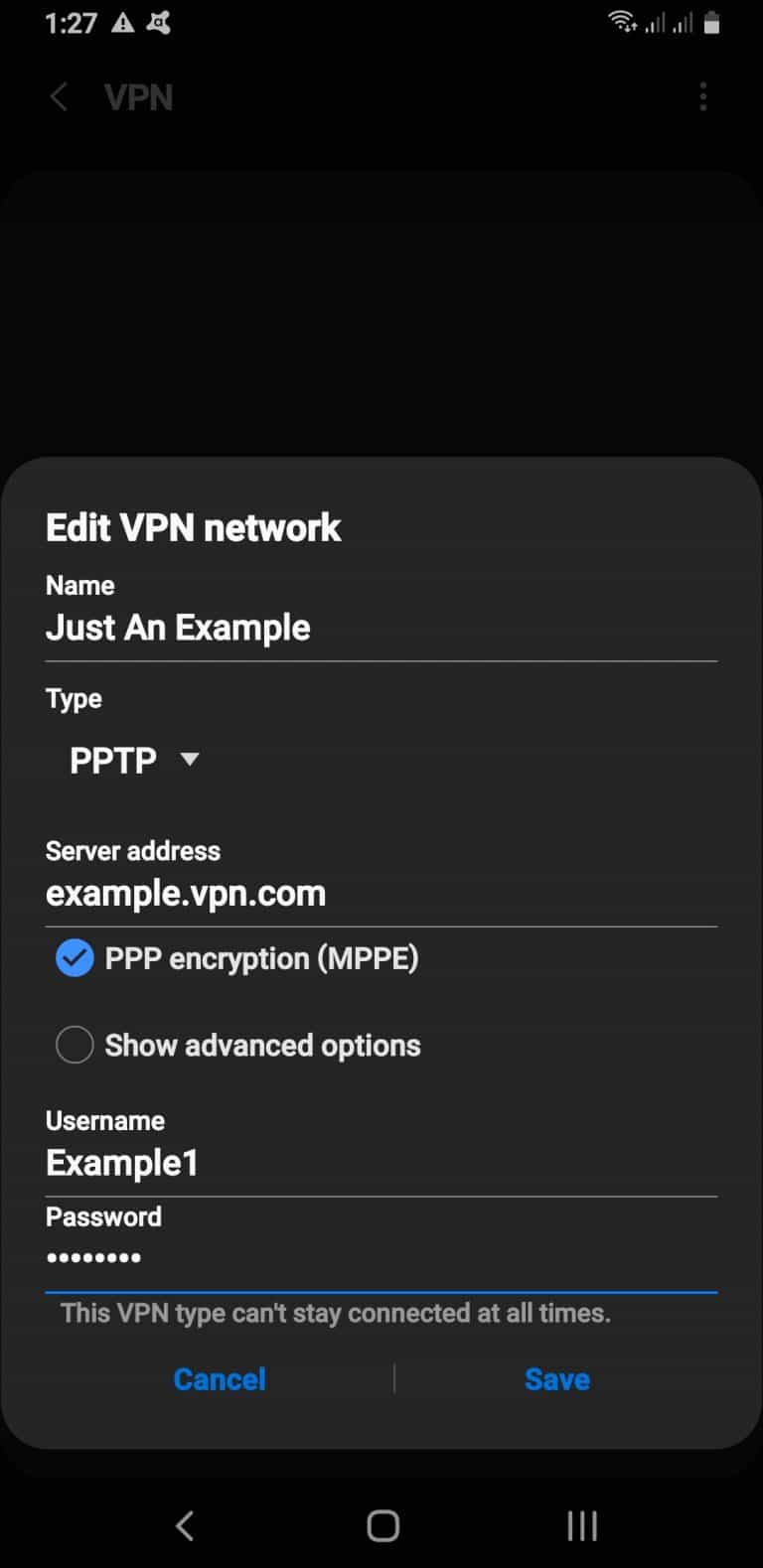
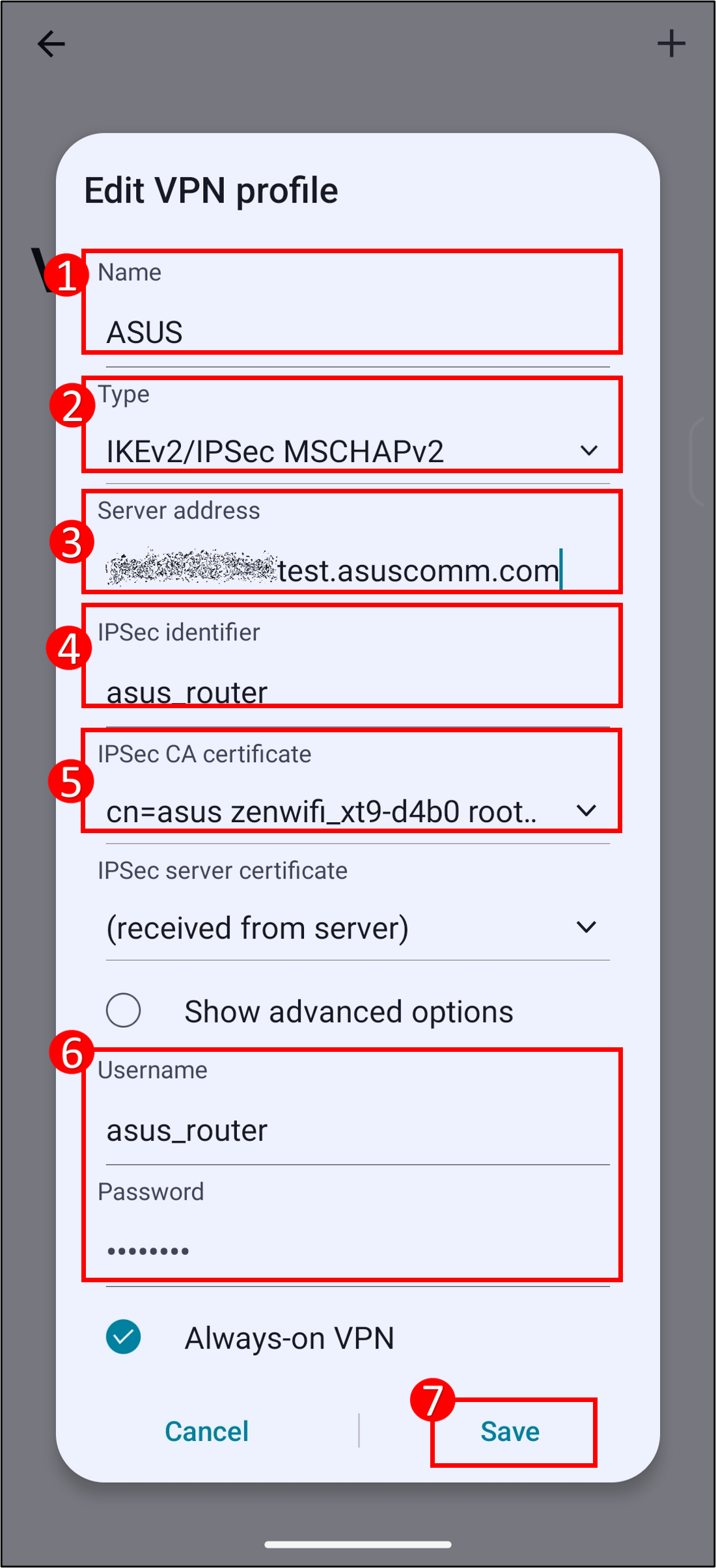
- Enter the VPN server address and credentials
- Save the changes and confirm the setup
Setting Up a VPN Using an App
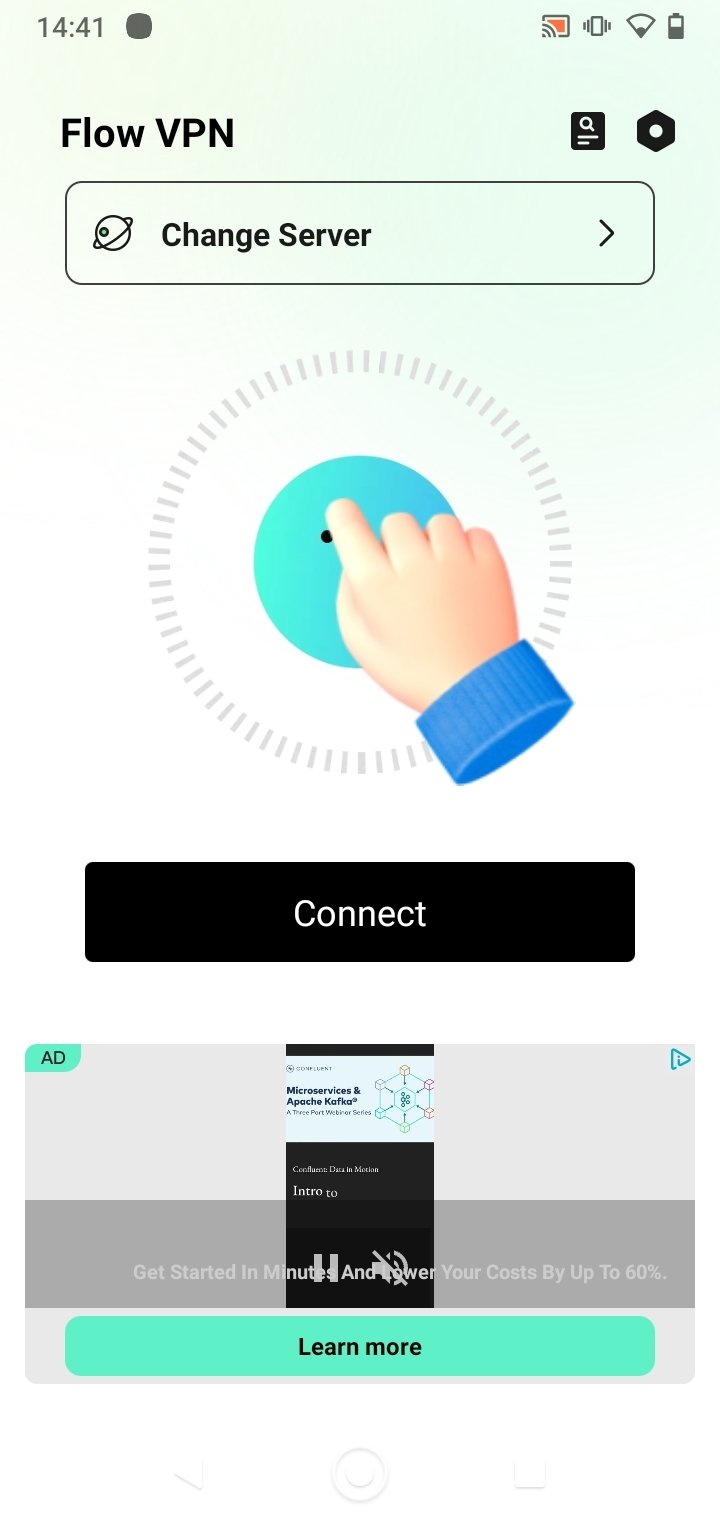
Most VPN services offer dedicated Android apps that simplify the setup process. Here's a step-by-step guide to setting up a VPN using an app:
To set up a VPN using an app on your Android device:
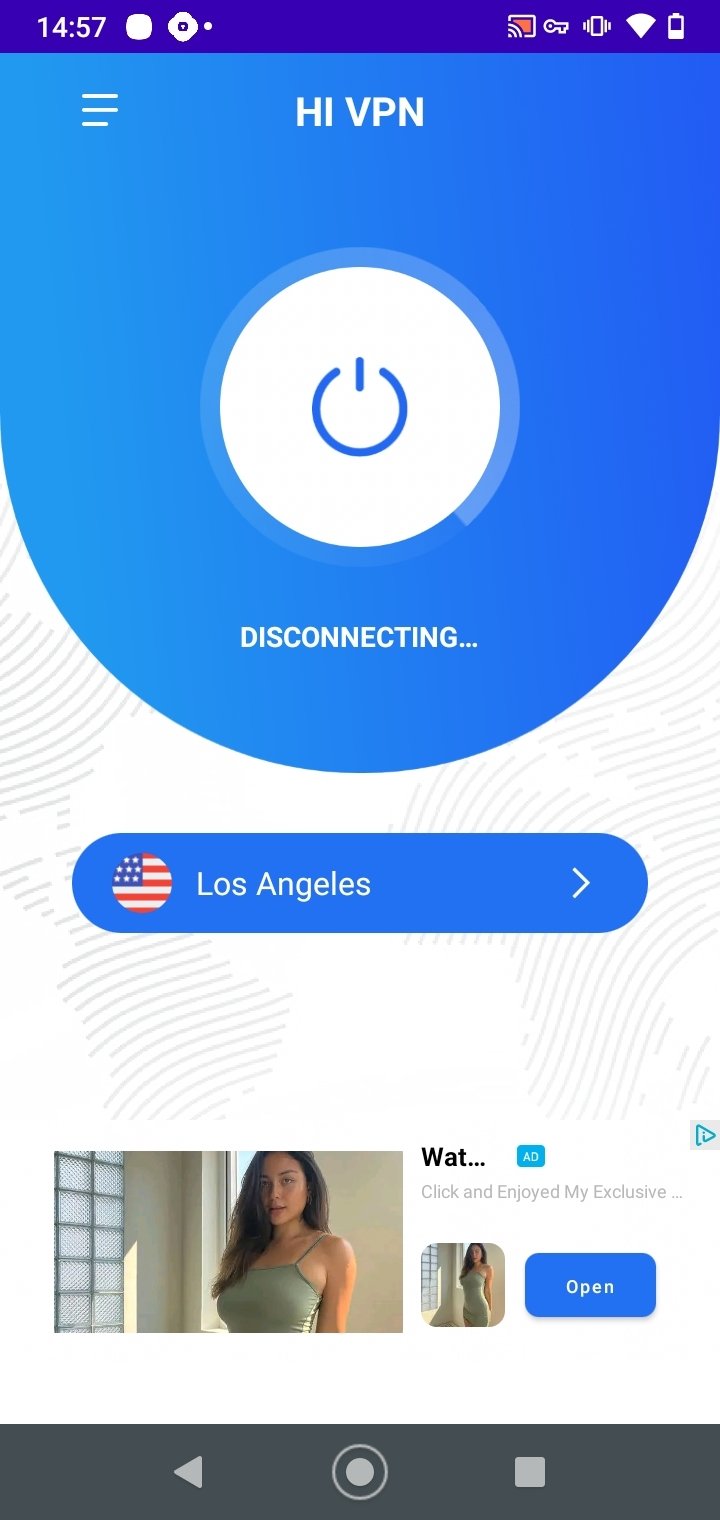
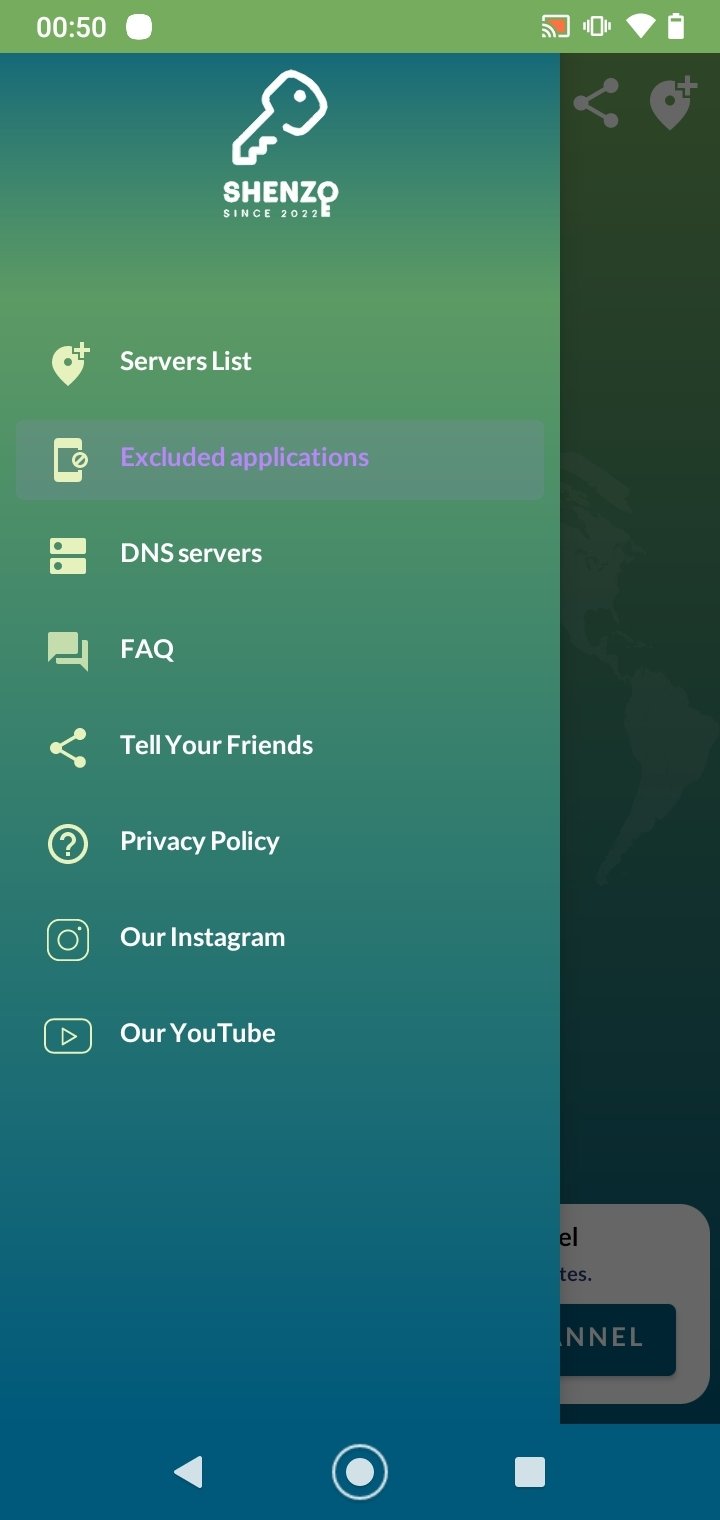
- Download and install a VPN app from the Google Play Store
- Launch the VPN app and create an account (if required)
- Choose a VPN server location
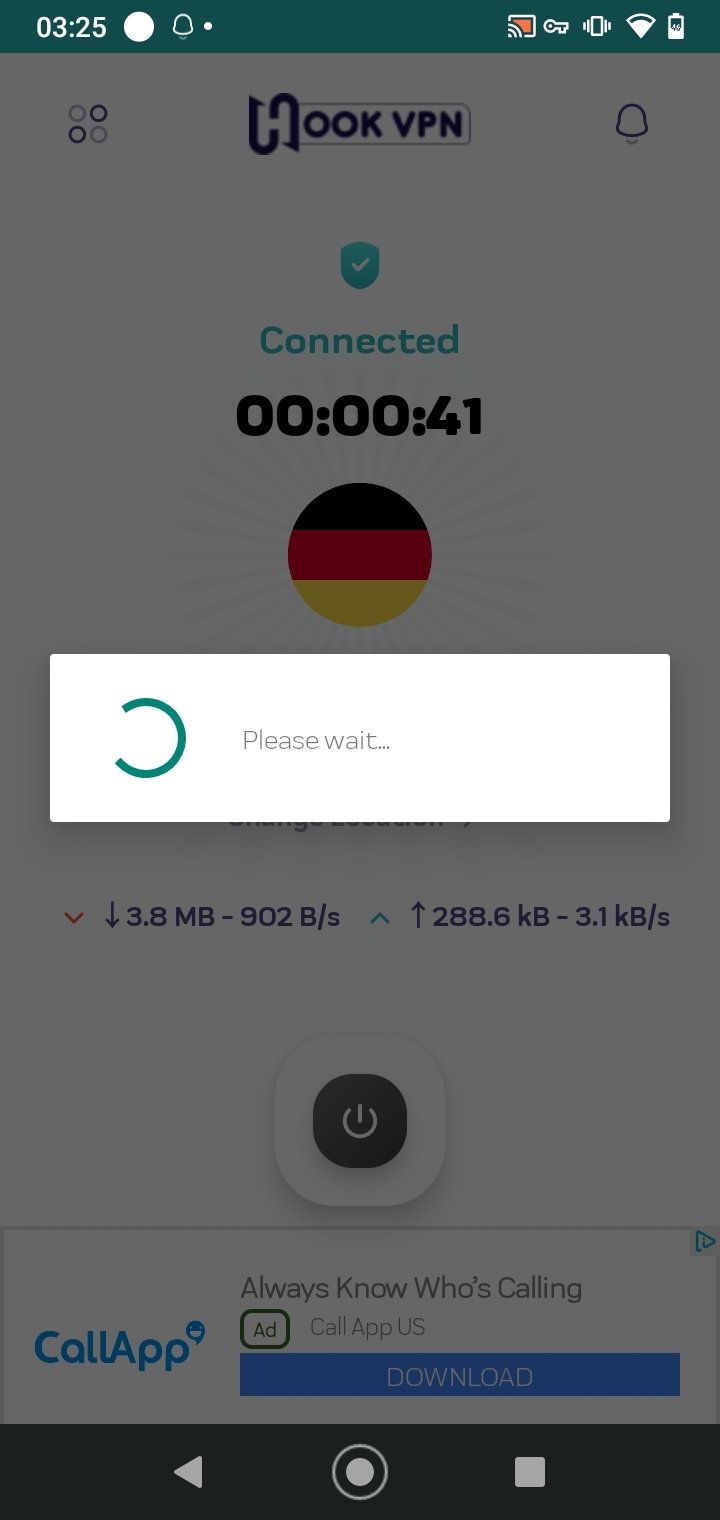
- Connect to the VPN server
- Verify your connection is secure and private
Always-On VPN on Android Devices
Android devices offer an Always-On VPN feature that ensures your device stays connected to the VPN at all times, even when it's connected to the internet. To enable Always-On VPN:
- Go to the Settings menu on your device
- Look for the VPN or Private DNS section
- Tap on the VPN or Private DNS section
- Select the VPN service you want to use
- Enable the Always-On VPN feature
Conclusion
Setting up a VPN on your Android device is a straightforward process that offers numerous benefits, including anonymous browsing, encryption, and protection against cyber threats. Choose a reputable VPN service, consider the features and pricing, and follow the step-by-step guides for manual and app-based VPN setup. With a VPN, you can enjoy a secure and private online experience, regardless of your location or device type.