How to Fix iPad Charging Port: A Step-by-Step Guide
Are you experiencing charging issues with your iPad? A non-functional charging port can be frustrating and inconvenient. Fortunately, in many cases, you can fix the issue yourself with a few simple steps. In this article, we'll walk you through the process of fixing your iPad's charging port and provide you with some useful tips to prevent similar problems in the future.Before You Start
Before you begin, it's essential to understand that a faulty charging port can be caused by various factors, including dust, debris, or damage. To ensure a successful repair, follow these guidelines: *Inspect the charging cable
First, inspect the charging cable for any signs of damage or wear. If the cable is damaged, replace it with a new one. *Check the charging port
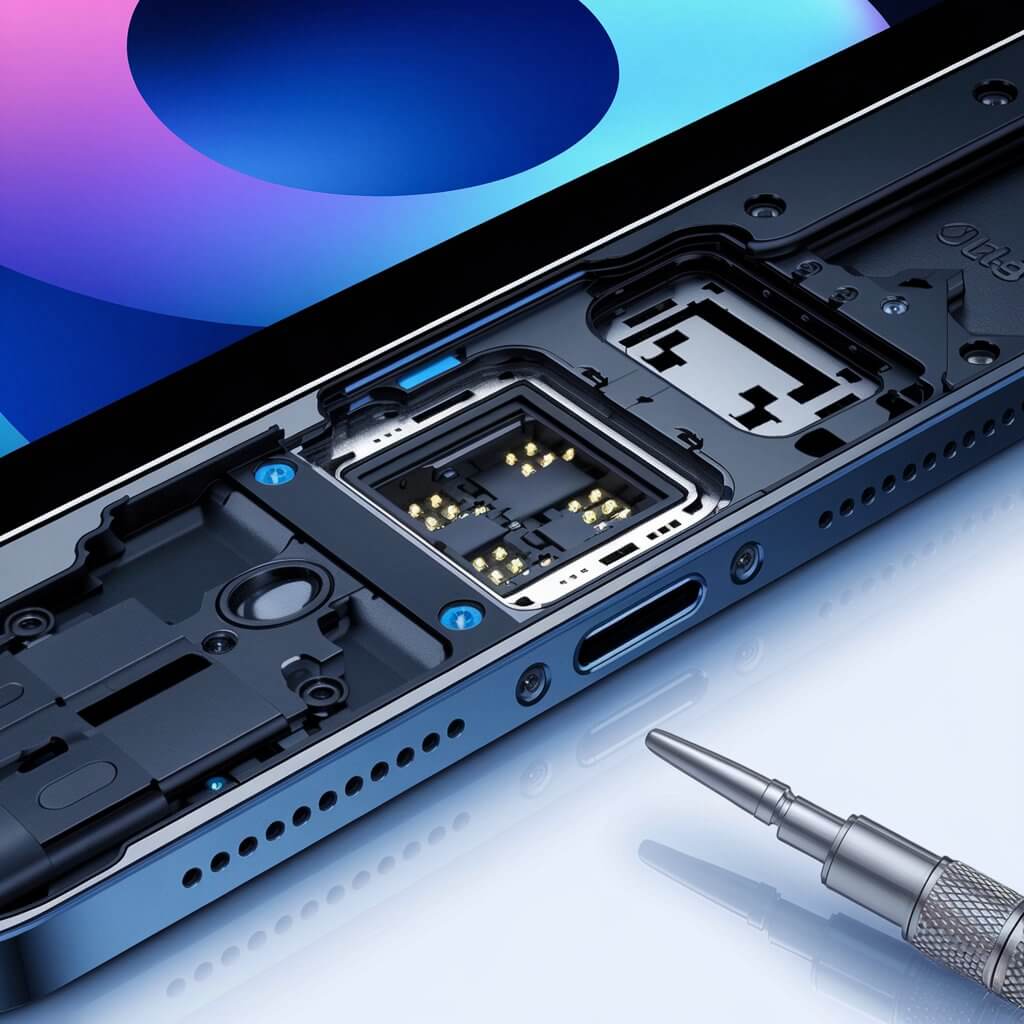
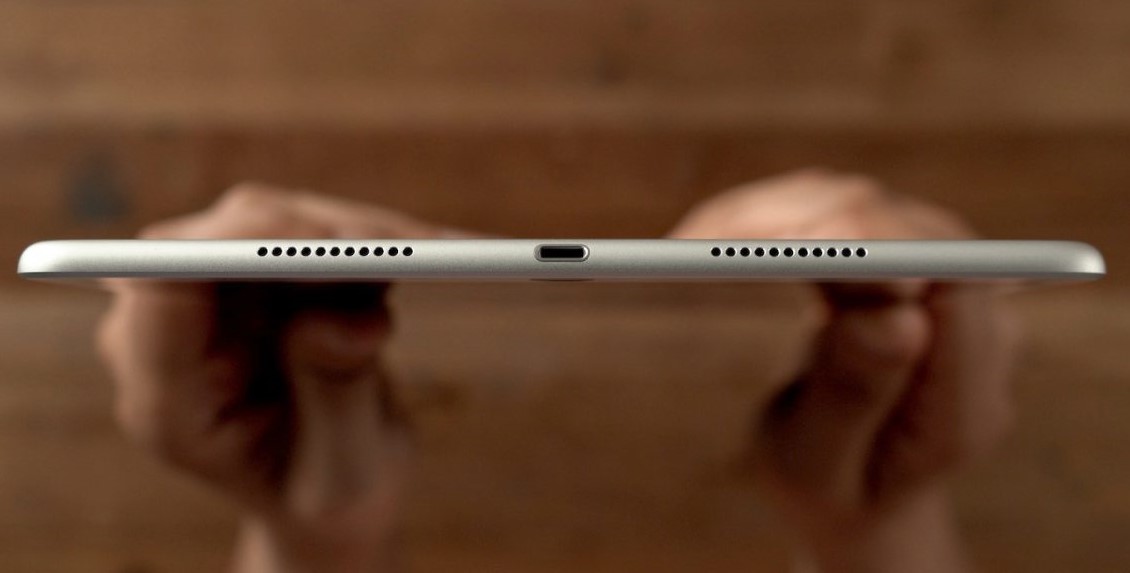
Next, inspect the charging port on your iPad for any debris or dust. Use compressed air to clean out any blockages. *Try a different charger
If you're using a third-party charger, try using the original Apple charger to rule out any compatibility issues.Step 1: Clean the Charging Port
Cleaning the charging port is the first step in fixing the issue. You can use compressed air or a wooden toothpick to remove any debris or dust.Using Compressed Air
1.Turn off your iPad and unplug the charger.
2.Use compressed air to blow out any debris or dust from the charging port.
3.Repeat the process several times to ensure the port is clean.
Using a Wooden Toothpick
1.Turn off your iPad and unplug the charger.
2.Insert a wooden toothpick into the charging port and gently push it around to loosen any debris or dust.
3.Repeat the process several times to ensure the port is clean.
Step 2: Inspect and Replace the Charging Cable
If the charging cable is damaged, replace it with a new one.Replacing the Charging Cable
1.Turn off your iPad and unplug the charger.
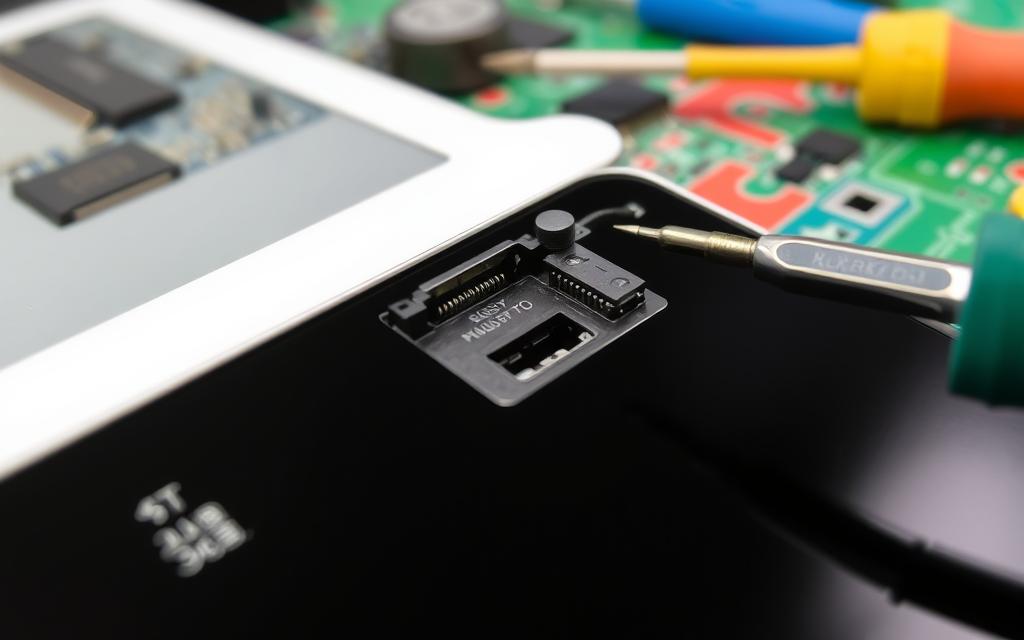
Remove the damaged charging cable from the charging port.
3.Insert the new charging cable into the charging port and ensure it's securely connected.
Step 3: Check the Charging Port for Damage
If the charging port is damaged, you may need to replace it.Replacing the Charging Port
1.Turn off your iPad and unplug the charger.
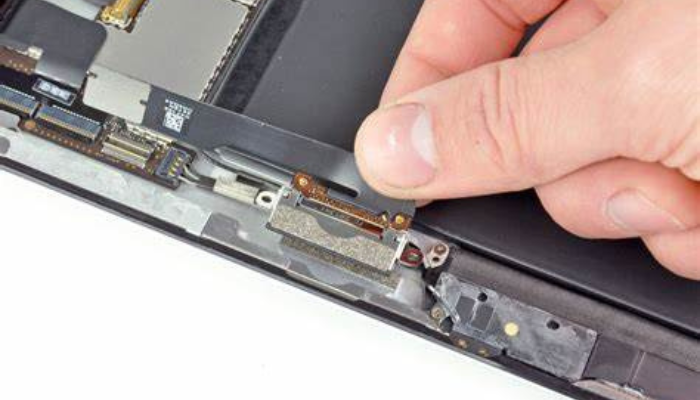
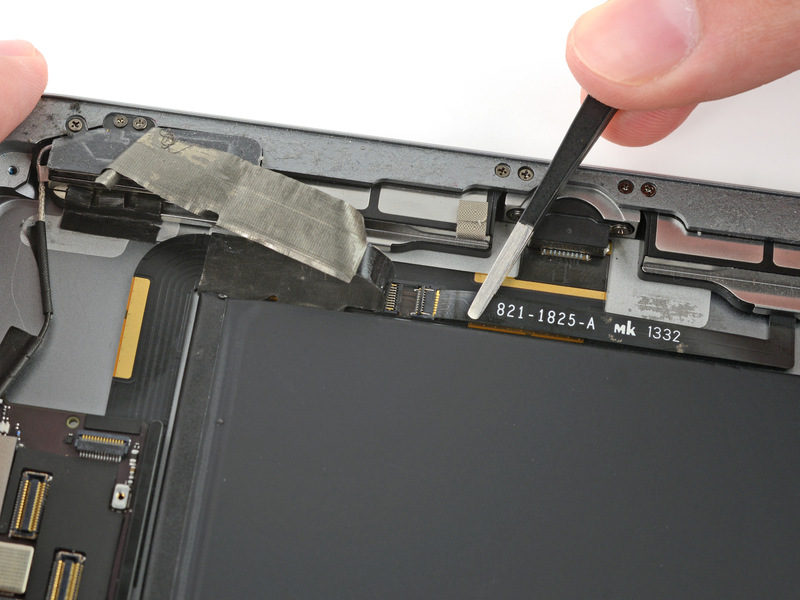
2.Remove any screws or clips holding the charging port in place.
3.Remove the damaged charging port and replace it with a new one.
Step 4: Test the Charging Port
Once you've cleaned the charging port and replaced the charging cable, test the charging port to ensure it's working properly.Testing the Charging Port
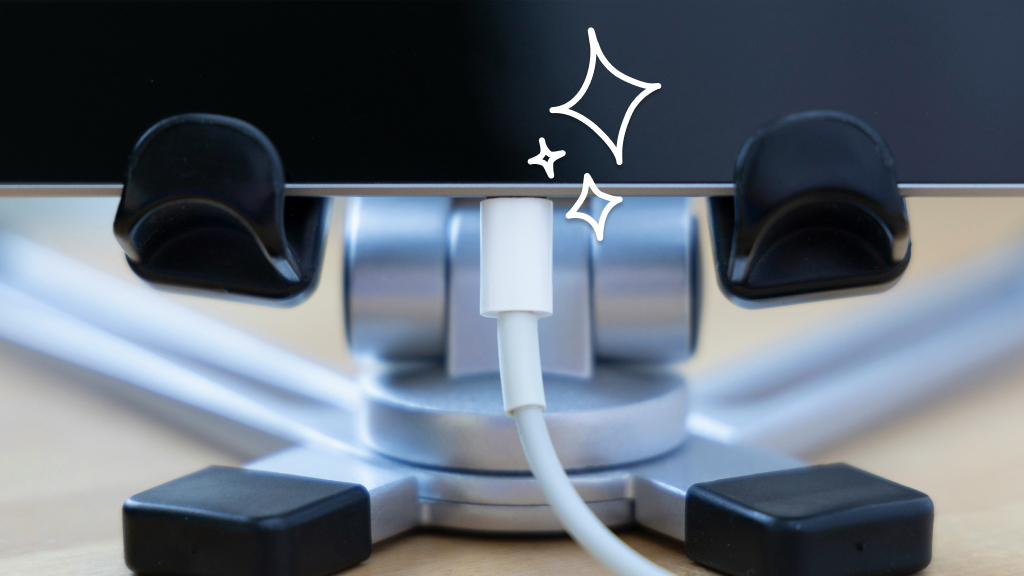
1.Turn on your iPad and plug in the charger.
2.Check the charging indicator to ensure it's charging properly.