How to Set Up a Local Minecraft Server - A Step-by-Step Guide
Are you tired of playing Minecraft with your friends over a local area network (LAN) without the ability to host a dedicated server?
Setting up a local Minecraft server is easier than you think, and in this article, we'll guide you through the process, step by step. Whether you're a seasoned Minecraft player or a newcomer to the world of Minecraft servers, this tutorial will have you hosting your own local server in no time.
What is a Minecraft Server?
A Minecraft server is a software program that allows you to host a Minecraft game environment on your local network or over the internet. Players can connect to your server using the Minecraft client software, and you can customize the settings to create the perfect multiplayer experience.
Requirements for Setting Up a Minecraft Server
Before we dive into the setup process, you'll need to meet the following requirements:
- A computer with a decent processor, RAM, and storage to run the Minecraft server software
- The Minecraft server software (Java Edition or Bedrock Edition)
- A stable internet connection (optional)
- A local area network (LAN) or a router to enable network connections
Step 1: Download and Install the Minecraft Server Software
To set up a local Minecraft server, you'll need to download and install the Minecraft server software. You can choose between Java Edition and Bedrock Edition, but for this tutorial, we'll focus on the Java Edition.
Visit the Minecraft website and download the Minecraft server software (Java Edition) for your operating system. The software is available for Windows, macOS, GNU/Linux, and BSD platforms.
Step 2: Create a New Folder for the Server Software
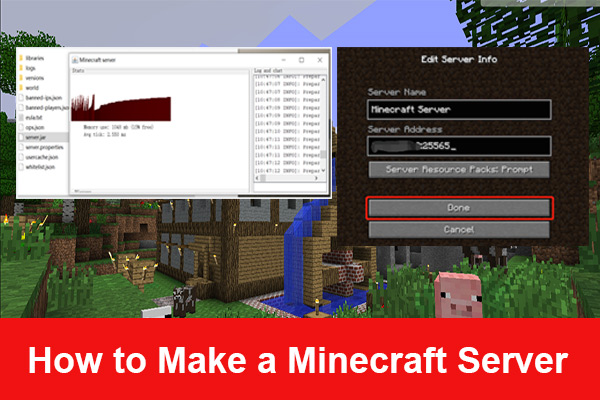
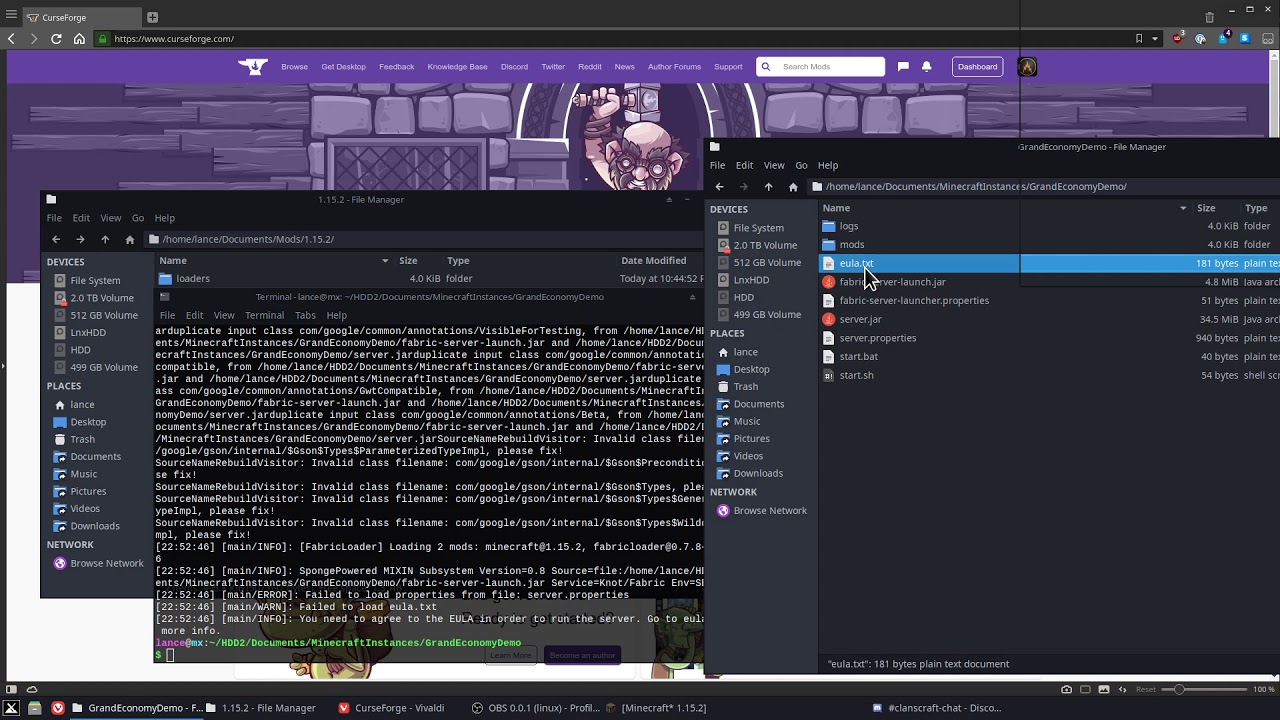
Once you've downloaded the Minecraft server software, create a new folder on your computer to hold the server files. This folder will serve as the root directory for your server software.
Step 3: Copy the Server Software Files
Copy the server software files into the newly created folder. Make sure to include all the necessary files, including the server executable (jar file).
Step 4: Configure the Server Properties File

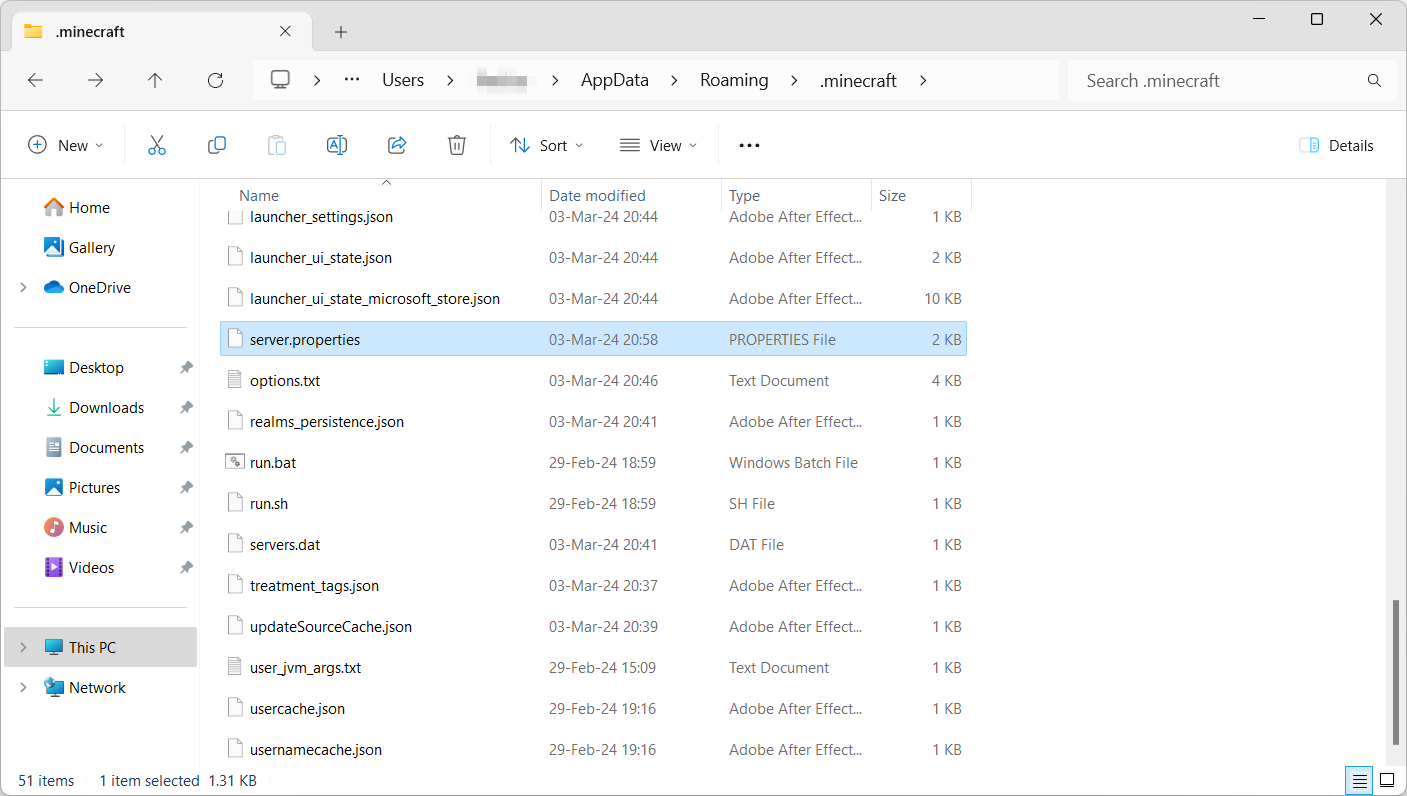
Open the server properties file (server.properties) in a text editor. This file contains the configuration settings for your server, such as the server name, gamemode, difficulty, and more.
Configure the settings according to your preferences, and save the file. For more details on the server properties file, visit the Minecraft Wiki.
Step 5: Launch the Server
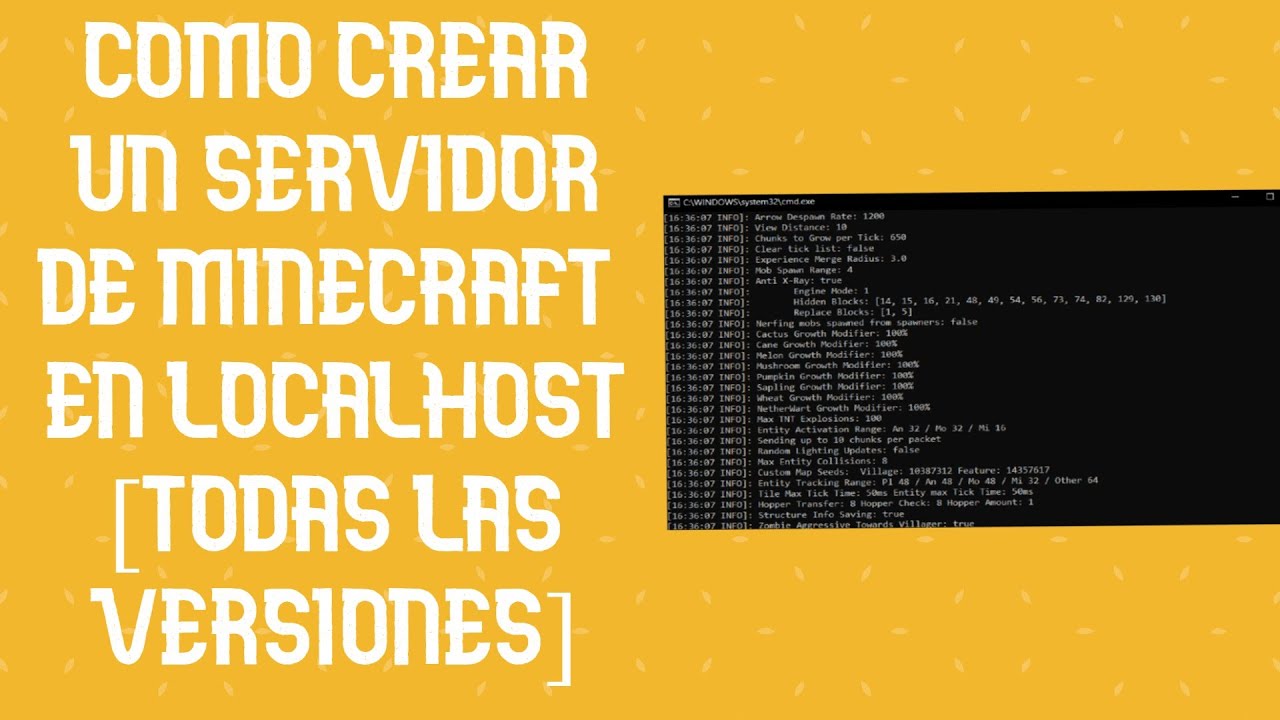
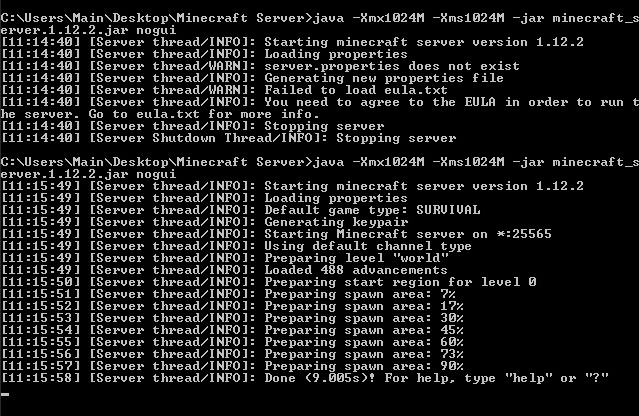
Launch the Minecraft server software by navigating to the server folder and opening a command prompt or terminal window. Type the following command: java -jar "your jar name".jar. Replace "your jar name" with the actual name of your server executable (jar file).
Press Enter, and the server will start running in the command prompt or terminal window.
Step 6: Join the Server
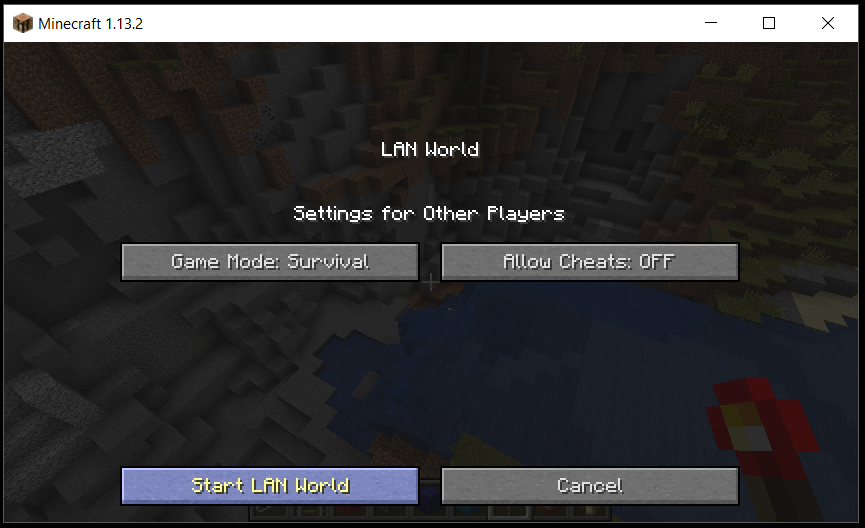
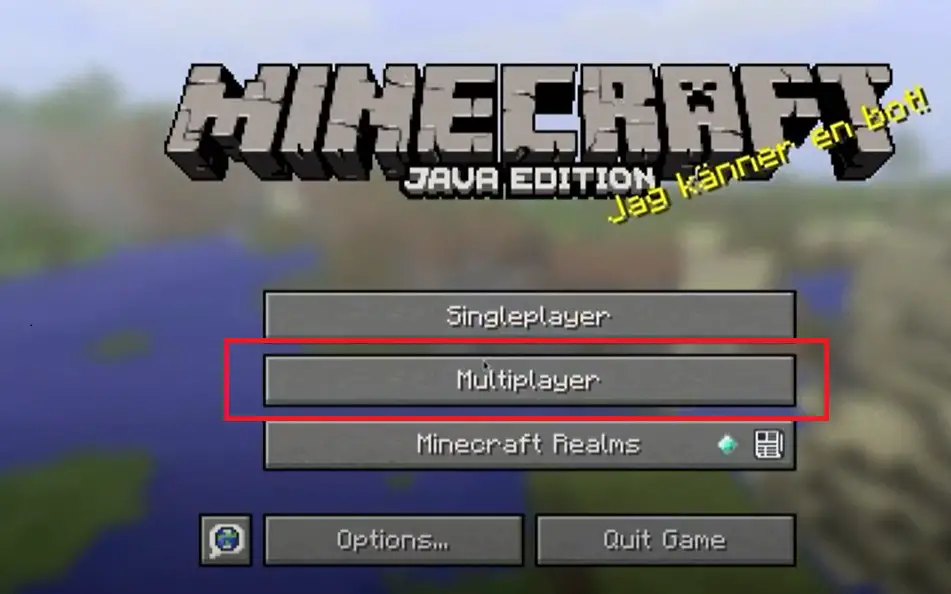
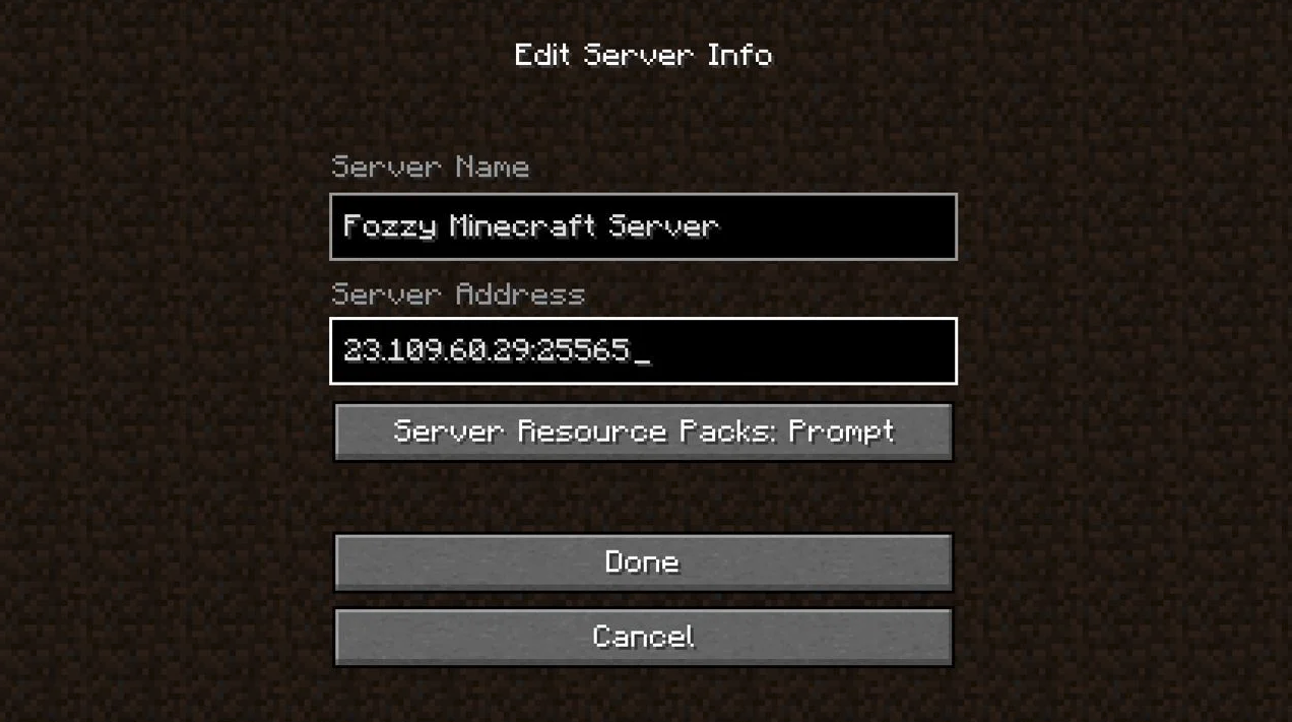
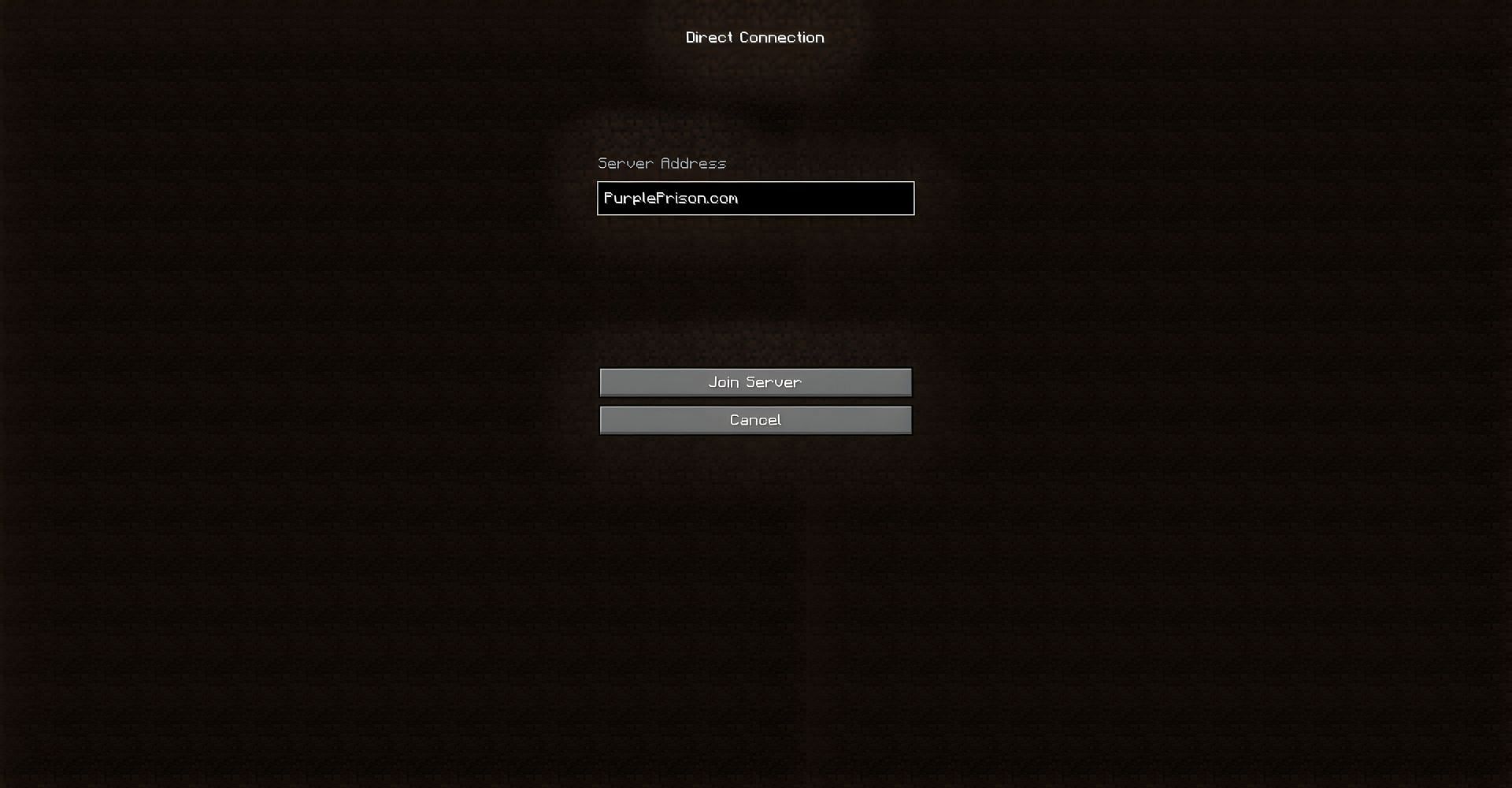
Open the Minecraft client software and create a new game. Join a LAN world by creating a new LAN game and typing the IP address of your server. This will connect you to your local Minecraft server.
Conclusion:
Setting up a local Minecraft server is a straightforward process that requires minimal technical expertise. Follow the steps outlined in this article, and you'll be hosting your own Minecraft server in no time. Remember to customize the server properties file to suit your needs and enjoy the benefits of playing Minecraft with friends over a dedicated local server.
Additional Resources:
For more tutorials on setting up Minecraft servers, visit the Minecraft Wiki or the Official Minecraft Website.
For more information on Minecraft servers, see the Minecraft wiki's article on Servers.
Keywords:
How to set up a local Minecraft server, Minecraft server setup, Minecraft server configuration, Minecraft server properties file, Minecraft client software, Minecraft LAN game, Minecraft server IP address.