Setting Up OBS for Low-End PC: A Comprehensive Guide
If you're a gamer or content creator with a low-end PC, you're likely struggling to find the right settings to record or stream your gameplay or videos without lag or stutter. OBS (Open Broadcasting Software) is a free and open-source program that allows you to live stream and record your screen, but it can be challenging to optimize for low-end PCs.
Understanding the Demands of Low-End PCs
Low-end PCs typically struggle with high-performance tasks such as streaming and recording video. The primary bottleneck is usually the Central Processing Unit (CPU), which handles most of the computations involved in video encoding and processing. This is especially true when using software encoders, which can be resource-intensive.
Why Choose OBS for Low-End PCs?
OBS is an excellent choice for low-end PCs because it's free, open-source, and highly customizable. It offers a wide range of settings and features that can be adjusted to optimize performance on lower-end hardware. With OBS, you can record and stream high-quality video without breaking the bank or requiring expensive hardware.
Step 1: Upgrade Your Hardware (If Possible)
Before diving into OBS settings, consider upgrading your hardware if possible. Adding more RAM, replacing your CPU, or upgrading to a dedicated graphics card can significantly improve performance. However, this may not be feasible for everyone, so let's focus on optimizing OBS settings for low-end PCs.
Key OBS Settings for Low-End PCs
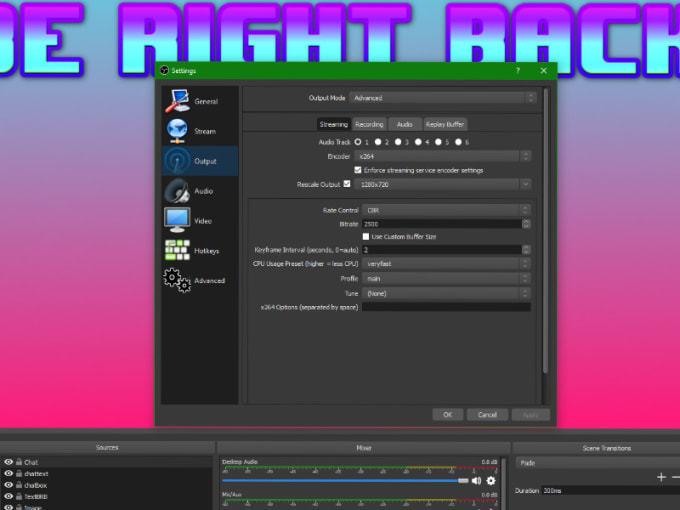
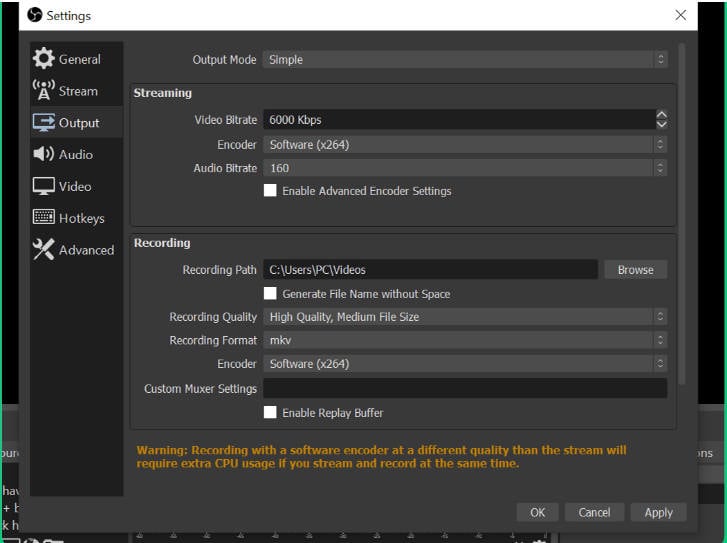
- Video Bitrate: Set the bitrate to around 3500-5000 kbps for 720p60 or 6000-8000 kbps for 1080p60. This will help minimize CPU usage and ensure smooth playback.
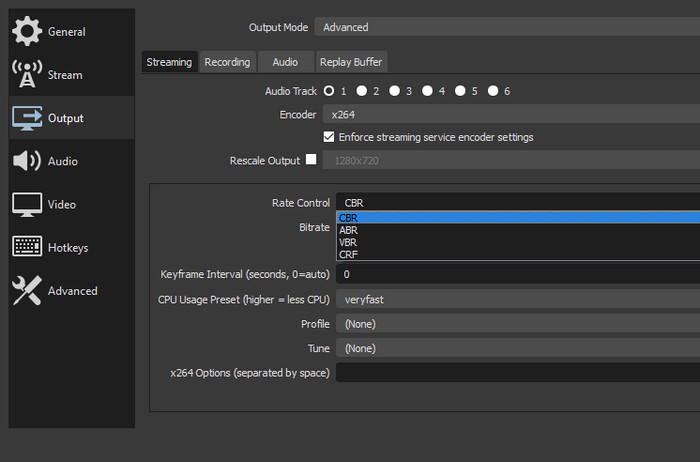
- Encoder: Use a hardware encoder like the Intel QuickSync or NVIDIA NVENC for maximum performance. These encoders offload the video encoding workload from your CPU to a specialized component, significantly reducing CPU usage.
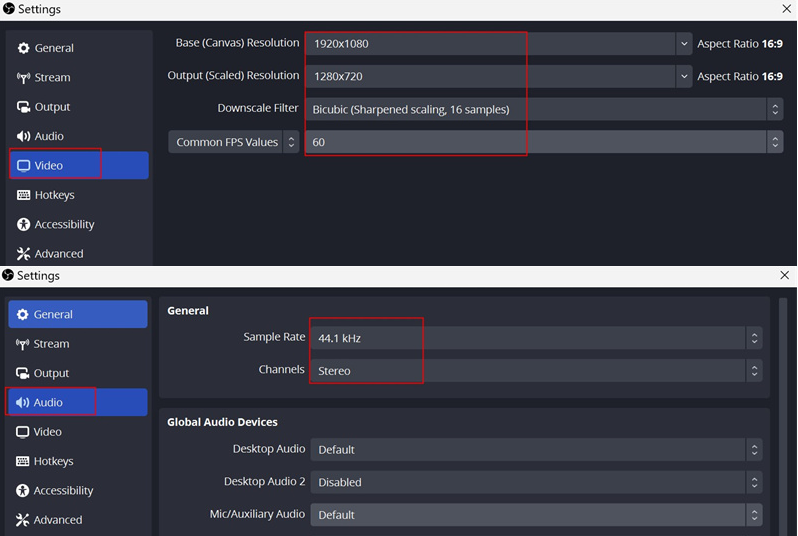
- Resolution: Lower the resolution to 720p60 or 1080p30 to reduce CPU usage and ensure smooth playback.
- Frames Per Second (FPS): Set the FPS to 30 or 60, depending on your preference and hardware capabilities.
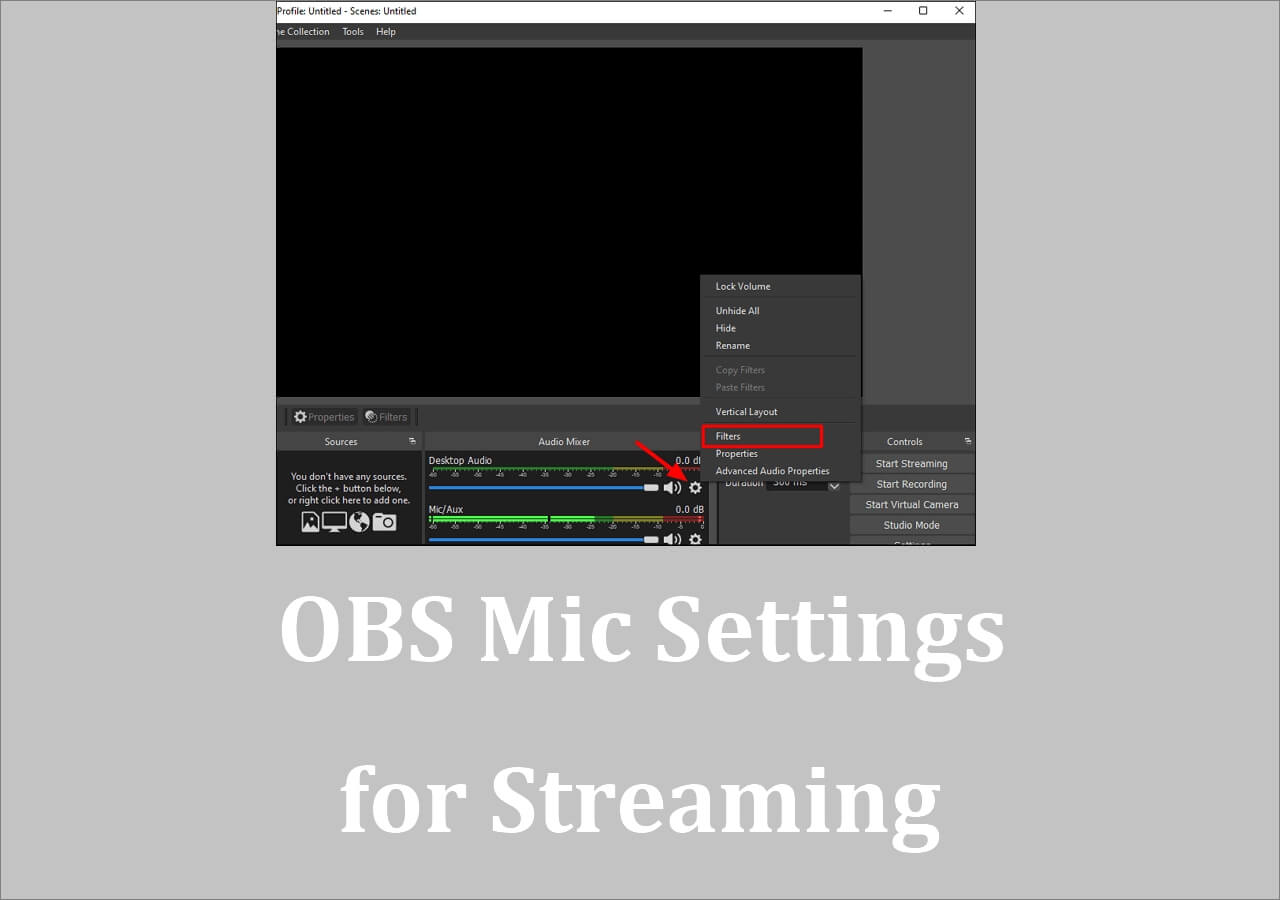
- Audio Settings: Use the built-in OBS audio mixer to optimize audio settings and minimize CPU usage.
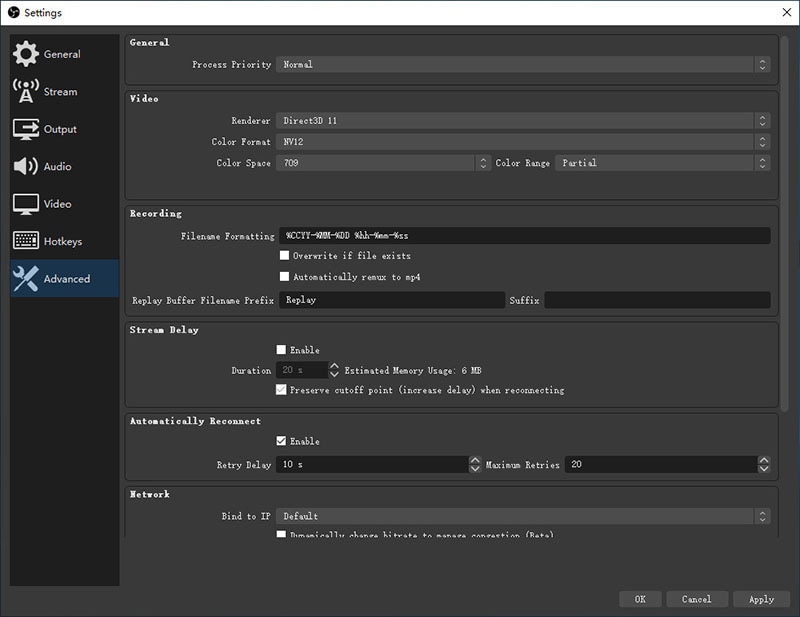
Software-Specific Settings
For low-end PCs, you may need to adjust software-specific settings in OBS to ensure smooth performance. Some settings you may want to consider include:
- Downscale Filter: Use the bilinear downsampling method to reduce CPU usage and minimize artifacts.
- Resolution and Aspect Ratio: Adjust the resolution and aspect ratio to match your display's native settings.
- Video Codec: Use a high-performance codec like H.264 or H.265 for better quality and reduced CPU usage.
- Buffer Size: Increase the buffer size to 4-8 seconds or more to minimize latency and CPU usage.
Advanced Settings for Low-End PCs
For further optimization, consider the following advanced settings:
- Hardware synchronization: Enable hardware synchronization to offload audio and video syncing to your GPU.
- Video Filter: Use the "Scene Change Detection" filter to minimize hardware resource usage.
- Settings for OpenGL and DirectX: Adjust OpenGL and DirectX settings to optimize graphics rendering and minimize GPU usage.
Conclusion
With these settings, you can optimize OBS for low-end PCs and achieve lag-free streaming and recording. Remember to adjust settings according to your hardware and content requirements for the best performance and quality. Happy streaming!
![Best OBS Settings For Low End PCs - [No Lag/Dropped Frames]](https://i.ytimg.com/vi/DfHvp_Qrb6k/maxresdefault.jpg "Best OBS Settings For Low End PCs - [No Lag/Dropped Frames]")


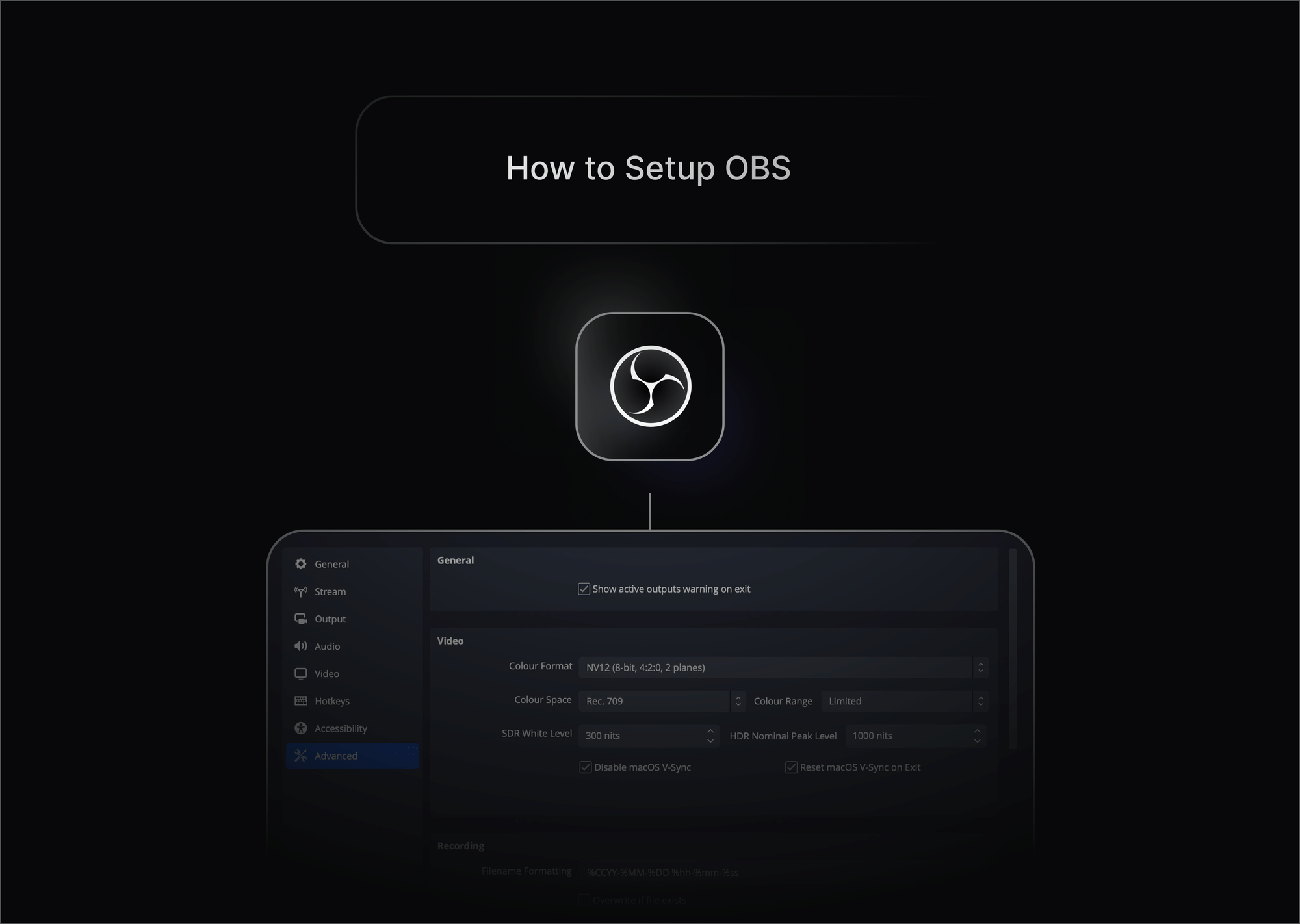
![Best OBS Settings for Low End PC [Recording&Streaming]](https://digitalfeet.com/wp-content/uploads/2024/02/Frame-1-1-1024x555.png "Best OBS Settings for Low End PC [Recording&Streaming]")