Securing Your Wi-Fi Connection on Mac: A Comprehensive Guide
As a Mac user, securing your Wi-Fi connection is crucial to protect your personal data and online activities from potential threats. A secure Wi-Fi connection on Mac not only ensures your online safety but also enhances your overall experience. In this article, we'll delve into the importance of securing your Wi-Fi connection, explore the best practices to achieve this, and provide you with tips to troubleshoot common issues.
Why Securing Your Wi-Fi Connection is Essential
With the increasing use of public Wi-Fi networks, the risk of cyber attacks and identity theft has also risen. An insecure Wi-Fi connection on Mac can leave your device vulnerable to hackers, who can steal your sensitive information, such as passwords and credit card details. Moreover, public Wi-Fi networks may be unencrypted, allowing hackers to intercept your data.
Best Practices for Securing Your Wi-Fi Connection on Mac
- Use a VPN**: A Virtual Private Network (VPN) creates a secure and encrypted connection between your Mac and the websites or services you use. This ensures that your online activities are protected from prying eyes.
- Update Your Router Firmware**: Regularly updating your router firmware is essential to ensure that your Wi-Fi network remains secure and up-to-date. This will help protect your network from potential threats and vulnerabilities.
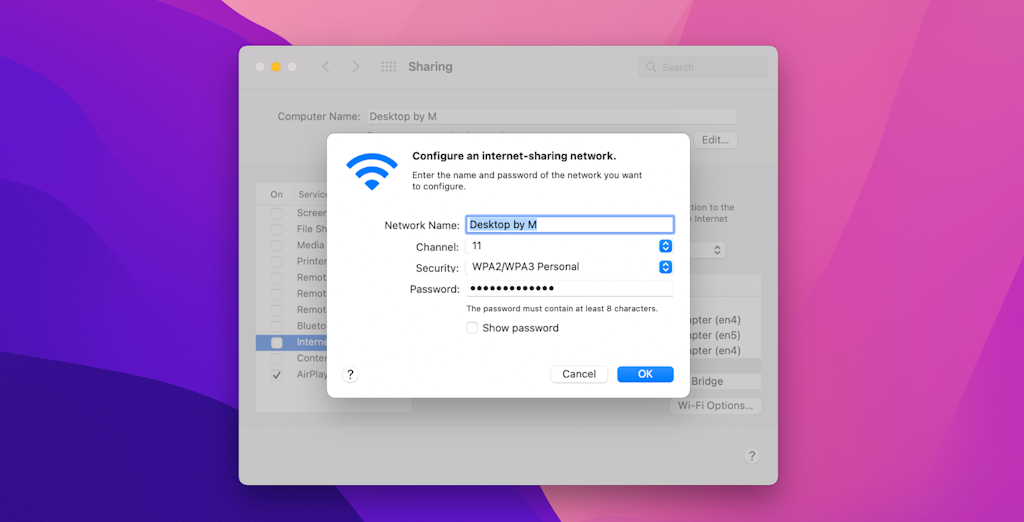
- Use Strong Passwords**: Use a strong and unique password for your Wi-Fi network, and make sure to keep it confidential. Avoid using default passwords or easily guessable combinations.
- Use WPA2 or WPA3 Encryption**: Ensure that your Wi-Fi network is using WPA2 or WPA3 encryption, which are the most secure encryption protocols available.
- Regularly Monitor Your Network**: Keep an eye on your network's activity, and be aware of any suspicious behavior. Look out for signs of malware or other security threats.
How to Connect to a Secure Wi-Fi Network on Mac
To connect to a secure Wi-Fi network on Mac, follow these simple steps:

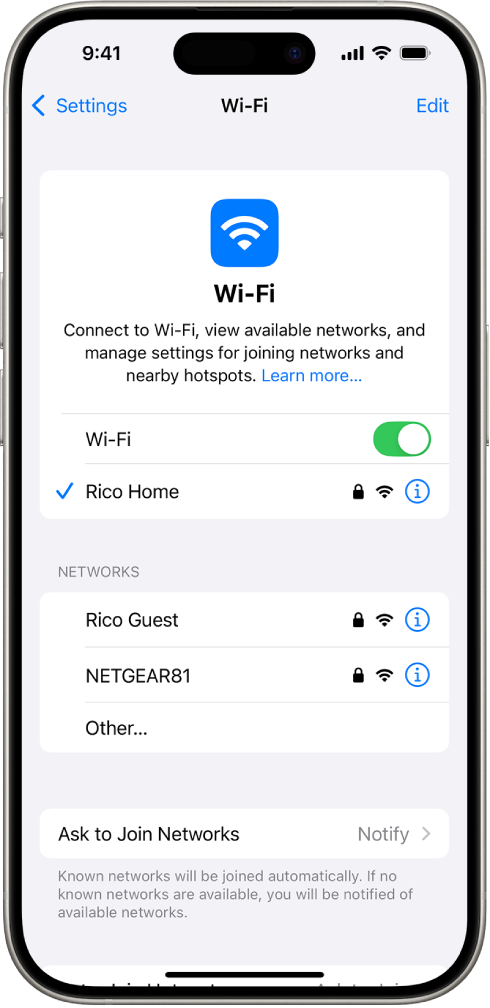
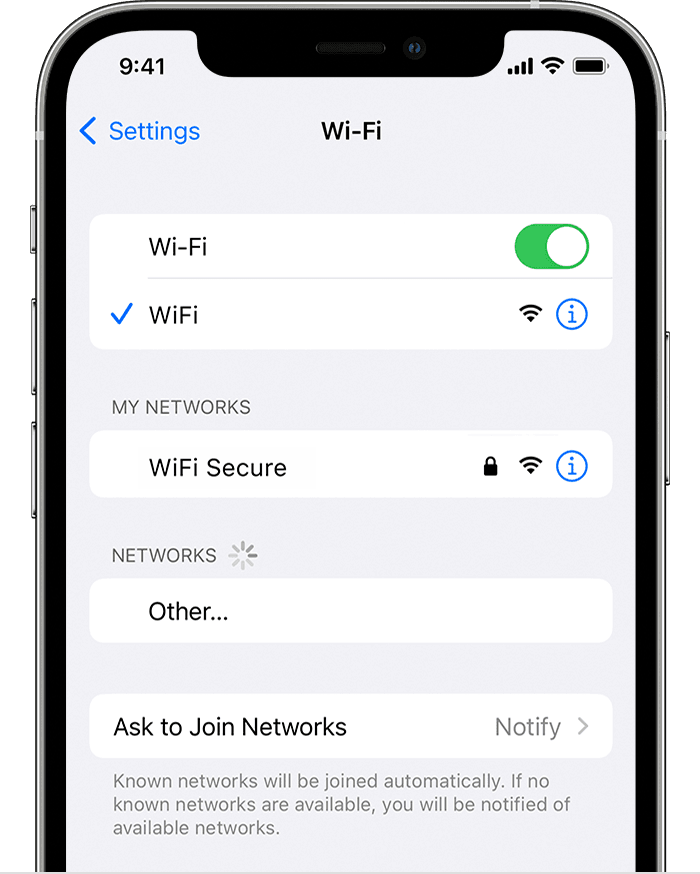
- Go to your Mac's Wi-Fi menu and select the network you want to connect to.
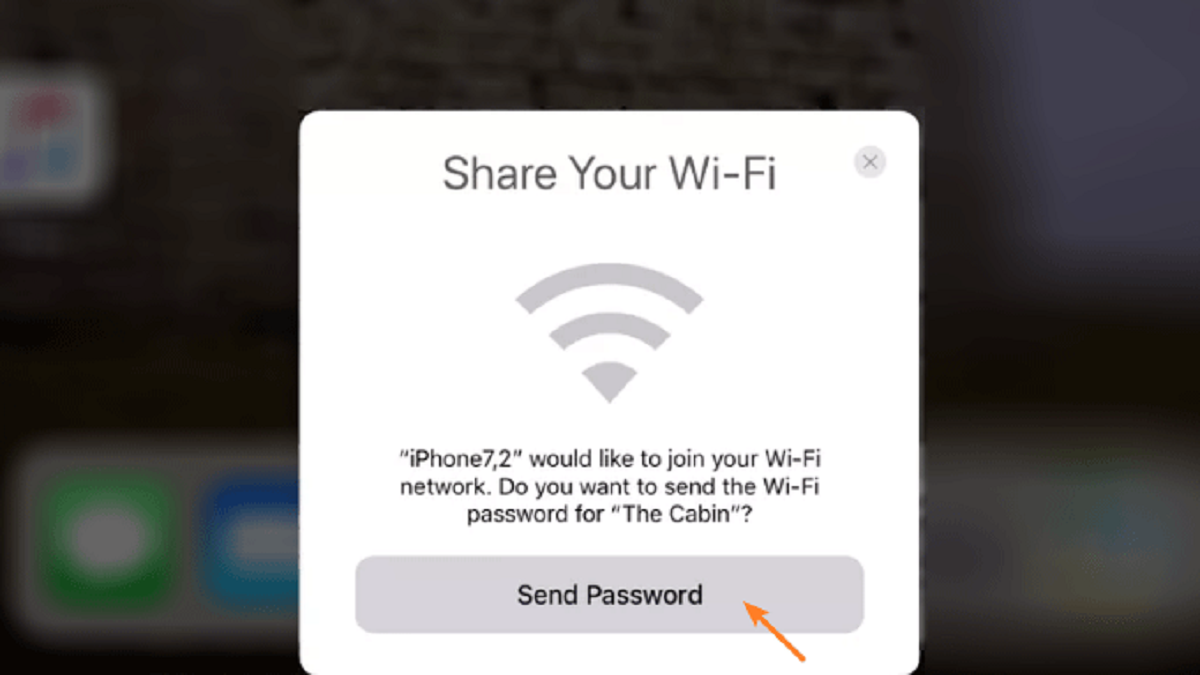
- Enter the correct password or authentication details.
- Ensure that your Mac is connected to a trusted network, and verify the security settings.
- Use a VPN or other security measures to further protect your online activities.
Troubleshooting Common Issues with Your Wi-Fi Connection
If you're experiencing issues with your Wi-Fi connection, such as failing to connect or experiencing weak signal strength, try the following troubleshooting tips:
- Restart your router and Mac.
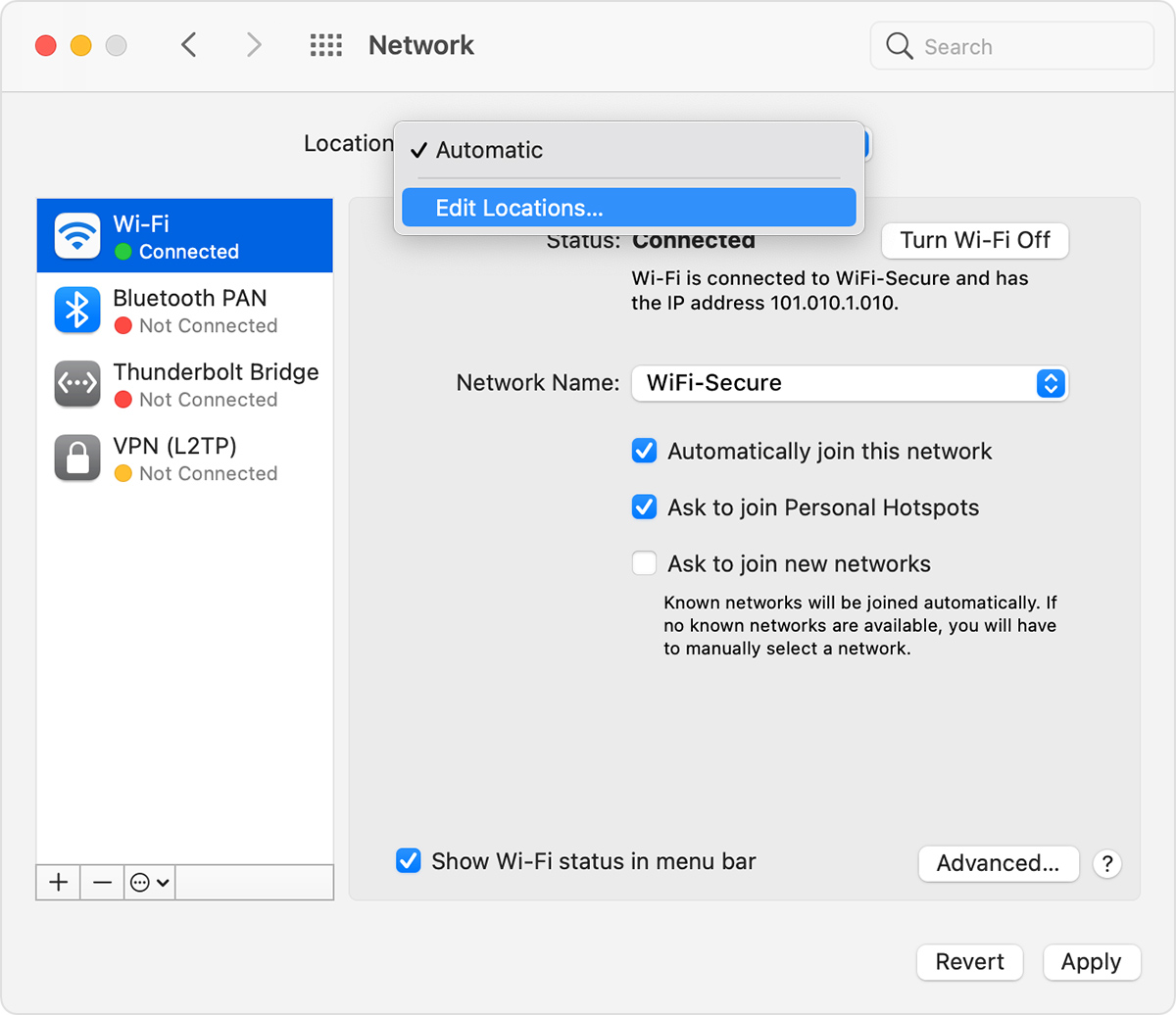
- Check your Wi-Fi settings and ensure that you're connected to the correct network.
- Update your Mac's operating system and router firmware.
- Reset your network settings and try connecting again.
- Consult your router's user manual or manufacturer's instructions for specific troubleshooting steps.
Conclusion
Securing your Wi-Fi connection on Mac is a crucial step in protecting your personal data and online activities from potential threats. By following the best practices outlined in this article and using a VPN or other security measures, you can ensure a secure Wi-Fi connection on Mac that keeps you safe and secure online.
Remember to regularly monitor your network and update your router firmware to stay ahead of potential threats. If you encounter any issues with your Wi-Fi connection, don't hesitate to try the troubleshooting tips provided in this article.






:max_bytes(150000):strip_icc()/001_connecting-android-device-to-wifi-577618-755697d5bc5649c9aa05c973cc6e76ae-00e87780bf824c61b6872ec93285bdbe.jpg "how to fix weak security wifi on mac - Apple Community")