Setting up Google Home with Philips Hue Bulbs: A Step-by-Step Guide
Introduction
If you're looking to enhance your smart home experience, setting up Google Home with Philips Hue bulbs is a great place to start. This comprehensive guide will walk you through the process of connecting your Philips Hue lights to Google Home, allowing you to control your lighting with just your voice.Understanding Compatibility
Before we dive into the setup process, it's essential to understand the compatibility requirements between Philips Hue and Google Home. Both devices must be connected to the same Wi-Fi network, and you'll need to use the Philips Hue app and the Google Home app to link your accounts. Ensure that your Philips Hue bulbs are successfully set up on the same Wi-Fi network and that you can control them using the Philips Hue mobile app.Setting Up the Connection
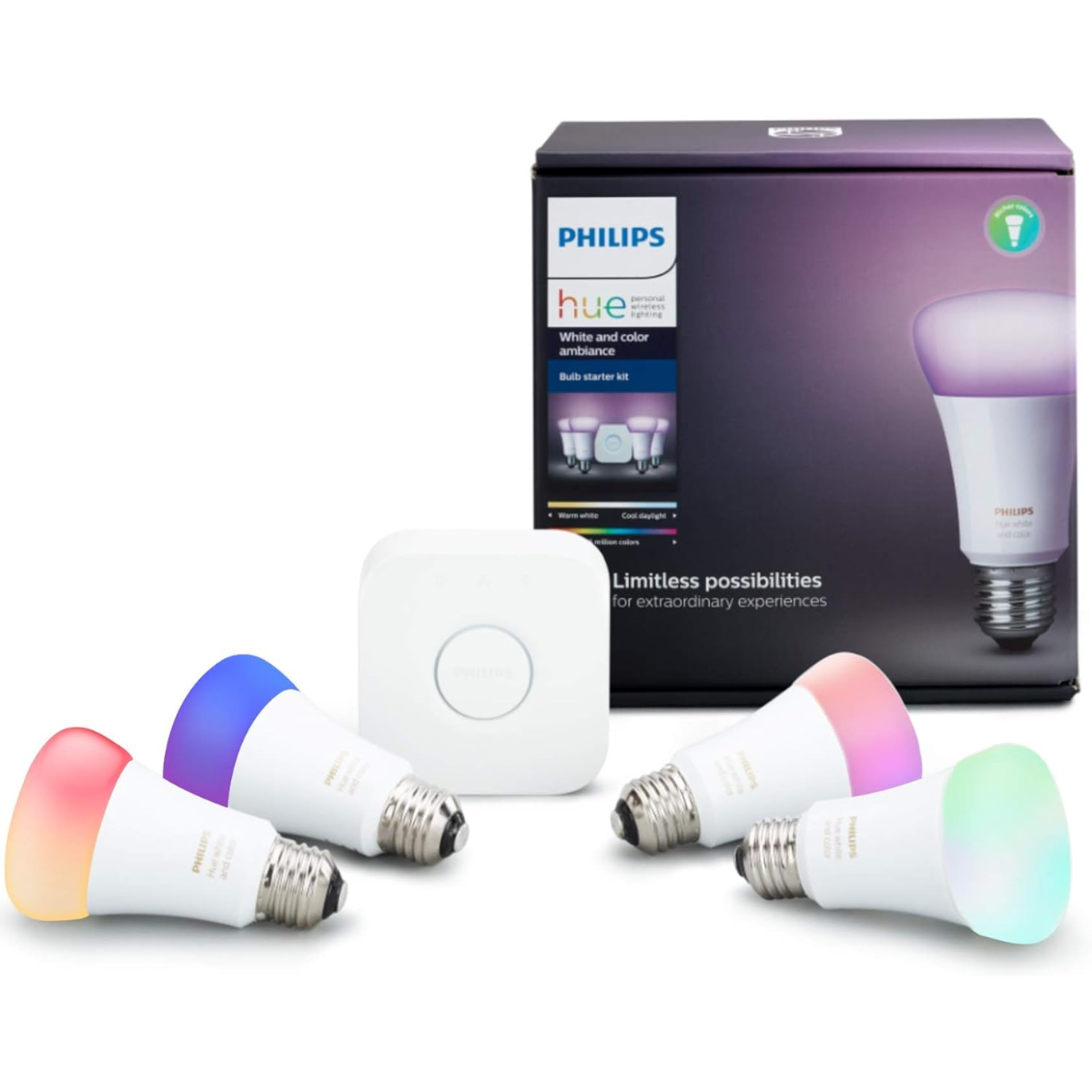
To set up the connection between Philips Hue and Google Home, follow these steps:- Install the Philips Hue Bridge: Start by plugging the Philips Hue Bridge into a power outlet using the provided power adapter. Ensure that the bridge is connected to your Wi-Fi network.
- Connect Philips Hue Lights to the Bridge: Add bulbs to the bridge via the Philips Hue app. Create rooms in the Hue app to group bulbs by space, such as "Living Room" and "Kitchen".
- Set Up Google Home: Ensure your Google Home device is connected to the same Wi-Fi network as the Philips Hue Bridge. Open the Google Home app and sign in with your Google account.
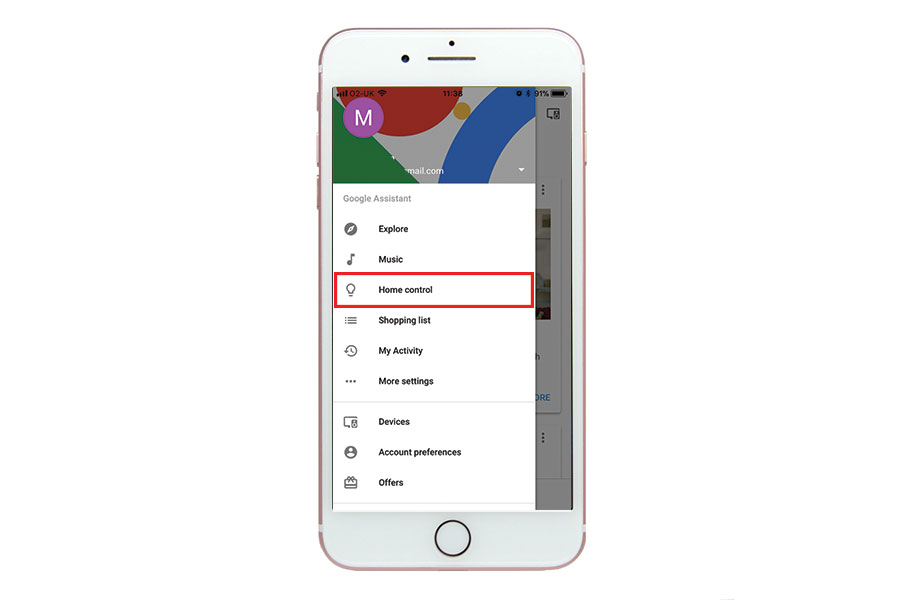
- Link Philips Hue Account to Google Home: In the Google Home app, navigate to the "Rooms" tab and select "Add Room." Choose the room you created in the Philips Hue app and select the Philips Hue bulbs. Link your Philips Hue account to Google Home by entering your Philips Hue account credentials.
Voice Commands in Action
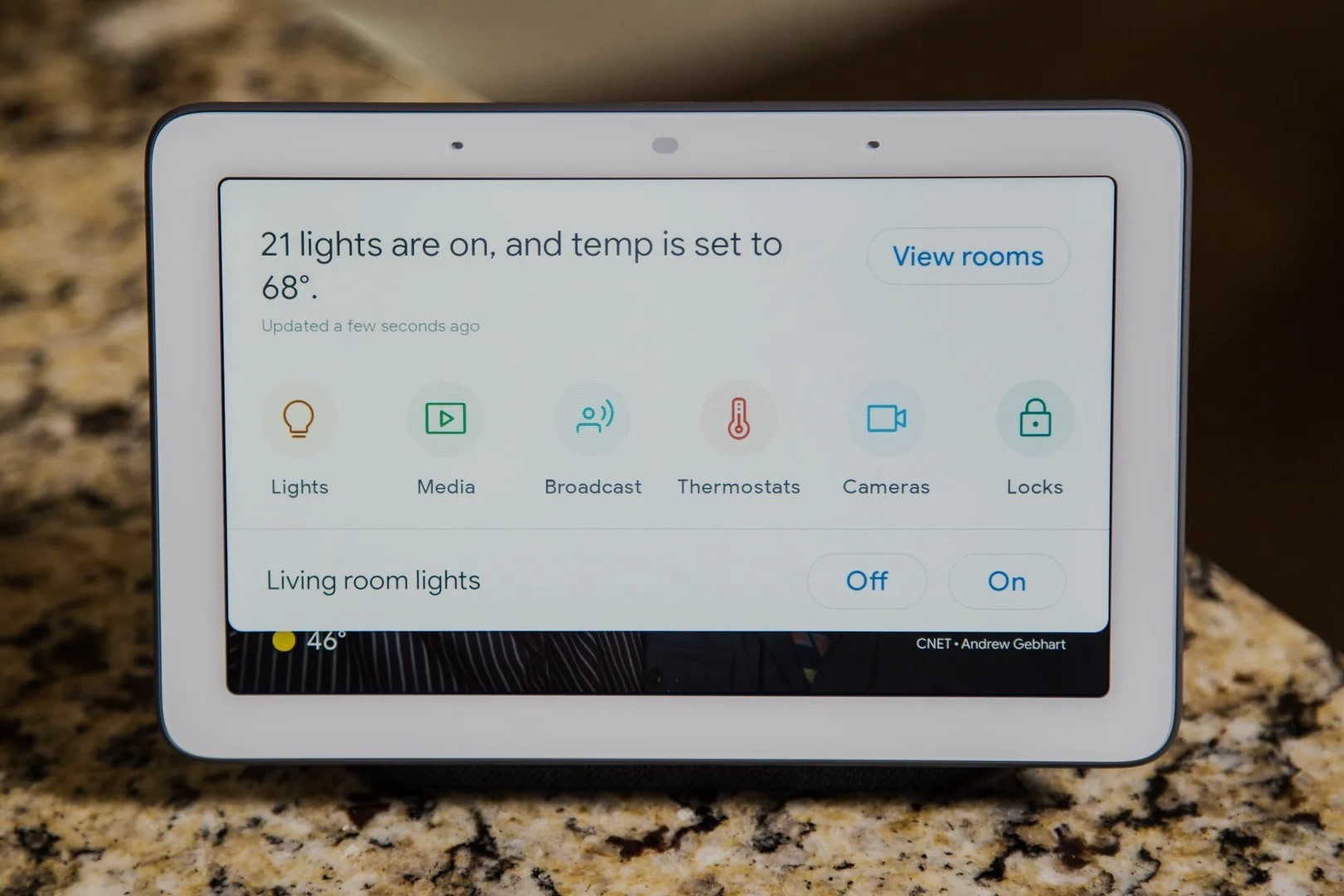
Now that you've set up the connection, you can start using voice commands to control your Philips Hue lights with Google Home. Here are some examples of voice commands you can use:- "Ok Google, turn on the living room lights."
- "Ok Google, set the kitchen lights to 50% brightness."
- "Ok Google, turn off the bedroom lights."
Benefits of Using Philips Hue with Google Home
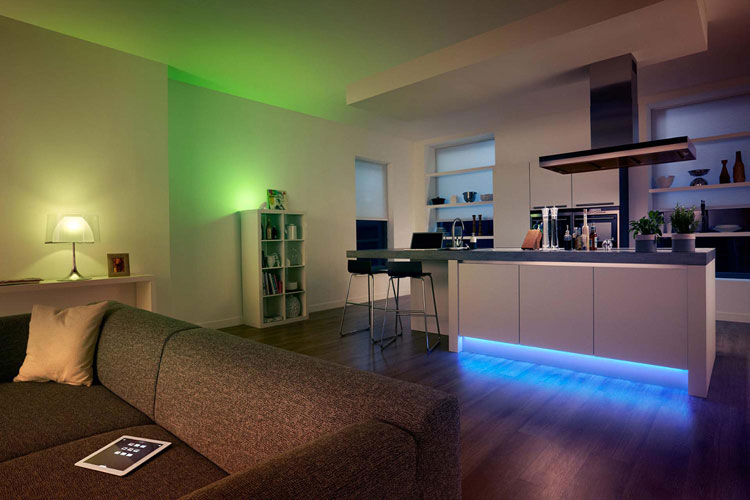
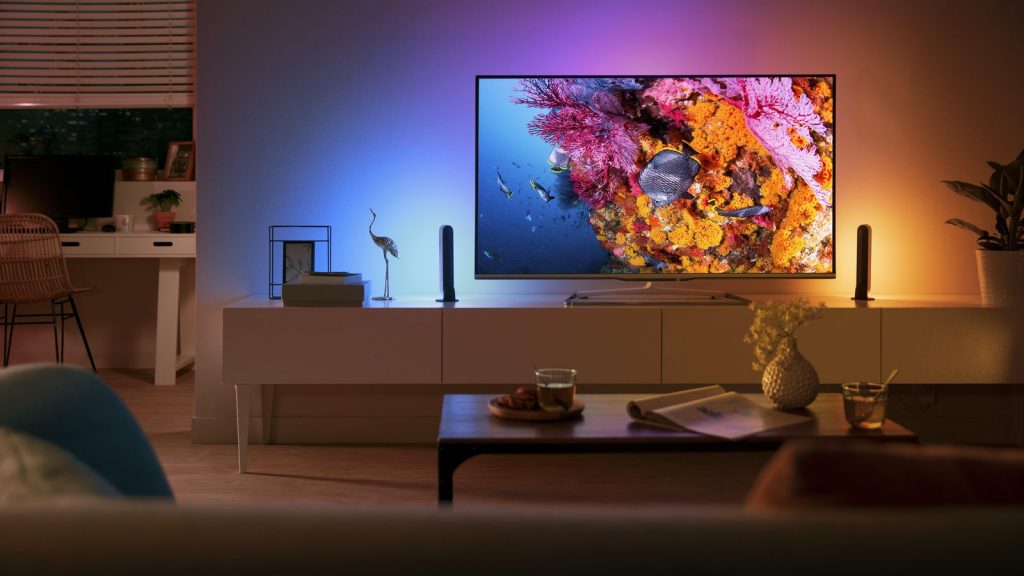
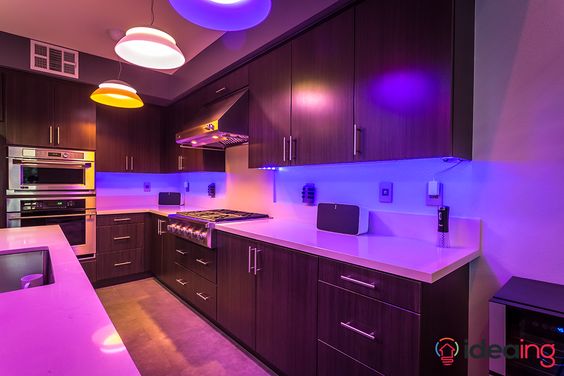
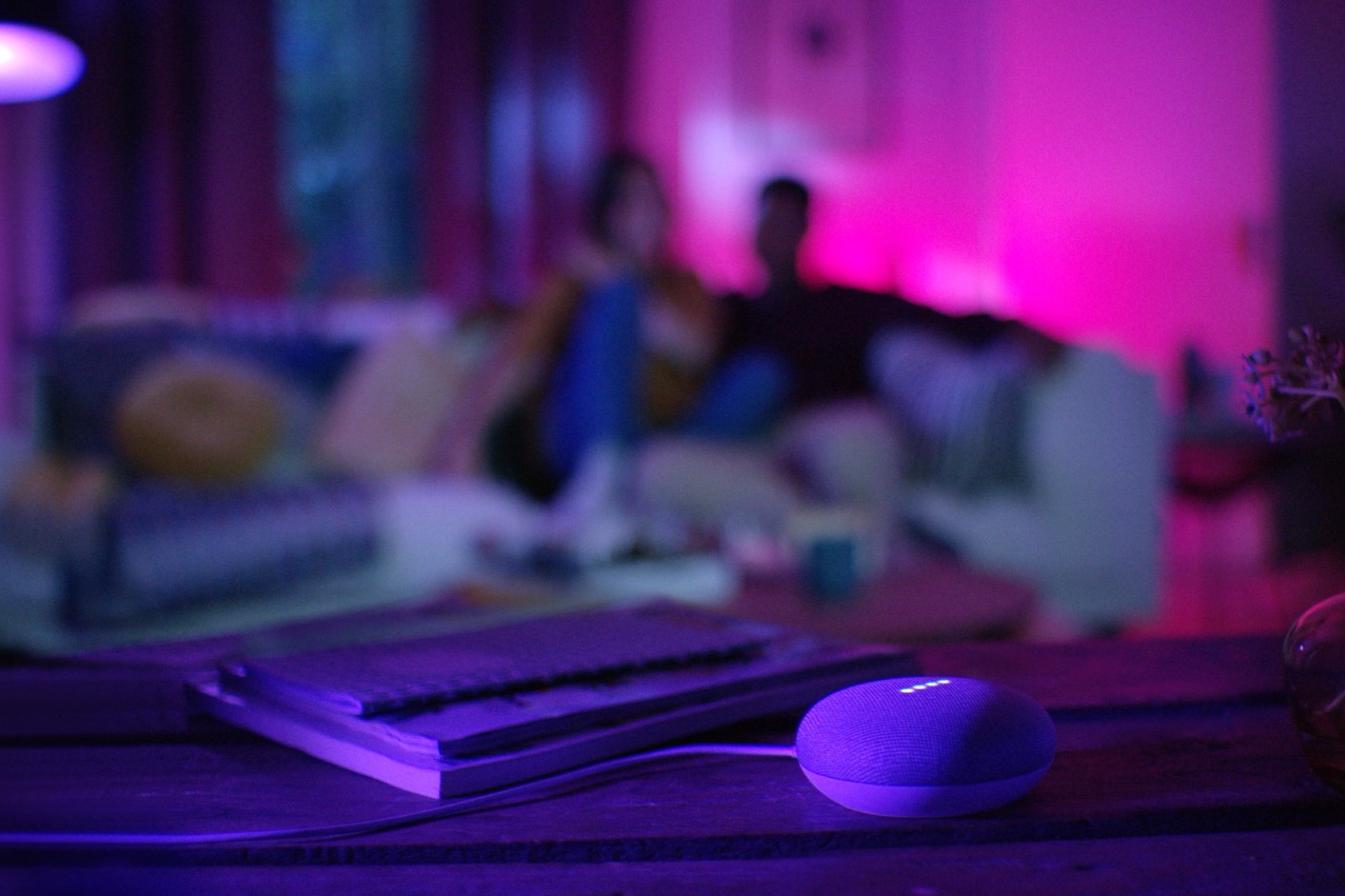
- Convenience: Control your lighting with just your voice, making it easy to adjust the ambiance in your home.
- Customization: Create custom scenes and automations using the Philips Hue app and Google Home.
- Ease of Use: Philips Hue bulbs are easy to install and require minimal setup.
Conclusion
Setting up Google Home with Philips Hue bulbs is a straightforward process that enhances your smart home experience. By following these steps, you can connect your Philips Hue lights to Google Home and control your lighting with just your voice. Experiment with voice commands and explore the customization options available in the Philips Hue app and Google Home app to create a seamless and enjoyable smart home experience.Philips Hue Products Compatible with Google Home
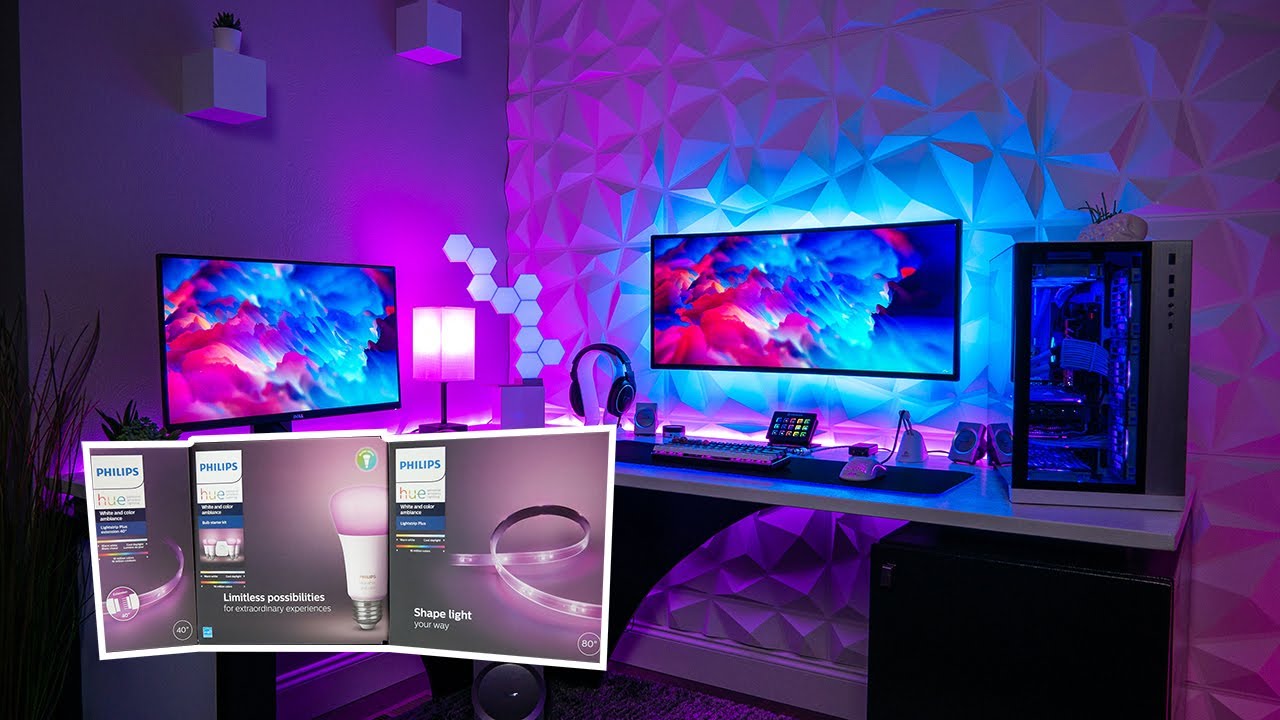
Here are some Philips Hue products that are compatible with Google Home:- Philips Hue A19 Bluetooth 60W Smart LED Bulb (3 Pack)
- Philips Hue White and Color Ambiance BR30 LED Smart Bulbs (Bluetooth Compatible)
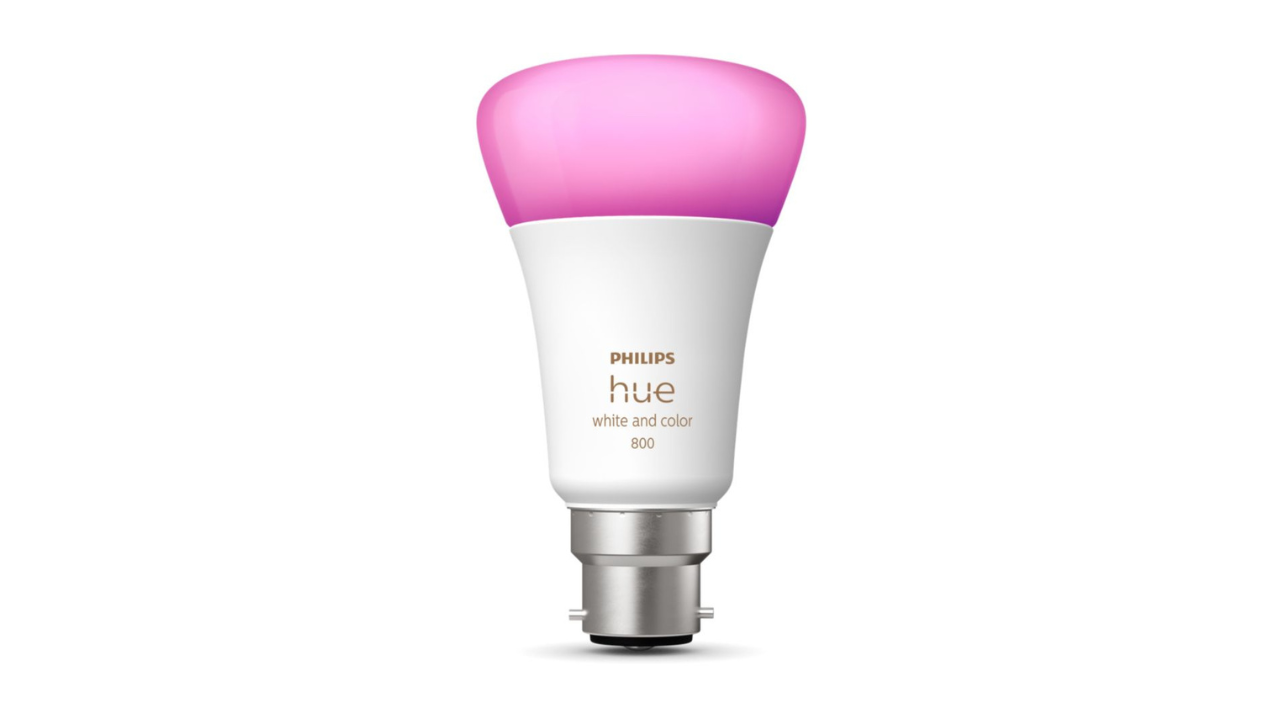
- Philips Hue Smart LED A19 Bulb White & Color (Bluetooth Compatible)
- Philips Hue White and Color Ambiance E26 2-Pack Starter Kit with Bridge
Shop Philips Hue Products
You can shop for Philips Hue products at Best Buy or Lowe's. Check out the links below to explore their product offerings:- Best Buy: Philips Hue A19 Bluetooth 75W Smart LED Bulb White and Color Ambiance
- Best Buy: Philips Hue A21 Bluetooth 100W Smart LED Bulb White and Color Ambiance
- Lowe's: Philips Hue Matter Certified 75-Watt EQ A19 Multicolor Medium screw base E26 Dimmable Smart LED General purpose Light Bulb 2-Pack