Setup VPN on Android TV: A Step-by-Step Guide to Private Streaming
Want to enjoy streaming shows on your Android TV or Android TV Box privately and without buffering? Get a VPN and set it up! In this article, we'll show you how to unlock the full potential of your Android TV or Android TV Box by bypassing geo-restrictions and ensuring a secure and buffering-free streaming experience.
Why Setup VPN on Android TV?
Streaming on Android TV or Android TV Box can be a great way to enjoy your favorite shows and movies, but without a VPN, your data and personal information may be at risk. A VPN, or Virtual Private Network, creates a secure and private connection between your device and the internet, protecting your data and identity from hackers and cyber threats. Additionally, a VPN can help you access content that's not available in your region by changing your IP address to a different location.
Choosing the Right VPN for Android TV
When choosing a VPN for your Android TV or Android TV Box, there are several factors to consider. Here are a few things to keep in mind:
- Speed: Look for a VPN that offers fast and stable connection speeds to minimize buffering and ensure smooth streaming.
- Servers: Choose a VPN with a large network of servers around the world to ensure you can access content from different regions.
- Privacy: Opt for a VPN that prioritizes security and anonymity, offering features such as encryption and a no-logs policy.
- Compatibility: Make sure the VPN you choose is compatible with your Android TV or Android TV Box.
Setup VPN on Android TV using a VPN App
Setting up a VPN on your Android TV or Android TV Box using a VPN app is a relatively straightforward process that follows these steps:
Step 1: Download and Install the VPN App
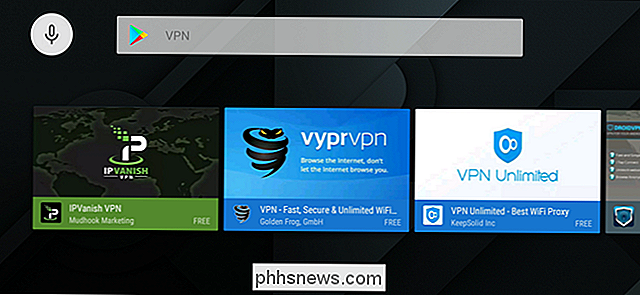
Visit the Google Play Store and download and install the VPN app of your choice. Some popular options include ExpressVPN, NordVPN, and VyprVPN.
Step 2: Enter Your Login Credentials
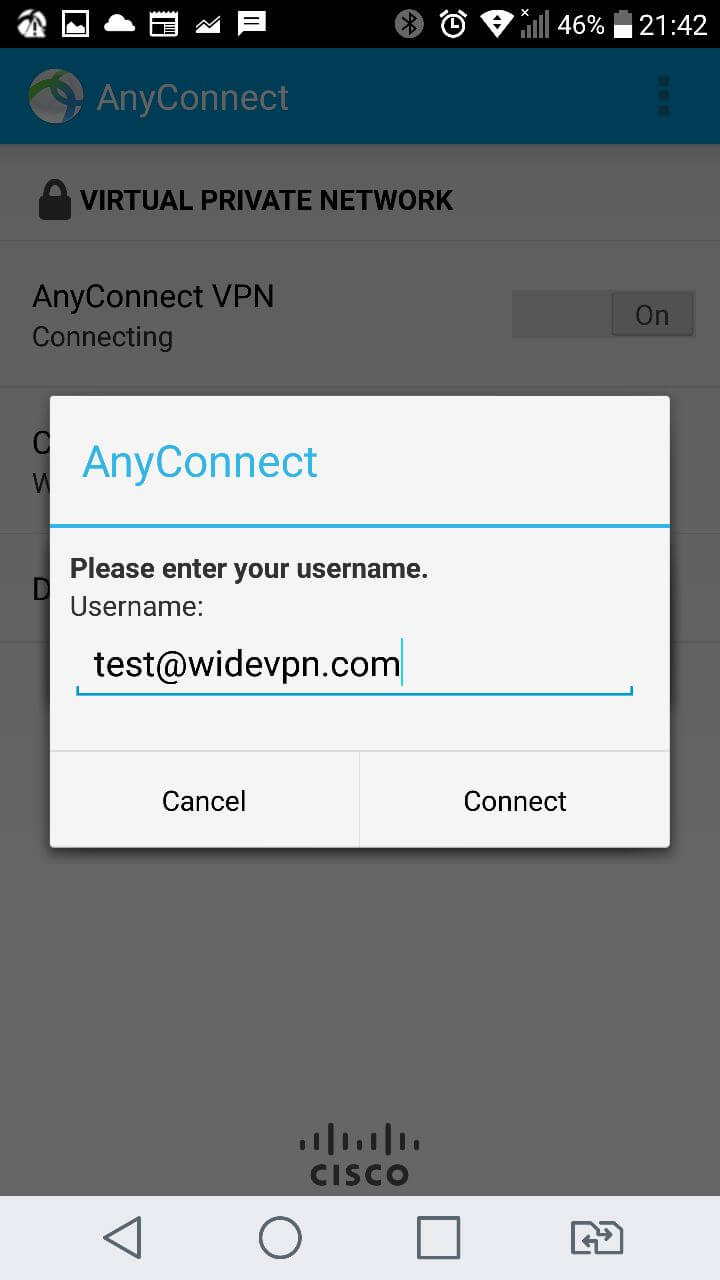
Open the VPN app and enter your login credentials, which typically include your username and password.
Step 3: Connect to a Server
Choose a server location and click the "Connect" button to establish a secure and private connection.
Step 4: Verify Your Connection
Check your browser or device to ensure you're now connected to the VPN server and your IP address has been changed.

Setup VPN on Android TV using a Router
Alternatively, you can setup a VPN on your Android TV or Android TV Box using a router. This method is ideal if you have a non-smart TV or a streaming device that doesn't support native VPN apps.
Step 1: Connect Your Router to the Internet
Connect your router to the internet router and configure it according to the manufacturer's instructions.
Step 2: Configure Your VPN on the Router
Configure the VPN on your router by following the manufacturer's instructions and entering your login credentials.
Step 3: Connect Your Android TV to the Router
Connect your Android TV to the router using an Ethernet cable, Wi-Fi, or a streaming device.
Step 4: Verify Your VPN Connection
Check your browser or device to ensure you're now connected to the VPN server and your IP address has been changed.
Conclusion
Setup VPN on Android TV offers numerous benefits, including enhanced security, private streaming, and access to geo-restricted content. By following the step-by-step guide outlined in this article, you can enjoy a seamless streaming experience on your Android TV or Android TV Box.
Best VPNs for Android TV
We recommend the following VPNs for Android TV:
- ExpressVPN: A fast and secure VPN with a large network of servers worldwide.
- NordVPN: A user-friendly VPN offering advanced security features and a no-logs policy.
- VyprVPN: A fast and secure VPN with a large network of servers and advanced features.