Fix iPad Home Button: A Comprehensive Guide
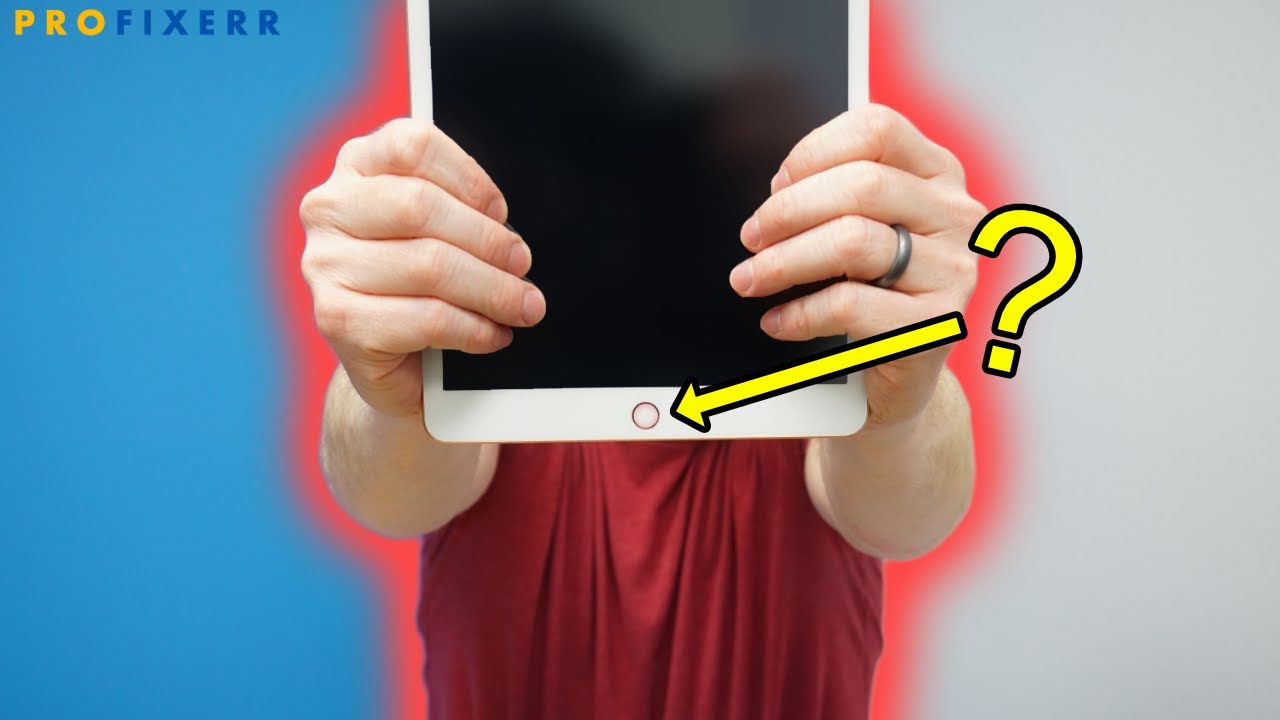
Your iPad home button stopped working, and you're left wondering what to do. In this article, we'll show you how to troubleshoot the issue and potentially fix it without spending a fortune on repairs.
Understanding Why Your iPad Home Button Might Be Unresponsive
Before we dive into the troubleshooting steps, let's quickly understand why your iPad home button might be unresponsive. There are several reasons for this issue, including a simple software hiccup, physical obstructions, or even a setting you didn't realize was changed.
Software-Related Issues
Sometimes, a simple software glitch can cause your iPad home button to stop working. Here are a few potential solutions:
- Update your software: Make sure your iPad is running the latest software version. Go to Settings > General > Software Update to check for any available updates.
- Reset your settings: Go to Settings > General > Reset and select Reset All Settings. This will reset your iPad's settings to their default values.
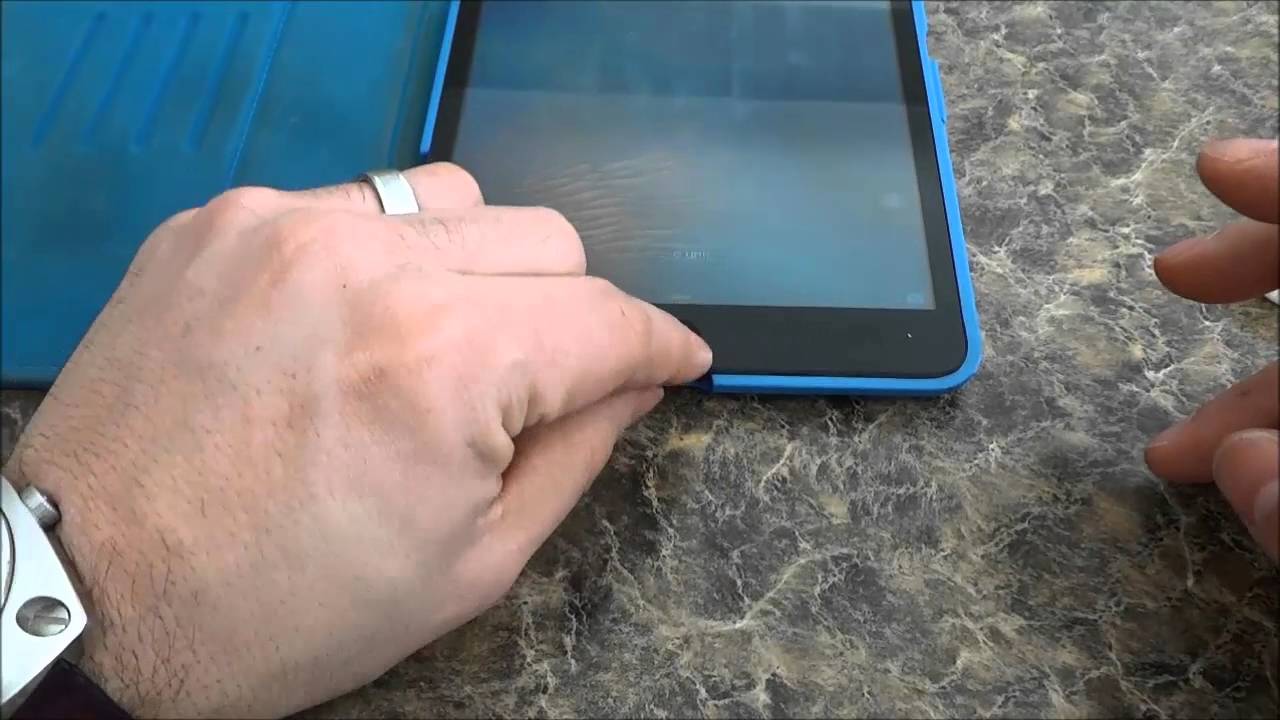
- Clean the home button: Dirt, dust, or other debris might be causing the issue. Clean the home button with a soft cloth or a specialized cleaning solution.
Physical Issues
Physical obstructions or damage can also cause your iPad home button to stop working. Here are a few potential solutions:
- Check for physical damage: Inspect your iPad for any physical damage, such as cracks or broken glass.
- Replace the home button: If the home button is damaged beyond repair, you might need to replace it. However, this can be a costly and time-consuming process.
Settings-Related Issues
Sometimes, a setting you didn't realize was changed can cause your iPad home button to stop working. Here are a few potential solutions:

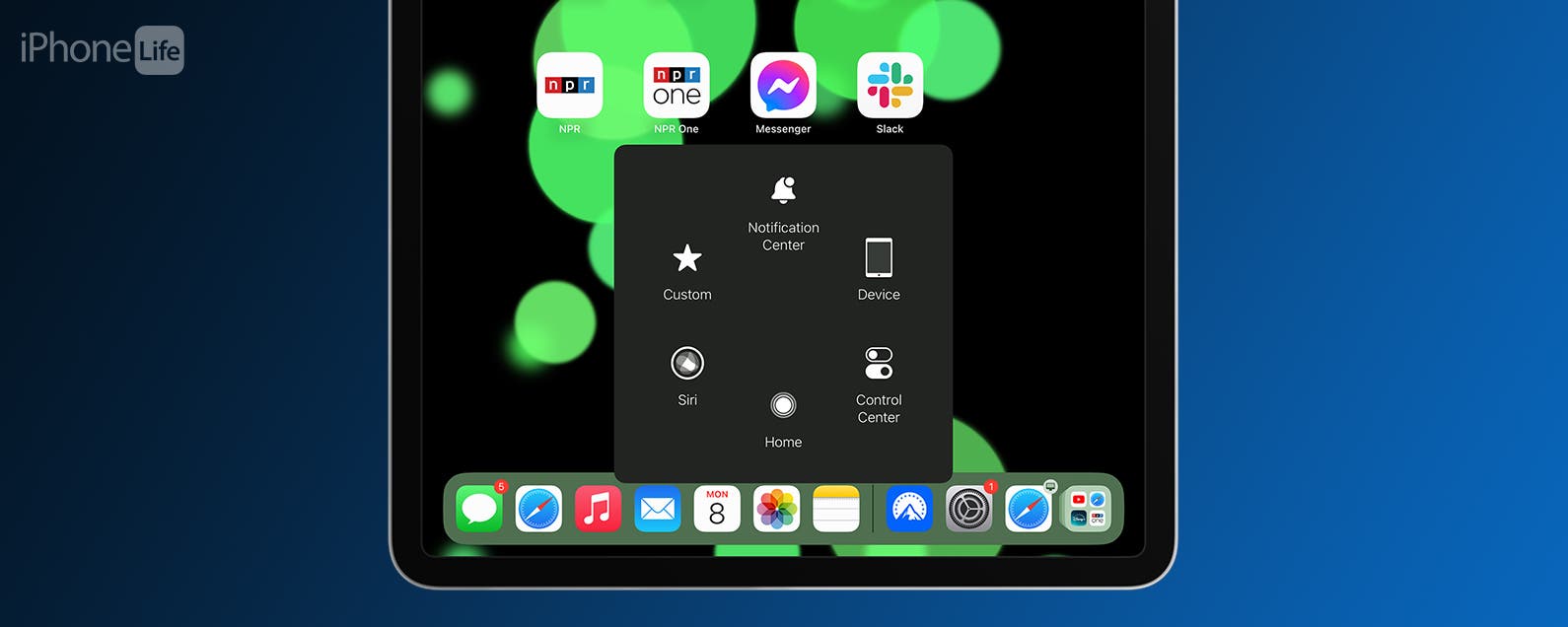
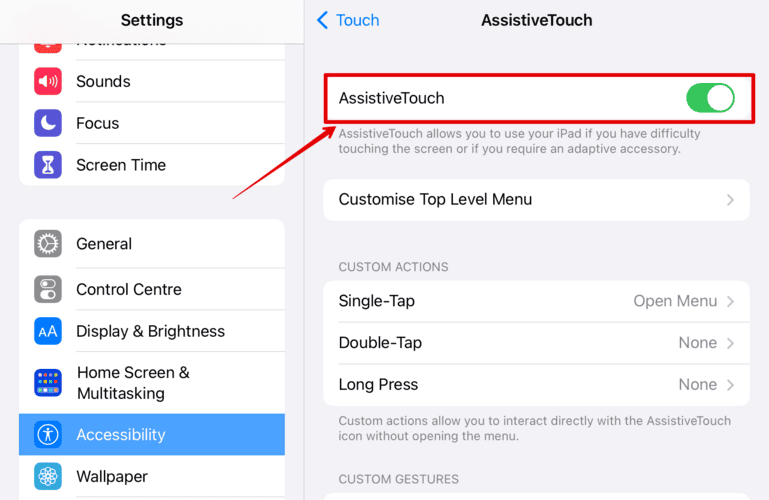
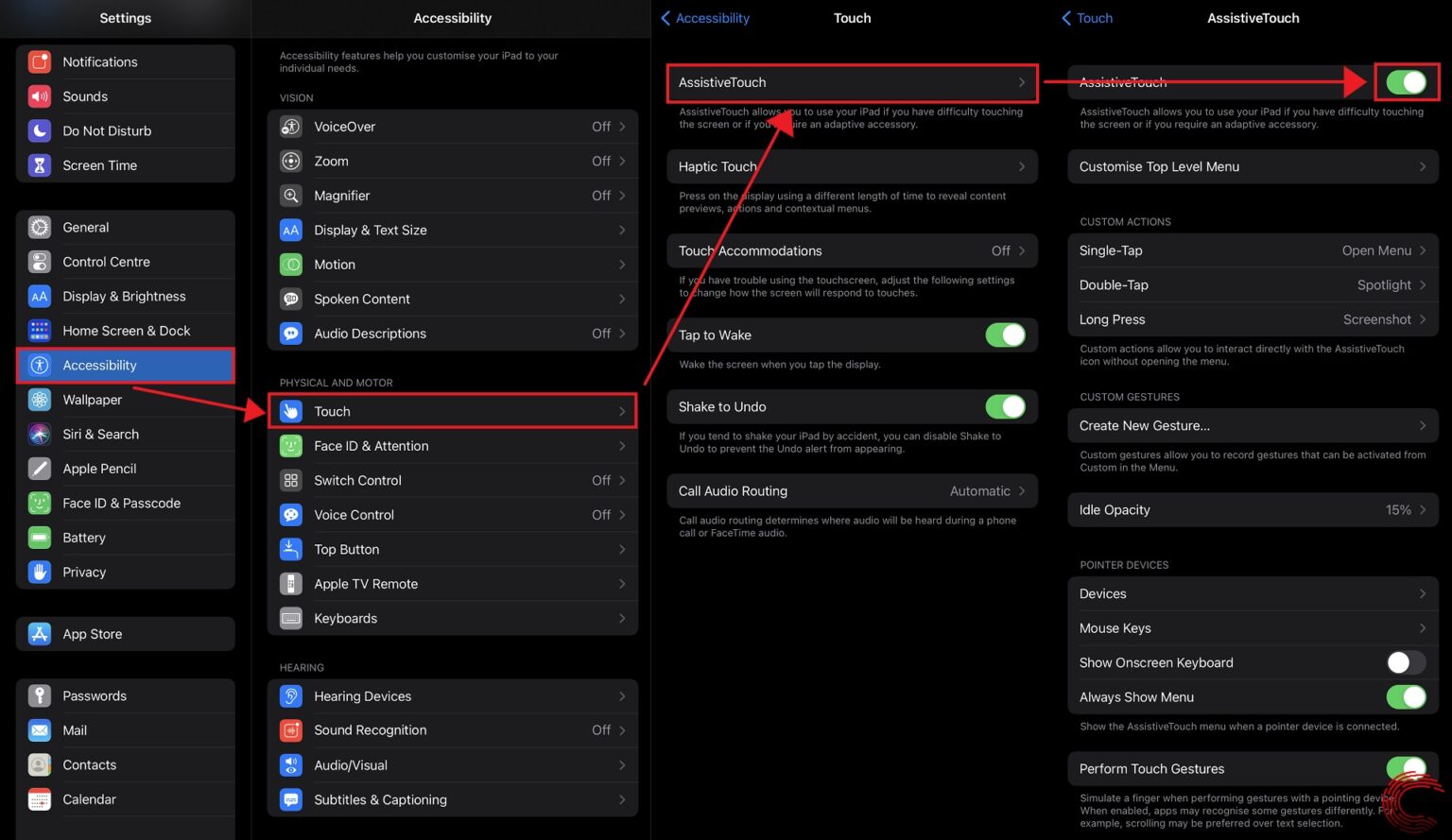
- Check your AssistiveTouch settings: Go to Settings > General > Accessibility > AssistiveTouch and make sure it's enabled.
- Reset your iPad: Go to Settings > General > Reset and select Reset All Settings.
Using AssistiveTouch
AssistiveTouch is a feature that allows you to use gestures to interact with your iPad. You can enable it by going to Settings > General > Accessibility > AssistiveTouch. This can be a temporary solution to help you navigate your iPad until you can fix the home button issue.
When to Seek Professional Help
If none of the above solutions work, it might be time to seek professional help. If your iPad home button is damaged beyond repair or you're not comfortable with DIY repairs, consider taking your iPad to an authorized Apple service center or a professional repair service.
Conclusion
Fixing an iPad home button issue can be a challenging but not impossible task. By following the steps outlined in this article, you can troubleshoot the issue and potentially fix it without spending a fortune on repairs. Remember to always back up your data and seek professional help if needed.
Additional Tips
Here are a few additional tips to help you troubleshoot and fix your iPad home button issue:
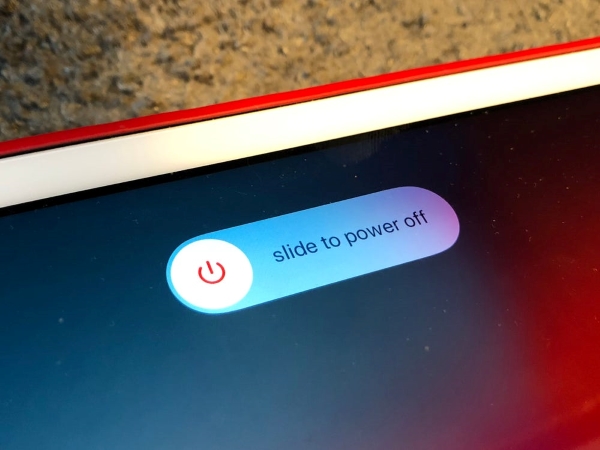
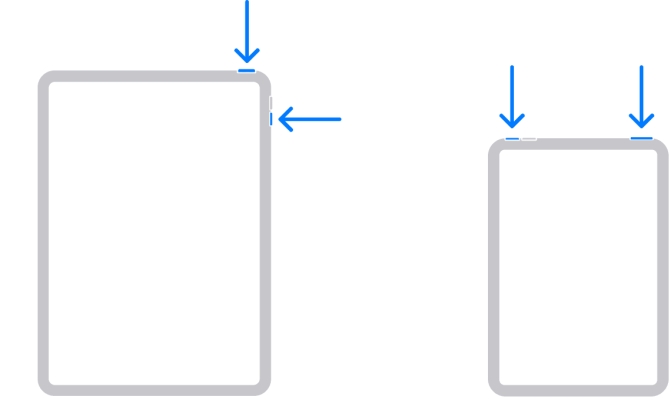
- Restart your iPad: Sometimes, a simple restart can resolve the issue.
- Reset your iPad's network settings: Go to Settings > General > Reset and select Reset Network Settings.
- Check for software updates: Make sure your iPad is running the latest software version.
By following these tips and troubleshooting steps, you can potentially fix your iPad home button issue and get back to using your device without any problems.